The new module for driver statements in OpenRoad: what changes from Payroll, and how your team gets ready.
Wages is where you review, adjust, lock, send and export your drivers’ weekly statements. It replaces the Payroll page. Each driver gets one statement per pay week, built from their loads, miles, accessorials, fuel card transactions, deductions and hours worked.
Note: During November 2026, accounts move from Payroll to Wages one at a time. Our team will contact you before your account moves. Statements from weeks before the move stay available on the Payroll page. |
Before You Begin
Make sure you have the following ready:
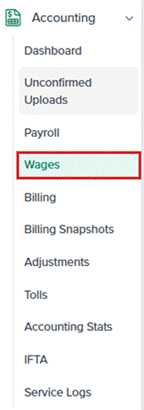
- Wages enabled on your account. OpenRoad Support turns it on. Once it is on, Wages appears under Accounting in the left menu.
- A payroll schedule and a compensation for every driver. Open the driver’s profile and go to the Accounting tab. A driver missing either one does not get a statement.
- Your payroll password. Locking and unlocking statements asks for it. You can set it in Settings → Passwords.
- The driver IDs your payroll or accounting software needs, for example the Company ADP ID for W2 drivers if you export to ADP.
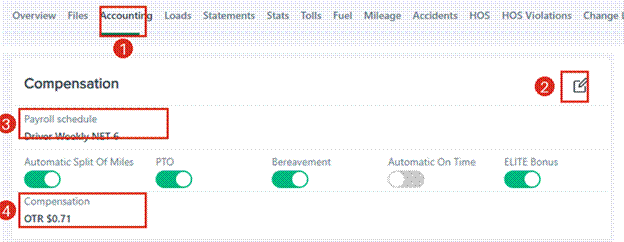
Part 1: Open Wages
From the left menu, go to Accounting → Wages.
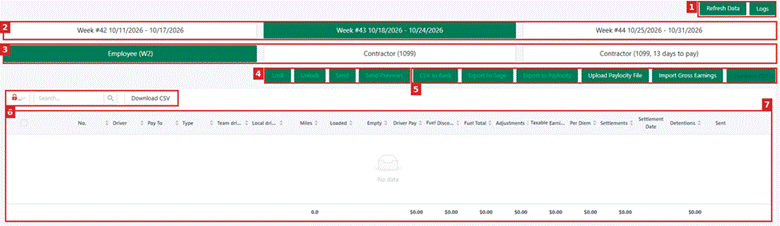
# | Area | What it does |
1 | Refresh Data and Logs | Refresh Data recalculates the open statements of the week. Logs shows the history of your exports. |
2 | Pay weeks | Select the week you want to work on. |
3 | Tabs | One tab per tax type and days to pay, for example Employee (W2) and Contractor (1099). |
4 | Lock, Unlock, Send, Send Previews | Actions for the statements you select in the list. |
5 | Export buttons | Exports to your payroll or accounting software. The buttons you see depend on the software connected to your account. |
6 | Filter, search and Download CSV | Show locked, unlocked or all statements, search a driver, and download the list. |
7 | Statement list | One row per driver, with miles, driver pay, fuel, adjustments, per diem, settlement and settlement date. A red lock means the statement is locked; a check mark in Sent means it was emailed. |
Part 2: Review a Week
- Click the week you want to review, then the tab of the drivers you want to see.
- Click Refresh Data so the statements include the latest loads and changes.
- Review the totals in the list. Use the search box to find a driver.
- Click a driver’s row to open their statement.
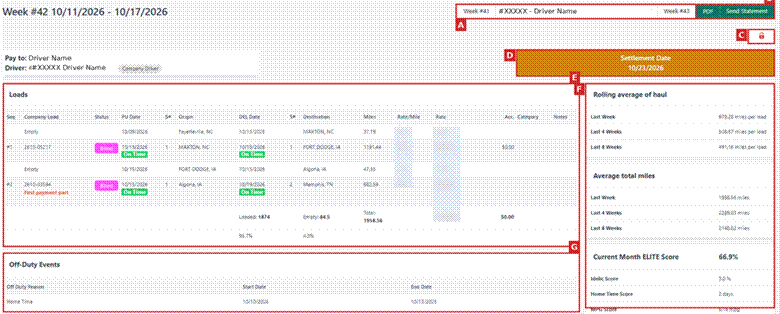
Label | What it shows |
A | Move to the previous or next week, or select another driver. |
B | PDF downloads the statement. Send Statement emails it to the driver. |
C | Lock status of the statement. |
D | The settlement date (when the driver is paid). |
E | The driver’s loads for the week, including empty legs, with miles, rate per mile, pay and accessorials. |
F | Driver performance: average haul, average miles and ELITE score. |
G | Off-Duty Events, such as home time. |
Further down the statement you find the Earnings panel and the Fuel Card Transactions. Fuel purchases and cash advances made with the driver’s assigned fuel card are added automatically.
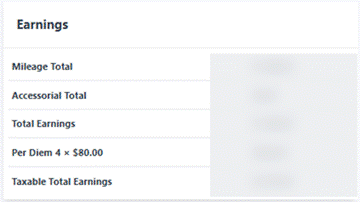

Note: An open (unlocked) week is live: it is recalculated each time the page loads or you click Refresh Data. Refresh Data rebuilds every driver of the week, so it can take a moment. |
Part 3: Enter Hours for Hourly Drivers
Hours are entered in Wages every week, for every hourly driver.
- Open the hourly driver’s statement for the week.
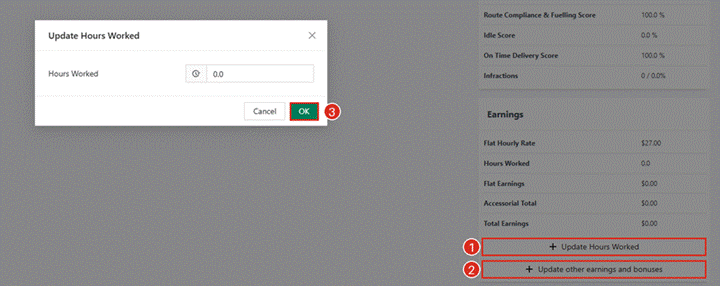
- In the Earnings panel, click + Update Hours Worked (1).
- Enter the hours worked that week and click OK (3).
- Click Refresh Data. Flat earnings equal the hours times the driver’s hourly rate.
Part 4: Add Earnings, Reimbursements and Deductions
Items for one week (TONU, refunds, washes, reimbursements)
- Open the driver’s statement for the week.
- In the Earnings panel, click + Update other earnings and bonuses (2 in the picture above).
- Add each item with its amount and a short description. If the form asks for a category for your payroll or accounting software, select it so the amount exports to the right place.
- Save, then click Refresh Data and check the item on the statement and in the Adjustments column.
Recurring and one-time deductions
Deductions and adjustments that you set up on the driver’s profile are added to the statement of the matching week.
- Open the driver’s profile and go to the Accounting tab.
- Click + Add on Recurring Deductions and Adjustments (A) or One-Time Deductions and Adjustments (B).
- Enter the description, start date, frequency and amount. A negative amount deducts money; a positive amount adds it.
- Select the category your payroll or accounting software uses, and click Save.
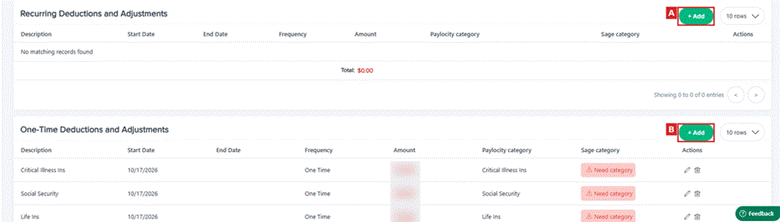
Tip: A category marked Need category is not set yet. Edit the line with the pencil icon and select it, so the amount exports correctly. |
Part 5: Check the Week Before You Lock It
- Accessorials: a late accessorial is included only while the week is open. Add any missing accessorial to its load, click Refresh Data, and check it on the statement before you lock.
- Rate changes: an open week uses the driver’s current compensation. Lock every week that must keep the old rate before you change a driver’s compensation on the Accounting tab.
Part 6: Lock the Statements
Locking freezes the statements of the week. Later changes to loads or rates do not affect a locked statement.
- Click Refresh Data so the statements are current.
- Select the statements with the checkboxes. The top checkbox selects all.
- Click Lock and enter your payroll password.
- Use the lock filter next to the search box (Locked, Unlocked, All) to confirm every statement you need is locked.
Note: To change a locked statement, select it, click Unlock and enter your password. The statement becomes live again and is recalculated with the current data. |
Part 7: Send the Statements to Your Drivers
- Select the statements in the list.
- Click Send Previews to email drivers a preview of their statement, or Send to email the final statement.
- Check the Sent column. A check mark shows the statement was emailed.
To send one statement, open it and click Send Statement. Click PDF to download it.
Important: Send emails the statements to your drivers right away. Review them before you click it. |
Part 8: Export and Check the Logs
- Lock the statements you want to export (Part 6).
- Click the export button for your payroll or accounting software.
- Click Logs (top right) and open the tab of your export (A).
- Check Valid Wages and Invalid Wages (B) and the Export Status (C).
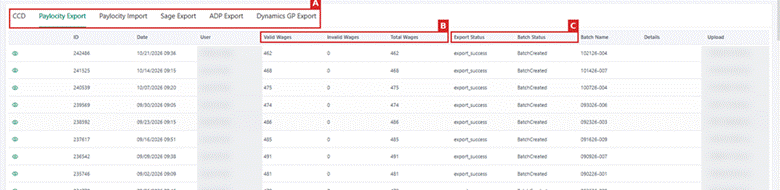
Tip: If a statement is invalid, it is usually missing driver information, such as the ID your software requires. Fix it on the driver’s profile and export again. Some exports skip invalid statements; others create no file until every statement is valid. |
Part 9: Statement Settings (Administrators)
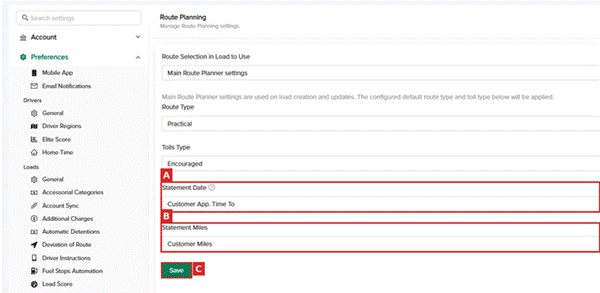
Go to Settings v2 → Preferences → Route Planning.
- Statement Date (A): which date of a load decides its pay week, for example the delivery Time Out.
- Statement Miles (B): which miles are used on statements, for example Customer Miles.
Important: These settings affect every driver statement on your account. Contact Support before changing them if you are not sure. |
What Changes from Payroll
Area | Payroll | Wages |
Hourly drivers | Hours typed on the payroll | Hours entered on the statement every week (Part 3) |
Manual items (TONU, refunds, reimbursements) | Typed on the payroll | Added on the statement as other earnings and bonuses (Part 4) |
Pay rate of an open week | Rate when the payroll was built | The current compensation, until the week is locked |
Late accessorials | Not added to a closed payroll | Included while the week is open |
Deduction in a week with no loads | Charged, then refunded by hand | Not charged |
Per diem | Per diem on the payroll | Nights taken from the stop appointment dates |
Fuel card fees (percentage drivers) | Not deducted per transaction | Can be deducted per transaction; set per account |
Seniority bonus (if you use it) | Included in the per-mile rate | Shown as its own line; same total |
Rounding | On the week total | On each load, so totals can differ by a few cents |
Past weeks | On the Payroll page | Weeks before your move stay on the Payroll page |
Frequently Asked Questions
A driver has no statement. Why?
The driver is missing a payroll schedule or a compensation. Add them on the driver’s Accounting tab and click Refresh Data.
A past week changed after I updated a driver’s rate. Why?
The week was still open, so it uses the current compensation. Lock each week before changing a rate.
I added hours or an adjustment, but the total did not change.
Click Refresh Data. If the week is locked, unlock it first.
Where are the statements from before Wages?
On the Payroll page. Wages starts with the first week after your account moves.
Why is a total a few cents different from Payroll?
Wages rounds each load instead of the week total.
My export did not work. What do I check?
Open Logs, find the export and check Invalid Wages. Fix the driver information and export again.
Need help? Contact OpenRoad Support at help@openroadtms.com.
Was this article helpful?
That’s Great!
Thank you for your feedback
Sorry! We couldn't be helpful
Thank you for your feedback
Feedback sent
We appreciate your effort and will try to fix the article