See every change made to a driver's profile: what was changed, by whom, when, and the value before and after. Use it to answer "who changed this?" and to check a record before you correct it.
Who can do this: users with access to Drivers and its Change Logs tab. A tab only appears if your user has access to it.
Open the Change Logs tab
- Open Drivers and select the driver.
- Select the Change Logs tab.
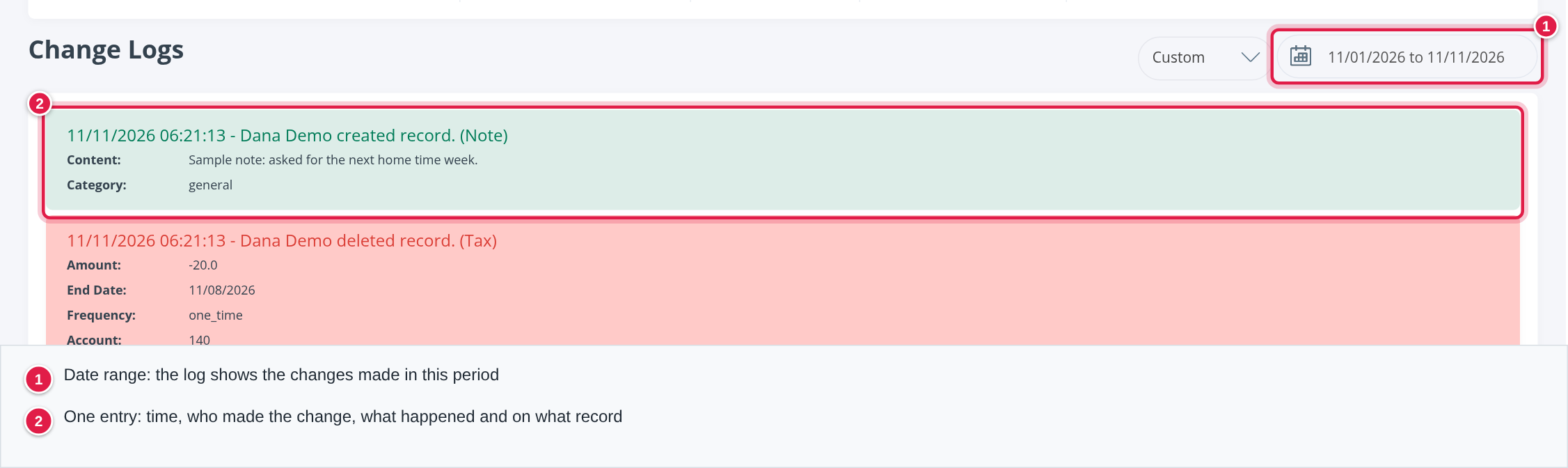
The list shows the changes of the current month, newest first. Use the date range at the top right to look at another period.

Read an entry
Each entry has a heading and the details below it.
The heading gives the date and time, who made the change, what happened and what record it was on, for example: 11/11/2026 06:05:41 - Dana Demo updated record. (Driver)
- If the change was made by the system and not by a person, the name shows as (System).
- The word in brackets says what kind of record changed. Driver is the profile itself. Other examples are Note (a note on the profile), Tax (a deduction or adjustment on the Accounting tab) and Upload (a file added on the Files tab).
The colour tells you what happened:
| Colour | What happened | What it shows |
|---|---|---|
| Green | A record was created | Each field and its value |
| Blue | A record was changed | Each field that changed, with Before and After |
| Red | A record was deleted | The fields and values it had |
A comment is shown at the bottom of an entry when one was saved with the change.

The Social security number is hidden in the log (shown as a dash) unless your user is allowed to see it.
What is logged
- Changes to the driver's profile: name, phone number, address, driver type, status, managers, the switches (Team driver, Local driver, Test Driver, Grounded) and the other fields you can edit on the driver.
- Changes to records that belong to the driver, such as employment events, rehire dates, driver flags, the exit form, Home Time settings and adjustments, notes, files uploaded on the Files tab, and the recurring and one-time deductions and adjustments.
Each change is a separate entry, so saving a form with three changed fields can show as one entry with three fields.
Find a change
- Choose the period with the date range. The log only shows changes made inside it.
- Scan the headings for the date and the name of the person.
- Read the field name, then Before and After.
If you do not find a change, widen the date range.
Frequently asked questions
Was this article helpful?
That’s Great!
Thank you for your feedback
Sorry! We couldn't be helpful
Thank you for your feedback
Feedback sent
We appreciate your effort and will try to fix the article