Everything on the driver's Overview tab, card by card: what each card holds, which ones you can edit and what the notes, plans and dates are for. Use it to complete a new driver's profile or to find where a detail lives.
Who can do this: users with access to Drivers. Editing needs permission to edit drivers, and each card only shows the fields your user may see.
Before you begin
Some cards only appear, or only work, when something is set up first:
- Home Time: the card shows only when Home Time is turned on for your account, the driver's Driver type is one of the types chosen there, and the driver is Active or Pre-Hired. See Home Time: rules, setup and balance.
- Driver App: the verification code is sent by text message to the phone number at the top of the profile, so make sure that number is correct before the driver logs in. See Driver not receiving PIN code.
- BOL BLOCK NEXT LOAD: the switch only appears when next load blocking is turned on in the account settings, and a driver is only blocked when the switch is also on for that driver. See Driver app general settings.
Open the Overview tab
Open Drivers in the left menu and select the driver number. The profile opens on Overview. The top of the page shows the driver's number and name, phone number, Employment Status, Mileage, Driver type, Fleet group, Team, the switches Team driver, Local driver, Test Driver and Grounded, and the driver's managers. Below it the cards are laid out in three columns. For the other tabs, see Driver profile: all tabs at a glance.

How the cards work
- A card with a pencil icon at the top right can be edited. Select the pencil, change the fields and select Save (or Cancel to leave without saving).
- A card with an Add ... button (for example Add note) keeps a list. Select the button, fill in the window and select Save. Each entry shows who added it and when, and can be edited or deleted. Long lists load more entries when you select Load more or Show all.
- Every change is recorded on the Change Logs tab.
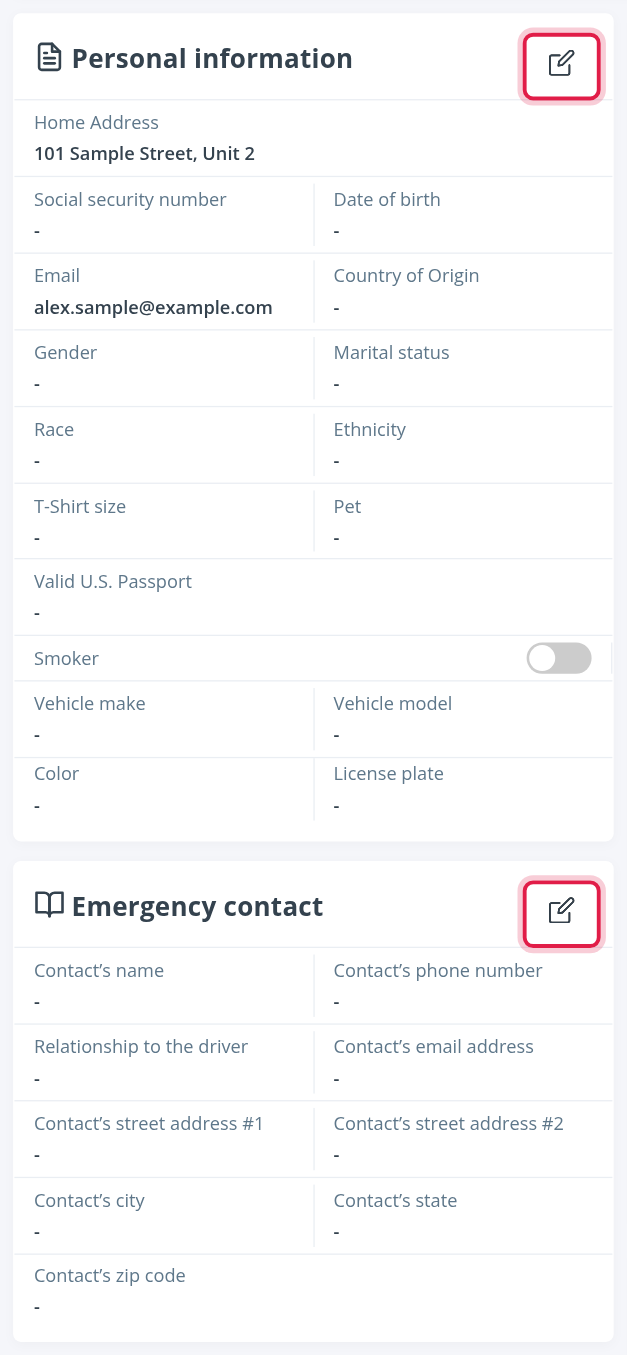
Personal information
Contact and personal details: Home Address, Social security number, Date of birth, Email, Country of Origin, Gender, Marital status, Race, Ethnicity, T-Shirt size, Pet, Valid U.S. Passport, Smoker and the driver's personal vehicle (Vehicle make, Vehicle model, Color and License plate). Select the pencil to edit.
The Email here is the address the driver is reached on. The phone number is not on this card: it is at the top of the profile, and it is the number the driver uses to log in to the OpenRoad Driver app.
Emergency contact
Who to call if something happens: Contact's name, Contact's phone number, Relationship to the driver, Contact's email address and the contact's address. Select the pencil to edit.
Compliance
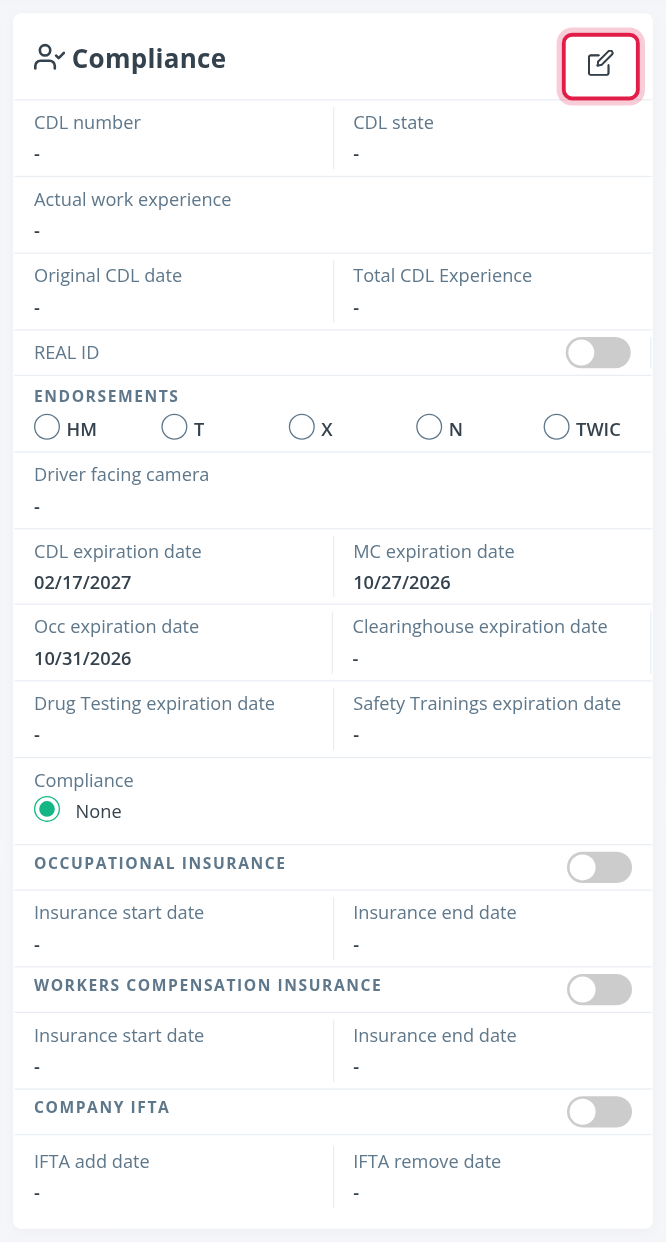
The driver's licence and compliance details, with the dates your team tracks:
- CDL number, CDL state, Original CDL date, Total CDL Experience and Actual work experience.
- REAL ID switch and the Endorsements: HM, T, X, N and TWIC.
- Driver facing camera: Mandatory, Voluntary, Involuntary/Probation or Opted Out.
- Expiration dates: CDL expiration date, MC expiration date, Occ expiration date, Clearinghouse expiration date, Drug Testing expiration date and Safety Trainings expiration date.
- Compliance: how the driver's hours are logged, for example ELD (Samsara), AOBRD (Samsara), AOBRD (KSK), Keep Truckin or Time Sheets. It shows None until one is chosen.
- Insurance and IFTA switches with their dates: Occupational insurance and Workers Compensation Insurance (Insurance start date and Insurance end date) and Company IFTA (IFTA add date and IFTA remove date).
Driver Assignments
The driver's truck and trailer history. Each row shows the Truck# or Trailer#, who created the assignment (Created By), the Start Date and the End Date. A blank End Date means the assignment is still active. Assignments are created from the truck or trailer, not from this card. See Driver Assignments.
Home Time
The Home Time balance and settings for this driver. See Home Time: rules, setup and balance. The card only appears when Home Time is turned on for your account, the driver's type is one of the types chosen there and the driver is Active or Pre-Hired.
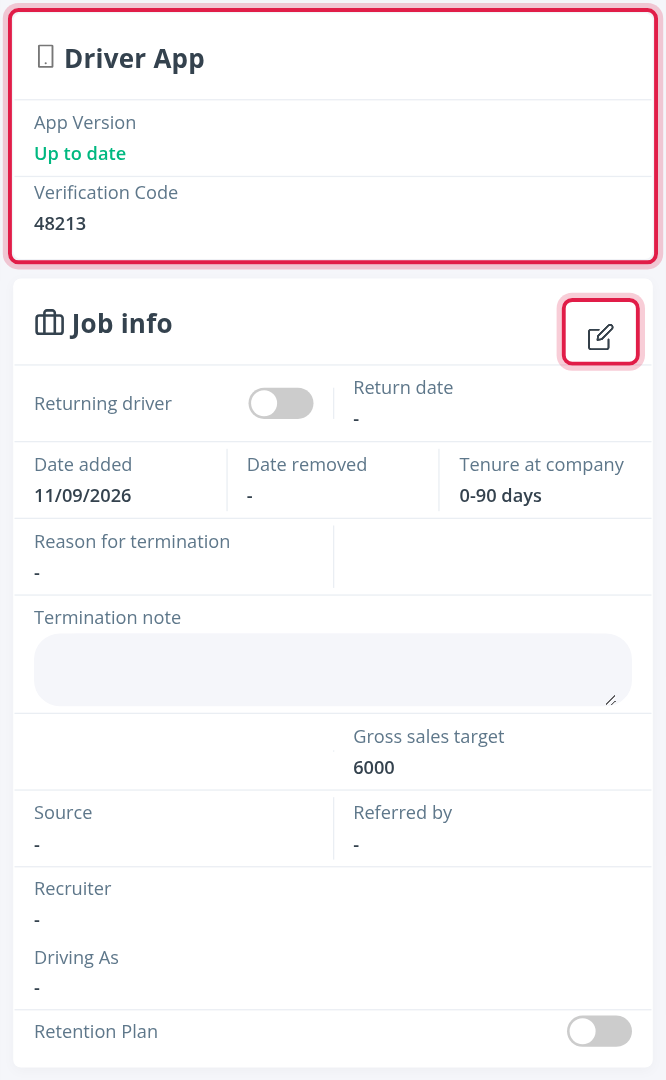
Driver App
Two things about the driver's phone app:
- App Version and whether it is Up to date or Outdated.
- Verification Code: the code the driver uses to log in. If it is missing or the driver does not receive it, check the phone number at the top of the profile. See Driver not receiving PIN code.
If your account uses next load blocking, the card also has the BOL BLOCK NEXT LOAD switch for this driver. See Driver app general settings.
Job info
The driver's employment dates and hiring details. Select the pencil to edit.
- Returning driver and Return date.
- Date added (the day the driver was created), Date removed and Tenure at company.
- Reason for termination and Termination note.
- Gross sales target, Source, Referred by, Recruiter, Driving As and Retention Plan.
Date removed and Reason for termination go together: fill in both or leave both blank. To change the driver's status to or from Terminated, record it as an employment event. See Driver profile: Employment History tab.
Notes, Safety Notes and Route Agreements & Restrictions
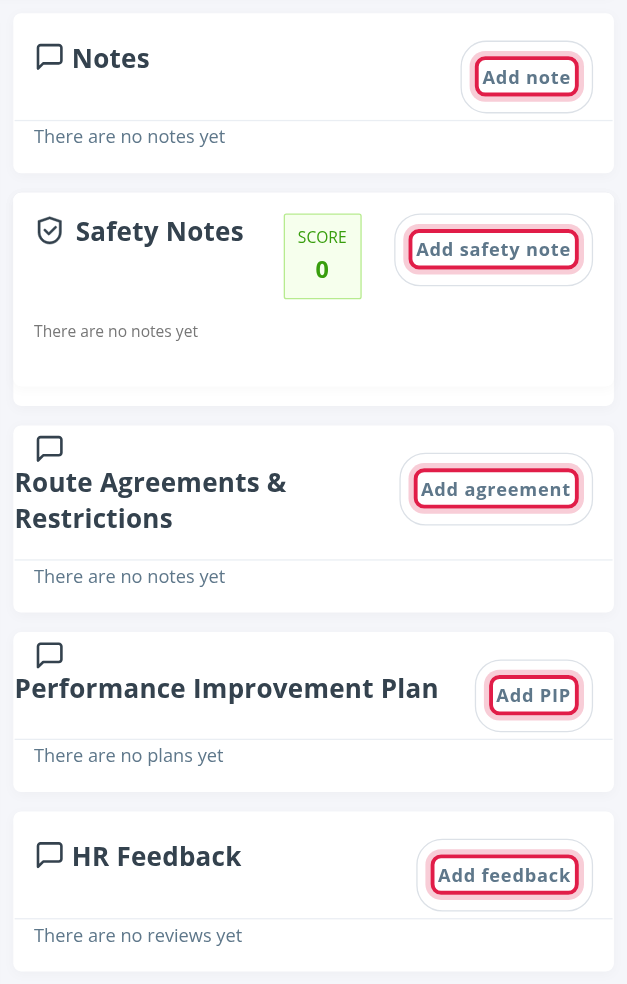
Three note lists, each with an Add ... button:
- Notes (Add note): general notes about the driver.
- Safety Notes (Add safety note): safety events with a category, a date, Points and a Comment. The SCORE box adds up the points of all safety notes.
- Route Agreements & Restrictions (Add agreement): agreed routes, restrictions and special arrangements for this driver.
Performance Improvement Plan and HR Feedback
- Performance Improvement Plan (Add PIP): a plan with Start date, Follow-up date, a Keyword, the Objectives and whether the Objectives accomplished. Accomplished plans are marked green, not accomplished ones red.
- HR Feedback (Add feedback): a review with Review date, Next review date, Keyword, Score and Comment.
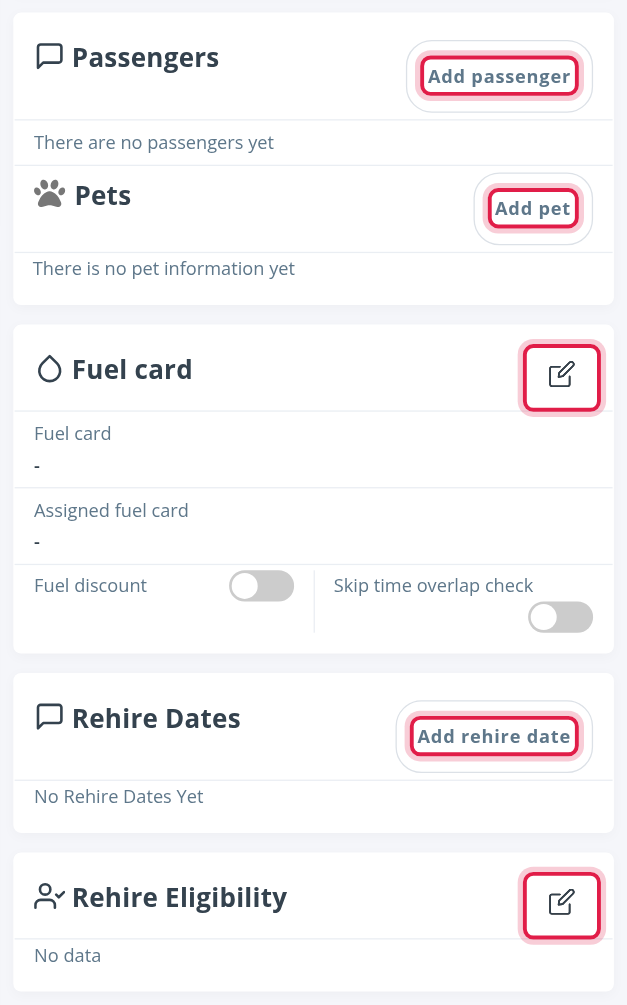
Passengers and Pets
- Passengers (Add passenger): people riding with the driver, with their Passenger Full Name, Passenger Start Date and Passenger End Date.
- Pets (Add pet): choose the Pet Type: dog, cat, both or other.
Daily & Weekly Targets
Select Add target to set a mileage goal for the driver: choose the Target type (daily miles or weekly miles) and enter the Target miles.
Fuel card
The driver's fuel card settings. Select the pencil to edit: Fuel card, Assigned fuel card, Fuel discount and Skip time overlap check. Turn on Skip time overlap check if the driver's stops may overlap in time without OpenRoad warning you about it when you save a load. For the transactions themselves, see the Fuel tab.
Rehire Dates and Rehire Eligibility
- Rehire Dates (Add rehire date): each date the driver was rehired, with a Rehire date and a Note.
- Rehire Eligibility: select the pencil to say whether the driver is Eligible for rehire (Yes, No or To review) and what Human Resources, Operations and Safety each decided.
Frequently asked questions
Was this article helpful?
That’s Great!
Thank you for your feedback
Sorry! We couldn't be helpful
Thank you for your feedback
Feedback sent
We appreciate your effort and will try to fix the article