A map of every tab in a driver's profile. Find the tab you need, see in one line what it holds and open the article that explains it.
Who can do this: users with access to Drivers. A tab only appears if your user has access to it, so you may see fewer tabs than listed here.
Before you begin
Set the driver's Payroll schedule and Compensation on the Accounting tab before the driver does any loads. Statements are built from them. See Driver profile: Accounting tab.
Open a driver's profile
Open Drivers in the left menu and select the driver number in the first column. To find the driver first, type a name in the Full name box of the list. See Drivers module: start here.
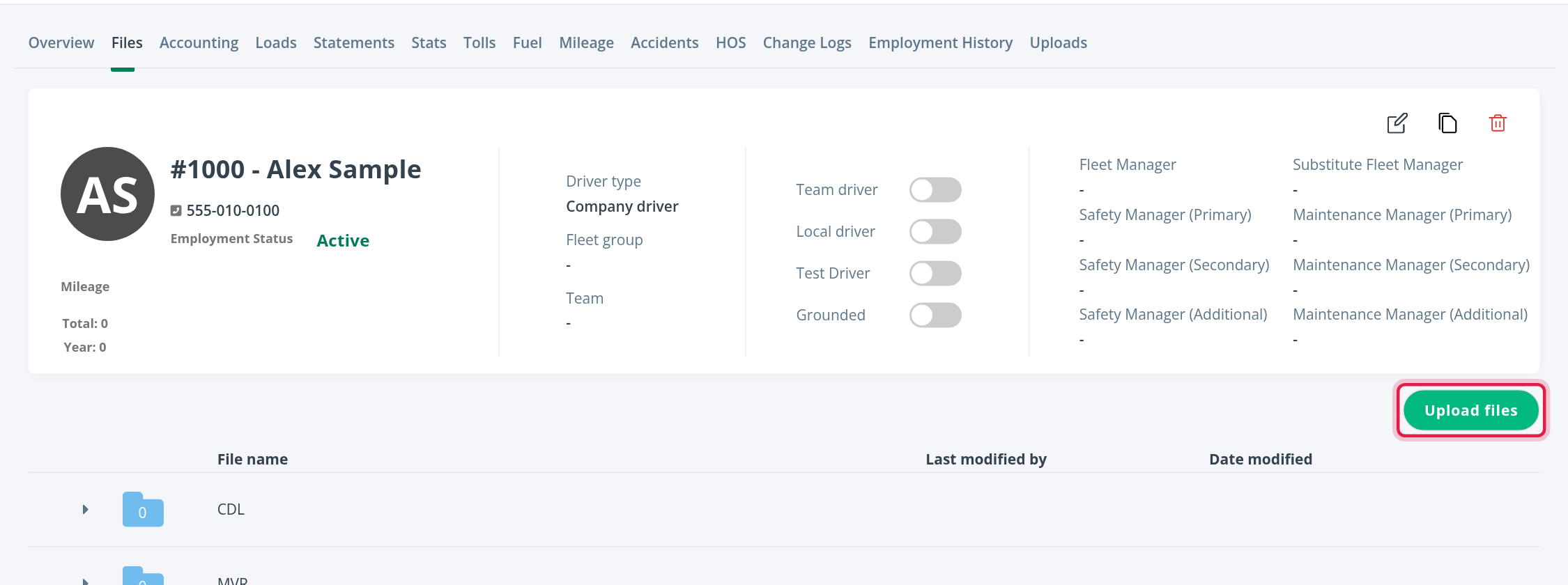
The profile opens on the Overview tab. The top of every tab shows the driver's number and name, phone number, Employment Status, Mileage (total and for the year), Driver type, Fleet group, Team, the switches Team driver, Local driver, Test Driver and Grounded, and the driver's managers (fleet, safety and maintenance).

The tabs and where each is explained
| Tab | What it holds | Read |
|---|---|---|
| Overview | Personal details, compliance, assignments, Home Time, the Driver App card and notes | Driver profile: Overview tab |
| Files | The driver's documents, in folders | Driver profile: Files and Uploads tabs |
| Accounting | Compensation, payment info, tax, vacation, deductions and adjustments | Driver profile: Accounting tab |
| Loads | The driver's loads | Driver profile: Loads, Stats and Mileage tabs |
| Statements | The driver's weekly earning statements | Driver profile: Statements tab |
| Stats | Performance figures and charts | Driver profile: Loads, Stats and Mileage tabs |
| Tolls and Fuel | Toll and fuel card transactions | Driver profile: Tolls and Fuel tabs |
| Mileage | Miles driven by state | Driver profile: Loads, Stats and Mileage tabs |
| Accidents | Accident records | Driver profile: Accidents tab |
| HOS | Hours of Service data | Driver profile: HOS tab |
| Change Logs | The history of changes to the profile | Driver profile: Change Logs tab |
| Employment History | Hire, termination and rehire events | Driver profile: Employment History tab |
| Uploads | Documents the driver sent from the app | Driver profile: Files and Uploads tabs |
If your account is connected to Samsara, a HOS Violations tab also appears. It is covered in the HOS article.
Most data tabs have a date range at the top right. Change it to see an earlier or later period.
Frequently asked questions
Was this article helpful?
That’s Great!
Thank you for your feedback
Sorry! We couldn't be helpful
Thank you for your feedback
Feedback sent
We appreciate your effort and will try to fix the article