See every accident recorded for a driver in one list. This article covers the Accidents tab of the driver profile. Accidents are created and managed in Safety → Accidents; the tab is the driver's view of them.
Who can do this: users with access to Drivers and its Accidents tab. The tab only appears if your user has that access.
Before you begin
An accident shows on this tab only when the driver is selected on the accident record and the accident date is inside the date range at the top right. Accidents are recorded in Safety → Accidents: see Accidents.
Open the tab
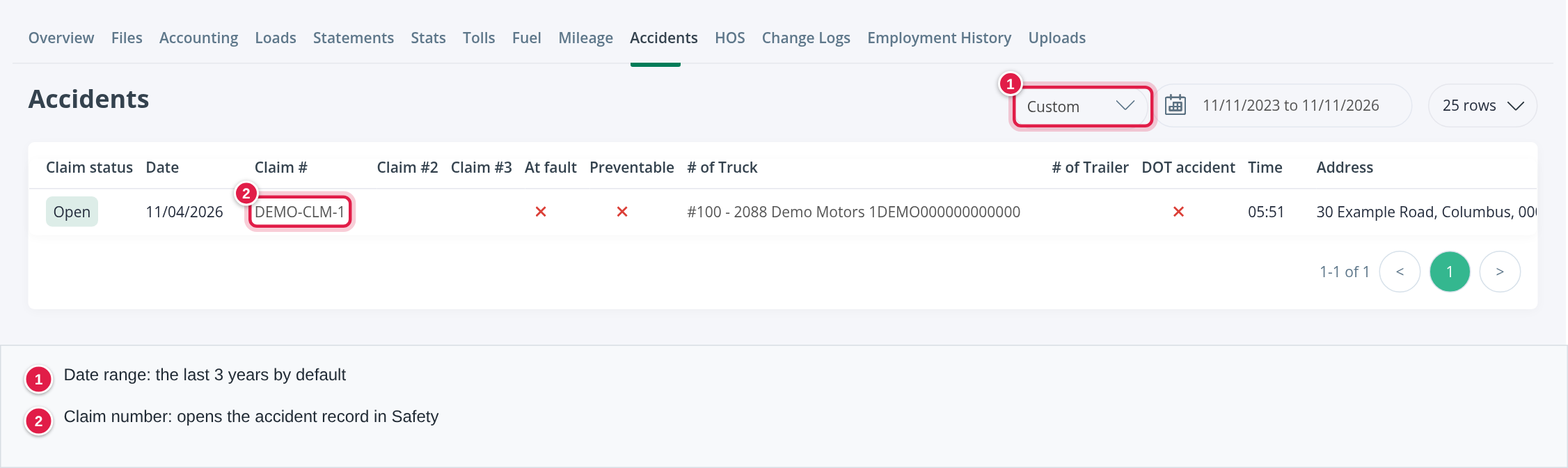
Open Drivers in the left menu, select the driver number and then select Accidents. The list shows the accidents with a date in the date range at the top right. It opens on the last three years; change it to look at a shorter or longer period.

Read the list
The table is wide, so scroll to the right to see every column. The first columns are:
| Column | What it shows |
|---|---|
| Claim status | The status of the claim, for example Open |
| Date and Time | When the accident happened |
| Claim #, Claim #2, Claim #3 | The claim numbers. Select Claim # to open the accident record |
| At fault and Preventable | The decision for the accident |
| # of Truck and # of Trailer | The truck and trailer involved |
| DOT accident | Whether it was a DOT accident |
| Address | Where it happened |
Further to the right the list also has Damage columns for the truck, trailer and cargo, Injury, Fatal, Tow, Uploads, Citations, Under investigation, the street, city, state, zip code and country, the tests and training that followed, amounts (deductible, total loss, paid and received per policy, subrogation) and the injury details. Yes/No columns show an icon: a red cross means No.
Open an accident
Select the Claim #. The accident record opens in Safety → Accidents, where you can see and edit all details, add documents and track the claim. For how to record an accident and fill in its claim, see Accidents.
Add an accident
There is no + Add on this tab. Create the accident in Safety → Accidents and choose the driver. It then shows here.
Frequently asked questions
Was this article helpful?
That’s Great!
Thank you for your feedback
Sorry! We couldn't be helpful
Thank you for your feedback
Feedback sent
We appreciate your effort and will try to fix the article