The Safety Dashboard is your daily list of what needs attention: it shows every active driver, truck and trailer that has an expiration date that has already passed or is coming up in the next 30 days. Use it to renew licences, insurance and inspections before they run out.
Who can do this: users with access to Safety → Dashboard. By default that is Superadmin, Admin, Dispatcher, Capacity, Accounting and Safety users; your company's access settings can change this. The eye and pencil icons in a table only show for users who may view or edit drivers, trucks or trailers.
Before you begin
The dashboard only lists what is in the records. A driver, truck or trailer whose dates are empty never shows up, so keep the dates filled in on the records (see "Where each date is entered" below).
- Only active drivers, trucks and trailers are listed.
- The dates are entered on the driver, truck and trailer records, not on the dashboard. You can read them here, but you cannot change them here.
Open the Safety Dashboard
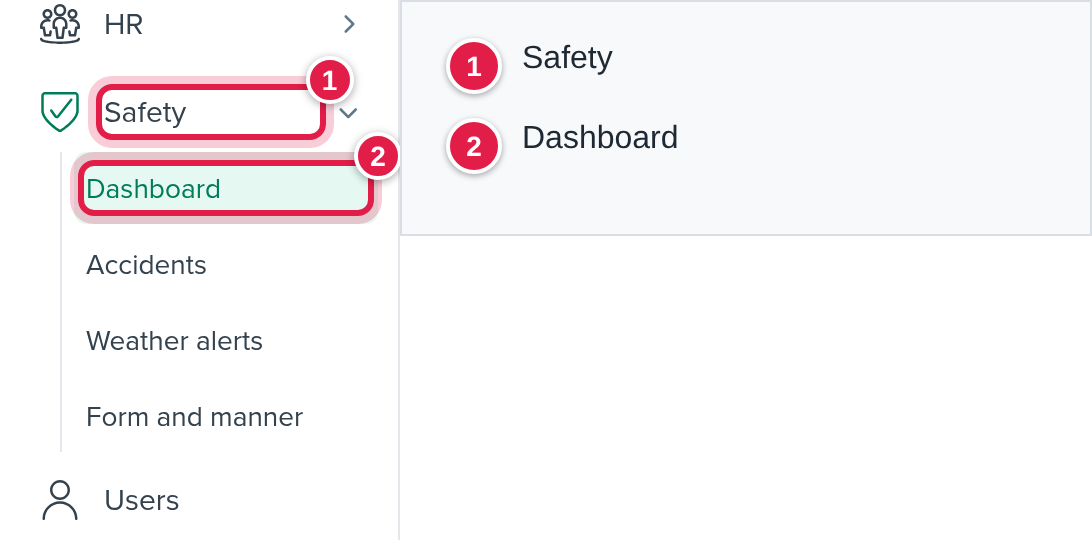
Select Safety in the left menu, then Dashboard. The page has four sections, one under the other: Accidents, Drivers, Trucks and Trailers.
The Accidents section at the top summarises accidents (At-fault incidents, Estimated, Received and Paid). It has its own Driver and Fleet group lists and its own Search button, and it does not change the three tables below it.
What makes a row appear
Each of the three tables lists a row when at least one of its dates is in the next 30 days or already past. A date that is more than 30 days away does not put the row in the list. A date that has passed keeps the row in the list until somebody fixes it.
| Table | Dates that put a row in the list |
|---|---|
| Drivers | MC expiration date, CDL expiration date, Clearinghouse expiration date, Occ expiration date |
| Trucks | Ann. Ins. Exp. Date (annual inspection), Insurance Exp., IRP Exp., Quarterly Maintenance Exp. |
| Trailers | Ann. Ins. Exp. Date (annual inspection), Insurance Exp., Quarterly Maintenance Exp. |
A row appears when any one of its dates is due, so you may also see dates that are not due in the same row. They are shown without a colour.
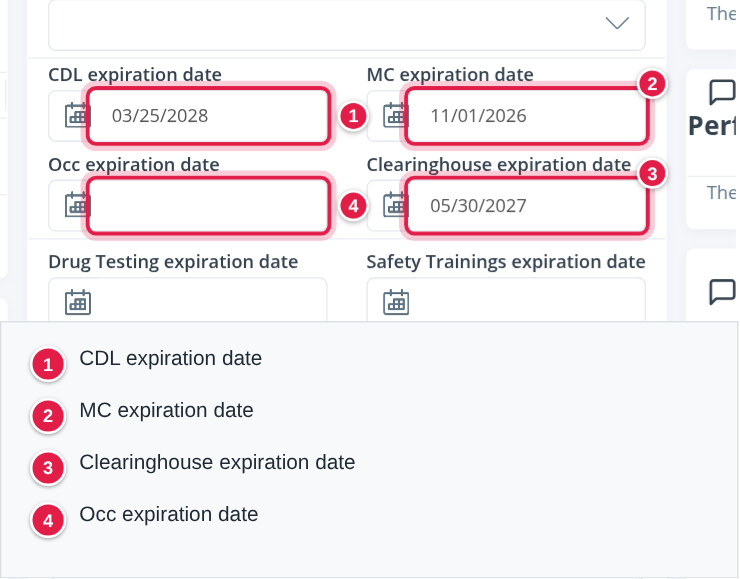
Occ expiration date can put a driver in the list, but the Drivers table has no column for it. If a driver is listed and none of the three date columns is coloured, open the driver's Compliance card and check Occ expiration date.
What the colours mean
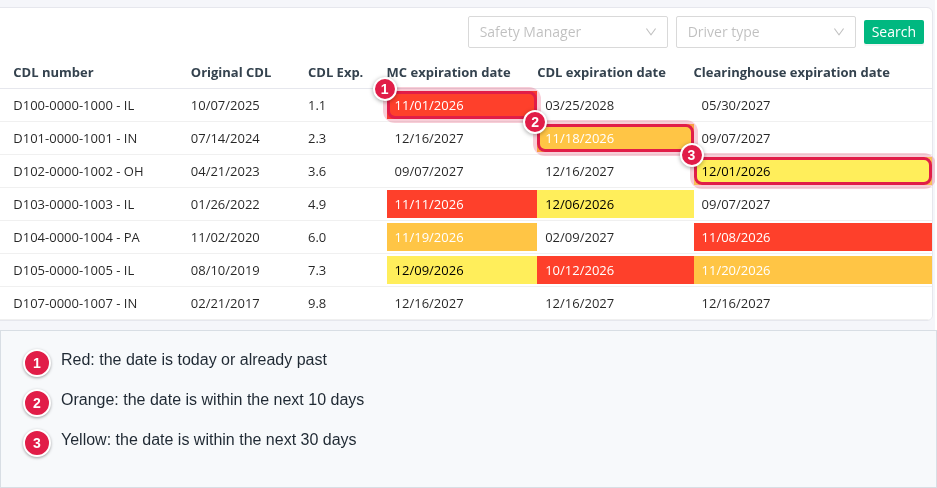
Every date cell is coloured by how close the date is to today:
| Colour | Meaning |
|---|---|
| Red | The date is today or already past |
| Orange | The date is within the next 10 days |
| Yellow | The date is within the next 30 days |
| No colour | The date is more than 30 days away, or empty |
The Drivers table
Drivers are listed by Driver's number, lowest first.
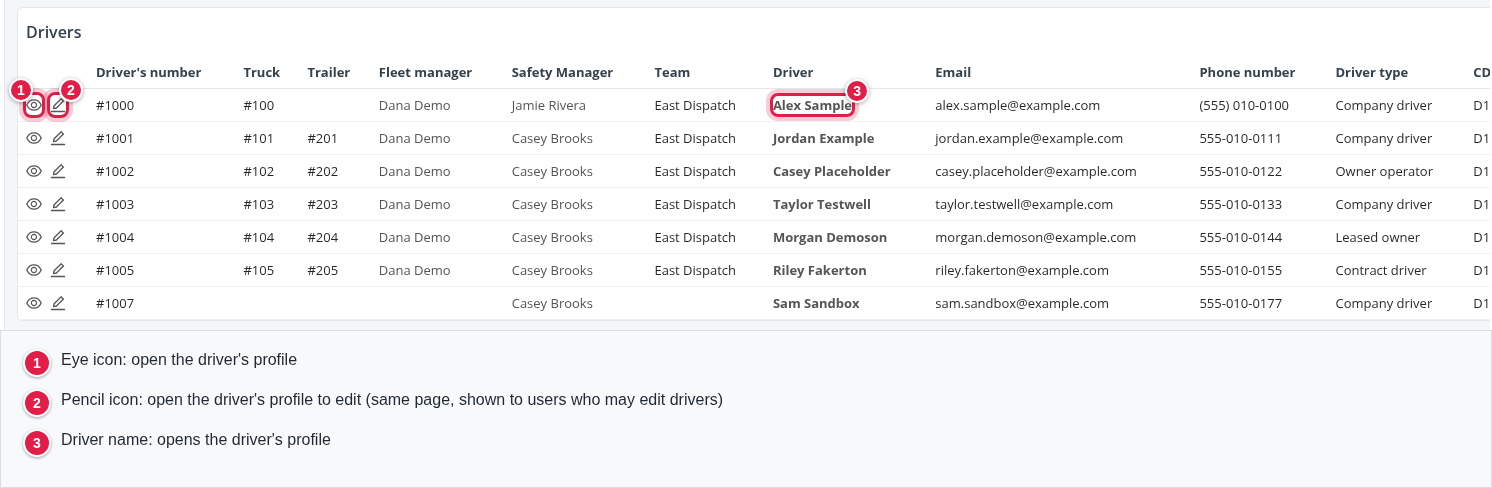
The columns are:
- Driver's number, Truck and Trailer: the driver's number and the truck and trailer currently assigned to the driver.
- Fleet manager, Safety Manager and Team.
- Driver: the driver's name. Select it to open the driver's profile.
- Email, Phone number and Driver type.
- CDL number: the licence number and its state.
- Original CDL and CDL Exp.: the date the driver first got a CDL, and how long the driver has had it, in years and months (for example 1.1 is one year and one month).
- MC expiration date, CDL expiration date and Clearinghouse expiration date: the dates that matter here, coloured as described above.
At the start of each row:
- The eye icon opens the driver's profile.
- The pencil icon also opens the driver's profile, where you can edit.
Narrow the list
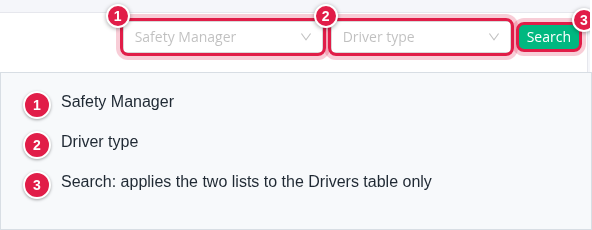
Use Safety Manager and Driver type, then select Search. The lists apply to the Drivers table only.
The Trucks table
Trucks are listed by Unit ID#, lowest first.
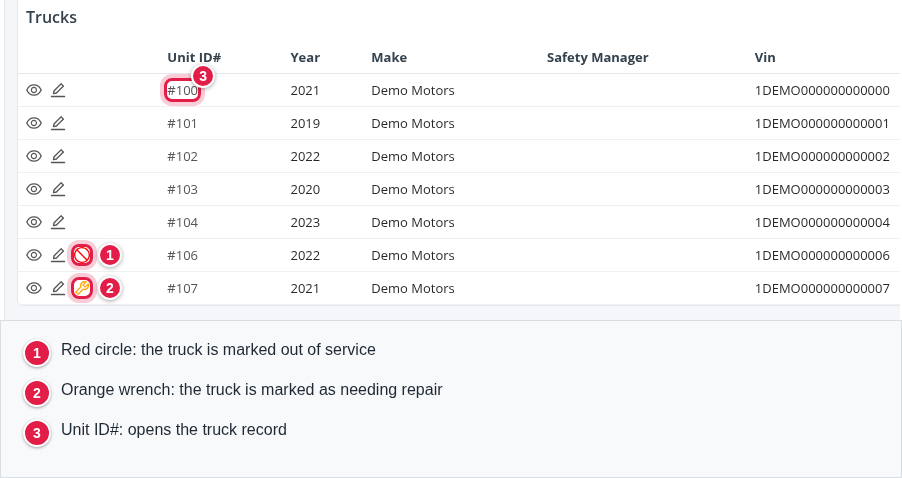
The columns are Unit ID#, Year, Make, Safety Manager, Vin, Licence plate (State), Attachments, and the four date columns Ann. Ins. Exp. Date, Insurance Exp., IRP Exp. and Quarterly Maintenance Exp.
At the start of each row:
- The eye icon opens the truck.
- The pencil icon opens the truck to edit.
- A red circle appears when the truck is marked out of service.
- An orange wrench appears when the truck is marked as needing repair.
Select the Unit ID# to open the truck.
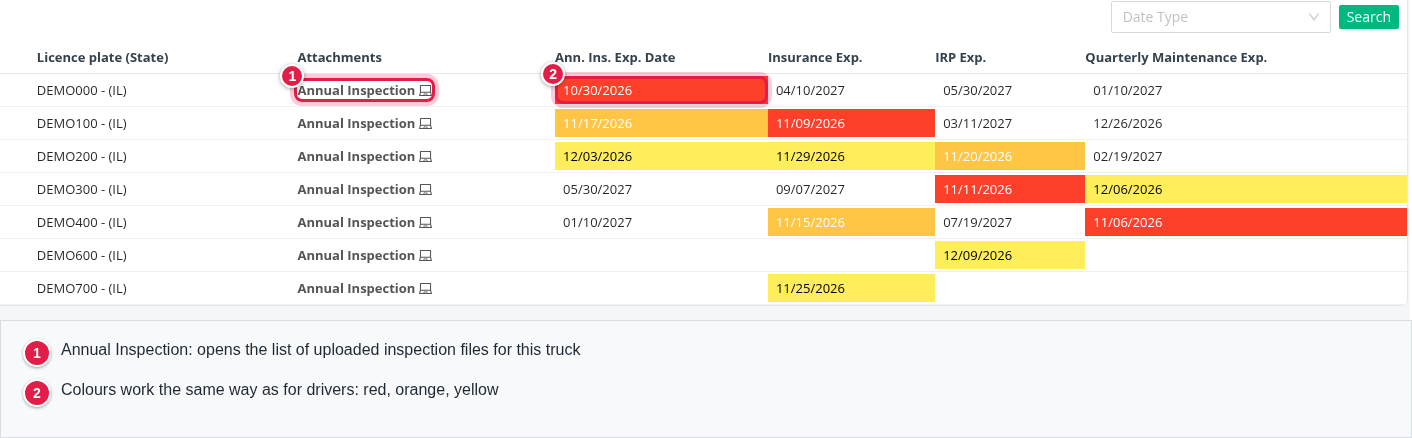
Quarterly Maintenance Exp. is not the date the maintenance was done. It is that date plus three months, the date the next maintenance is due. For example, a truck whose Quarterly Maintenance date is 10/10/2026 shows 01/10/2027 in this column.
Narrow the Trucks list by one date
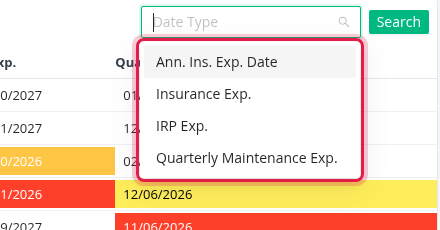
Choose a date in the Date Type list and select Search. The table then shows only the trucks that are due on that date, with the earliest date first. The choices are Ann. Ins. Exp. Date, Insurance Exp., IRP Exp. and Quarterly Maintenance Exp.
The Trailers table
Trailers are listed by ID#, lowest first.
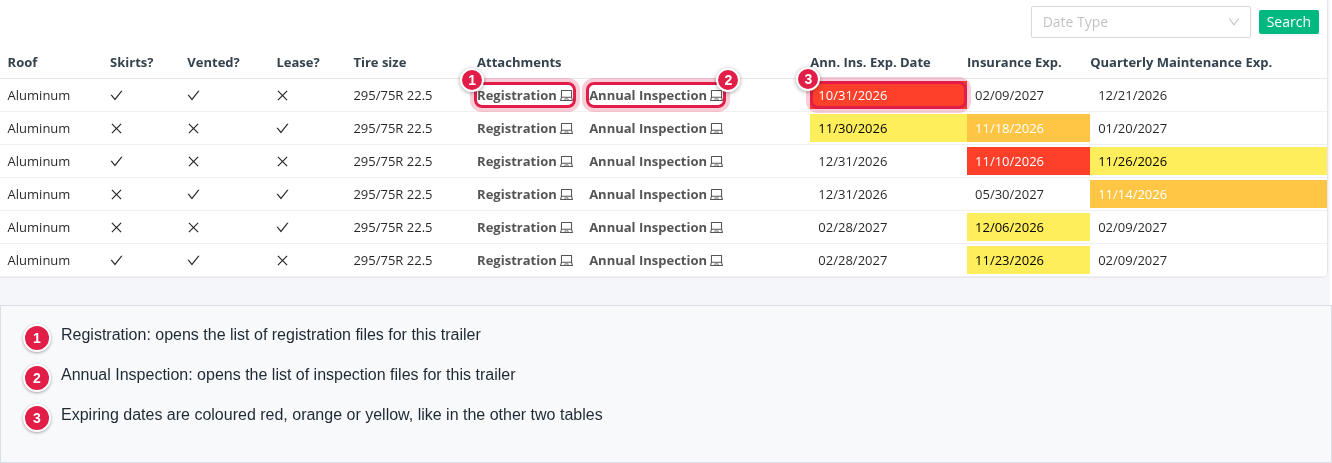
The columns are ID#, Year, Make, Vin, Equipment Type, Date acquired, License plate with state, Roof, Skirts?, Vented?, Lease?, Tire size, Attachments, and the three date columns Ann. Ins. Exp. Date, Insurance Exp. and Quarterly Maintenance Exp. A tick under Skirts?, Vented? or Lease? means yes, a cross means no.
The row icons and the Date Type list work like in the Trucks table. The Date Type list has Ann. Ins. Exp. Date, Insurance Exp. and Quarterly Maintenance Exp.
Open the files: Attachments
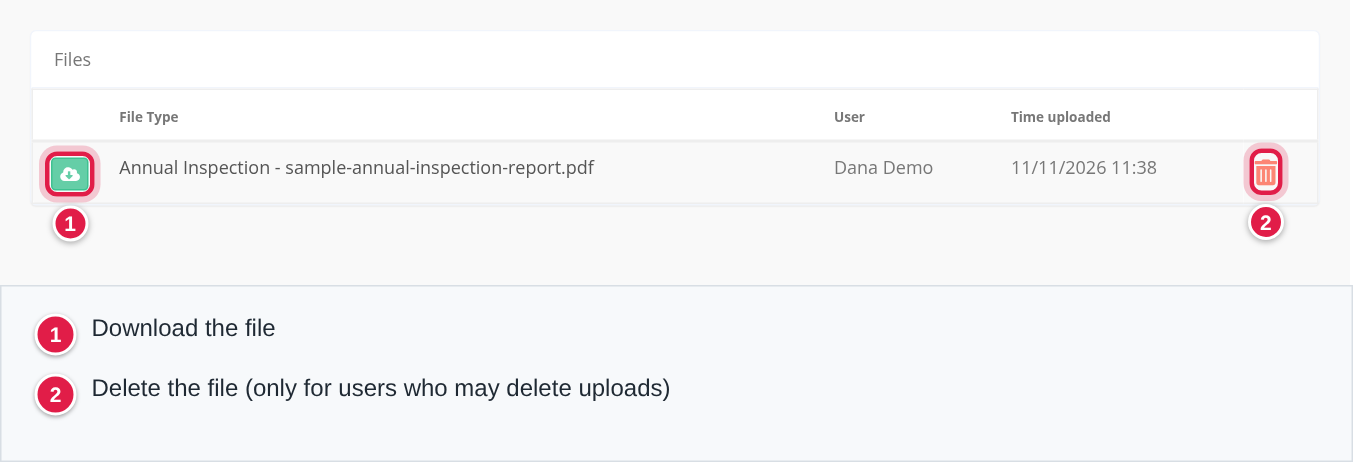
The Attachments column links to the files saved on the truck or trailer:
- Trucks have Annual Inspection.
- Trailers have Registration and Annual Inspection.
Select a link to open a small window called Files. It lists each file with its File Type, the User who added it and the Time uploaded. Select the green download icon to open the file. The trash icon is for removing a file; only some users may delete files, so use it with care.
Where each date is entered
All the dates come from the records. Change them there, not on the dashboard.
Driver dates
Open Drivers, select the driver, and on the Overview tab find the Compliance card. Select its pencil icon, fill in CDL expiration date, MC expiration date, Clearinghouse expiration date and Occ expiration date, and save. See Driver profile: Overview tab for the whole tab, and Driver profile: Files and Uploads for the driver's documents.
Truck dates
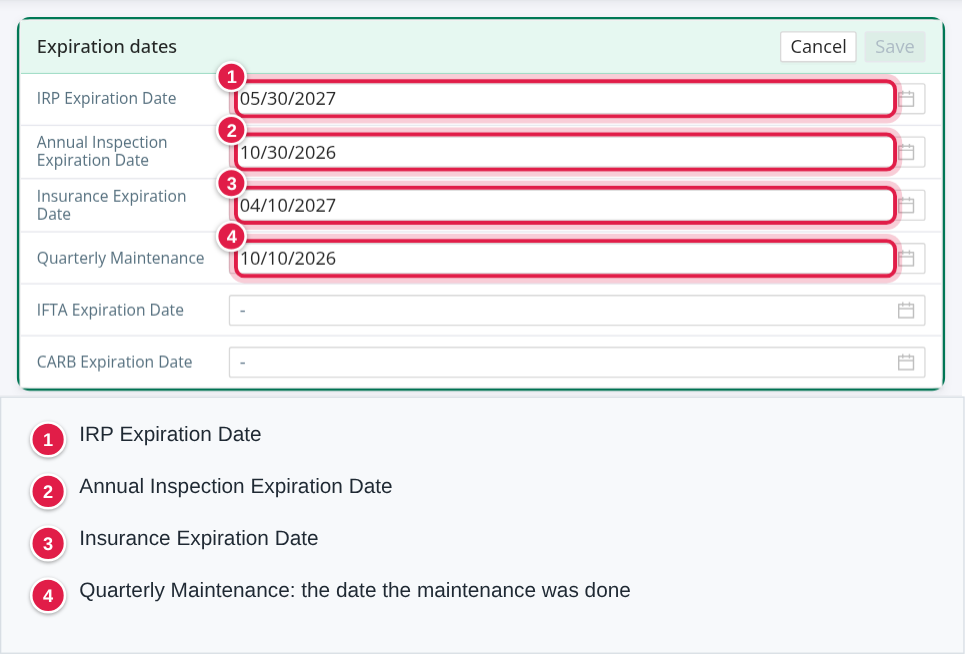
Open the truck (select the Unit ID#, or the eye or pencil icon in its row). On the Overview tab, select the pencil icon on the Expiration dates card and fill in:
- Annual Inspection Expiration Date (the Ann. Ins. Exp. Date column).
- Insurance Expiration Date (the Insurance Exp. column).
- IRP Expiration Date (the IRP Exp. column).
- Quarterly Maintenance: the date the maintenance was done. The dashboard adds three months to it.
Trailer dates
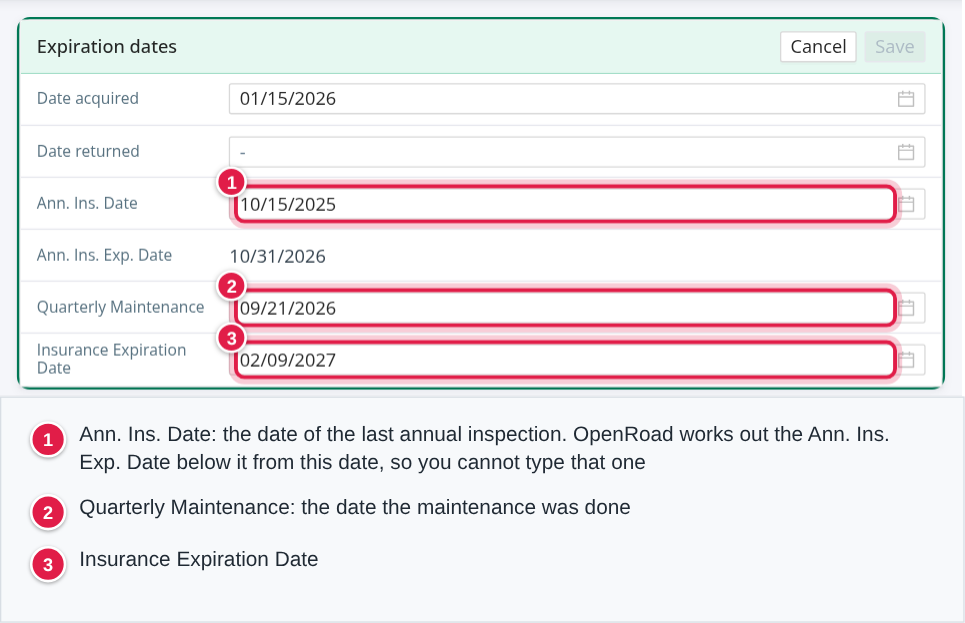
Open the trailer. On the Overview tab, select the pencil icon on the Expiration dates card and fill in:
- Ann. Ins. Date: the date of the last annual inspection. OpenRoad works out Ann. Ins. Exp. Date from it, so you cannot type that one. It is the last day of the month, one year after the inspection date.
- Insurance Expiration Date (the Insurance Exp. column).
- Quarterly Maintenance: the date the maintenance was done. The dashboard adds three months to it.
When you fix a date
Change the date on the record and save it. The dashboard reads the records every time you open it or select Search, so open the page again or select Search to see the change. The cell loses its colour if the new date is more than 30 days away, and the row leaves the list when none of its dates is due any more.
Frequently asked questions
Was this article helpful?
That’s Great!
Thank you for your feedback
Sorry! We couldn't be helpful
Thank you for your feedback
Feedback sent
We appreciate your effort and will try to fix the article