OpenRoad TMS — Getting Started Series
Part 1: Trucks
Step 1: View Your Trucks List
1. Go to Trucks from the main dashboard menu.
2. Here you'll see each truck's Unit ID, vendor, driver number, slip seating status, year, make, VIN, and license plate.
3. Use the status filter to view On Order, Active, For Sale, Inactive, Marketing, or On Hold trucks.

Figure 1 — Trucks list. Vendor names, VINs, and license plates shown are examples.
Step 2: Add a New Truck
1. Click + New Truck at the top right of the Trucks page.
2. Set the Status and Vendor, and enter the Unit ID# (required).
3. Choose an Equipment Type.
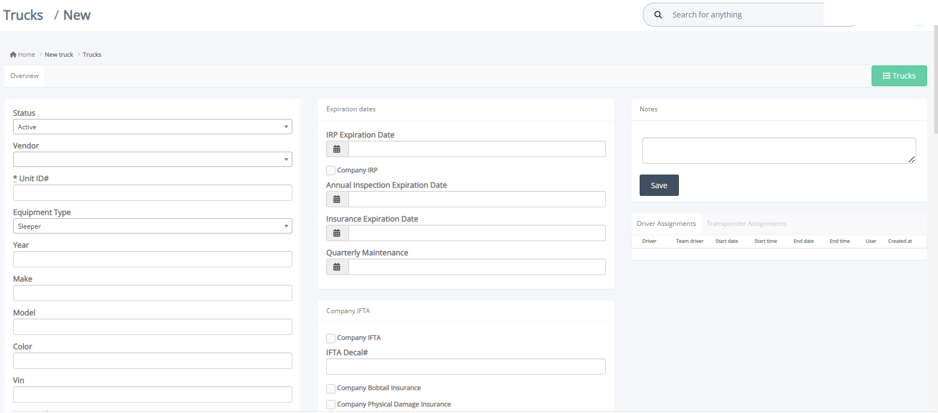
Figure 2 — New Truck form: basic info, expiration dates, notes.
Equipment Type Options
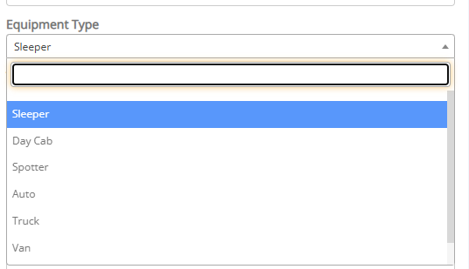 Figure 3 — Equipment Type options: Sleeper, Day Cab, Spotter, Auto, Truck, Van.
These describe the physical configuration of the truck — for example, a Sleeper has a sleeping cab for long-haul drivers, while a Day Cab does not. Spotter, Auto, and Van refer to other equipment configurations used in yard and local operations.
4. Fill in the remaining basic fields: Year, Make, Model, Color, and VIN.
5. Under Expiration Dates, set IRP, Annual Inspection, Insurance, and Quarterly Maintenance dates as they come up.
6. Under Company IFTA, mark whether Company IFTA applies and add the IFTA Decal #, plus any company insurance checkboxes.
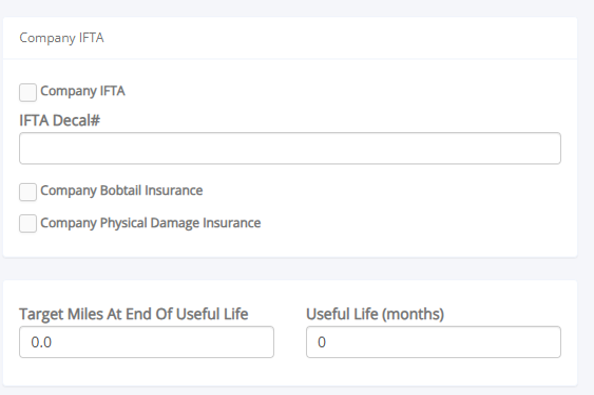
Figure 4 — Company IFTA and Useful Life fields.
7. Continue with mechanical details: Key Code, Odometer, Brake Type, Governor settings, Fuel Tank Capacity, ELD Number, and related equipment checkboxes.
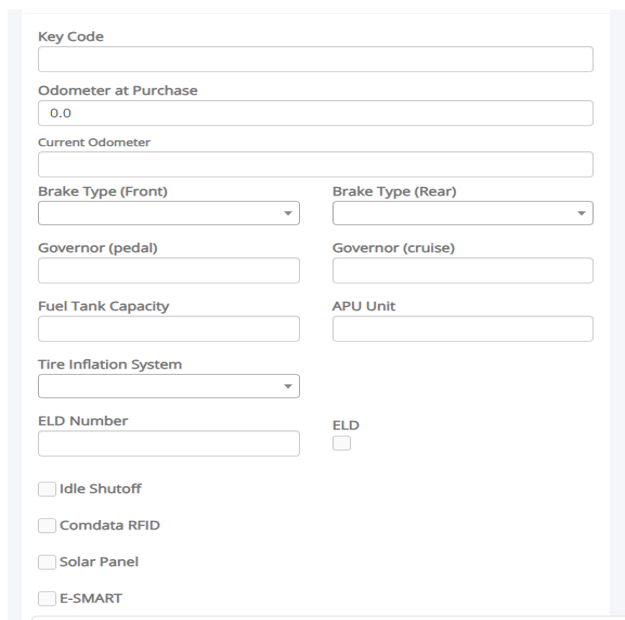
Figure 5 — Mechanical and equipment fields.
8. Under Financial, set Ownership Type, Insurance Policy, and — if the truck is leased or financed — Cost, Payment Dates, Monthly Payment, and Lender details.
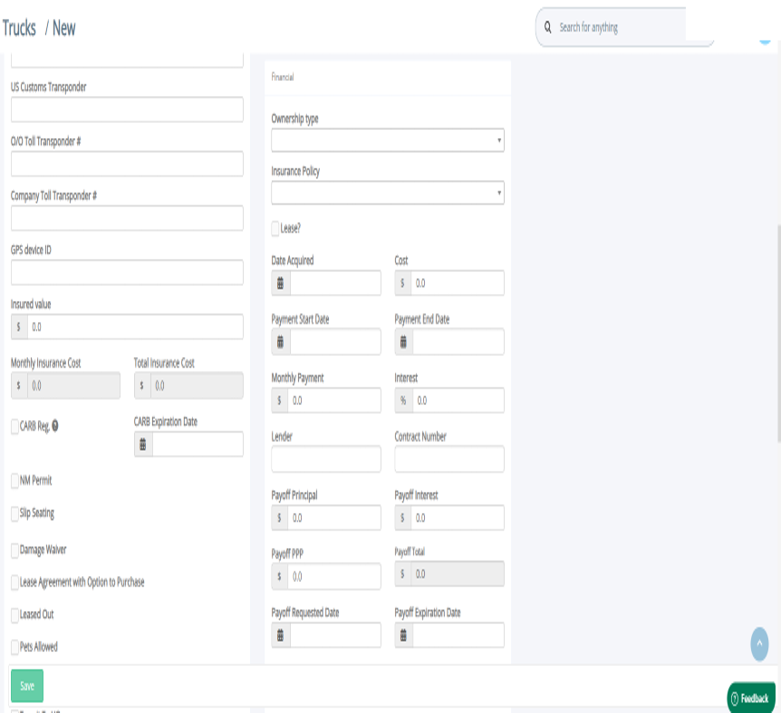
Figure 6 — Financial section.
9. Click Save.
Understanding Slip Seating
Slip Seating lets a single truck be assigned to two drivers at the same time, with overlapping shifts — useful for continuous, round-the-clock operations.
- When enabled on a truck, its Unit ID gets an "S" prefix everywhere it's shown (e.g., #251123 becomes #S-251123).
- Up to two overlapping driver assignments are allowed on that truck at once — a third is blocked.
- Turning Slip Seating off stops new overlapping assignments, but doesn't automatically resolve existing ones — review and close those out manually.
Tip: You can add the Slip Seating column to your Trucks list view using Edit Columns to quickly see which trucks have it enabled.
Part 2: Trailers
Step 1: View Your Trailers List
1. Go to Trailers from the main dashboard menu.
2. Here you'll see each trailer's Unit ID, vendor, driver number, year, make, equipment type, VIN, license plate, and annual insurance expiration date.

Figure 7 — Trailers list. Vendor names, VINs, and license plates shown are examples.
Step 2: Add a New Trailer
1. Click + New Trailer at the top right of the Trailers page.
2. Set the Status, Ride type, and Vendor, and enter the Unit ID# (required).
3. Fill in Make, Model, Year, Length, and Equipment Type (e.g., Dry Van).
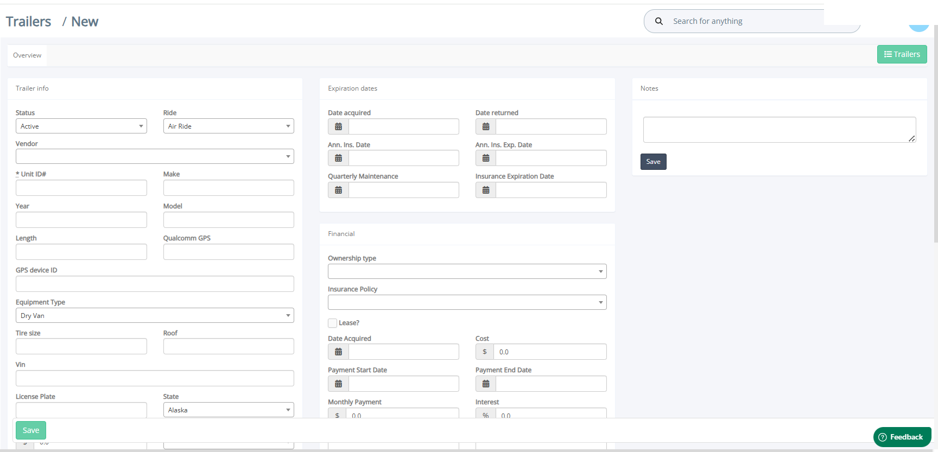
Figure 8 — New Trailer form: basic info, expiration dates, financial.
4. Continue with License Plate, State, Current Value, and Ownership details, plus any relevant checkboxes (Plated Walls, Vented, Brokered, SkyBitz Tracking, etc.).
5. If applicable, fill in Financial details (payments, lender) and Ownership/Maintenance cost fields.
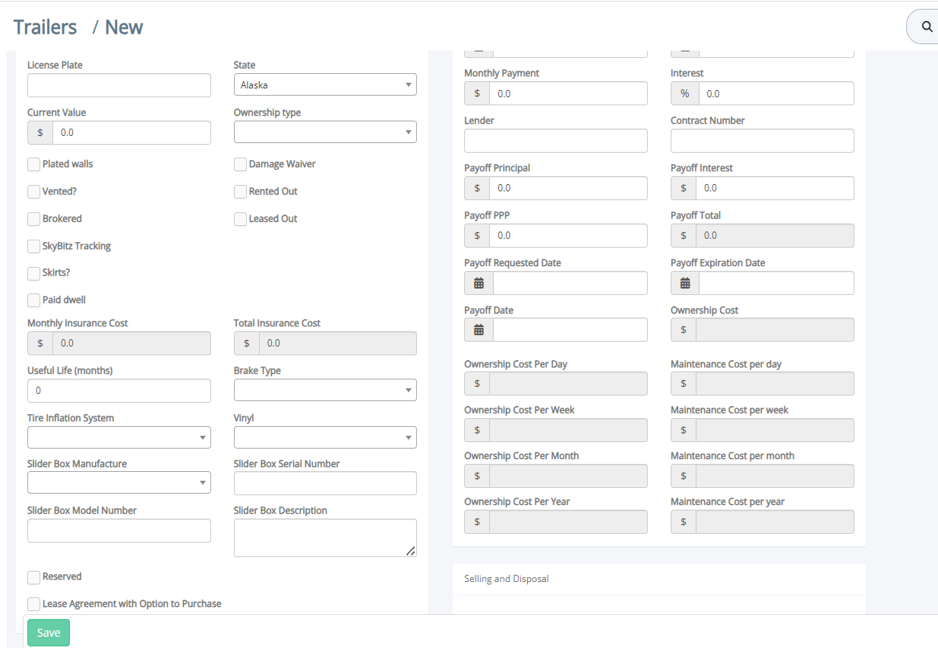
Figure 9 — New Trailer form: additional details and cost fields.
6. Click Save.
Frequently Asked Questions
Q: What's the difference between a Sleeper and a Day Cab truck?
A: A Sleeper has a sleeping compartment for long-haul drivers; a Day Cab does not and is typically used for shorter routes.
Q: What does the "S" prefix on a truck's Unit ID mean?
A: It means Slip Seating is enabled on that truck, allowing two overlapping driver assignments at once.
Q: Can I assign three drivers to the same slip seat truck?
A: No. The platform allows a maximum of two concurrent driver assignments per truck, even with Slip Seating enabled.
Q: How do I mark a truck or trailer as inactive?
A: Open the record and change its Status field to Inactive, For Sale, or another appropriate option.
Still need help? Contact our support team at help@openroadtms.com
Was this article helpful?
That’s Great!
Thank you for your feedback
Sorry! We couldn't be helpful
Thank you for your feedback
Feedback sent
We appreciate your effort and will try to fix the article