OpenRoad TMS — Getting Started Series
This article covers two related setup tasks: adding Vendors (carriers, equipment providers, and other companies you work with) and adding Drivers to your fleet.
Part 1: Vendors
Before You Begin
- Go to Vendors from the main dashboard menu.
Step 1: View Your Vendors List
1. Go to Vendors from the main dashboard menu.
2. Here you'll see each vendor's company name, company type, phone, e-mail, trucks, drivers, trailers, EIN number, and date added.
3. Use the status filter to view Active, Inactive, or Do Not Use vendors.
Figure 1 — Vendors list. Company names, phone numbers, and e-mails shown are examples.
Step 2: Add a New Vendor
1. Click + New Vendor at the top right of the Vendors page.
2. Set the Status, and fill in MC Number, DOT, SCAC Code, Sage ID, and Pay To ID as applicable.
3. Choose a Company Type.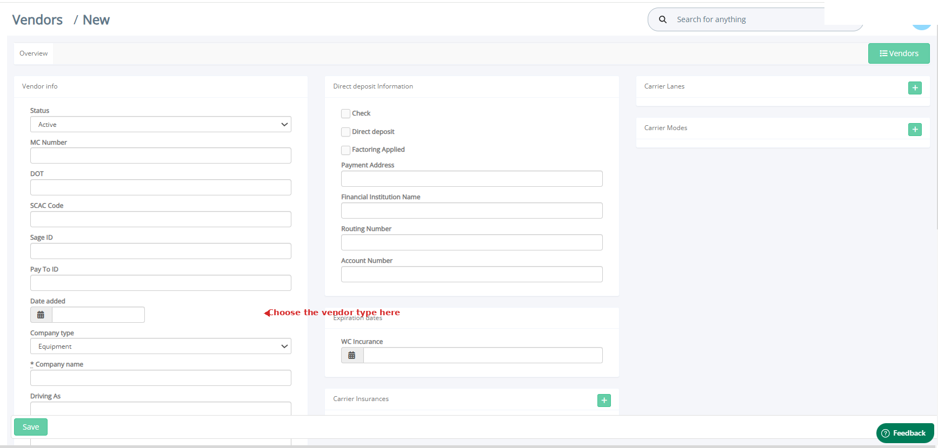
Figure 2 — New Vendor form: Vendor Info, Direct Deposit Information, Carrier Lanes/Modes.
Company Type Options
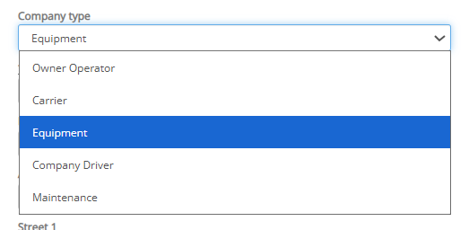
Figure 3 — Company Type options.
4. Fill in Direct Deposit Information if this vendor will be paid electronically (Payment Address, Financial Institution Name, Routing Number, Account Number).
5. Add Expiration Dates (e.g., WC Insurance) and any Carrier Insurances, Carrier Lanes, or Carrier Modes.
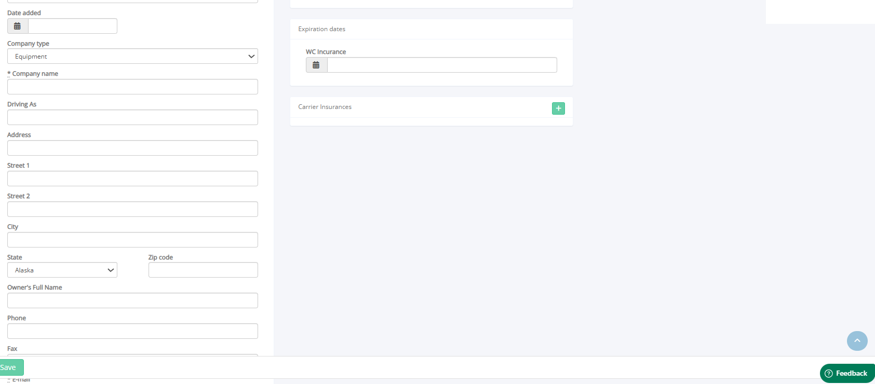
Figure 4 — New Vendor form: Address and Procedures.
6. Scroll down to fill in the vendor's Address, Owner's Full Name, Phone, Fax, E-mail, and EIN Number.
7. Assign an Account Manager if applicable, then add Carrier Contacts.
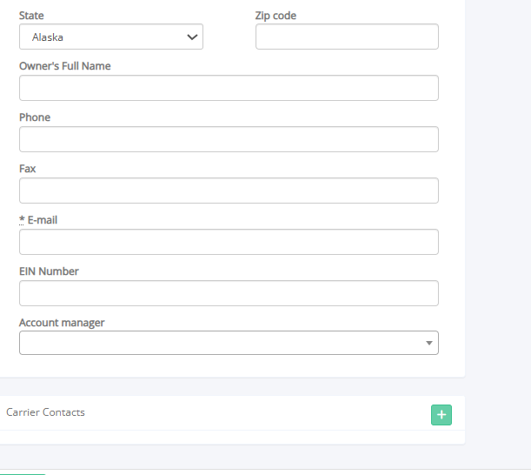
Figure 5 — New Vendor form: contact and account details.
8. Click Save.
Part 2: Drivers
Before You Begin
- Go to Drivers from the main dashboard menu.
Step 1: View Your Drivers List
1. Go to Drivers from the main dashboard menu.
2. Here you'll see each driver's number, full name, truck, trailer, fleet manager, team, driver type, phone number, and email.
3. Use the status filter to view Pre-Hired, Active, Suspended, Terminated, or Lead drivers.

Figure 6 — Drivers list. Names, fleet managers, phone numbers, and emails shown are examples.
Step 2: Add a New Driver
1. Click + New Driver at the top right of the Drivers page.
2. Enter First Name, Last Name, and Phone Number.
3. Enter the Driver's Number (required) and choose a Driver Type (required).
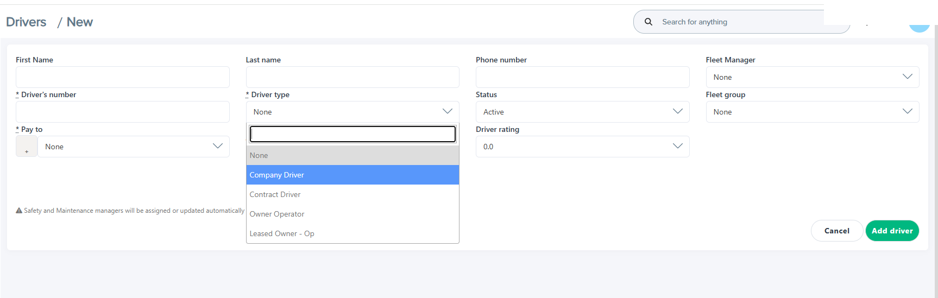
Figure 7 — Driver Type options.
Understanding Driver Type
Driver Type | What it means |
Company Driver | An employee driver (W-2), paid through payroll. |
Contract Driver | A driver working under a contractor arrangement rather than as a company employee. |
Owner Operator | A driver who owns their truck and operates as a contractor (1099). Pay goes to the driver's own company, set via the Pay To field. |
Leased Owner - Op | An owner-operator whose truck is leased to your fleet, rather than fully independent. |
Note: Tax type follows Driver Type: Company Drivers are treated as employees (W-2); Owner Operators and similar types are treated as contractors (1099).
4. Set the Pay To company (required), Status, Fleet Manager, and Fleet Group.
5. Turn on any toggles that apply: Team Driver, Route Driver, Local Driver, CoPilot User, or Samsara.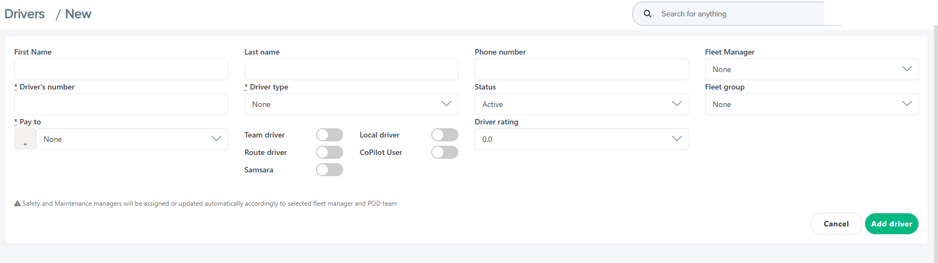
Figure 8 — New Driver form.
Tip: Safety and Maintenance managers are assigned automatically based on the Fleet Manager and POD team you select — you don't need to set these manually.
6. Click Add Driver.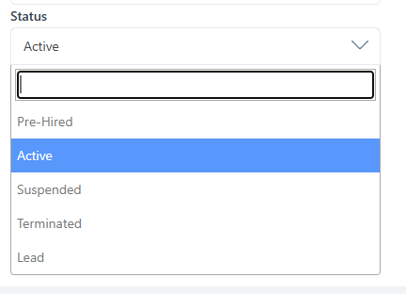
Figure 9 — Driver Status options: Pre-Hired, Active, Suspended, Terminated, Lead.
Frequently Asked Questions
Q: What's the difference between a Company Driver and an Owner Operator?
A: A Company Driver is an employee paid through payroll. An Owner Operator owns their truck and is paid as a contractor, with pay going to their own company.
Q: How do I mark a vendor or driver as inactive?
A: Open their record and change the Status field — for vendors: Inactive or Do Not Use; for drivers: Suspended or Terminated, depending on the situation.
Q: Do I need to manually assign a Safety or Maintenance manager to a driver?
A: No. These are assigned automatically based on the Fleet Manager and POD team you select.
Q: What does the 'Pay To' field do for a driver?
A: It determines which company or entity receives payment for that driver — this matters especially for Owner Operators, who are typically paid through their own company.
Still need help? Contact our support team at help@openroadtms.com
Was this article helpful?
That’s Great!
Thank you for your feedback
Sorry! We couldn't be helpful
Thank you for your feedback
Feedback sent
We appreciate your effort and will try to fix the article