- OpenRoad TMS — Getting Started Series
In addition to the web version, OpenRoad TMS offers a mobile app for drivers, OpenRoad Driver available on the App Store and Google Play. This article covers installing the app, logging in, and using each of its tabs.
Before You Begin
- Download "OpenRoad Driver" from the App Store (iPhone) or Google Play (Android).
- The app is regularly updated with new features and improvements, drivers should keep it updated to get the best experience.
Step 1: Log In
1. Open the app and enter the phone number registered in your OpenRoad profile.
2. You'll receive a PIN code by SMS — enter it to log in securely.
You can log in from multiple devices with the same phone number.
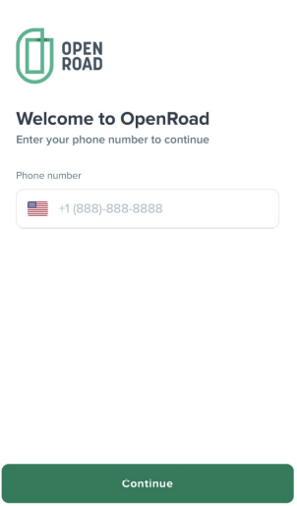
Figure 1 — Enter your phone number.
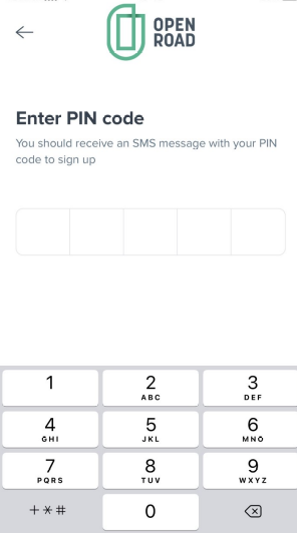
Figure 2 — Enter the PIN code sent by SMS.
Step 2: Manage Your Loads
The Loads tab shows all dispatched loads, organized by status:
Status | What it means |
Pending | A new load has been dispatched. The driver can preview the details and tap Accept. |
Accepted | The load has been accepted and appears in the Accepted folder. The driver can change status or upload documents from here. |
In Transit | The load is underway and shows on the main screen with pickup and delivery details. |
Delivered | The load is complete and moves to the Delivered folder. |
Tip: Load status can be updated at any time, so drivers can keep their progress current as they move through pickup, transit, and delivery.
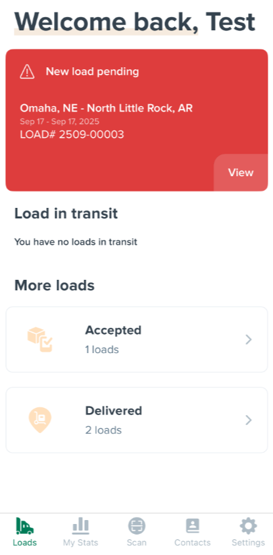
Figure 3 — Loads home screen.
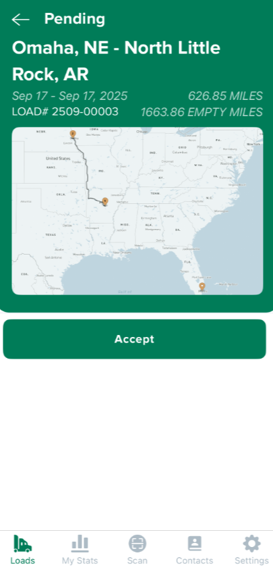
Figure 4 — Pending load: preview and Accept.
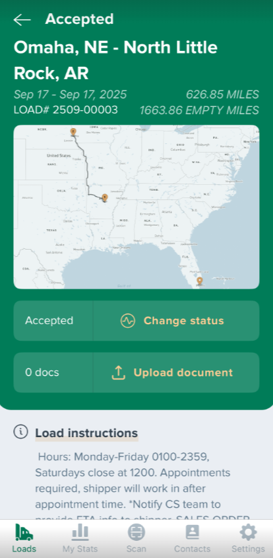
Figure 5 — Accepted load: change status or upload a document.
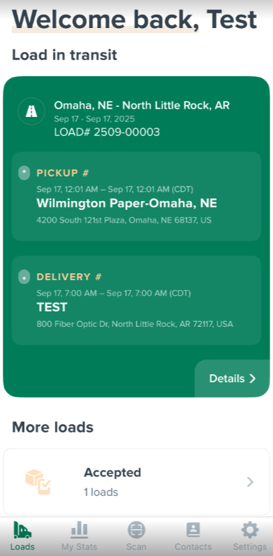
Figure 6 — Load In Transit, shown on the main screen
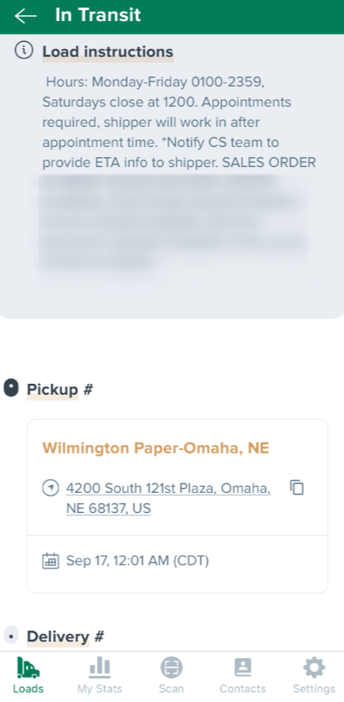
Figure 7 — In Transit load details, with pickup and delivery information.
Step 3: View My Stats
The My Stats tab shows weekly and annual performance data — miles driven and earnings — along with statements.
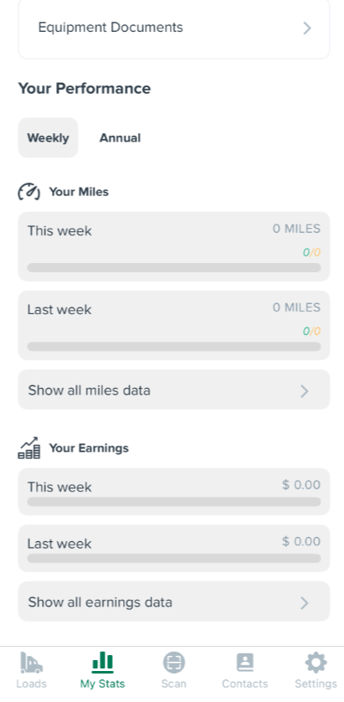
Figure 8 — My Stats: weekly miles and earnings
Step 4: Scan and Upload Documents
The Scan tab lets drivers upload documents by type. Each type links to a specific place in the web version:
Document Type (app) | Where it appears (web version) |
Bill of Lading | Proof of Delivery |
Lumper Receipt | Lumper Receipt |
Scale Ticket | Scale Ticket |
Miscellaneous | Driver Uploads |
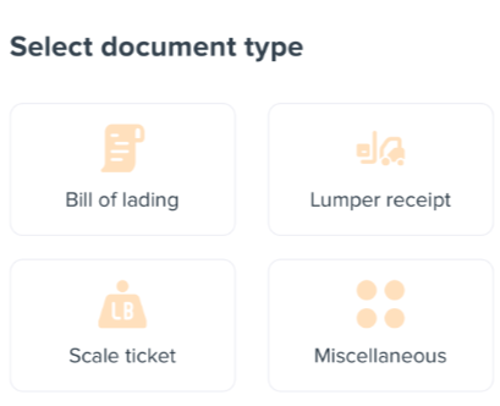
Figure 9 — Select document type before uploading.
Step 5: Contacts
The Contacts tab lists company contacts (like Dispatch or Fleet Managers) so drivers can call them directly from the app.
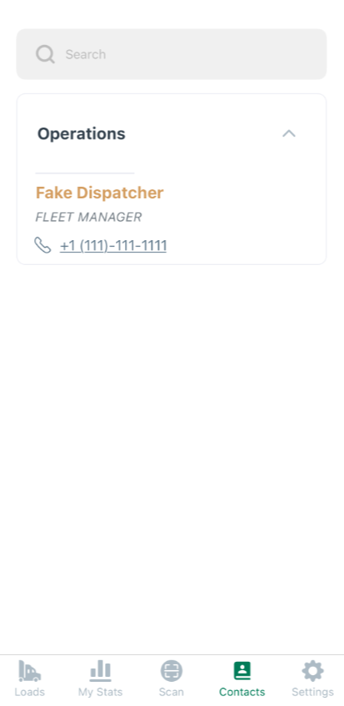
Figure 10 — Contacts tab. Name shown is a test example.
Note: A contact only shows up here if their employee record has "Show employee in contacts" checked under HR → Staff in the web version. If someone is missing from this list, check that setting on their employee profile.
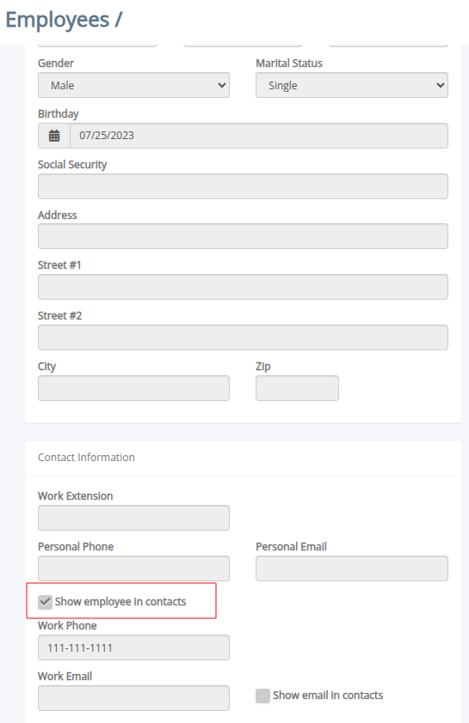 Figure 11 — The "Show employee in contacts" checkbox on the employee profile (web version).
Step 6: Settings
The Settings tab lets each driver configure their own app experience:
- Notifications — choose which alerts to receive.
- Appearance — Light or Dark mode.
- Navigation App — pick a preferred GPS/navigation app.
- PTO and Home Time — pulled from the driver's web profile.
- Policies — company policy documents uploaded in web Settings.
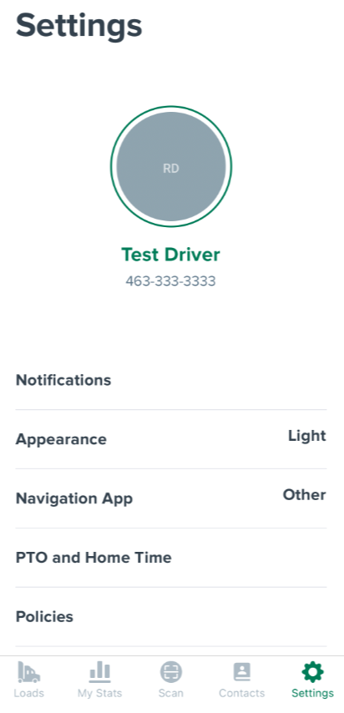
Figure 12 — Settings tab. Name and phone number shown are test examples.
Frequently Asked Questions
Q: Can I use the app on more than one phone?
A: Yes. You can log in from multiple devices using the same registered phone number.
Q: Why can't I see a coworker in my Contacts tab?
A: They need "Show employee in contacts" checked on their employee profile in the web version. Ask your admin to check this setting.
Q: Where do I upload a Bill of Lading from the app?
A: Go to the Scan tab and select Bill of Lading as the document type. It will appear as Proof of Delivery in the web version.
Q: Can I change a load's status after accepting it?
A: Yes, load status can be updated at any time as you move through pickup, transit, and delivery.
Still need help? Contact our support team at help@openroadtms.com
Was this article helpful?
That’s Great!
Thank you for your feedback
Sorry! We couldn't be helpful
Thank you for your feedback
Feedback sent
We appreciate your effort and will try to fix the article