In addition to the web version, OpenRoad provides a mobile application called OpenRoad Driver, available on the App Store and Google Play. Drivers use it to manage their loads, navigate to stops, upload documents, track their performance, and access company resources from their phone.
We release updates regularly on both iOS and Android. The current version is 3.5.2. Drivers should keep the app updated to get the latest features and fixes. The app shows its version in Settings and prompts the driver when a newer version is available.
Logging In
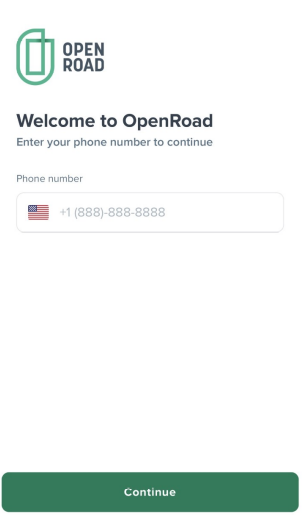
Install OpenRoad Driver and open the app.
Enter the phone number registered in the driver's OpenRoad profile.
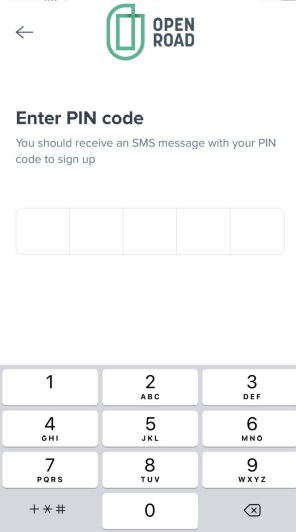
Enter the PIN code sent by SMS. On most phones, the code fills in automatically.
Drivers can log in from multiple devices. If the PIN does not arrive, confirm that the phone number in the driver profile is correct.
App Tabs Overview
The bottom navigation bar has five tabs: Loads, My Stats, Scan, Contacts, and Portal.
1. Loads
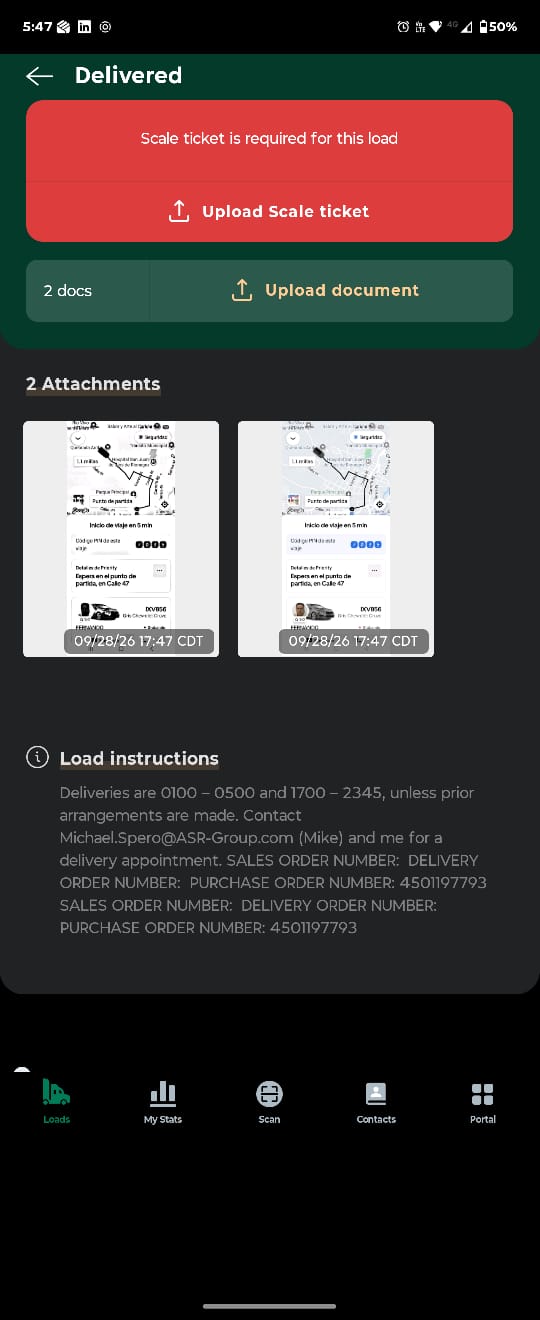
Shows all dispatched loads in the Pending, Accepted, and Delivered folders.
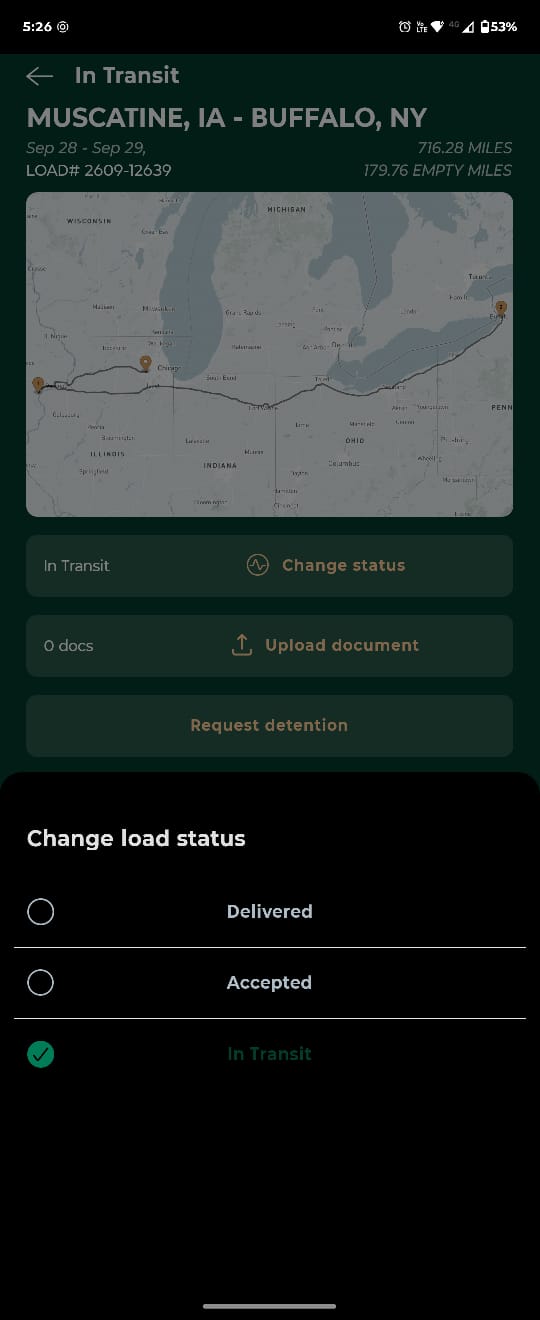
Load workflow:
- Pending: The driver previews upcoming assigned loads and taps Accept.
- Accepted: The load moves to the Accepted folder.
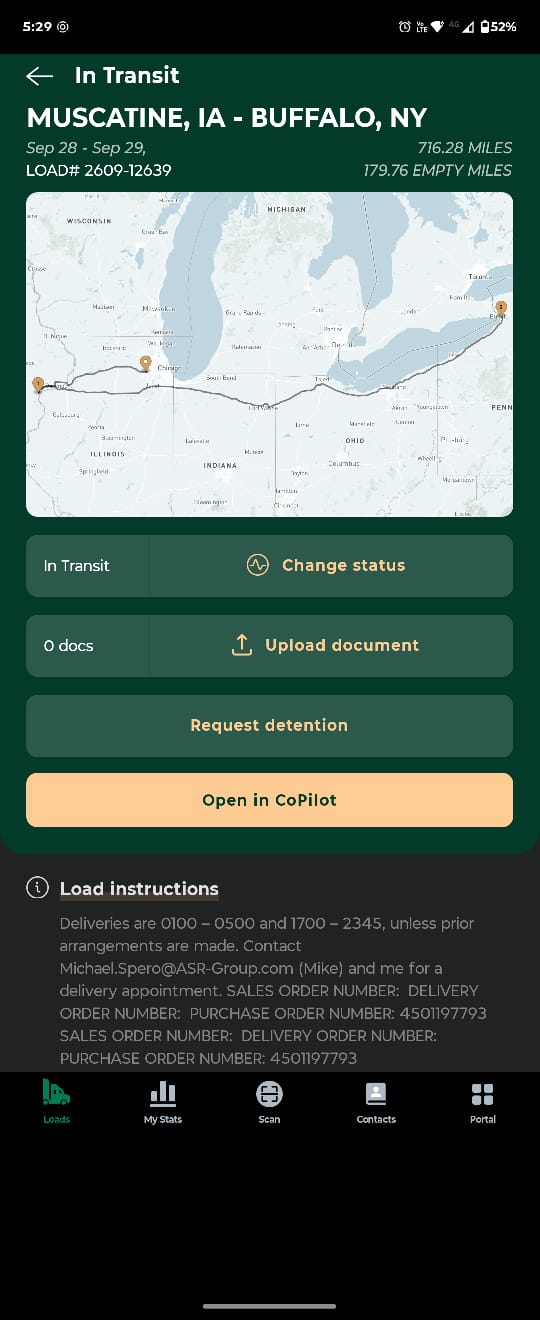
- In Transit: The active load is shown on the main screen.
- Delivered: The load moves to the Delivered folder.
The driver can update the load status at any time, and every change is reflected in the web version.
 Navigation:
- CoPilot accounts: The driver can launch the full trip in Trimble CoPilot directly from the load screen, or navigate to a single stop.
- Other accounts: Tapping a stop opens the navigation app selected in Settings, such as Google Maps or Apple Maps.

Bill of Lading reminders (optional, set by your office team):
- Upload reminder: The driver receives a push notification if the BOL is not uploaded after delivery.
- Next load blocking: The next assigned load stays hidden until the BOL for the previous load is uploaded.
- Split loads: Drivers delivering part of a split load are prompted to upload a BOL.
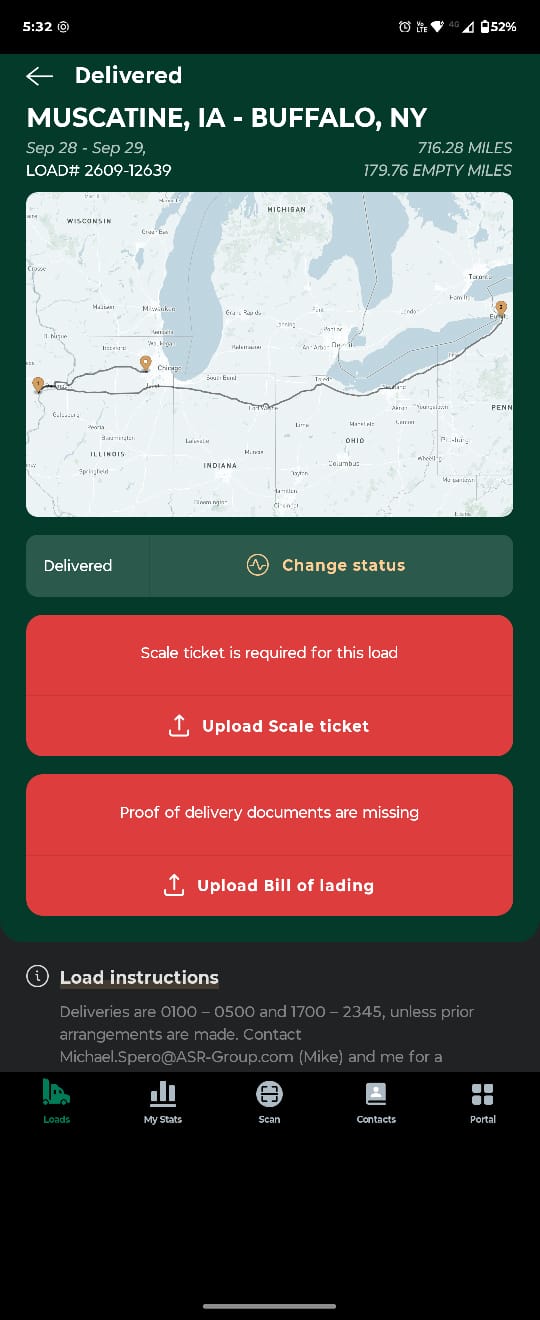
NOTE: Loads can be accepted but not rejected in the app. If a driver cannot take a load, the driver should contact dispatch.
2. My Stats
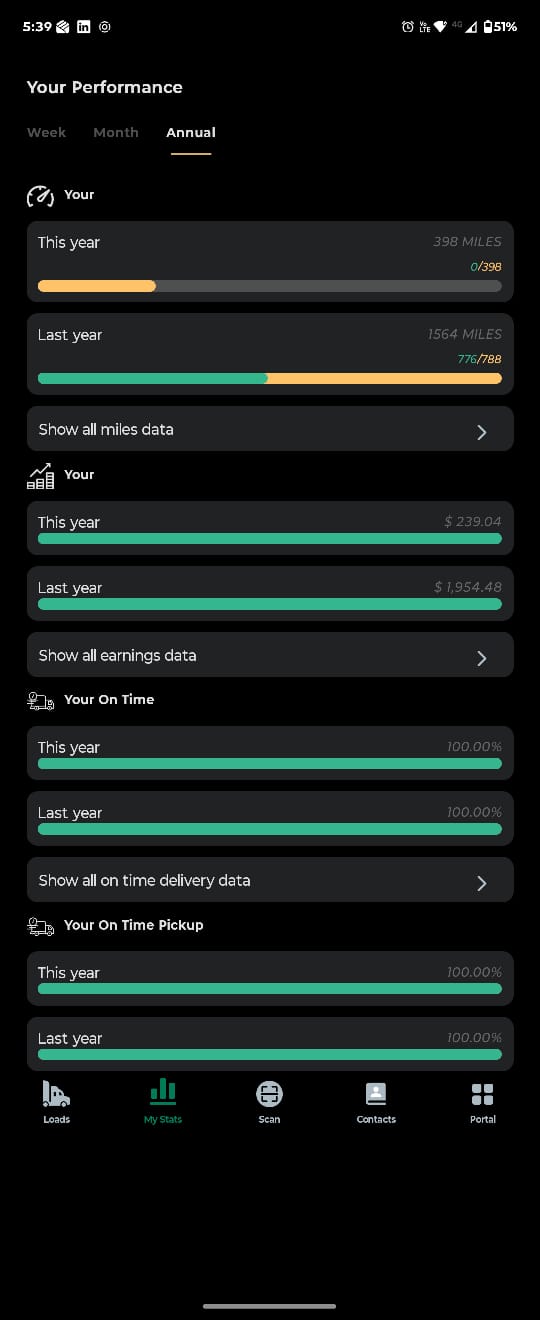
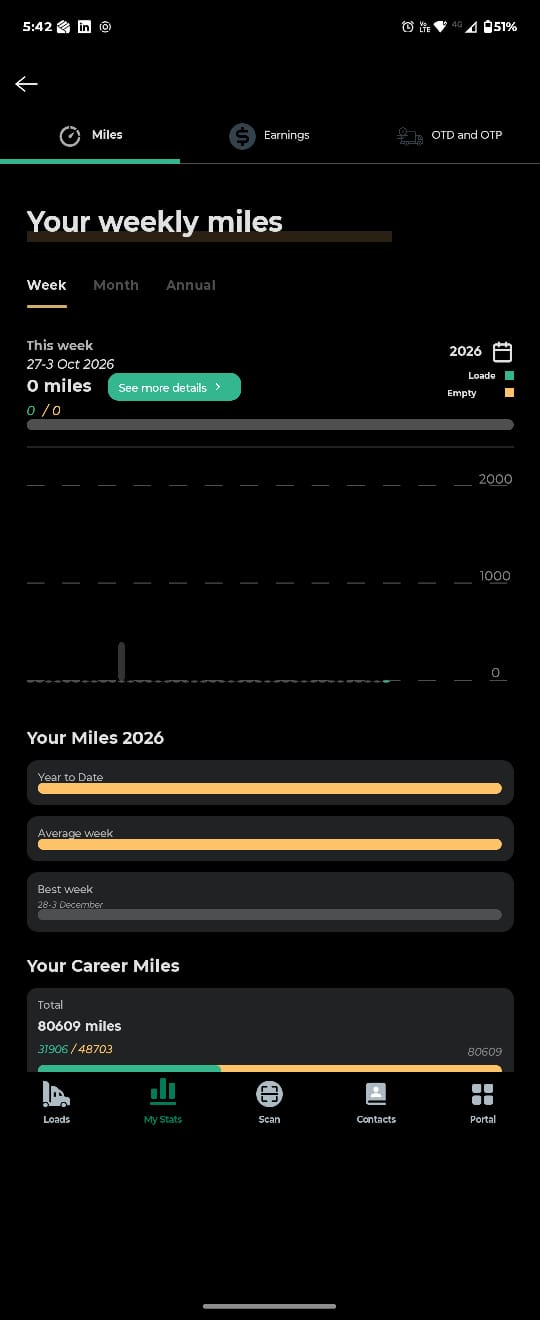
Shows the driver's mileage, earnings, and performance.
- Week, Month (last 4 weeks), and Annual tabs for miles and earnings.
- Total CPM Earned for drivers paid per mile.
- Weekly statements.
Drivers set up as contract drivers do not see earnings.
3. Scan
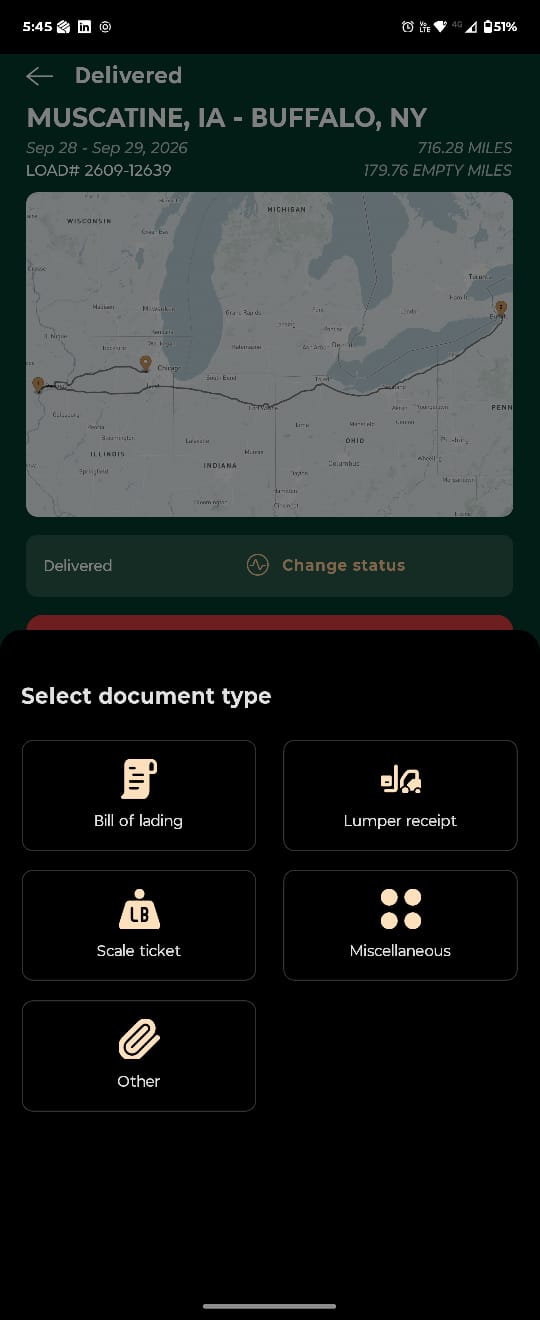
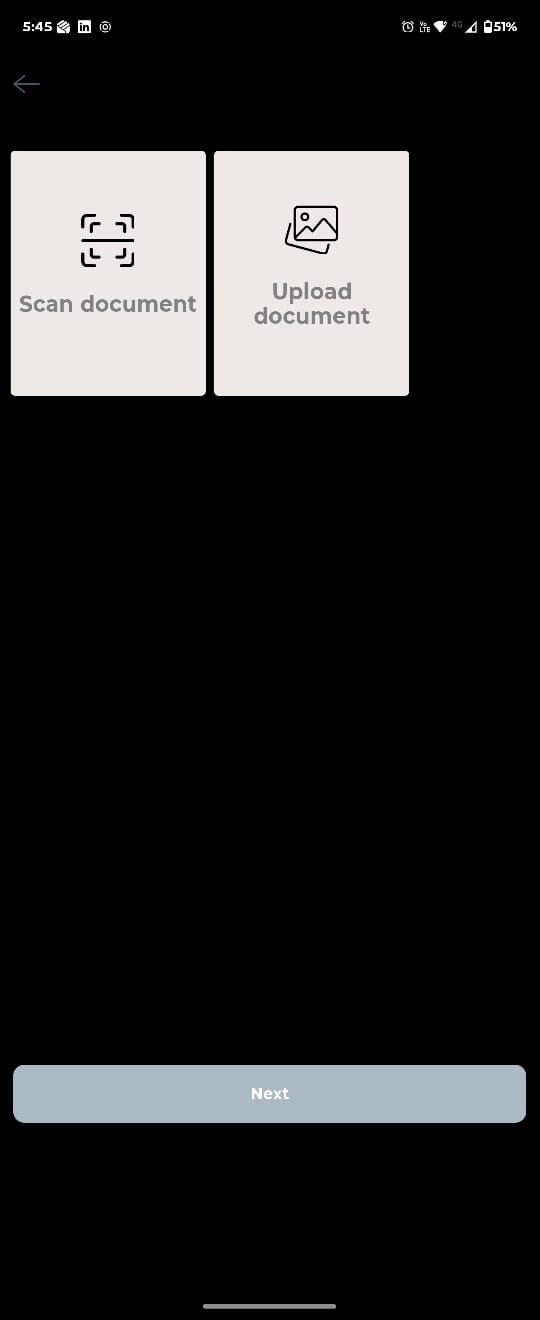
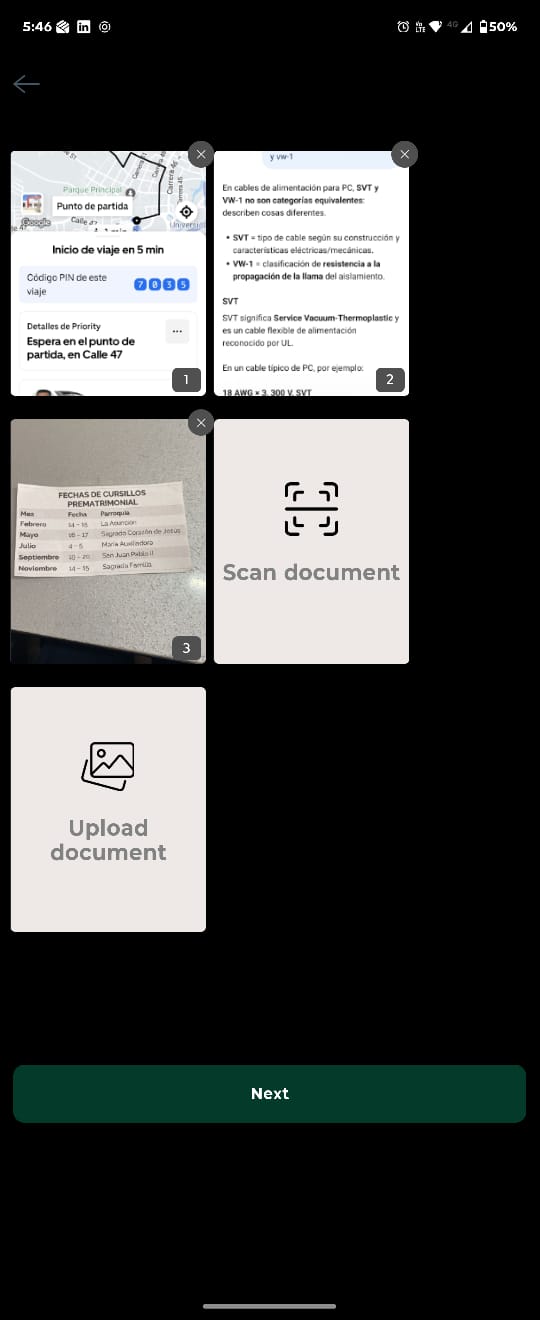
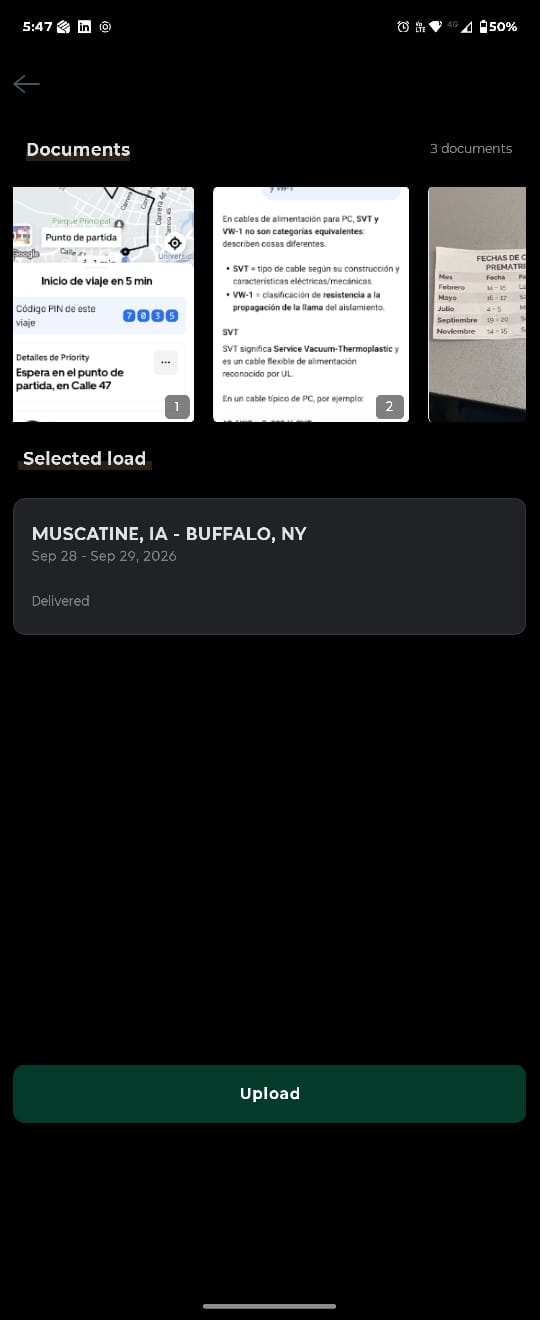
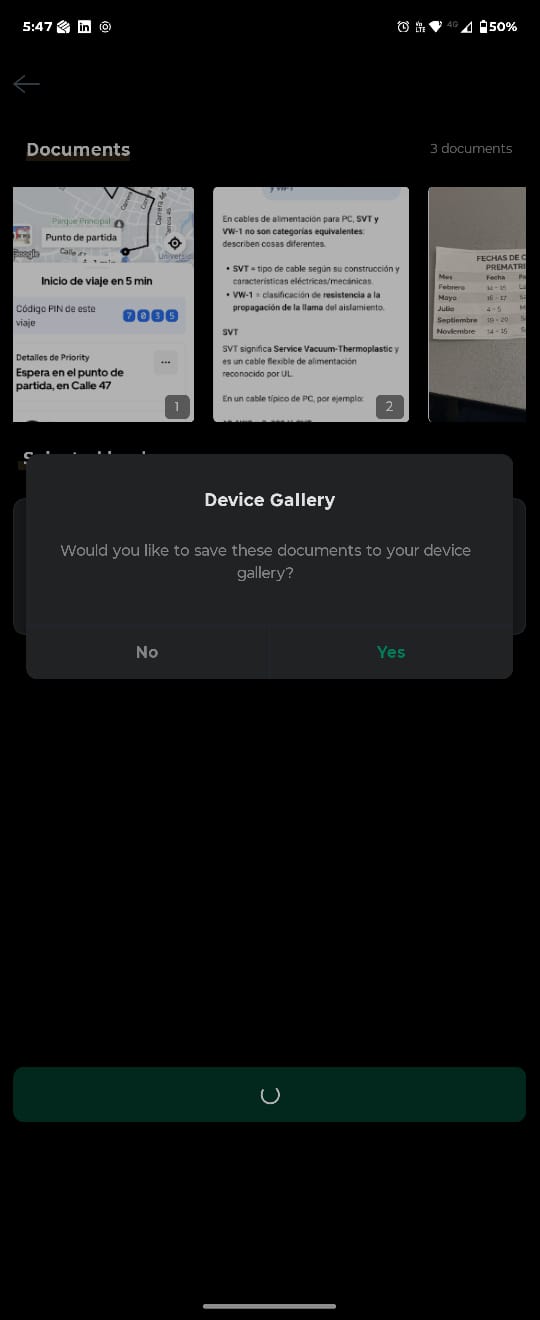
Allows drivers to scan and upload single or multiple page documents. Each type goes to a specific place in the web version:
- Bill of Lading: Linked to Proof of Delivery.
- Lumper Receipt: Linked to Lumper Receipt.
- Scale Ticket: Linked to Scale Ticket.
- Miscellaneous: Linked to Driver Uploads.
- Other: Saved directly to the load's Other section, for documents that do not fit the types above.
4. Contacts
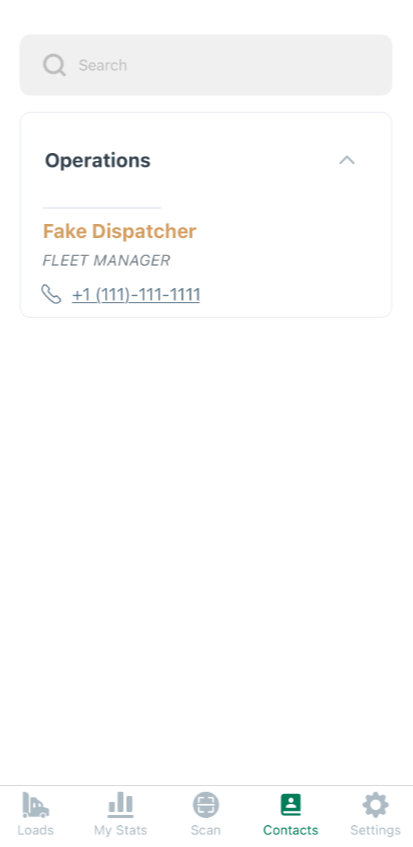
Lists company contacts.
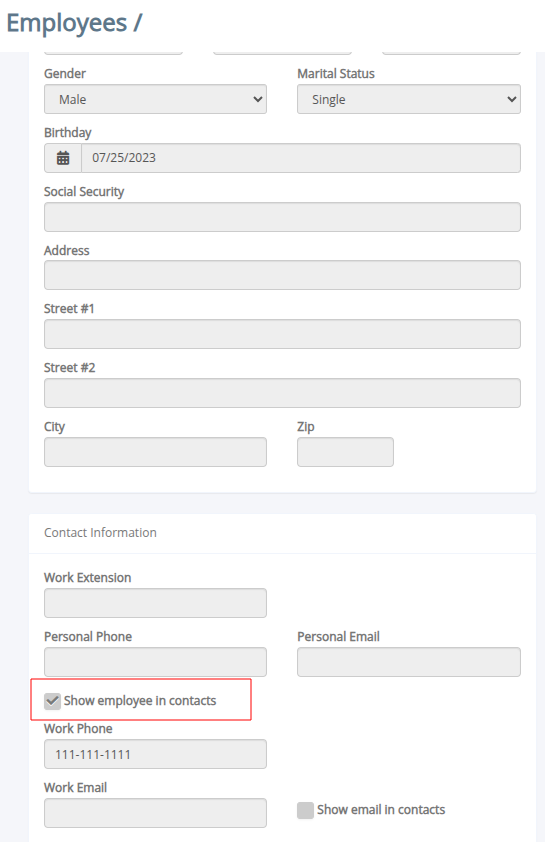
Employee records must be set up in the web version to appear here.
5. Portal
Portal replaced the former Settings tab. It brings company news and driver resources into one place.
News: The latest company article is featured at the top. Drivers tap View All to see all articles. A badge on the Portal tab shows when there is unread news.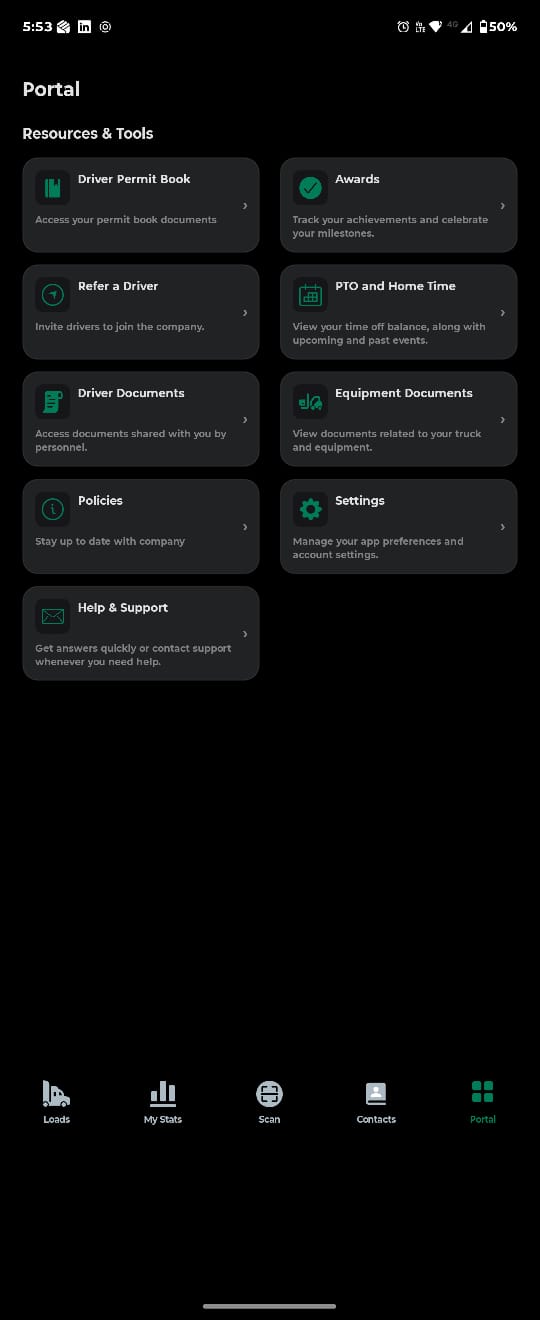
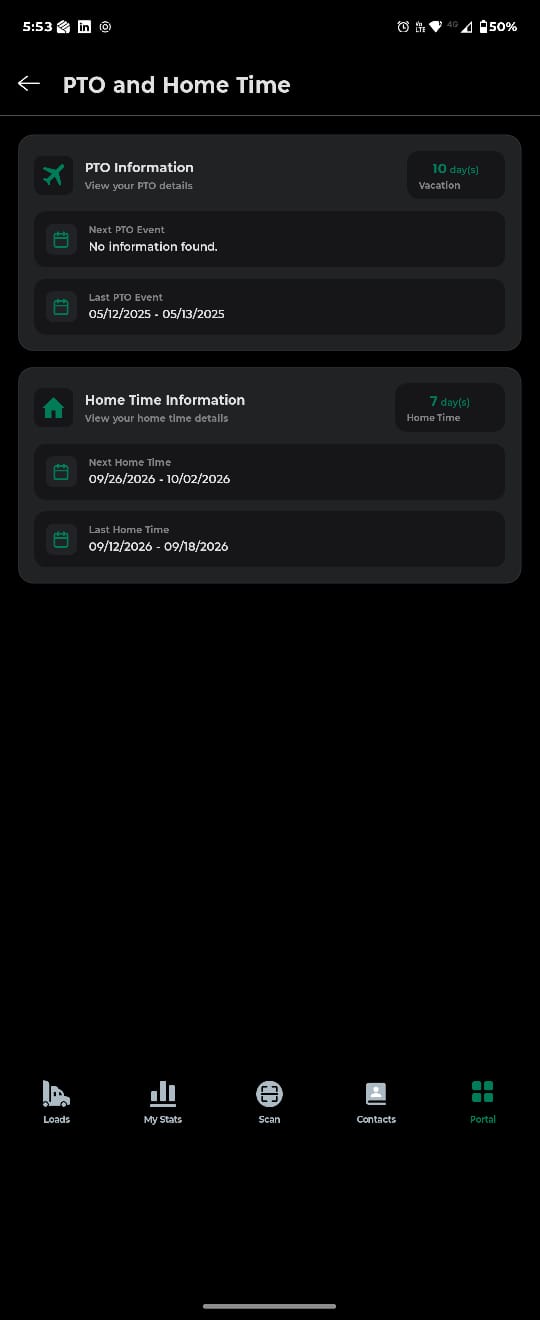
- PTO and Home Time: Balance and upcoming and past events, taken from the driver's web profile.
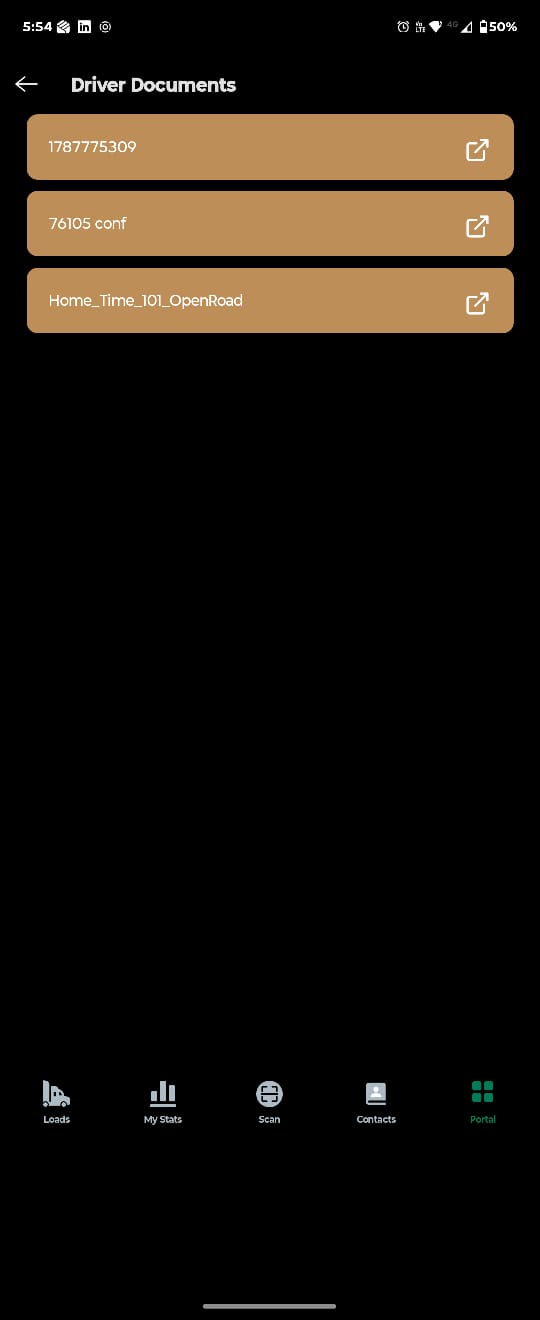
- Driver Documents: Files your team uploads to the Driver App folder in the driver profile.
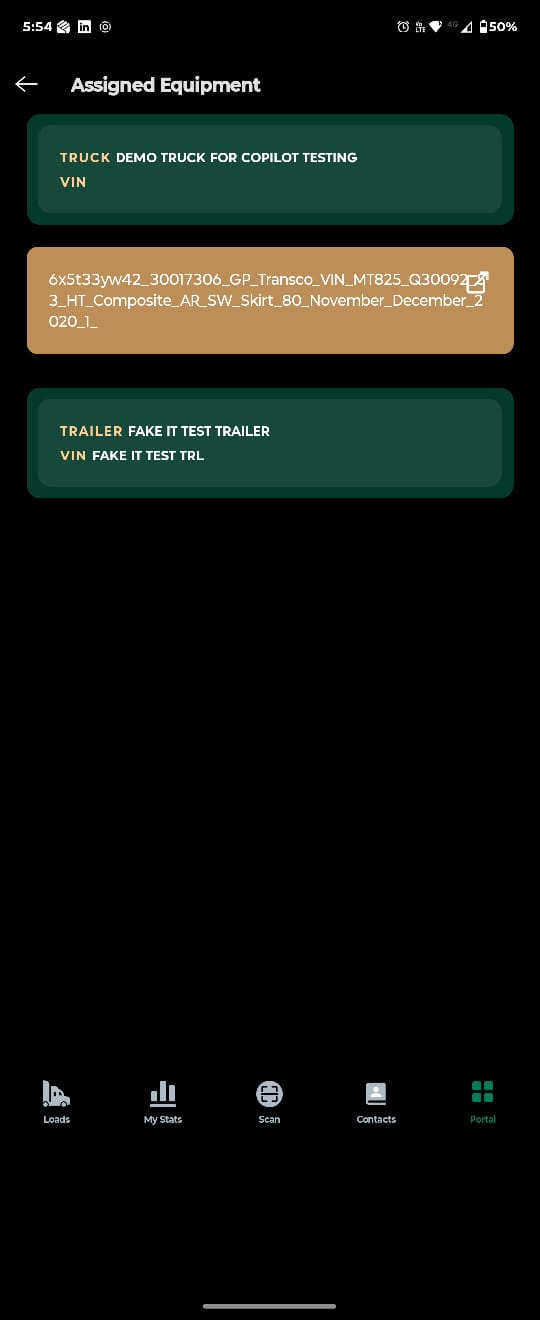
- Equipment Documents: Documents for the assigned equipment, including truck insurance.
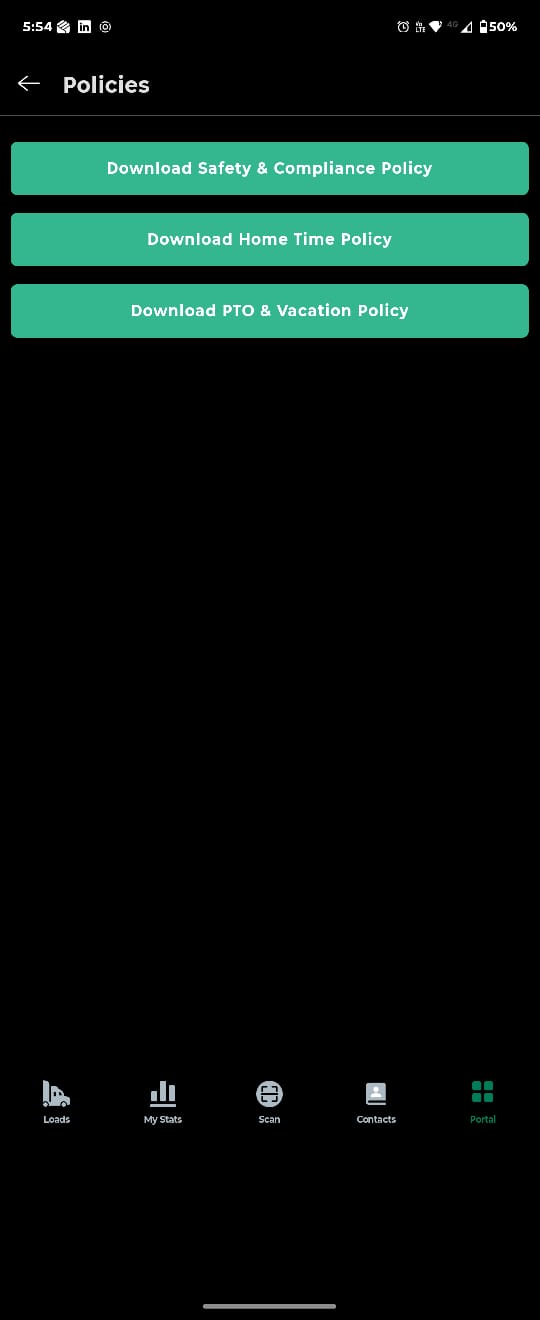
- Policies: Company policies added in the web Settings.
- Settings: Notifications, appearance, navigation app, and app version.
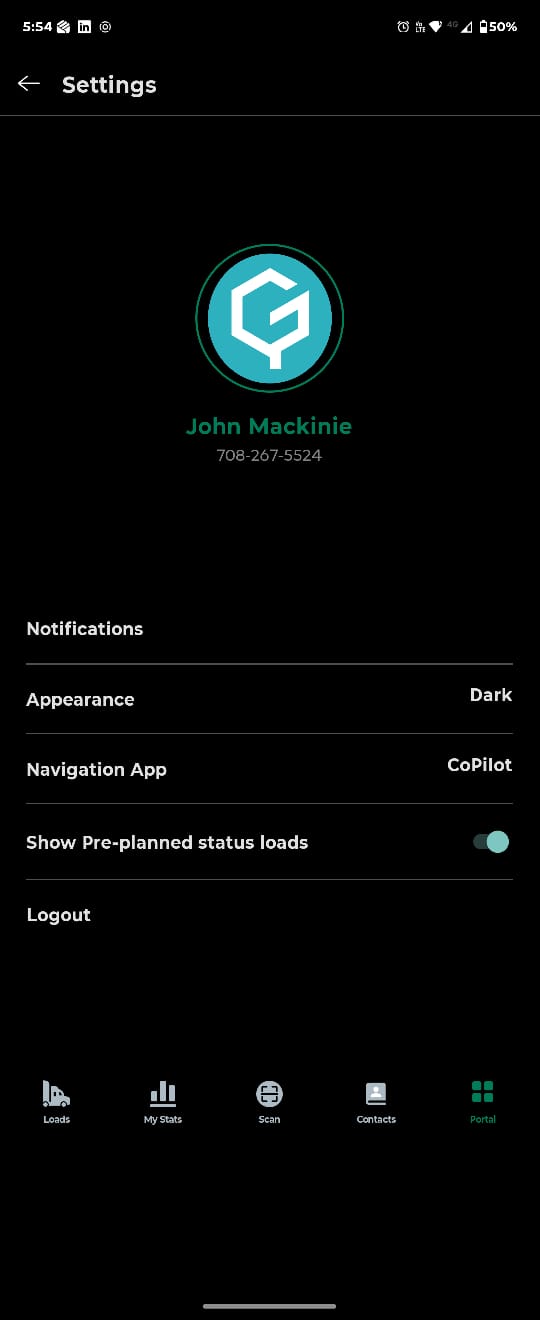
- Help and Support.
For Office Users: Web Setup
These settings in the web version control what drivers see in the app.
- Company news: Go to Settings > Preferences > Mobile App > News. Add a title, description, image, and an optional link, then publish. To also send a push notification to all drivers, turn on Send push notifications for published news. Editing an article does not send a new notification.
- BOL reminders and next load blocking: Go to Settings > Preferences > Mobile App. Next load blocking can also be turned on or off for an individual driver in the Driver App section of the driver profile.
- Driver documents: Upload files to the Driver App folder in the Files tab of the driver profile.
- Policies: Add policy text and files in the Mobile App section of Settings.
- Contacts: Set up employee records in the web version so they appear in the app.
- App version: Each driver's installed app version is shown in the driver profile.
This structure ensures drivers can easily manage their loads, track performance, upload documents, and access company resources directly from their mobile devices.
Video Of the app Attached.
Common Questions
Q: The driver did not receive the PIN code. What should we check?
A: The PIN is sent only to the phone number saved in the driver profile. Open the driver profile in the web version and confirm the phone number matches the number the driver is entering in the app. Correct the number if needed and ask the driver to try again.
Q: The driver cannot find the Settings tab. Where is it?
A: Settings is no longer a tab in the bottom navigation bar. In the app, go to Portal > Settings. Notifications, appearanbce, navigation app, and the app version are all found there.
Q: The driver cannot see the next assigned load. Why?
A: Next load blocking is most likely active, which hides the next load until the BOL for the previous load is uploaded. Once the driver uploads the BOL through the Scan tab, the next load appears. To review the setting:
- Account level: Settings > Preferences > Mobile App > Additional Settings.
- Driver level: Open the driver profile and go to the Driver App section on the Overview tab.
Blocking applies only to loads delivered within the last 30 days in Delivered, Delivered Pending, or Exported status, and never to split loads.
Q: How do we remind drivers to upload the BOL after delivery?
A: Go to Settings > Preferences > Mobile App and turn on the BOL reminder notification. By default, the driver receives the reminder 60 minutes after delivery. The reminder is not sent if the POD is already uploaded on the load.
Q: The driver does not see earnings or recent miles in My Stats. What should we check?
A: Open the driver profile and check two things:
- Driver type: Drivers set up as contract drivers do not see earnings. Company drivers, owner operators, and leased owners do.
- Date removed: If the driver was reactivated and the profile still shows a Date removed, the app only shows data up to that date. Clear the field to restore recent earnings and miles.
Q: CoPilot does not open from the load screen. What should we check?
A: CoPilot launch is only available on CoPilot enabled accounts, and the driver must have the CoPilot User flag turned on in the driver profile. New drivers are added to CoPilot automatically based on that flag. If the flag is on and CoPilot still does not open, contact our team.
Q: Where does a document go when the driver uploads it?
A: It depends on the document type selected in the Scan tab. Open the load in the web version and check the matching section:
- Bill of Lading: Proof of Delivery.
- Lumper Receipt: Lumper Receipt.
- Scale Ticket: Scale Ticket.
- Miscellaneous: Driver Uploads.
- Other: The Other section of the load, labeled with the driver's name so it can be told apart from office uploads.
Q: How do we give a driver access to personal documents in the app?
A: Open the driver profile, go to the Files tab, and upload the files to the Driver App folder. The driver can then open them in the app under Portal > Driver Documents.
Q: How do we share an announcement with all drivers?
A: Go to Settings > Preferences > Mobile App > News. To also send a push notification, turn on Send push notifications for published news at the top of the page. Create the article with a title, description, image, and optional link, then publish it.
The article appears at the top of the Portal tab, and editing it later does not send a second notification.
Q: A company contact does not appear in the Contacts tab. Why?
A: Contacts come from employee records in the web version. Confirm that the employee record exists and is set to show in the driver app contacts.
Q: How do we check which app version a driver is using?
A: In the web version OpernRoadTMS, open the driver profile. The app version is shown on the profile. In the app, the driver can check it under Portal > Settings, where an update prompt appears if a newer version is available in the store.
Was this article helpful?
That’s Great!
Thank you for your feedback
Sorry! We couldn't be helpful
Thank you for your feedback
Feedback sent
We appreciate your effort and will try to fix the article