Give your drivers one place for training videos, safety guides and company documents. Files you add in OpenRoad appear in the Portal tab of the OpenRoad Driver app, organized in the folders you choose, and drivers can open them any time.
Who can do this: users with access to Settings.
Before you begin
- Have the files ready. Supported types: MP4, MOV, PDF, DOCX, PPTX, JPG and PNG. Each file can be up to 1 GB, and each training holds one file.
- Decide how you want to organize them. New accounts start with three folders: Operations, HR and Maintenance. You can rename them, delete them or add your own.
Anyone who has a file's link can open it while the link is valid (about 12 hours). Use trainings for material meant for your drivers, not for confidential records.
Open the Trainings tab
- In OpenRoad, go to Settings → Preferences → Mobile App.
- Select the Trainings tab.
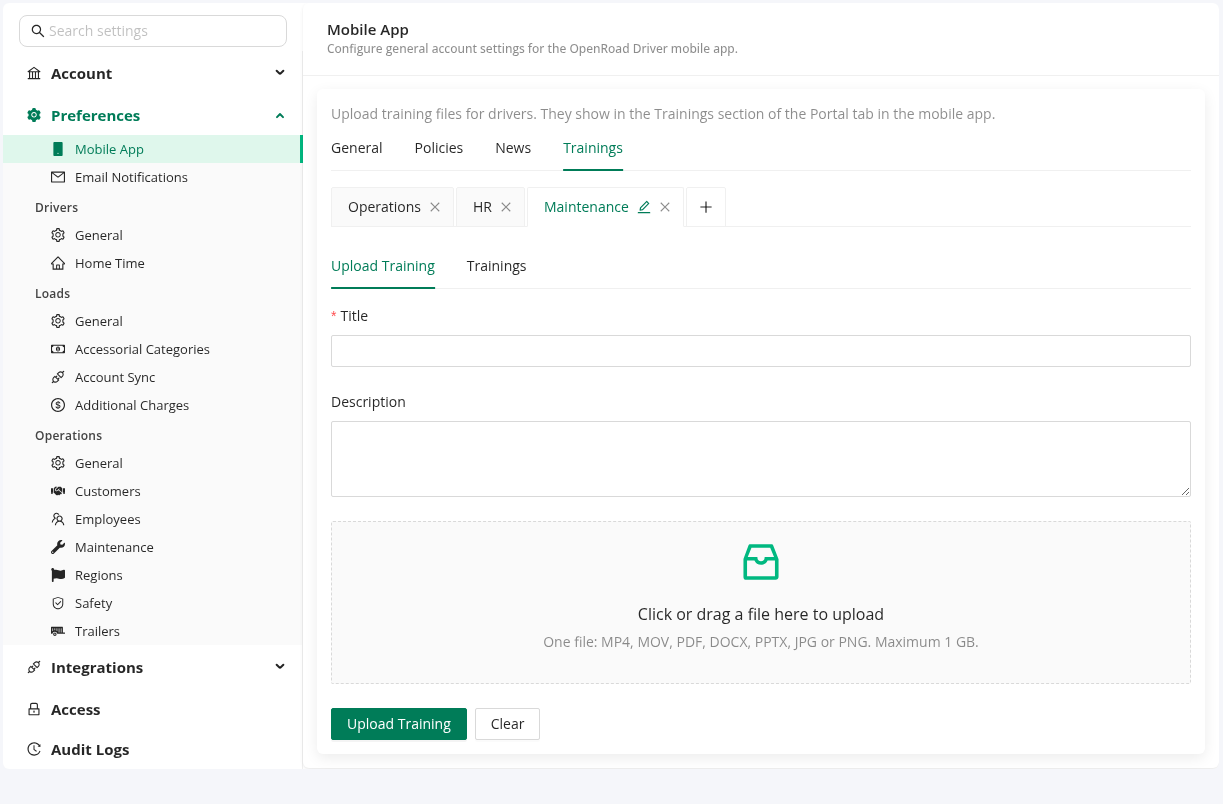
You will see one tab per folder (Operations, HR, Maintenance). Each folder has two sections: Upload Training to add a file, and Trainings to see and manage what is already there.
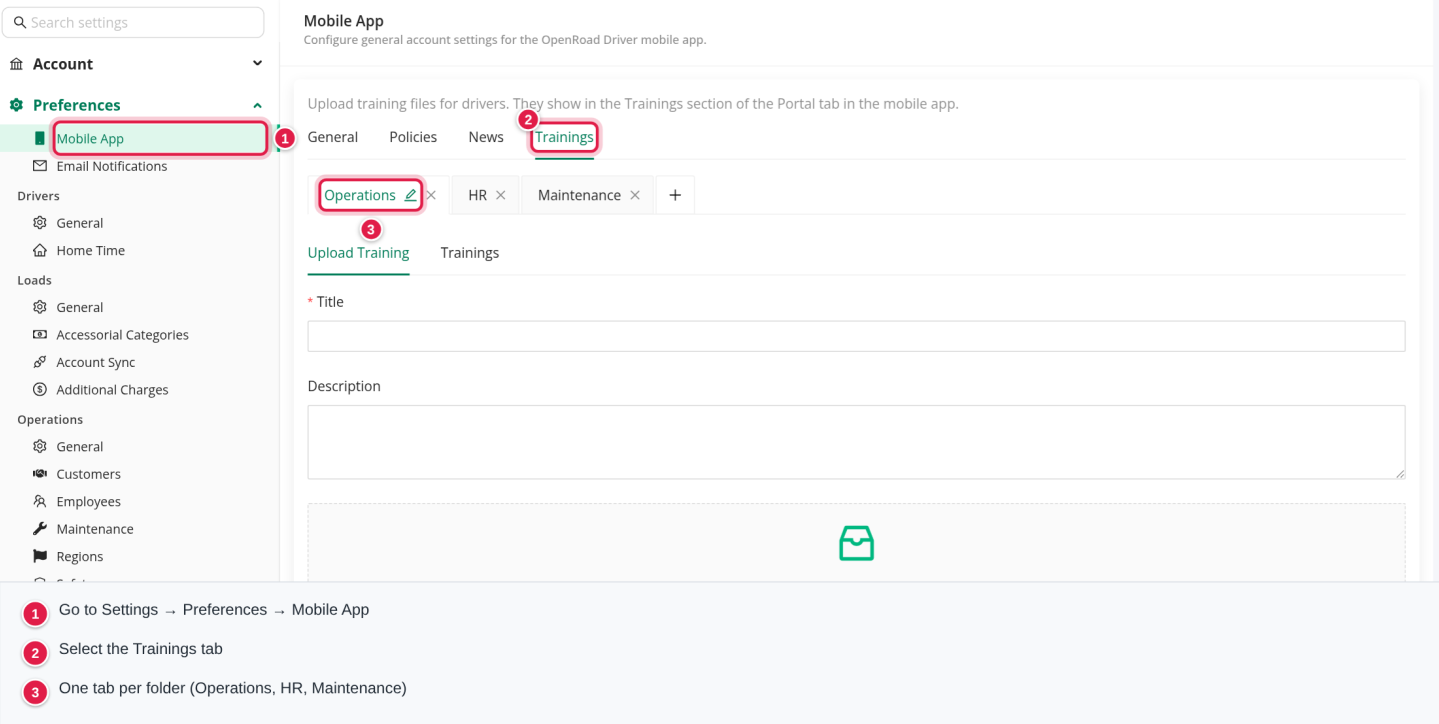
The first time anyone opens this tab for your account, the three default folders are created for you.
Upload a training
- Select the folder tab where the training belongs, for example Operations.
- Open Upload Training.
- Enter a Title. This is what drivers see in the app. It is required.
- (Optional) Add a Description, for example "Required for all drivers before the first winter dispatch. 12 minutes."
- Drag the file onto Click or drag a file here to upload, or click the area to browse for it.
- Select Upload Training. Select Clear instead if you want to start over.
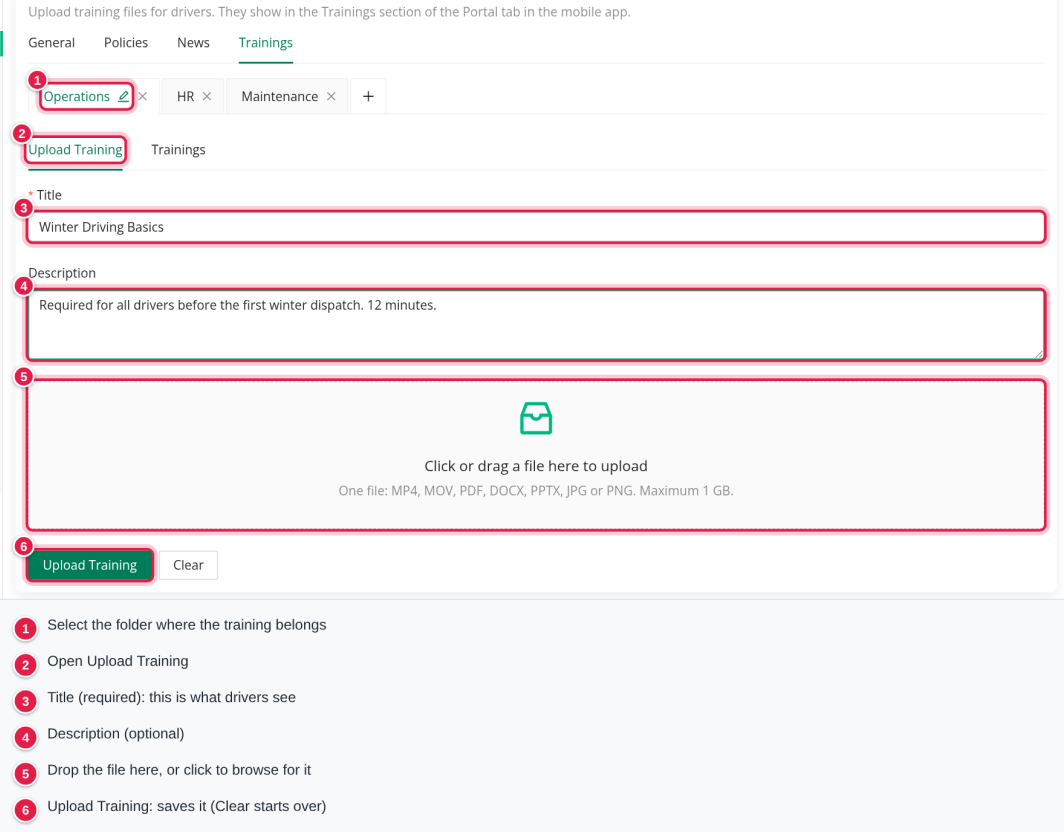
Large videos can take a few minutes to upload. Keep the page open until the training appears under Trainings.
Drivers see the new training the next time they open the Portal tab in the app.
See, open and change your trainings
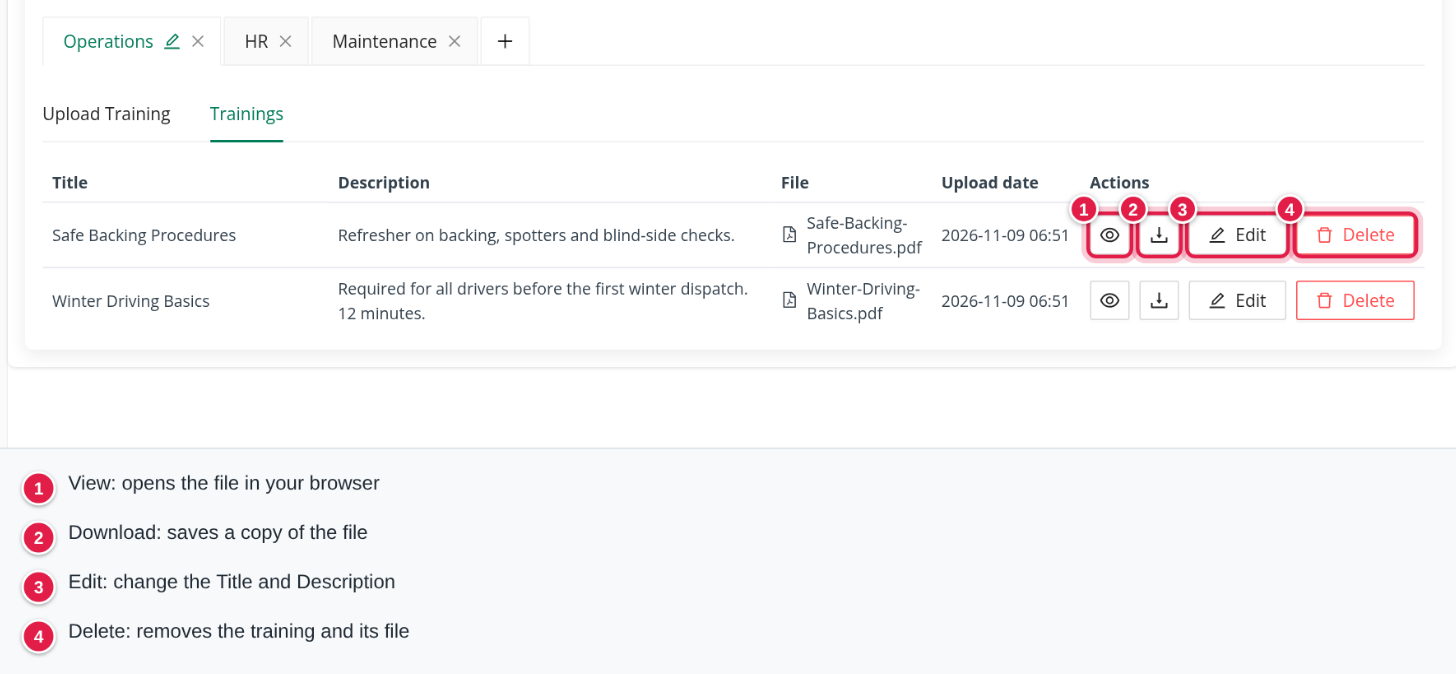
Open a folder and select Trainings. Every training shows its Title, Description, File name and Upload date, with these actions:
| Action | What it does |
|---|---|
| Eye icon | Opens the file in your browser. |
| Download icon | Saves a copy of the file. Some videos cannot play in the browser; download them to watch. |
| Edit | Changes the Title and Description, then Save. |
| Delete | Removes the training and its file. Drivers no longer see it. |
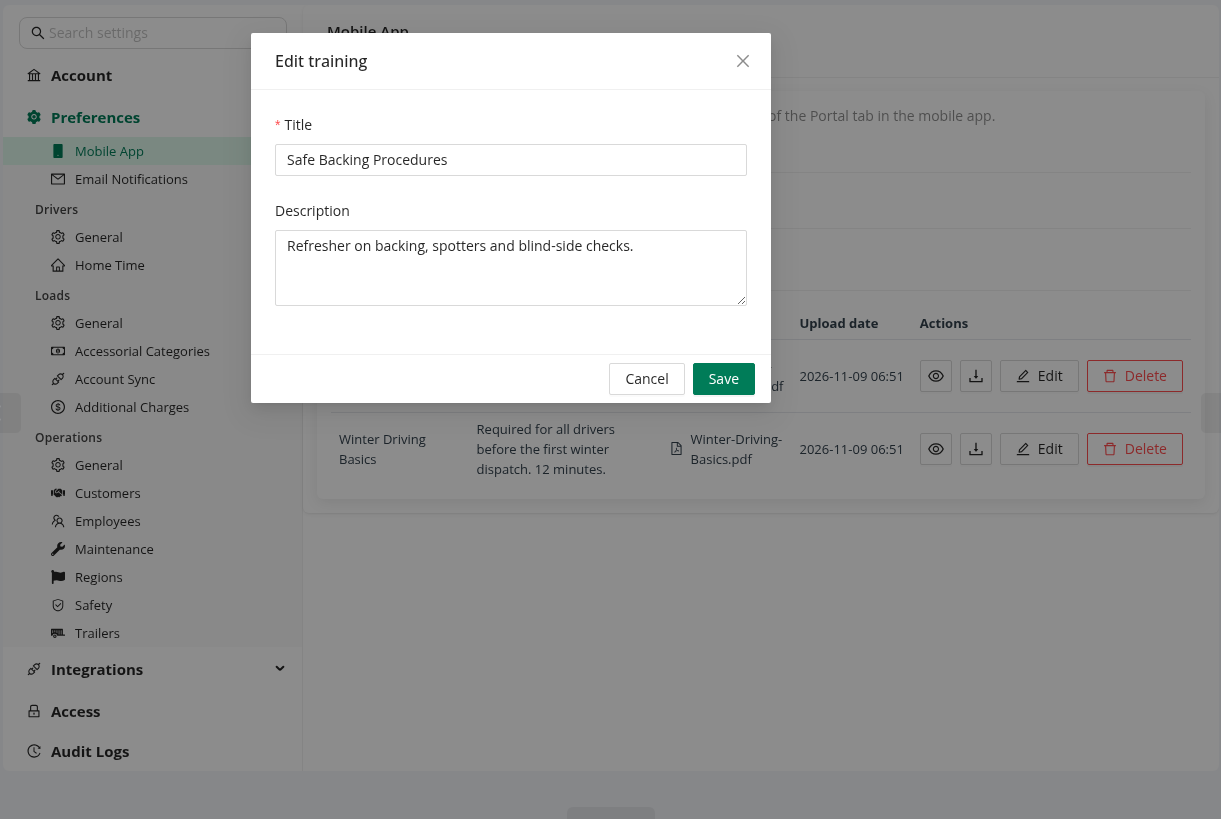
You cannot swap the file inside an existing training. To publish a new version of a document, upload it as a new training and delete the old one.
Manage folders
- Add a folder: select + at the end of the folder tabs, enter a Name and select Save. Folder names must be unique.
- Rename a folder: select the folder, then the pencil icon next to its name.
- Delete a folder: select the × on its tab. A folder that still contains trainings cannot be deleted; delete or re-upload its trainings first, and OpenRoad tells you if the folder is not empty.
What drivers see in the app
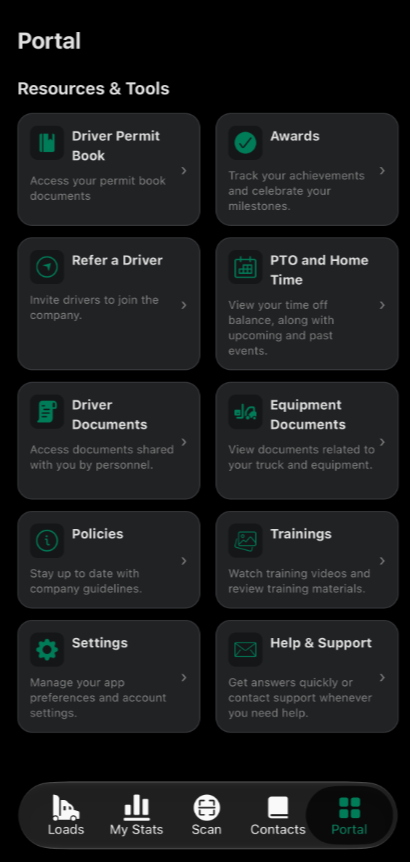
Trainings appear in the OpenRoad Driver app, in the Portal tab, in the Trainings section.
- The driver opens the Portal tab.
- The driver selects Trainings.
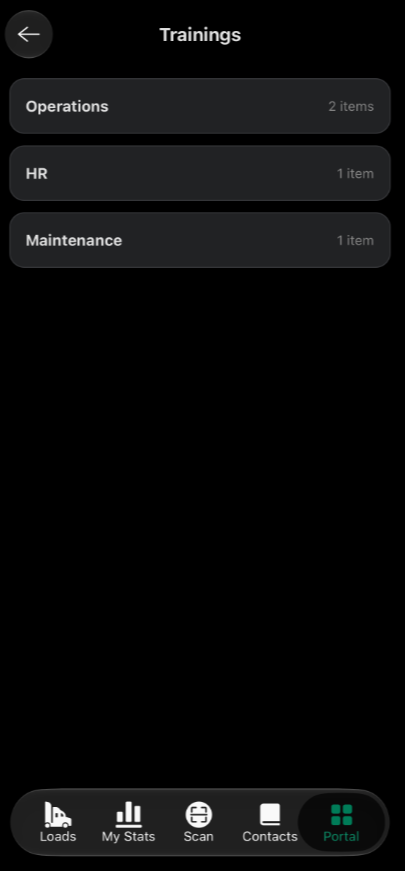
- The driver opens a folder, then selects a training to open it.
What the driver sees:
- Folders in the order they were created in OpenRoad, each with its trainings listed newest first.
- For every training, the title and description you entered, the file name, and the date it was uploaded.
- The same folders for every driver of your company. Trainings are not assigned to individual drivers.
A driver can open a training to read or watch it, and download it to the phone.
Changes you make in OpenRoad reach the app the next time the driver opens the Portal tab: new trainings appear, edited titles and descriptions update, and deleted trainings disappear. Drivers should use the latest version of the app from the App Store or Google Play.
Good to know
- Drivers see every folder of your account, with the newest training first in each folder. You cannot show a folder to only some drivers.
- Deleting a training is permanent. The file cannot be restored.
- If you delete all folders, the three default folders come back the next time the tab is opened.
Frequently asked questions
Was this article helpful?
That’s Great!
Thank you for your feedback
Sorry! We couldn't be helpful
Thank you for your feedback
Feedback sent
We appreciate your effort and will try to fix the article