Give your drivers your company policies in their pocket. PDF documents you upload in OpenRoad, such as the PTO policy, the home time rules and the safety handbook, appear in the Policies tab of the OpenRoad Driver app, where drivers can open and download them.
Who can do this: users with access to Settings.
Before you begin
- Have each policy ready as a PDF file. Only PDF files are accepted, one file at a time, up to 120 MB.
- Decide which of the three categories each policy belongs to:
| Category | Use it for |
|---|---|
| PTO & Vacation | Time-off and vacation rules |
| Home Time | Home time rules and request forms |
| Safety & Compliance | Safety handbooks and compliance documents |
Policies are shown to all drivers of your account. You cannot show a policy to only some drivers.
Open the Policies tab
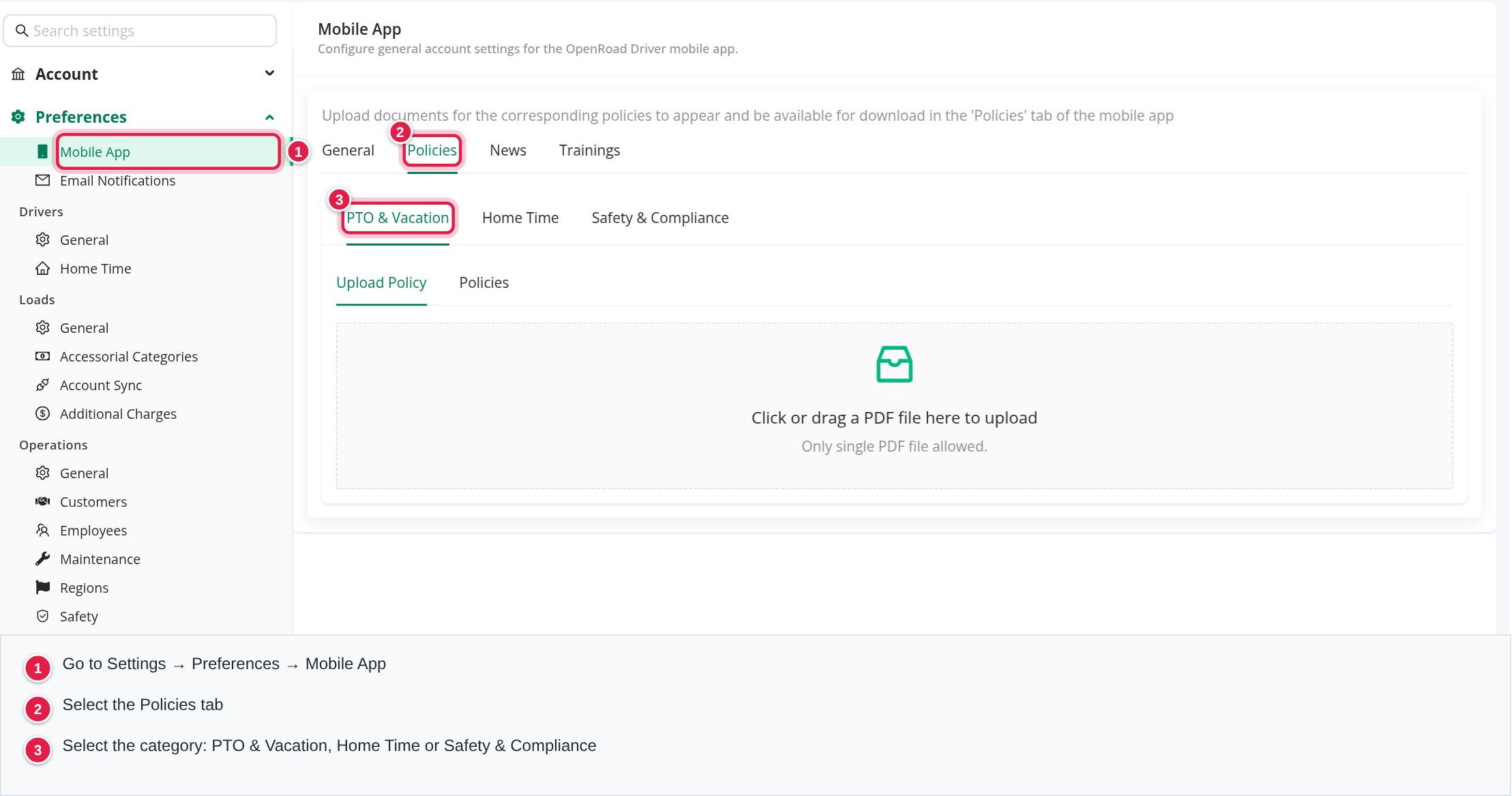
- In OpenRoad, go to Settings → Preferences → Mobile App.
- Select the Policies tab.
- Select the category: PTO & Vacation, Home Time or Safety & Compliance.
Each category has an Upload Policy section. Once a category holds at least one file, a Policies section appears next to it with the list of uploaded files.
Upload a policy
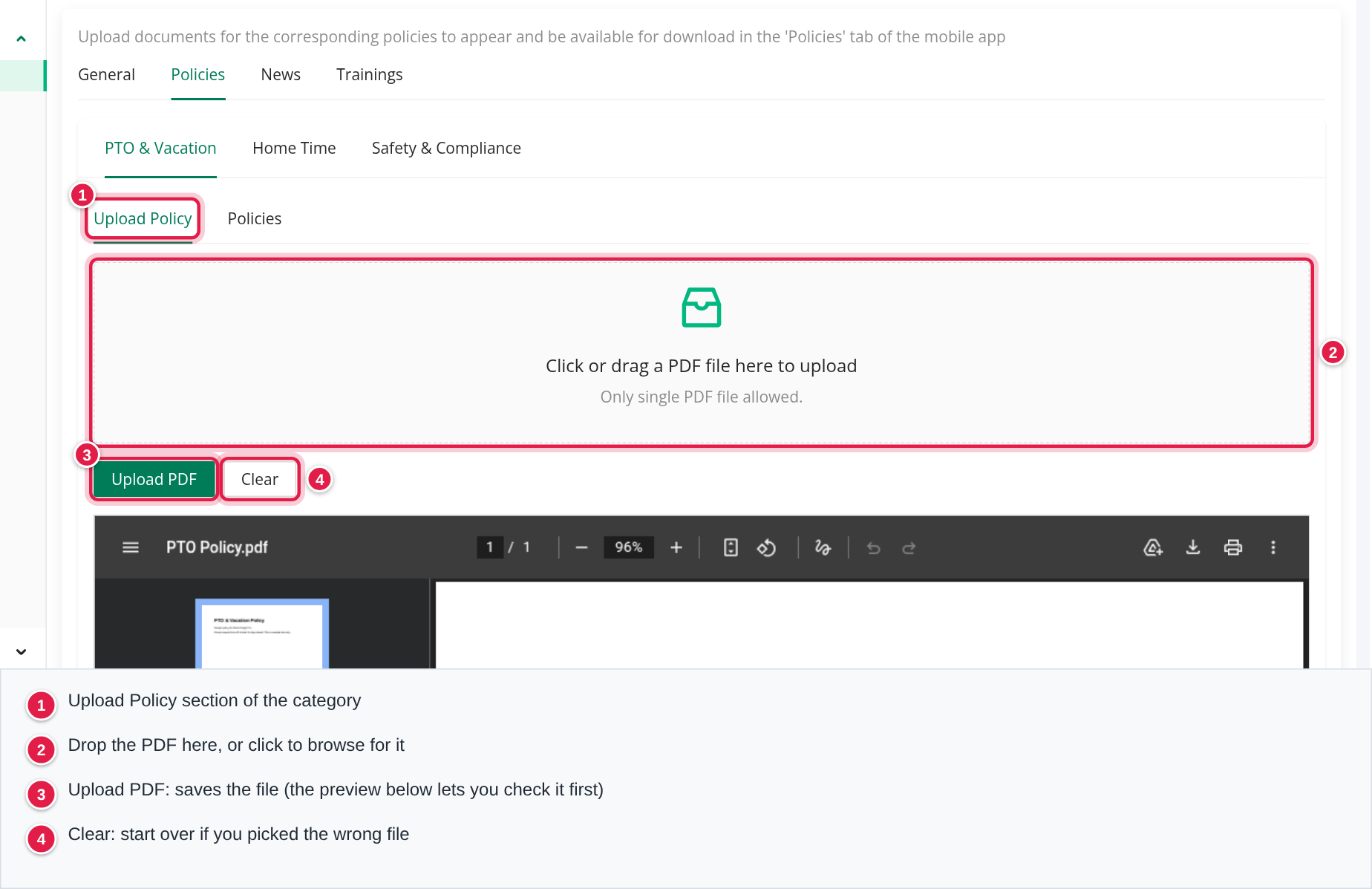
- Select the category tab where the policy belongs, for example PTO & Vacation.
- Open Upload Policy.
- Drag the PDF onto Click or drag a PDF file here to upload, or click the area to browse for it.
- A preview of the file opens below, so you can check that it is the right document.
- Select Upload PDF. Select Clear instead if you picked the wrong file.
Name the file the way you want drivers to see it. The file name is the title drivers see in the app, for example "Home Time Policy.pdf".
The first policy you upload in a category is shown in the app right away. Policies you upload after that are saved but not shown until you turn them on (see below).
Choose what drivers see
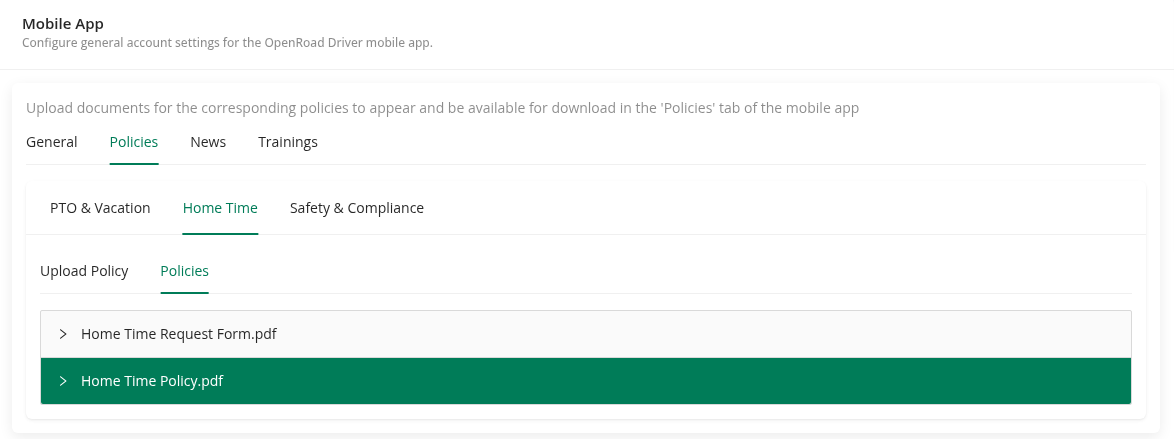
Open the Policies section of a category to see its files. Select a file to open it and preview the PDF. A file that drivers can see in the app has a green header.
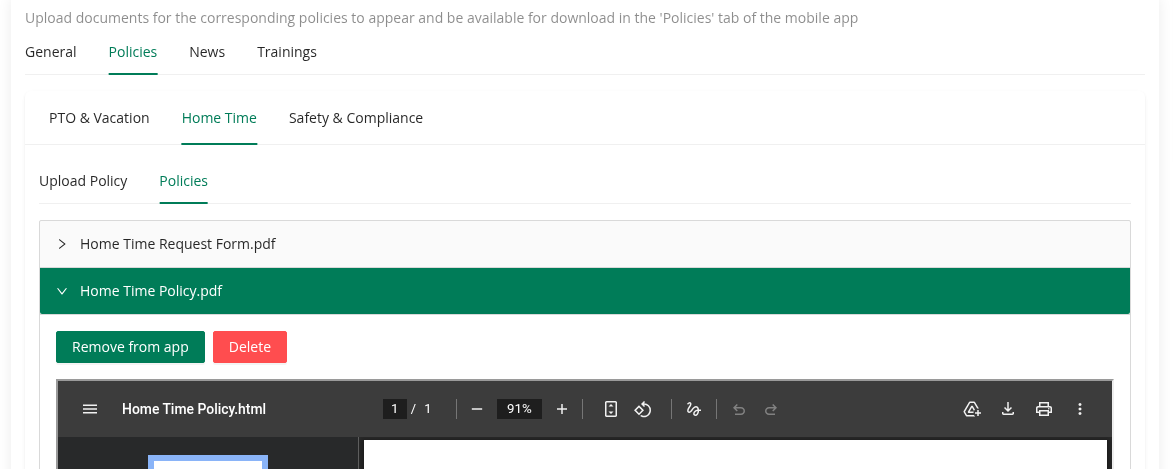
Each opened file has two buttons:
- Display in app shows the policy to drivers. Once it is on, the same button reads Remove from app. Selecting it hides the policy from drivers but keeps the file, so you can show it again later. You are asked to confirm: "Drivers will no longer see this policy in the mobile app."
- Delete removes the file. You are asked to confirm first.
To replace a policy with a newer version, upload the new PDF, select Display in app on it, then Remove from app or Delete on the old one.
What drivers see in the app
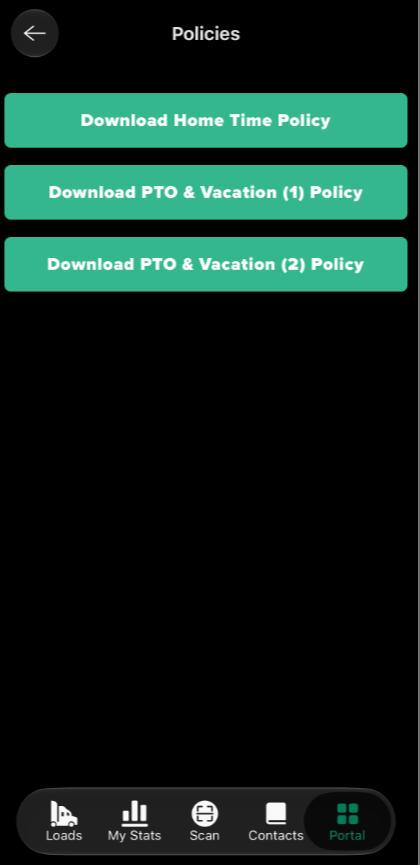
Drivers open the Policies tab in the OpenRoad Driver app. It lists every policy you have turned on, from all three categories. Tapping one opens the PDF, and drivers can download it.
Good to know
- Drivers see policies from all three categories together. You can show more than one policy in a category.
- A new category starts empty. The Policies section only appears after the first upload.
- Only PDF files are accepted. Other file types are refused with the message "Only PDF files are allowed!".
- Changes (showing, hiding, deleting) reach drivers the next time the app loads its policies.
Frequently asked questions
See Using the Driver app for a tour of all app tabs, and Driver app trainings: upload and manage for training videos and documents.
Was this article helpful?
That’s Great!
Thank you for your feedback
Sorry! We couldn't be helpful
Thank you for your feedback
Feedback sent
We appreciate your effort and will try to fix the article