Keep every driver informed with one post. A news item you create in OpenRoad appears in the News tab of the OpenRoad Driver app, with a picture, a short summary and the full text, and drivers can get a push notification the moment it goes live.
Who can do this: users with access to Settings.
Before you begin
- Decide when the news should go live and, if it is time-limited, when it should disappear.
- Have a picture ready if you want one. Supported types: JPG and PNG, up to 15 MB, at least 750 × 395 px. You crop it to the banner shape when you upload it.
- Drivers need the OpenRoad Driver app version 3.5.0 or newer to see the News tab and to receive news notifications.
News is shown to all drivers of your account. You cannot send a news item to only some drivers.
Open the News tab
- In OpenRoad, go to Settings → Preferences → Mobile App.
- Select the News tab.
You will see the list of your news items, newest first, with the image, title, summary, link, Status, Published and Expires dates, and the edit and delete actions.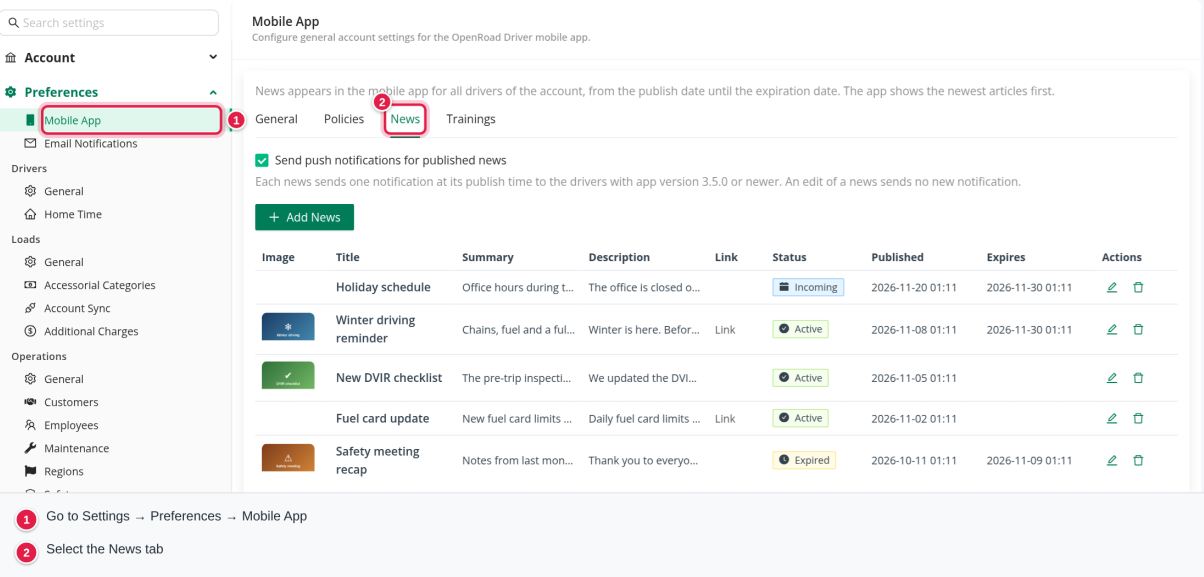
The Status column tells you where each item stands:
| Status | Meaning |
|---|---|
| Incoming | The publish date is still ahead. Drivers cannot see it yet. |
| Active | Published and not expired. Drivers see it in the app. |
| Expired | The expiration date has passed. Drivers no longer see it. |
Add a news item
- Select Add News.
- Enter a Title. This is the only text field that is required besides the publish date.
- Set Publish, the date and time the news goes live. It defaults to 8:00 AM today.
- (Optional) Set Expires. Leave it blank and the news never expires. The date must be after the publish date.
- (Optional) Write a Summary of up to 280 characters. The app shows it in the news list. If you leave it blank, the app shows the beginning of the description instead.
- Write the Description, the full text drivers read when they open the news.
- (Optional) Add a Link that starts with
http://orhttps://, for example a form or a policy page. - (Optional) Add an Image: drag a file onto the upload area or click it to browse. A window opens so you can align the crop.
- Select Create.
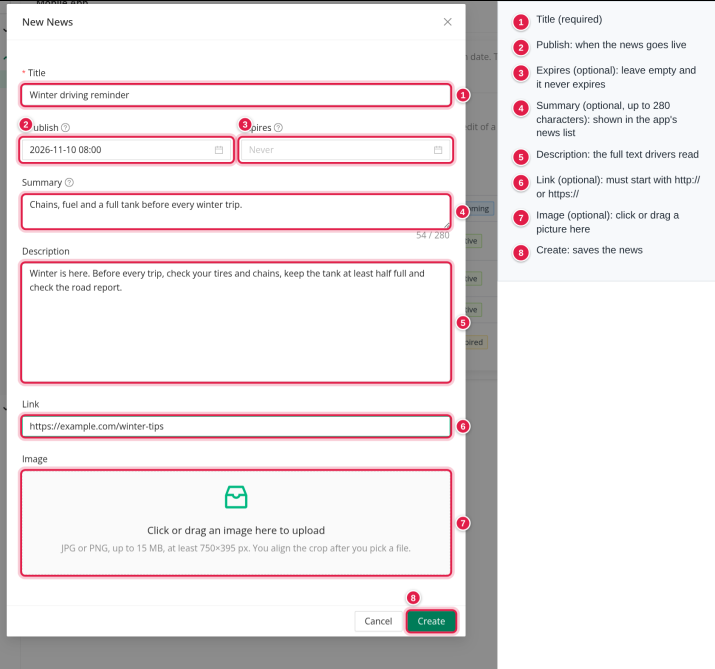
Publish and Expires use your company time (US Central), not your local time.
When you add an image, a Driver view preview shows roughly how it will look in the app: a small square in the list and a wide banner in the article. The app fills each spot and trims the overflow, and drivers can tap the picture to see all of it.
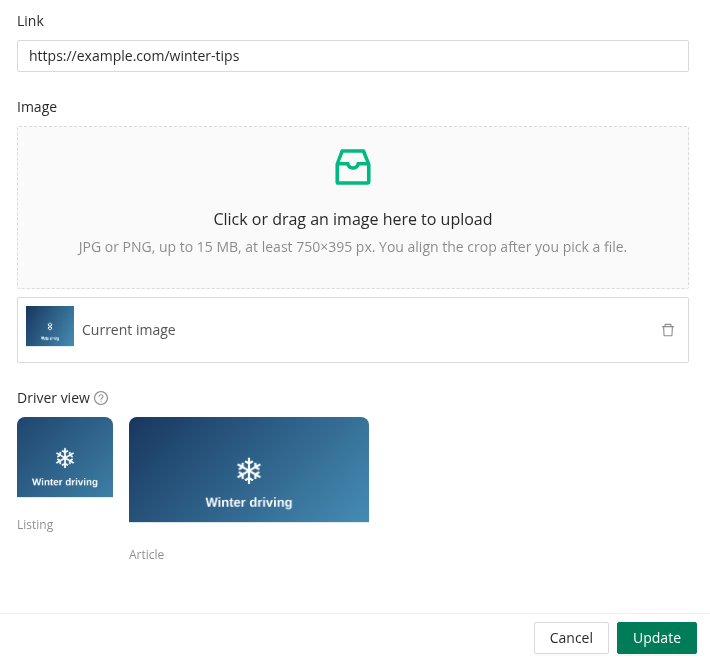
Use a picture with the important part in the middle, so nothing is lost in the small list thumbnail.
Send a push notification
Under the list, the checkbox Send push notifications for published news controls notifications for your whole account.
- When it is on, each news item sends one notification at its publish time to drivers with app version 3.5.0 or newer. The notification reads "New Announcement" with the title of your news.
- Editing a news item does not send another notification.
- You can turn the checkbox on after creating a news item, as long as it is on before the publish time.
- If you change the Publish time of an item that has not notified yet, the notification moves to the new time.

Edit or delete a news item
- Select the pencil icon in the Actions column to open Edit News, change what you need and select Update. Drivers see the change the next time they open the news.
- Select the bin icon to delete it. You are asked to confirm. Drivers will no longer see it in the app, and a deleted item cannot be restored.
- To stop showing a news item without deleting it, edit it and set Expires to a time shortly ahead. It then moves to Expired and drivers no longer see it.
What drivers see in the app
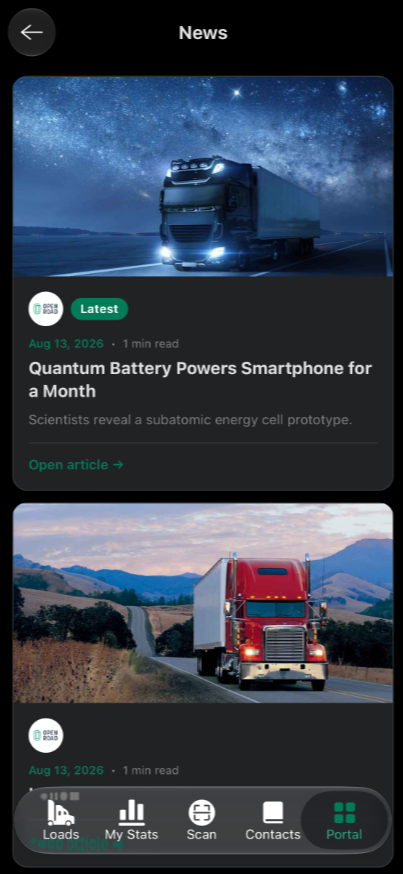
Drivers open the News tab in the OpenRoad Driver app. News is listed newest first, ten items at a time, with your company logo. Each entry shows the image, the title and the summary. Tapping it opens the full article with the description, the larger image and your link.
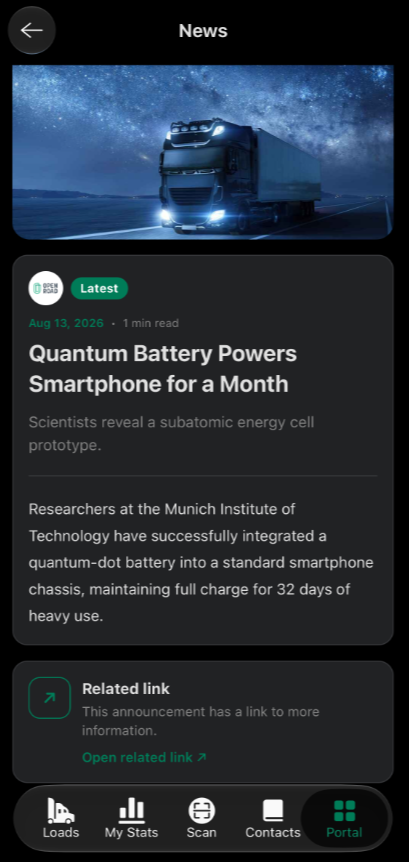
If a push notification was sent, tapping it opens the app.
Good to know
- News is visible only between its Publish and Expires times.
- The list in Settings shows all items, including Incoming and Expired. Drivers only see Active ones.
- Drivers on an older app version see no News tab and receive no news notifications. Ask them to update the app.
- Images that are too small or too large, or that are not JPG or PNG, are refused with a message explaining why.
Frequently asked questions
See Using the Driver app for a tour of all app tabs, and Driver app trainings: upload and manage for training files.
Was this article helpful?
That’s Great!
Thank you for your feedback
Sorry! We couldn't be helpful
Thank you for your feedback
Feedback sent
We appreciate your effort and will try to fix the article