Keep a driver's documents in one place and see what the driver sent from the OpenRoad Driver app. The Files tab holds documents your office team adds, in folders. The Uploads tab lists documents the driver scanned and sent from the app.
Who can do this: users with access to Drivers. Some folders are hidden unless your user has the permission for hidden folders.
Before you begin
To make a document available to the driver in the OpenRoad Driver app, upload it to the Driver App folder of the driver's Files tab. The app reads the driver's documents from that folder. See Using the Driver app.

Files tab: your documents for the driver
- Open Drivers and select the driver.
- Select the Files tab.
The tab lists the folders of your account. The Driver Qualification folder groups the driver's qualification documents (CDL, MVR, Application, Medical Card and others), which are also listed as folders of their own. Other folders include Company Policy Receipts, Occupational Insurance, Written Warnings, Tax Documents and Driver App. The number on a folder is how many files it holds. Select a folder to open it and see its files, who last changed them and when.
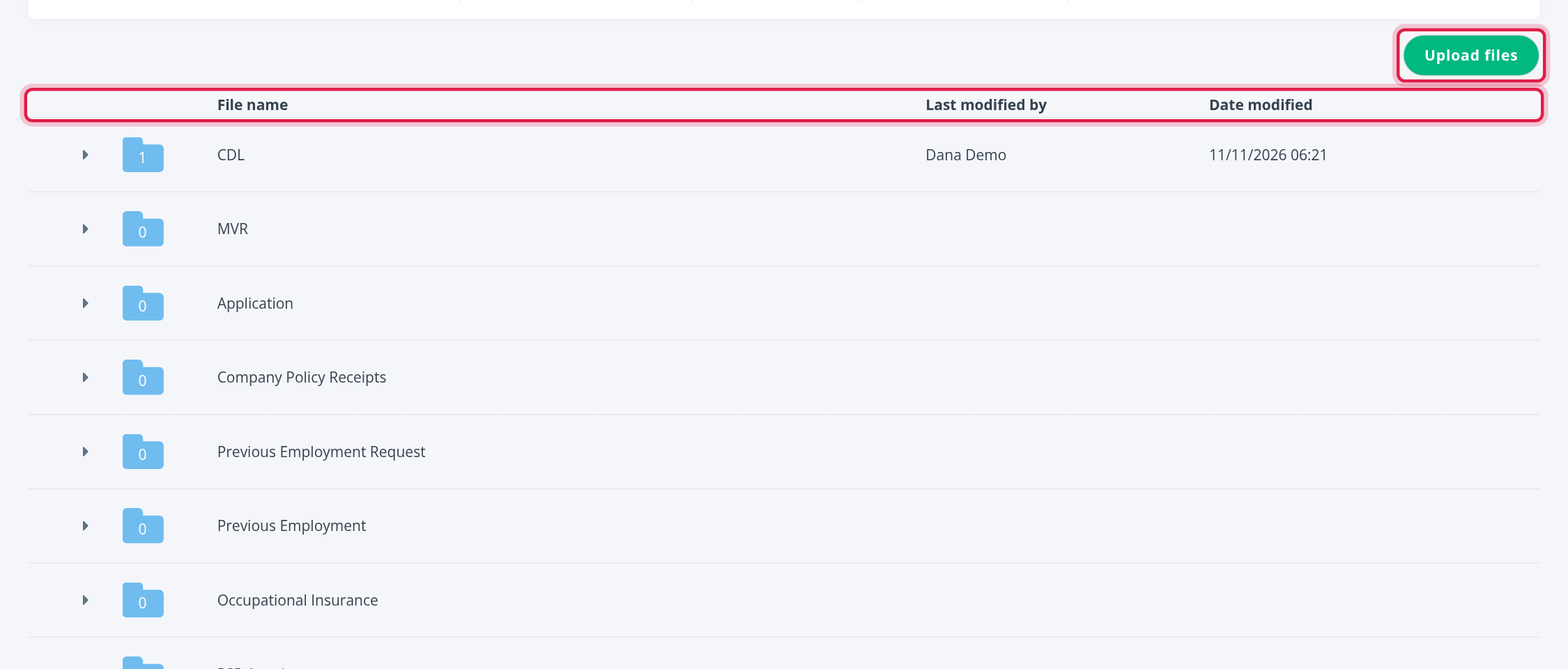
The folders come from your account. If a folder you expect is missing, you may not have the permission for hidden folders. Ask an administrator.
Add a document
- On the Files tab, select Upload files.
- Drag the files into the window, or select the area to choose them on your computer.
- Choose the folder in the list.
- Select Upload.
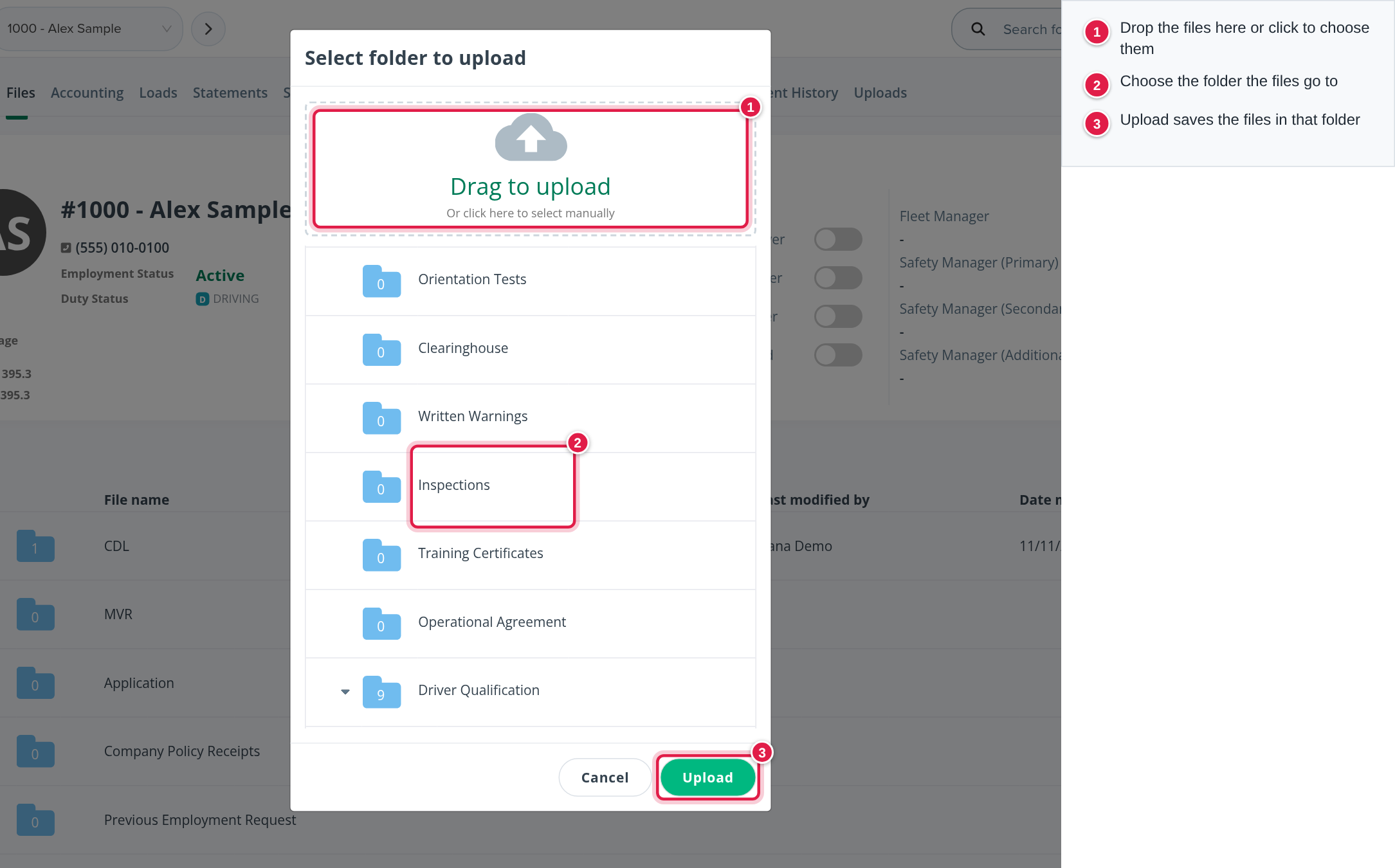
To get a file, open its folder and select the download arrow next to the file name. Each file added here is also recorded on the Change Logs tab.
Share a document with the driver in the app
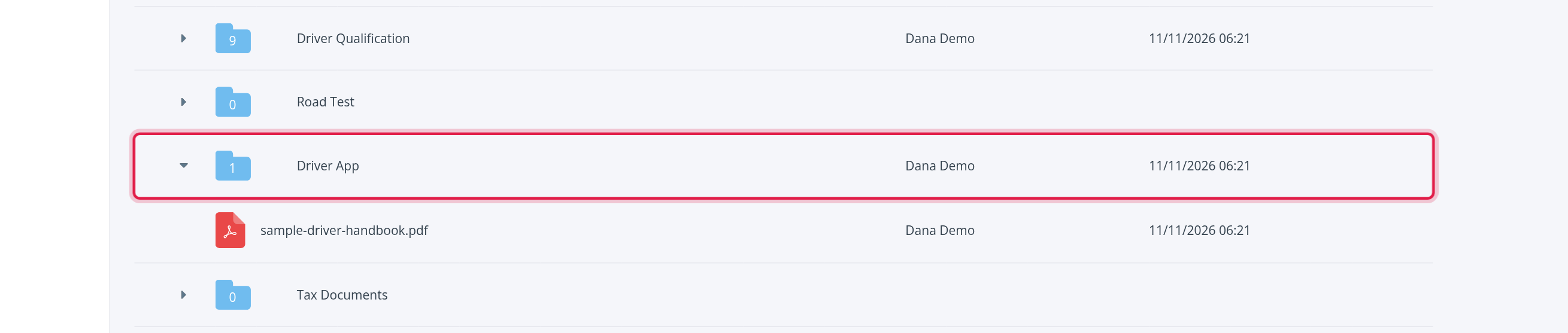
Files in the Driver App folder are shown to the driver in the OpenRoad Driver app, under Portal → Driver Documents. Put a document there when the driver needs to see it, for example a handbook or a policy. Documents in other folders stay in the office.
For the rest of the app, see Using the Driver app.
Anything you put in the Driver App folder can be opened by the driver. Do not put private documents in it.
Uploads tab: what the driver sent from the app
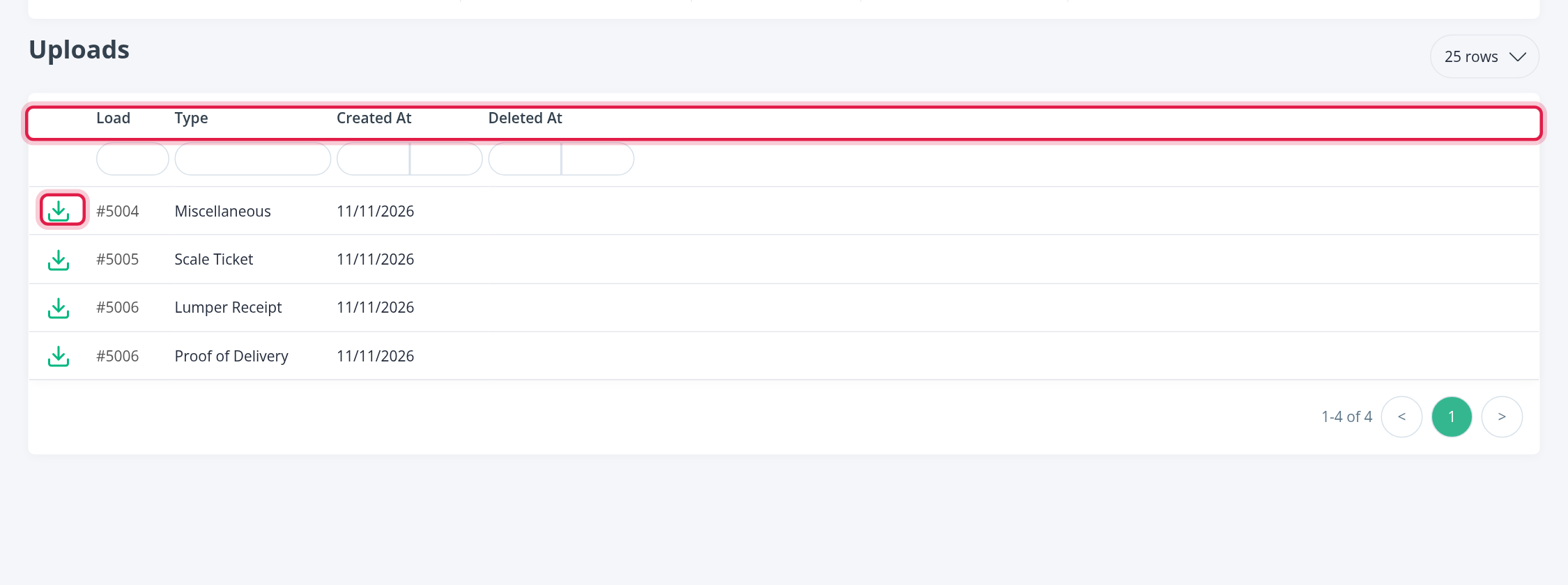
Select the Uploads tab to see the documents the driver scanned and sent from the app, for example a proof of delivery. Each row shows:
- the download arrow, which opens the document;
- Load: the load number the document belongs to;
- Type: the document type the driver chose in the app, for example Proof of Delivery, Lumper Receipt, Scale Ticket, Miscellaneous or Other;
- Created At: when it was sent;
- Deleted At: when it was deleted, if it was.
The boxes under the column names filter the list.
Where each type goes on the load:
| Document type | Where it goes |
|---|---|
| Bill of lading | Linked to Proof of Delivery |
| Lumper receipt | Linked to Lumper Receipt |
| Scale ticket | Linked to Scale Ticket |
| Miscellaneous | Linked to Driver Uploads |
| Other | The Other section of the load |
| Safety | Not linked to a load; the safety contact is notified |
Documents the driver sends do not appear on the Files tab. They are on the Uploads tab and on the load itself.
Frequently asked questions
Was this article helpful?
That’s Great!
Thank you for your feedback
Sorry! We couldn't be helpful
Thank you for your feedback
Feedback sent
We appreciate your effort and will try to fix the article