When a driver has a problem with the OpenRoad Driver app, the fastest fix starts with a complete report. This article lists what to collect, shows where to find each item, and gives you a message you can copy.
Who this is for: dispatchers, fleet and safety managers, and anyone who helps drivers with the app.
Try these first
- Update the app. Many problems are fixed by the latest version. Ask the driver to open the App Store (iPhone) or Google Play (Android), find OpenRoad Driver and update it.
- Check the sign-in. If the driver cannot sign in or the code does not arrive, follow Driver not receiving PIN code. You can usually solve it yourself in a few minutes.
- Check the connection. The app needs a mobile data or Wi-Fi connection. Ask the driver to check the signal, then close and reopen the app.
You can see whether a driver's app is current without asking: open the driver's profile in OpenRoad and look at App Version on the Driver App card. It shows Up to date or Outdated next to the version number.
What to collect
Send as many of these as you can. The first three are the most important.
| What | Example | Why it matters |
|---|---|---|
| App version | 3.7.0 | Many problems exist only in older versions. |
| Phone model | iPhone 13, Samsung Galaxy S22 | Some problems happen only on certain phones. |
| Operating system version | iOS 18, Android 14 | The same reason, for the phone's software. |
| Driver | Driver number and the phone number saved in the profile | So the right driver can be found. |
| When it happened | Date, time and time zone | So the problem can be traced to that moment. |
| What the driver was doing | "Tapped Accept on a load" | To repeat the problem. |
| What happened | The exact message, or a screenshot | To see what the driver saw. |
| Load number | The load the driver was working on, if any | When the problem is tied to a load. |
How to find each item
The app version
In OpenRoad:
- Go to Drivers and open the driver's profile.
- On the Overview tab, find the Driver App card.
- Read the App Version. The label next to it shows Up to date or Outdated.
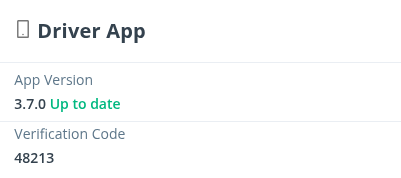
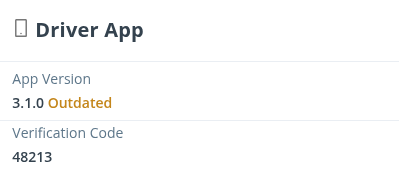
In the app, the version is shown in the Settings that the driver opens from the Portal tab.
The phone model and operating system
- iPhone: open Settings → General → About. The model is shown as Model Name and the system as iOS Version.
- Android: open Settings → About phone. The model and the Android version are listed there. The wording changes a little between phone brands.
A screenshot
- iPhone with Face ID: press the side button and the volume up button together.
- Android: press the power button and the volume down button together. Some brands use another shortcut.
If the driver cannot take a screenshot, a photo of the screen from another phone works too. Failing that, write down the error message word for word.
Describe the problem clearly
Good reports answer four questions: what the driver did, what they expected, what happened instead, and how often it happens.
| Example | |
|---|---|
| Too vague | "The app does not work." |
| Clear | "After tapping Accept on load 123456, the app showed an error and the load stayed in Pending. It happened three times today, the first at 2:15 PM Central. It worked yesterday." |
A message you can copy
Fill it in, paste it into your email or ticket, and send it.
Driver number:
Phone model and operating system:
App version:
Date, time and time zone:
What the driver was doing:
What happened (exact message or screenshot attached):
How often it happens, and since when:
Load number (if any):
Send the report to OpenRoad support at help@openroadtms.com.
Frequently asked questions
Was this article helpful?
That’s Great!
Thank you for your feedback
Sorry! We couldn't be helpful
Thank you for your feedback
Feedback sent
We appreciate your effort and will try to fix the article