Drivers sign in to the OpenRoad Driver app with their phone number and a 5-digit PIN code that arrives by text message. When the code does not arrive, you can read it from the driver's profile and give it to them, then fix whatever stopped the message. This article shows both.
Who can do this: office users with access to the Drivers module.
How driver sign-in works
- The driver opens the app and enters the phone number saved in their OpenRoad profile.
- OpenRoad creates a new verification code and texts it to that number.
- The driver enters the code and is signed in.
Every sign-in attempt creates a new code. Only the latest one works, so a driver who tries several times needs the code from the most recent attempt.
Give the driver the code right now
- Go to Drivers and open the driver's profile.
- Stay on the Overview tab and find the Driver App card.
- Read the Verification Code.
- Tell the driver the code and ask them to enter it in the app.
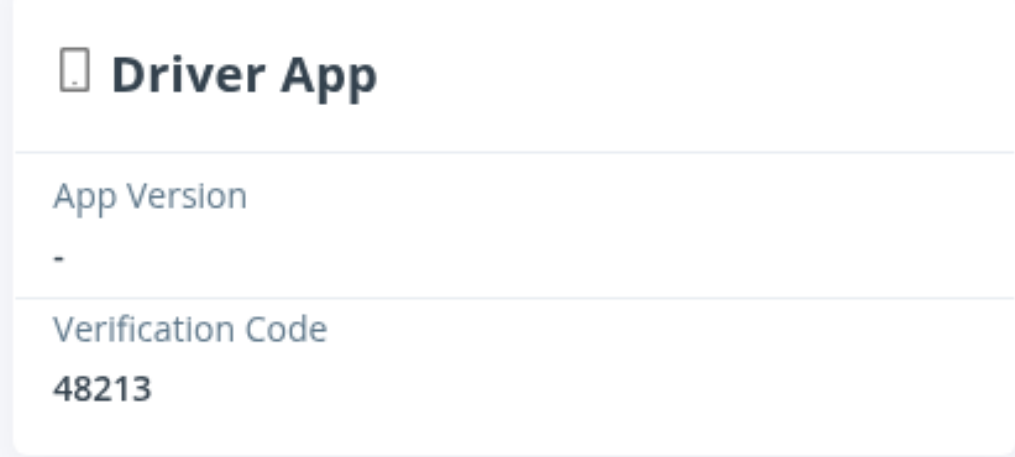
Stay on the call while the driver signs in. If they try again, refresh the page to see the new code; the page does not update by itself.
Only share a code with the driver it belongs to. Confirm who you are speaking to before reading it out.
Why the text did not arrive
Check these in order. Each one takes a minute.
| What to check | What it means | What to do |
|---|---|---|
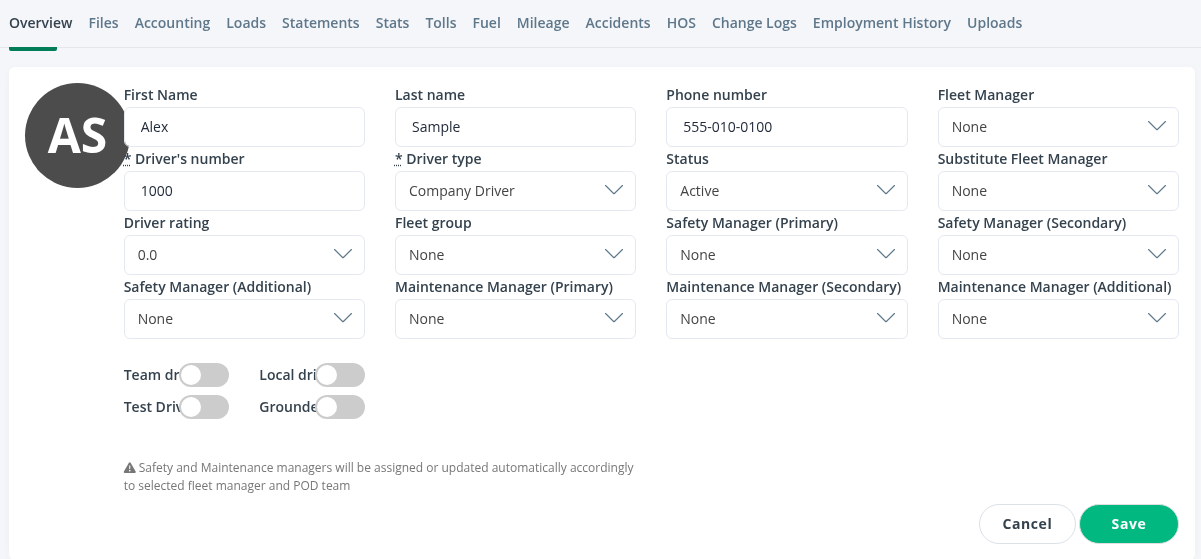
| Phone number format | The app looks for a driver whose phone is saved exactly as 555-123-4567: ten digits with two dashes. The driver must type the same number. A number saved in another format, or a typo, ends with "Invalid phone number". | Open the driver's profile, select the pencil icon at the top right, correct the Phone number and select Save. |
| Driver status | Only drivers with the status Active or Pre-Hired can sign in. | In the same edit view, check Status. |
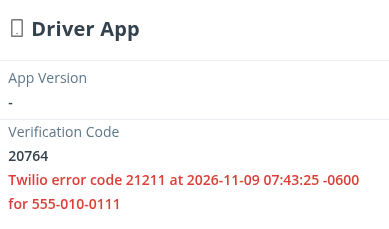
| Red message under the code | If the text could not be delivered, the Driver App card shows an error with a code, the time and the phone number. See the table below. | Follow the fix for that code. |
| Same phone on two drivers | If one phone number is saved on more than one driver, sign-in is refused and the driver sees "We cannot sign you in with this phone number". | Remove or correct the duplicate number. If you cannot find it, contact OpenRoad support. |
| Old code | Each attempt replaces the previous code. | Give the driver the code currently shown, after refreshing the page. |
If the card shows an error
The error appears in red under the Verification Code:
| Error code | What happened | What to do |
|---|---|---|
| 21211 | The phone number is not valid. | Correct the Phone number in the profile, then ask the driver to try again. |
| 21610 | The number has blocked messages from OpenRoad, usually because the driver once replied STOP. | Ask the driver to reply START to a code message, or give them the code by phone. |
| 21408 | Text messages cannot be sent to this number or region. | Give the driver the code by phone, and contact OpenRoad support. |
The error disappears by itself after a message is sent successfully.
If the card shows no error and the driver still has no text, the message may only be delayed by the carrier. Give the driver the code from the profile instead of waiting.
Still stuck?
Contact OpenRoad support at help@openroadtms.com and include:
- the driver's number and the phone number saved in the profile,
- the date and time of the attempt,
- the error code shown on the Driver App card, if any,
- the driver's phone model and the version of the OpenRoad Driver app (the App Version is shown on the same card). See Reporting app issues.
Frequently asked questions
Was this article helpful?
That’s Great!
Thank you for your feedback
Sorry! We couldn't be helpful
Thank you for your feedback
Feedback sent
We appreciate your effort and will try to fix the article