Decide what your drivers see in the OpenRoad Driver app. The General tab of the Mobile App settings holds the switches for My Stats limits, the Elite Score, assigned loads, Contacts, trailer details, the document types in Scan, and the Bill of Lading (BOL) reminders.
Who can do this: users with access to Settings.
Before you begin
- Settings apply to all drivers of your account. You cannot set them for one driver. The one exception is the BOL block, which can also be turned off per driver (see below).
- A few options only appear when the feature is part of your account, for example Show Elite Score. If you do not see an option, contact [help@openroadtms.com](mailto:help@openroadtms.com).
Open the General tab
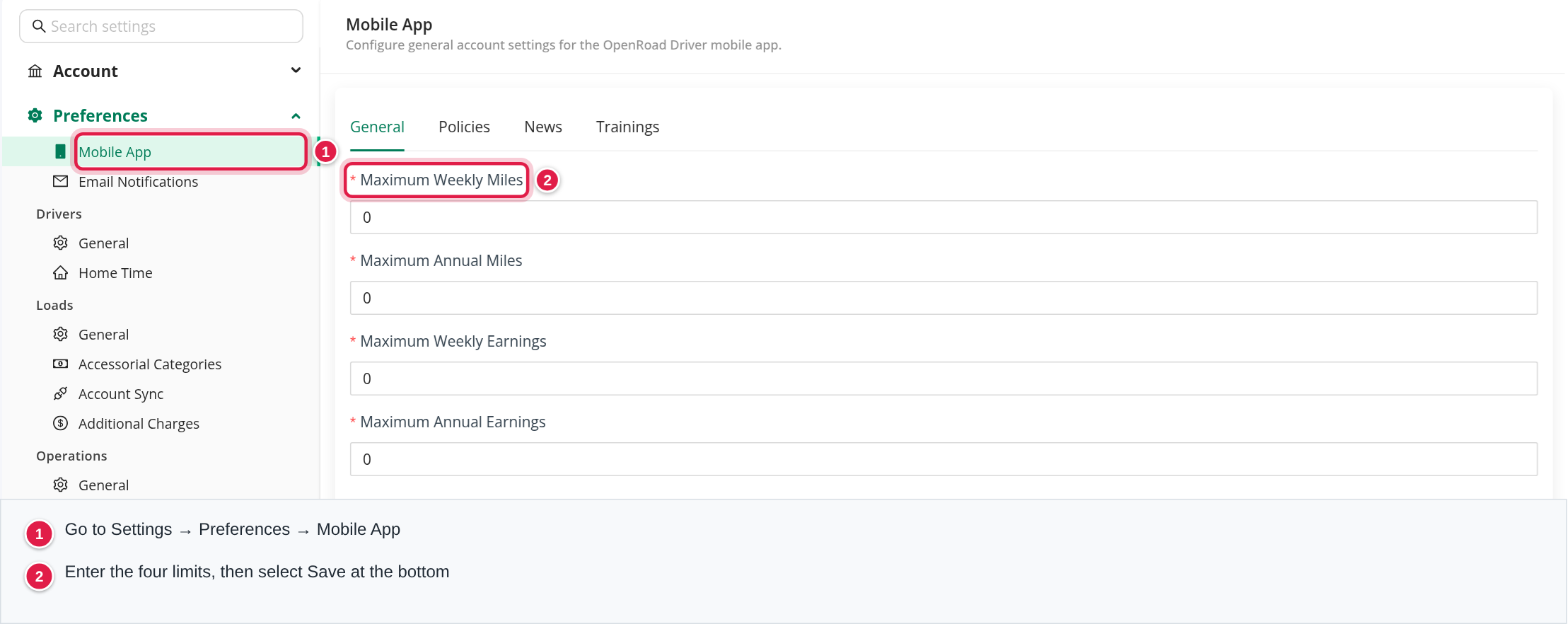
- In OpenRoad, go to Settings → Preferences → Mobile App.
- Stay on the General tab (it opens first).
- Change the settings you need and select Save at the bottom.
Nothing changes until you select Save. Drivers get the new settings the next time the app loads them.
My Stats limits
The four fields at the top are required. Enter whole numbers.
| Field | What to enter |
|---|---|
| Maximum Weekly Miles | The most miles a driver can drive in a week, for example 1500 |
| Maximum Annual Miles | The most miles in a year, for example 75000 |
| Maximum Weekly Earnings | The most a driver can earn in a week, for example 2000 |
| Maximum Annual Earnings | The most a driver can earn in a year, for example 100000 |
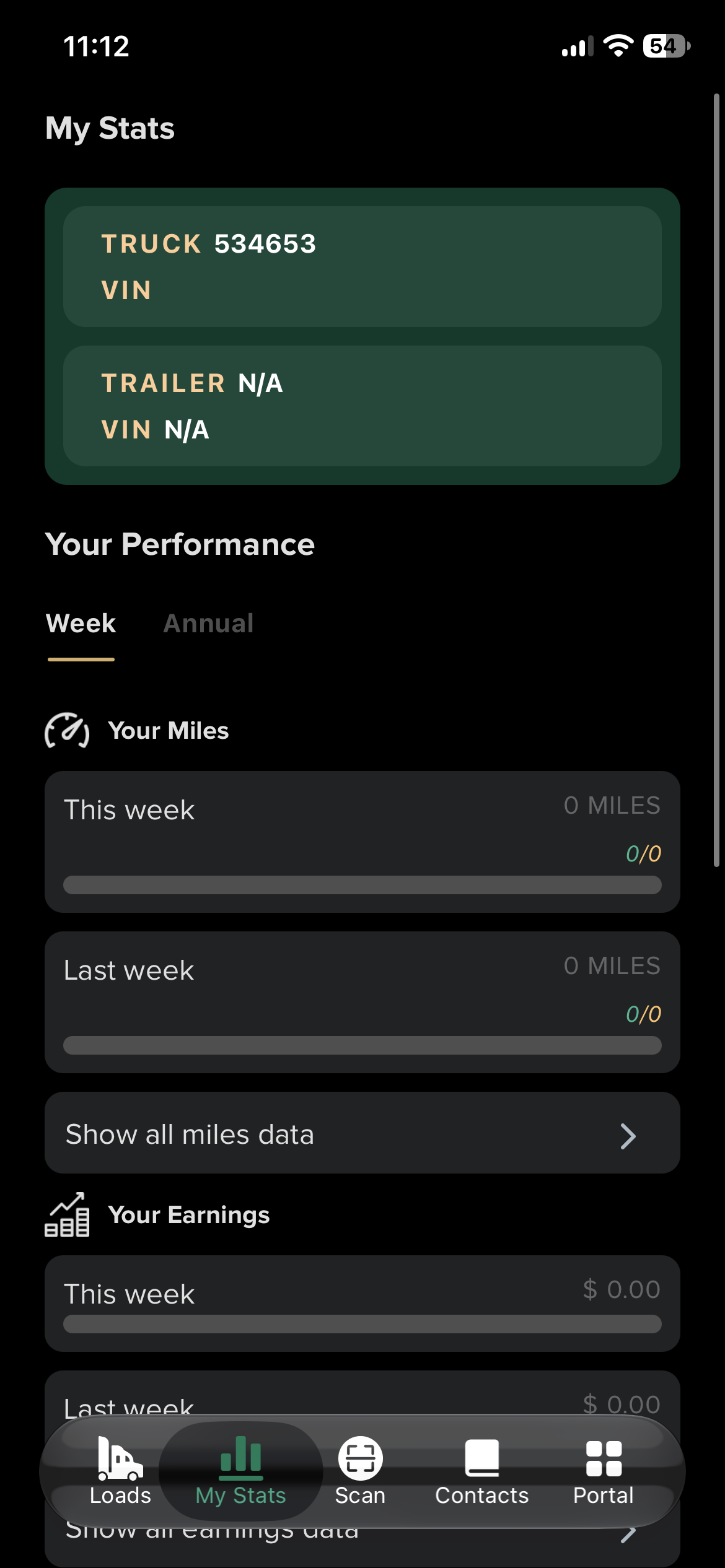
In the app, these maximums are the goal of the progress bars in My Stats → Your Performance. For example, the miles card shows the miles driven against your maximum (such as 450/1500) with a bar that fills up.
Additional settings
Select a checkbox to turn the option on and clear it to turn it off. The two On Time options and the two Elite Score options only appear for accounts that have those features.
| Setting | What it does |
|---|---|
| Show On Time Delivery/Pick Up % | Shows drivers their on-time percentage for deliveries and pick-ups |
| Show On Time/Late Status % | Shows the on-time and late status of loads |
| Show Elite Score | Shows drivers their Elite Score. Turn it on to see the next option |
| Send Elite Score notifications | Sends drivers a notification about their Elite Score. Only available when Show Elite Score is on |
| Show Assigned status loads | Shows loads in Assigned status to the driver, not only dispatched ones |
| Show Hierarchy page sections in Contacts | On: Contacts show the sections from your Hierarchy page (Operations, office teams, Capacity) first, then the HR departments. Off: Contacts show the HR departments only |
| Show Trailers maintenance status and notes | On: a load shows each trailer's Out of Service, Needs Repair and Restricted Use status with its notes. Off: only the trailer number |

In both Contacts modes, the Show employee in contacts option in the employee's HR record decides who drivers can see.
The trailer DOT inspection warning has its own setting and is not controlled here.
Choose the document types in Scan
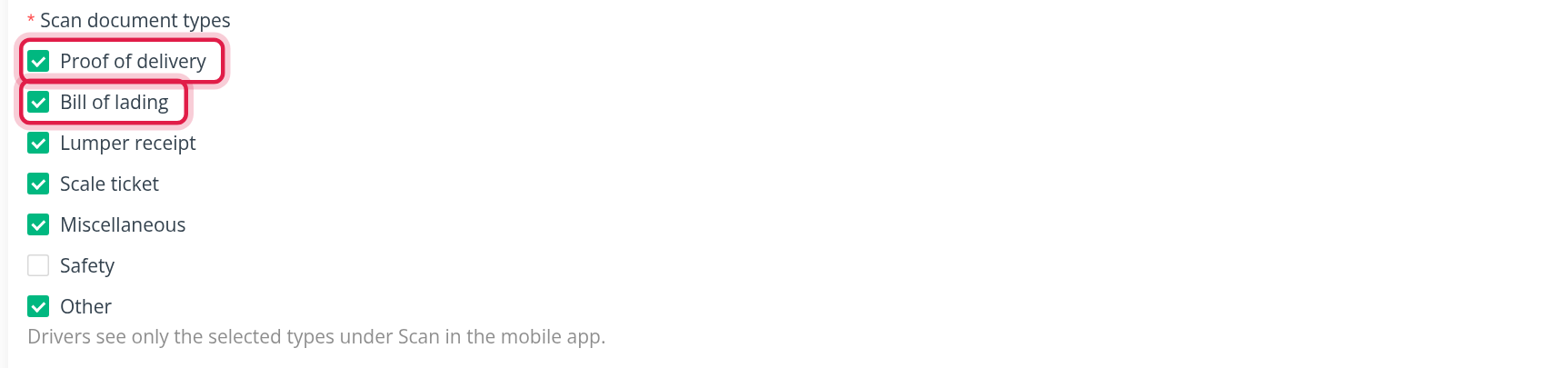
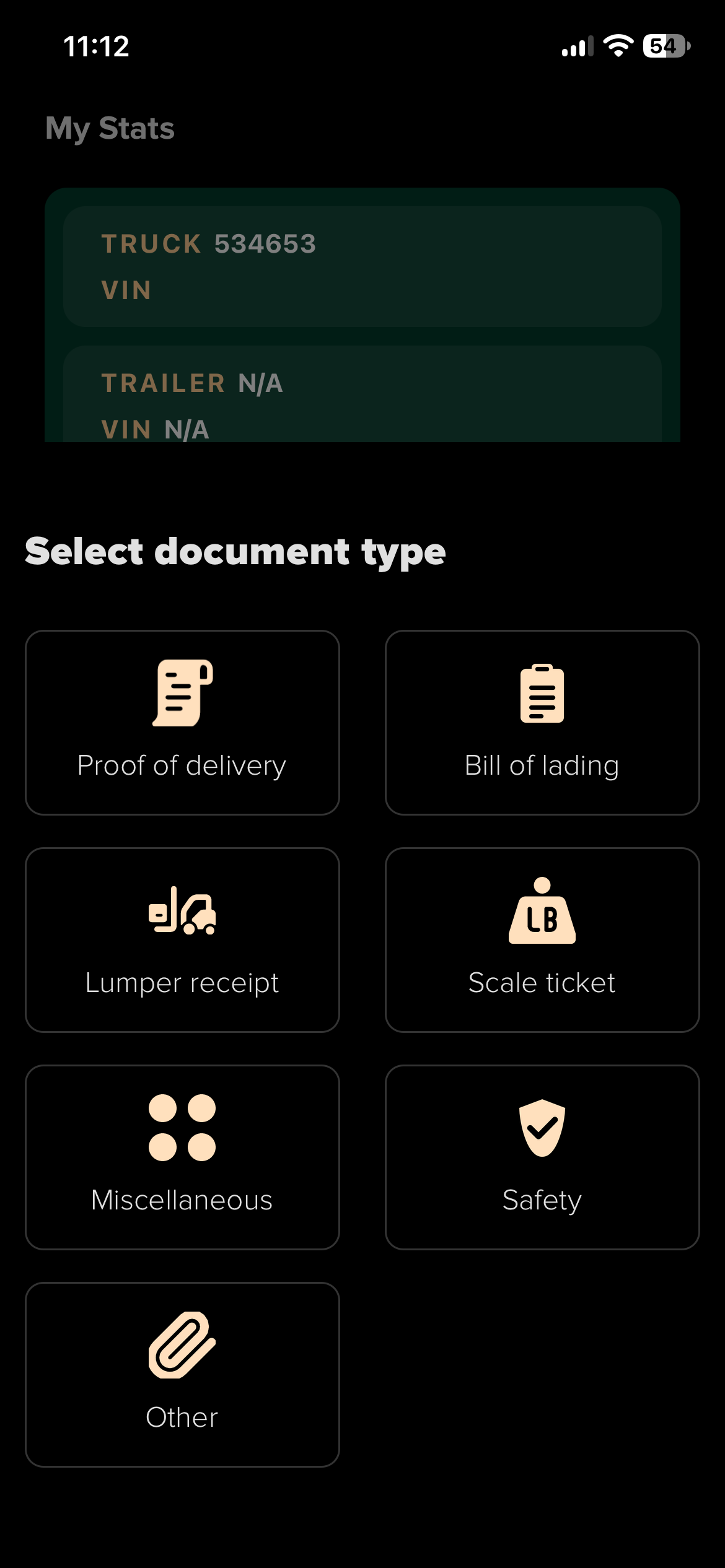
Under Scan document types, tick the document types drivers can pick when they scan a document in the app:
- Proof of delivery
- Bill of lading
- Lumper receipt
- Scale ticket
- Miscellaneous
- Safety
- Other
Drivers see only the types you tick. At least one type must be selected.
To use Bill of lading you must also select Proof of delivery. Otherwise the form shows "Select Proof of delivery to use Bill of lading" and cannot be saved.
BOL reminders
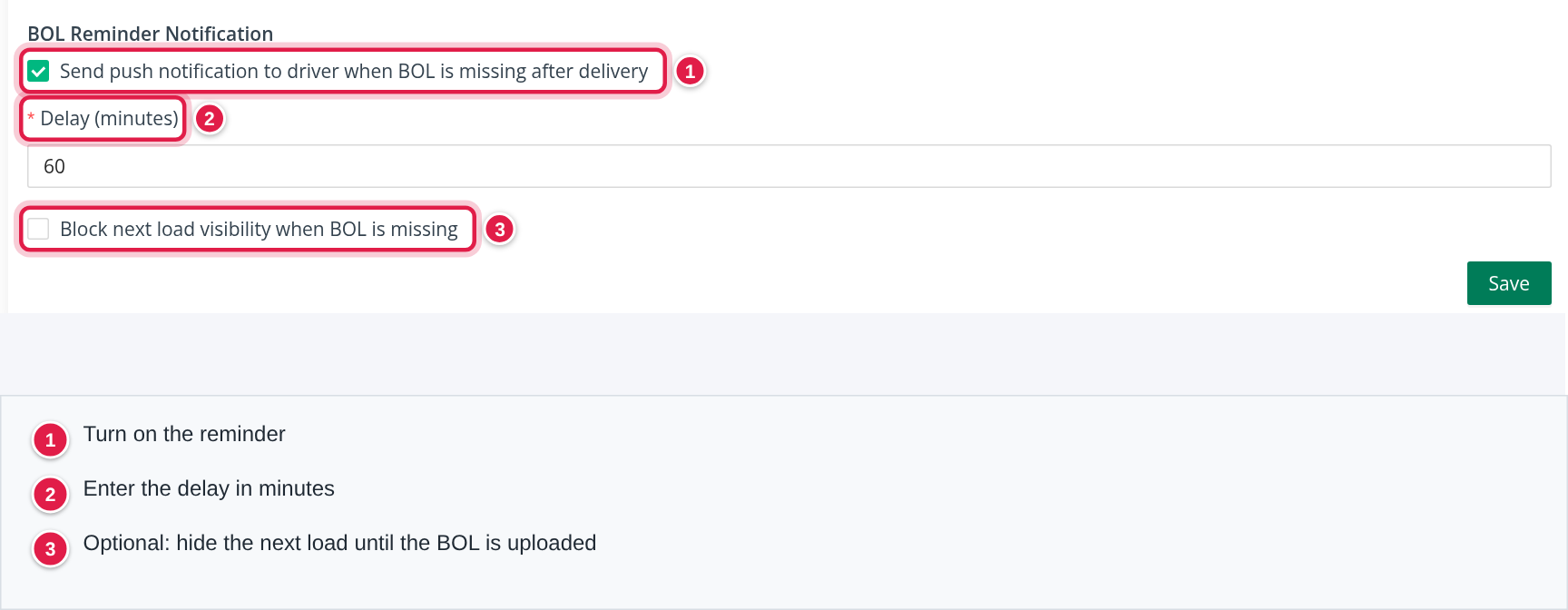
Under BOL Reminder Notification you can nudge drivers to upload the Bill of Lading after a delivery.
- Tick Send push notification to driver when BOL is missing after delivery.
- Enter the Delay (minutes): how long after the load is delivered the reminder is sent. It must be at least 1. If you leave it unchanged it is 60 minutes.
- Optional: tick Block next load visibility when BOL is missing. The driver does not see the next assigned load until the BOL of the previous one is uploaded.
- Select Save.
The block can be turned off for one driver. Open the driver's profile, Driver App card, and use the BOL block option there (users need permission to skip the BOL).
What drivers see in the app
Drivers see the effect of these settings in My Stats, Contacts, a load's trailer details, the Scan screen and push notifications. In My Stats, the maximums you entered become the goals of the progress bars. In Scan, the Select document type screen shows one tile for each type you ticked.
Good to know
- The same page has other tabs: Policies, News and Trainings (and MPG if your account uses the Samsara MPG integration). See the articles listed below.
- Turning on Show Assigned status loads or Block next load visibility when BOL is missing applies to your drivers at once, not only to loads created afterwards.
- A setting that is switched off simply disappears from the app. No data is deleted.
Frequently asked questions
See Using the Driver app for a tour of all app tabs, Driver app policies: upload and manage, Driver app news: publish announcements to your drivers and Driver app trainings: upload and manage.
Was this article helpful?
That’s Great!
Thank you for your feedback
Sorry! We couldn't be helpful
Thank you for your feedback
Feedback sent
We appreciate your effort and will try to fix the article