OpenRoad TMS — Getting Started Series
This article explains how to view, create, and manage user accounts in OpenRoad TMS, including roles, permissions, and account security.
Before You Begin
- Only users with Superadmin or Admin access can create new users, edit permissions, or unlock accounts.
- Go to Dashboard → Users to view and manage all registered users in your account.
Step 1: View Your Users List
1. Go to Users from the main dashboard menu.
2. Here you'll see each user's contact details, role, creation date, and last login.
3. Use the Filter & Search bar to quickly locate a specific user by email or status (All Users, Active, Disabled).
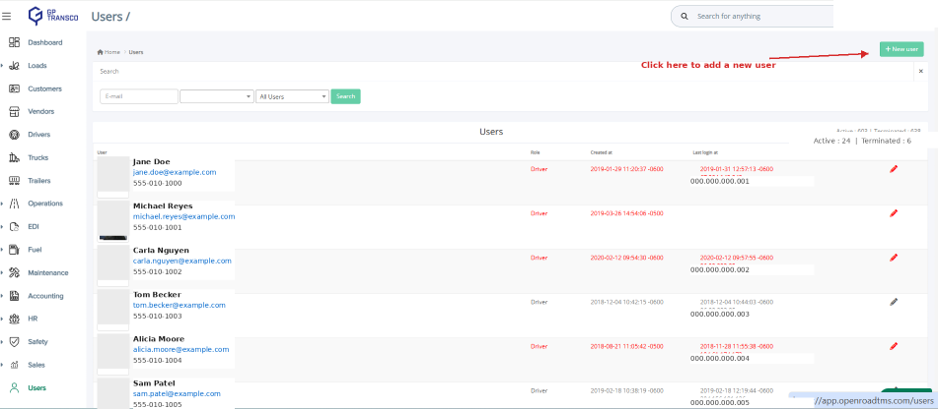
Figure 1 — Users list. Names, emails, phone numbers and IP addresses shown are examples.
Step 2: Create a New User
1. Click + New User at the top right of the Users page.
2. Fill out the required information: email, role, first and last name, and phone number.
3. Click Save to create the account.
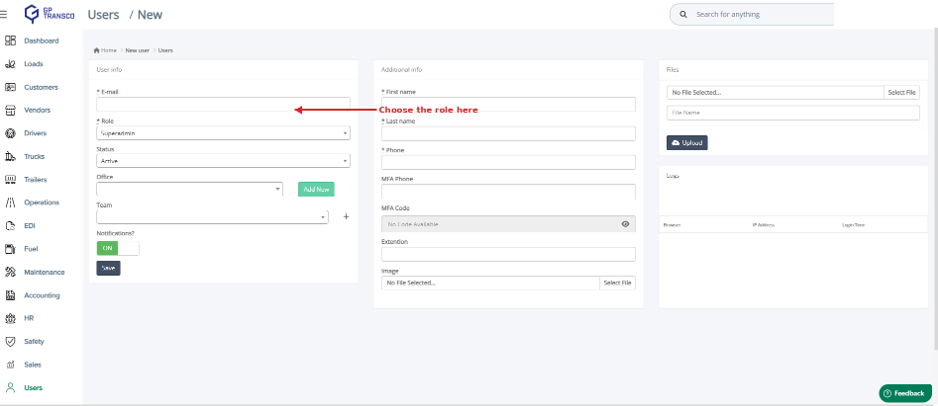
Figure 2 — New User form.
Note: Each user must register with a unique email address. You cannot create multiple OpenRoad accounts with the same email use a different email for each account.
Step 3: Assign a Role and Set Permissions
1. When creating or editing a user, assign one of the predefined roles: Superadmin, Admin, Accounting, Dispatcher, HR, Maintenance, Capacity, Fleet Manager, or Safety.
2. Each role comes with a default set of permissions based on that job function.
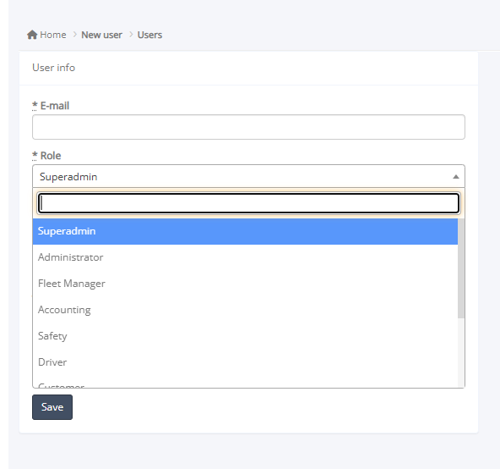
Figure 3 — Role dropdown (scroll down within the list to see all available roles).
Role Overview
Here's a general idea of what each role can typically access. Exact permissions can always be fine-tuned per role or per person under Settings → Access.
Role | What this role can typically do |
Superadmin | Full access to every module and all data. Only a Superadmin can grant Superadmin access to another user. |
Admin | Broad access to most modules. Sensitive areas — Employees/HR records, Employee Payroll, Employee Files, and Settings → Access — must be explicitly granted by a Superadmin. |
Accounting | Access to accounting-related features (billing, payroll, etc.). Access to Users and to Safety accident records requires Admin approval. |
HR | Access to human resources features (staff records, etc.). Broader access to Loads, Customers, Operations, Fuel, Accounting, or Safety requires Admin approval. |
Maintenance | Access to maintenance-related features (trucks, trailers, repairs). Broader access to other modules requires Admin approval. |
Fleet Manager | Access to dispatch-related features such as Loads, Drivers, and Trucks. (This role was previously labeled "Dispatcher" in older accounts.) Access to HR, Safety, or Users requires Admin approval. |
Capacity | Access to the Capacity module (load booking and planning). A detailed breakdown of this role's permissions was not available in current documentation. |
Safety | Access to safety-related features (accidents, compliance). A detailed breakdown of this role's permissions was not available in current documentation. |
3. To fine-tune access for a specific person or role, go to Settings → Access.
4. Under Role Access, review or adjust what each role is allowed to View, Create, Edit, or Delete for a given module.
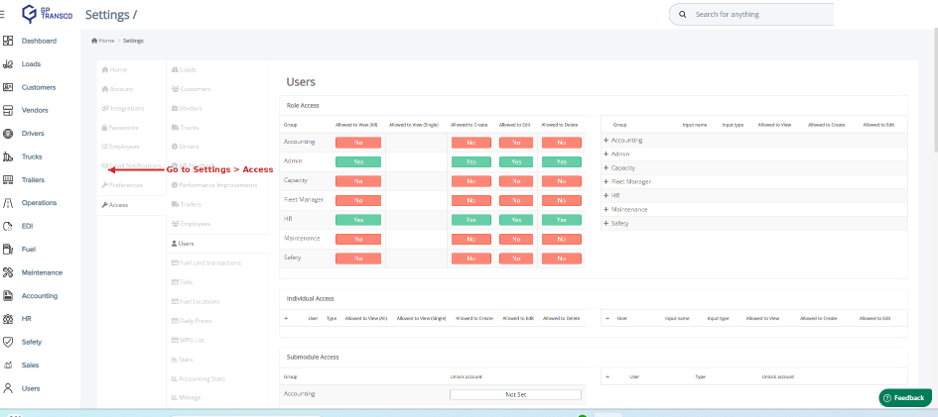
Figure 4 — Access settings for the Users module.
Tip: Under Individual Access, you can override permissions for one specific person without changing their entire role.
Step 4: Unlock a User Account
If a user's account becomes locked, only a Superadmin can unlock it:
1. Go to Users (app.openroadtms.com/users).
2. Search for the locked user's email.
3. Open their user panel and click Unlock Account.
Step 5: Set Up Multi-Factor Authentication (MFA)
By default, every user has email MFA enabled. To switch to SMS MFA instead:
1. Click your username and select Edit Profile.
2. In the SMS Multi-Factor Authentication dialog, enter your phone number and click Send Code.
3. Enter the verification code you received and click Verify.
4. You'll see a confirmation message once it's set up.
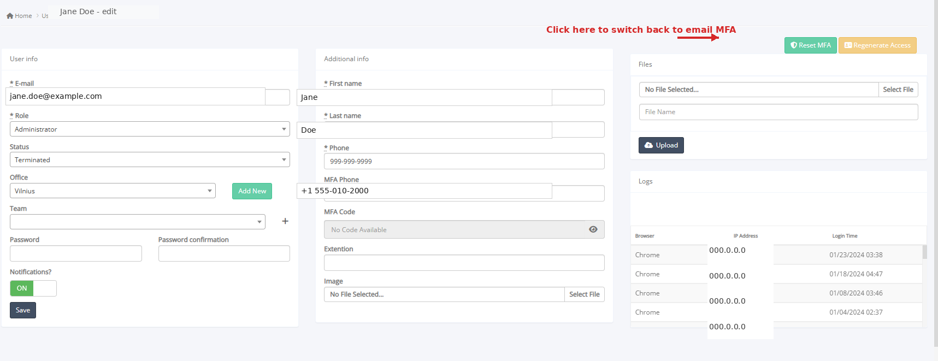
Figure 5 Edit Profile page, showing MFA Phone and the Reset MFA button. Name, email, phone, and IP address values shown are examples.
Frequently Asked Questions
Q: Can two users share the same email address?
A: No. Each email address can only be linked to one OpenRoad TMS account.
Q: Who can unlock my account if I'm locked out?
A: Only a Superadmin in your company can unlock a user account.
Q: What roles are available for my team?
A: Superadmin, Admin, Accounting, HR, Maintenance, Capacity, Fleet Manager, and Safety. Each comes with default permissions that can be customized under Settings → Access. See the Role Overview table above for details on each.
Q: How do I switch from SMS back to email MFA?
A: Go to your user profile and select Reset MFA.
Still need help? Contact our support team at help@openroadtms.com
Was this article helpful?
That’s Great!
Thank you for your feedback
Sorry! We couldn't be helpful
Thank you for your feedback
Feedback sent
We appreciate your effort and will try to fix the article