This article explains how to connect Motive to OpenRoad TMS so that GPS and Hours of Service data from your Motive connected trucks and trailers flows automatically into the platform. Once connected, OpenRoad fetches vehicle and trailer positions along with driver duty status directly from Motive, and this data populates Loads and Assignments without manual entry.
Note: Before starting, confirm the Motive feature has been enabled for your account. If you are not sure whether this has been done, contact your OpenRoad representative or email help@openroadtms.com.
Step by Step Instructions
In Motive
Dashboard - Motive
Log in to your Motive account.
In the left navigation menu, scroll down to the Platform section and select Developers.
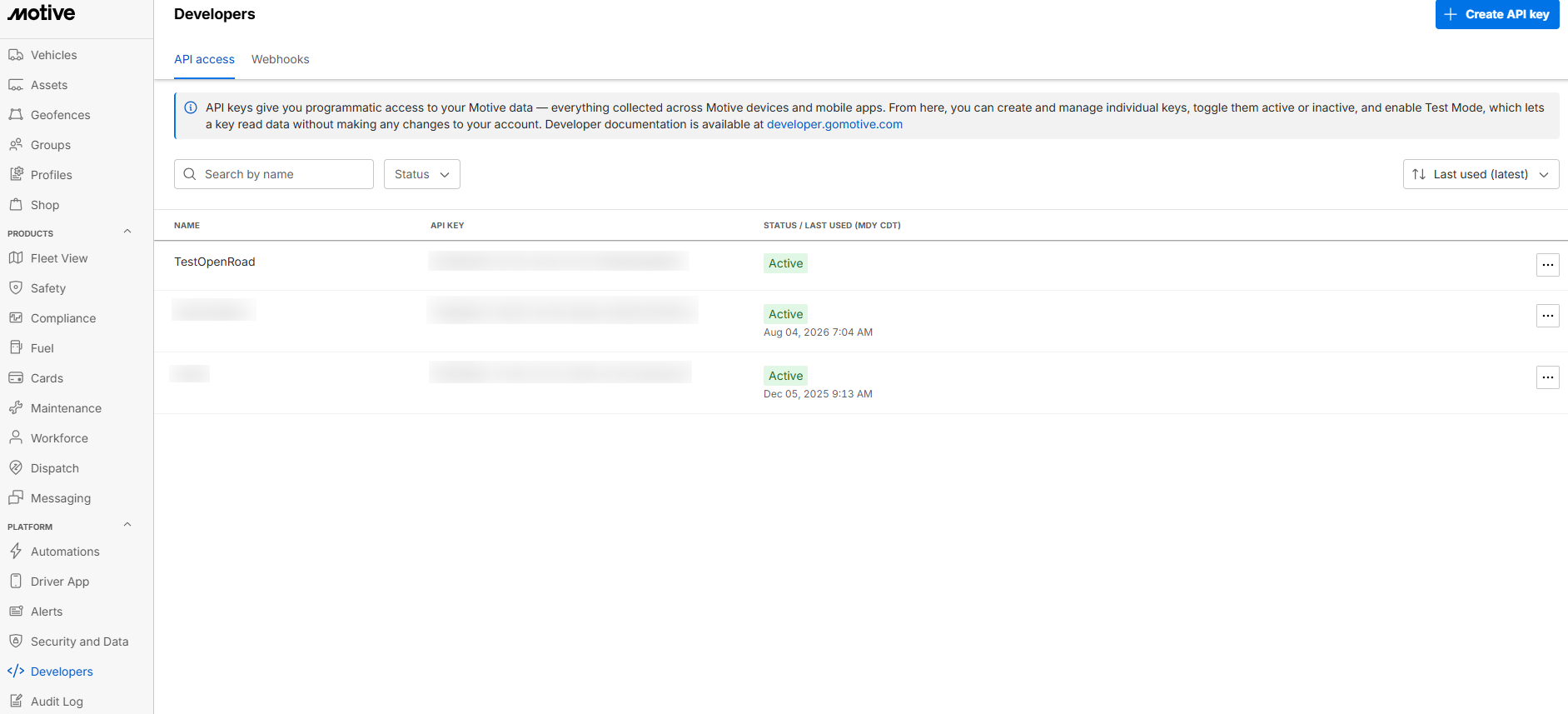
In the top right corner, select the blue Create API Key button, marked with a plus icon.

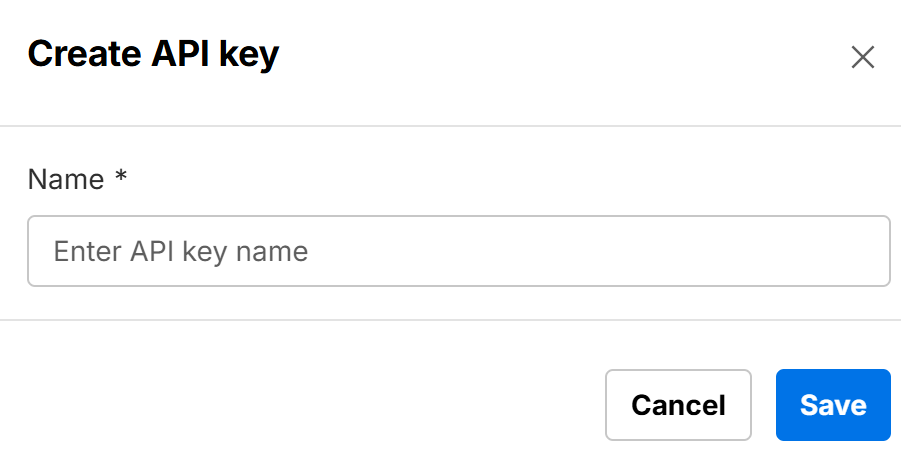
Name the key so it can be identified later, for example OpenRoad API Key, then select Save.
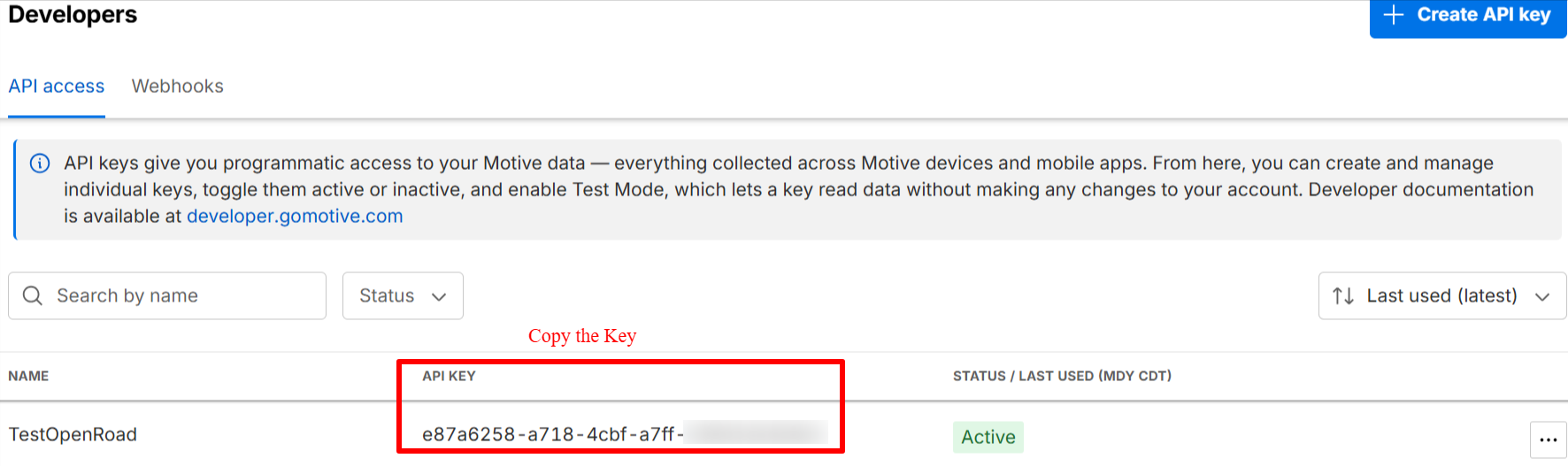
Copy the API key that was generated.
In OpenRoad TMS
Settings - OpenRoadTMS
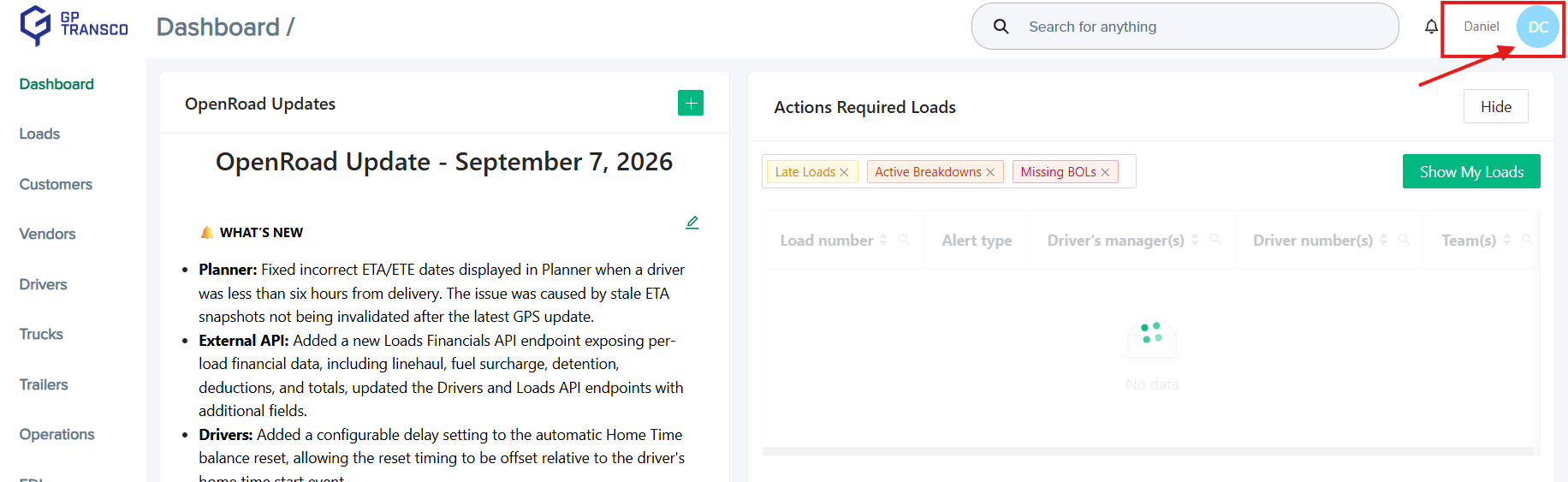
Select your profile icon in the top right corner, then select Settings.
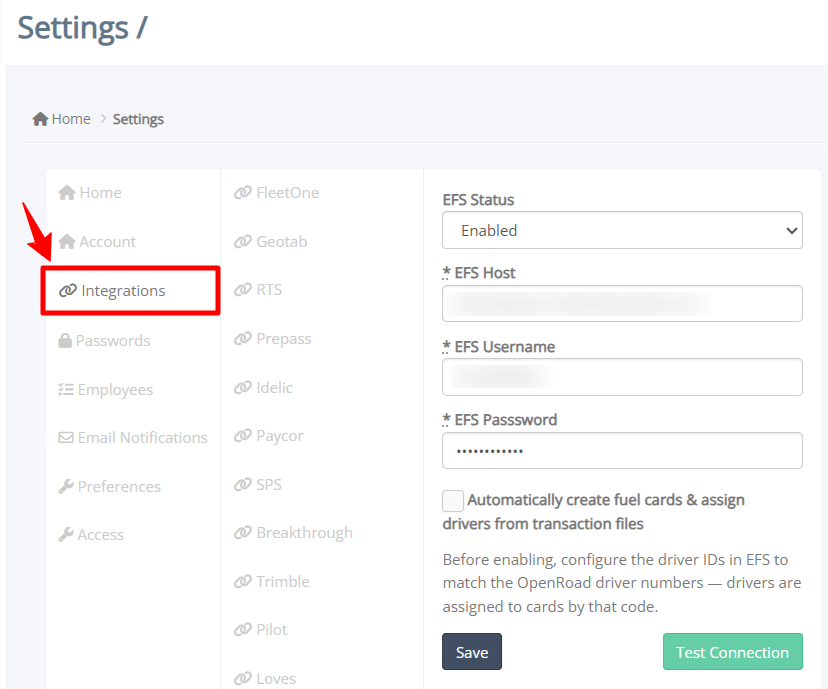
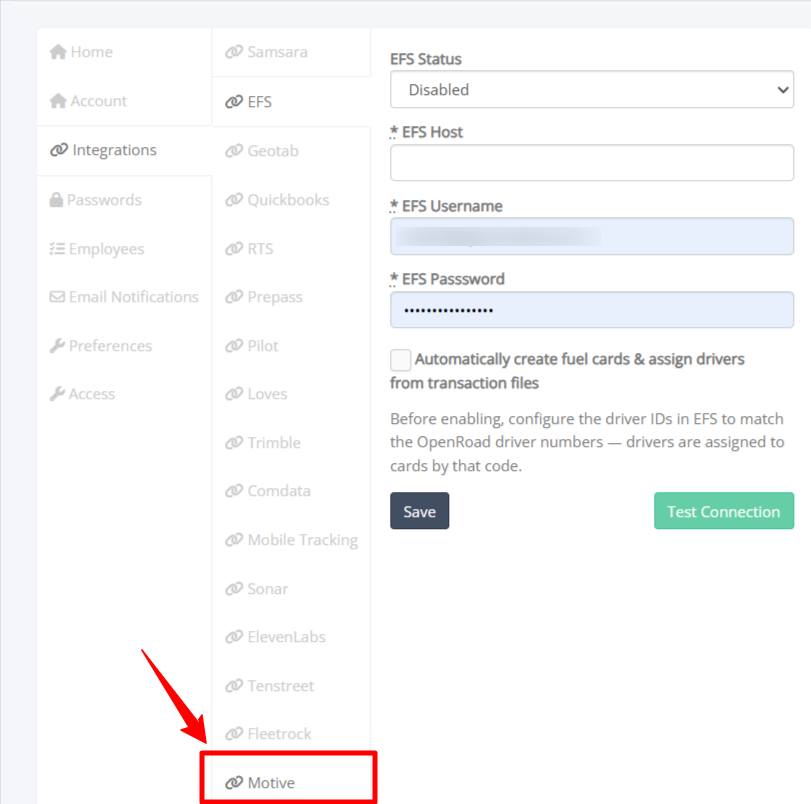
Select Integrations, then select Motive from the list.
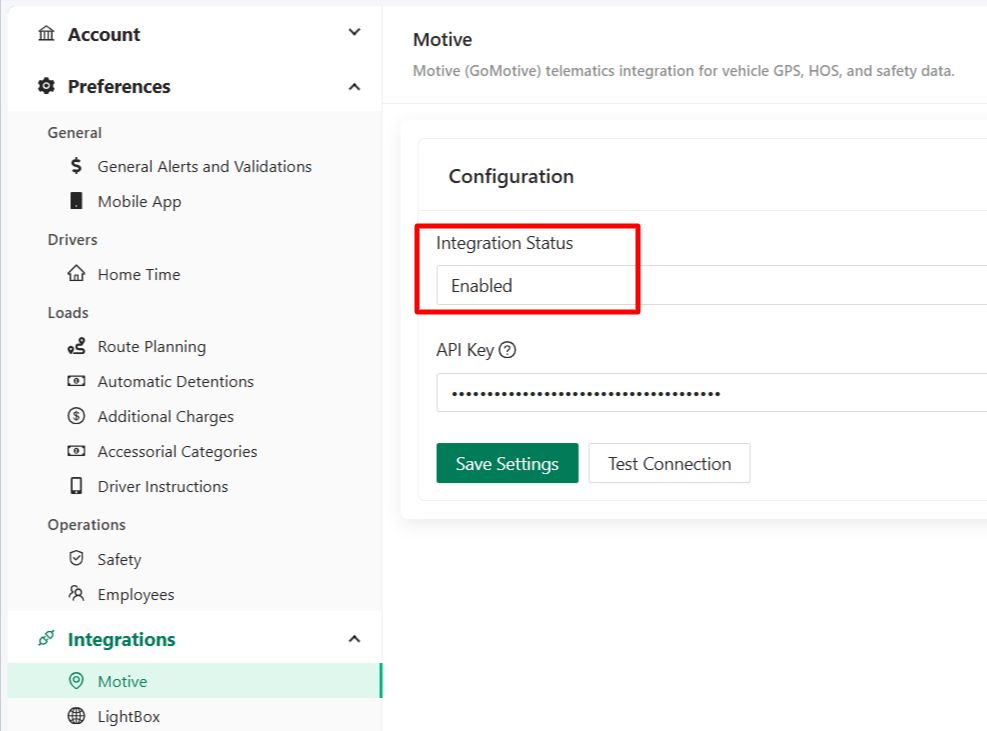
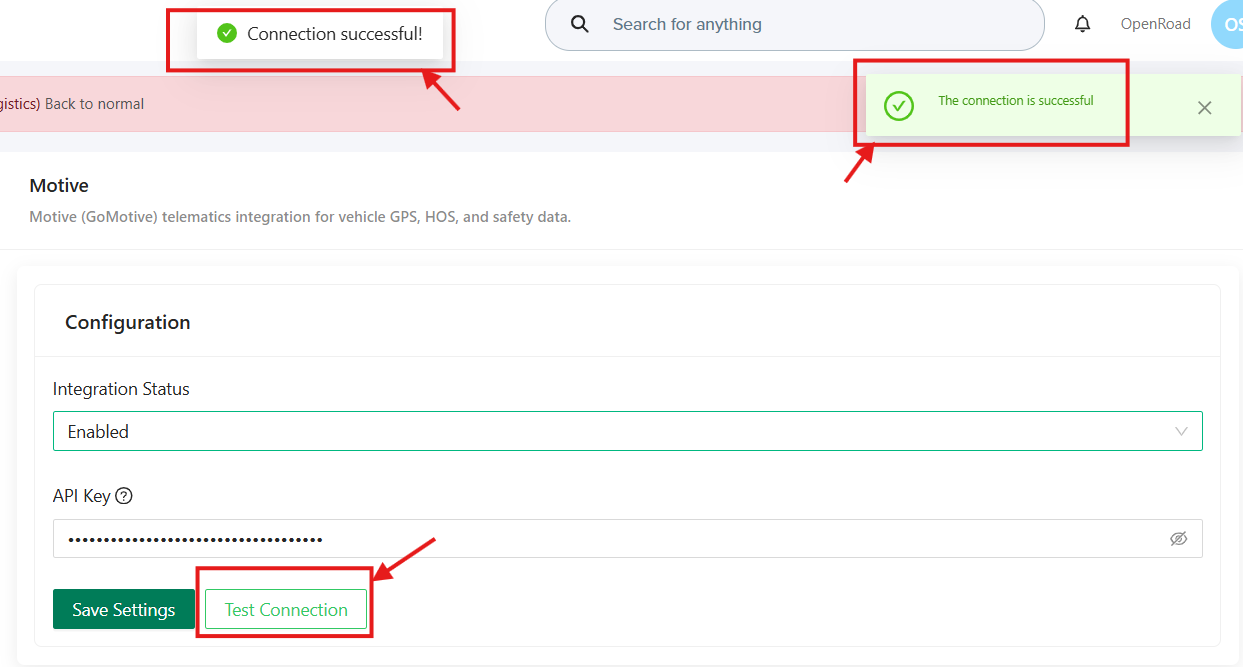
Set the integration status to Enabled.
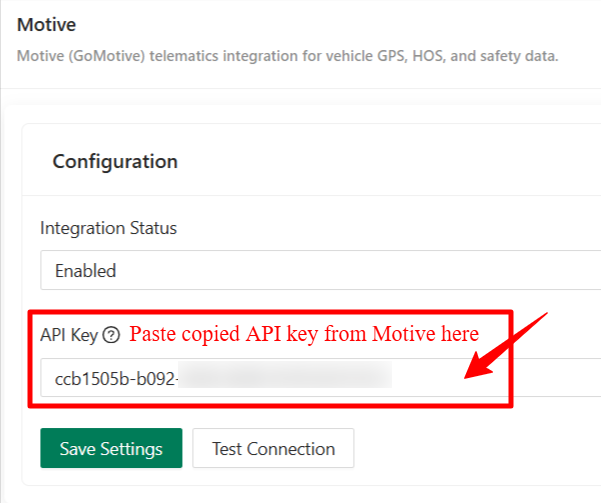
Paste the API key into the API Key field.
Select Test Connection to confirm the connection is active.
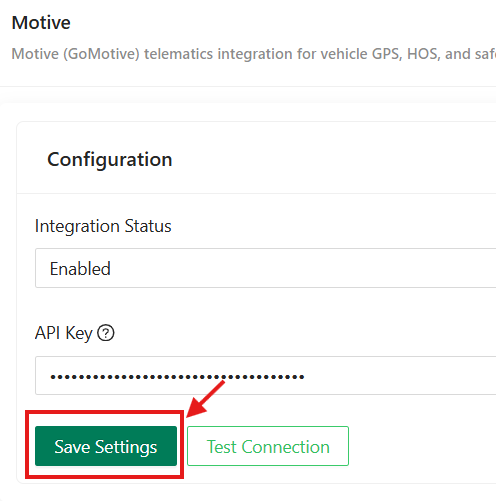
Select Save.
Once complete, trucks and trailers with Motive GPS begin sending data to OpenRoad TMS, and this data appears within Loads and Assignments.
Frequently Asked Questions
How do we confirm the connection worked?
Use the Test Connection button on the Motive integration screen in OpenRoad before saving, then check a connected truck's GPS Logs tab for a recent position.
A truck is not showing a location after we connected Motive. What should we do?
Confirm the truck has a Motive Vehicle ID assigned on its profile inside OpenRoad, and allow a few minutes for the first sync cycle to complete before assuming there is a problem. It is syncing every 10 minutes.
Can we connect a few trucks first instead of the whole fleet?
Yes. Assign Motive identifiers only to the trucks, trailers, or drivers you want to test first, confirm tracking works as expected, then add the rest of the fleet.
Where does the data from Motive show up once connected?
Motive GPS and Hours of Service data appear inside Loads, Trucks, Trailers, and driver Hours of Service views.
Was this article helpful?
That’s Great!
Thank you for your feedback
Sorry! We couldn't be helpful
Thank you for your feedback
Feedback sent
We appreciate your effort and will try to fix the article