OpenRoad TMS — Getting Started Series
This article explains how to view, add, and manage office employee (staff) records in OpenRoad TMS, separate from Drivers and Vendors, and separate from system Users/logins.
Before You Begin
- Go to HR → Staff from the main dashboard menu to manage employee records.
- Adding or editing employees typically requires an HR, Admin, or Superadmin role.
Step 1: View Your Employees List
1. Go to HR → Staff.
2. Here you'll see each employee's full name, work email, personal phone, position, and role.
3. Use the Status filter to view All Employees, Active, or Former employees.
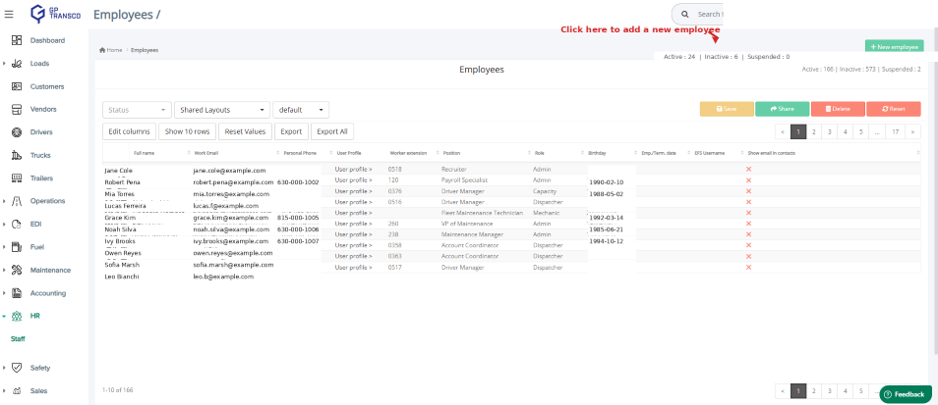
Figure 1 — Employees list. Names, emails, phone numbers and dates of birth shown are examples.
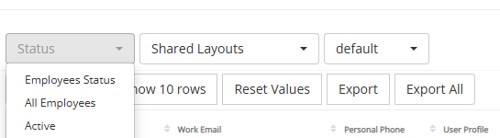 Figure 2 — Status filter options.
You can also customize this table using the buttons above it:
- Edit columns — choose which fields are shown.
- Save / Share / Reset — save your current layout, share it with others, or reset to default.
- Export / Export All — download the employee list.
Step 2: Add a New Employee
1. Click + New Employee at the top right of the Employees page.
2. Fill out the Basic Information section: office, employee #, status, name, gender, marital status, birthday, social security number, and address.
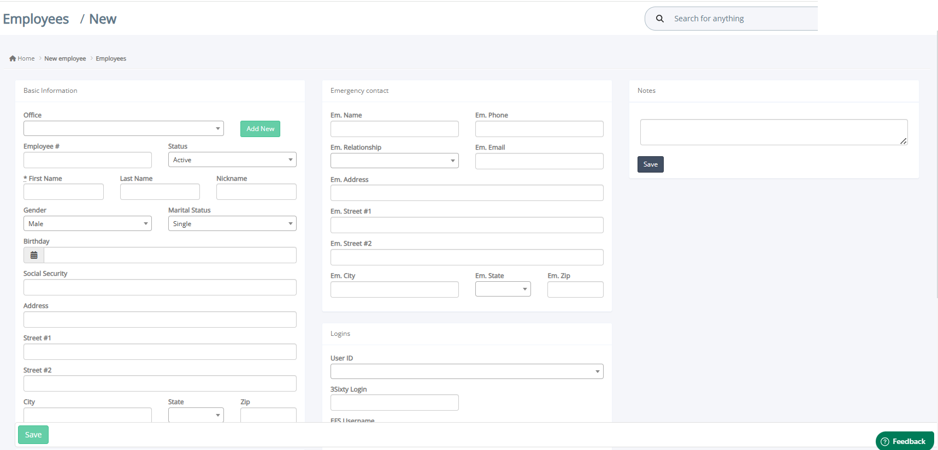
Figure 3 — New Employee form (Basic Information, Emergency Contact, Notes).
3. Fill out Contact Information: work extension, personal and work phone/email.
4. Fill out Emergency Contact details, if available.
5. Under Logins, link this employee to an existing system User ID if they also need to log in to OpenRoad TMS.
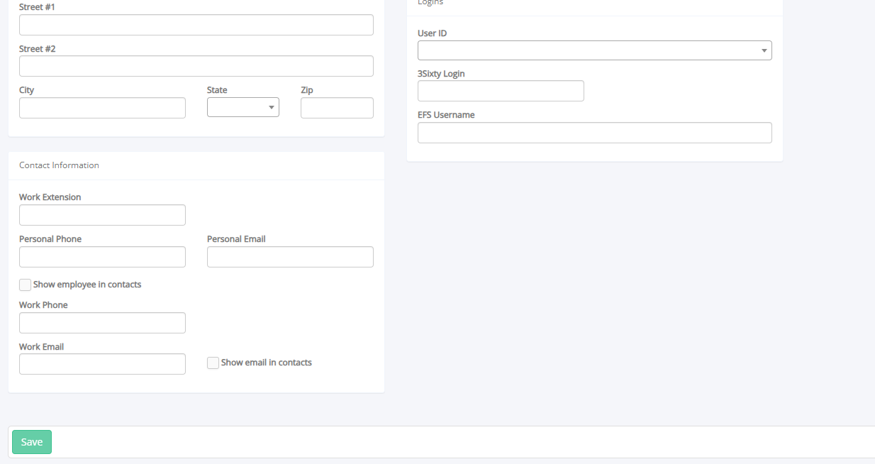
Figure 4 — New Employee form (Contact Information and Logins).
6. Click Save.
Note: The employee record (Staff) and the system User login are two different things. Not every employee needs a login — for example, an office employee who never uses OpenRoad TMS directly may have an employee record with no linked User ID.
Field Options Reference
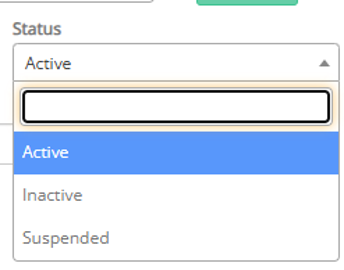
Status: Active, Inactive, Suspended.
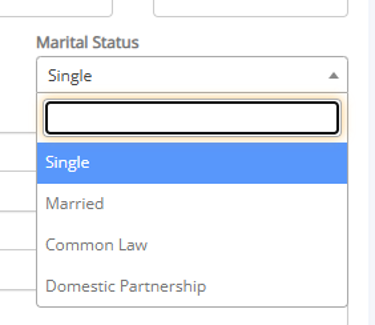
Marital Status: Single, Married, Common Law, Domestic Partnership
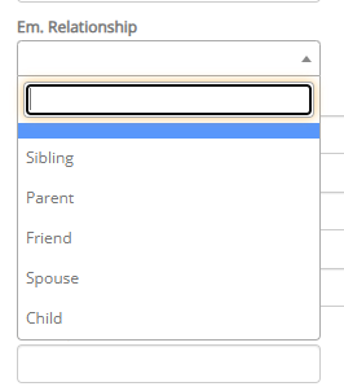 Em. Relationship: Sibling, Parent, Friend, Spouse, Child.
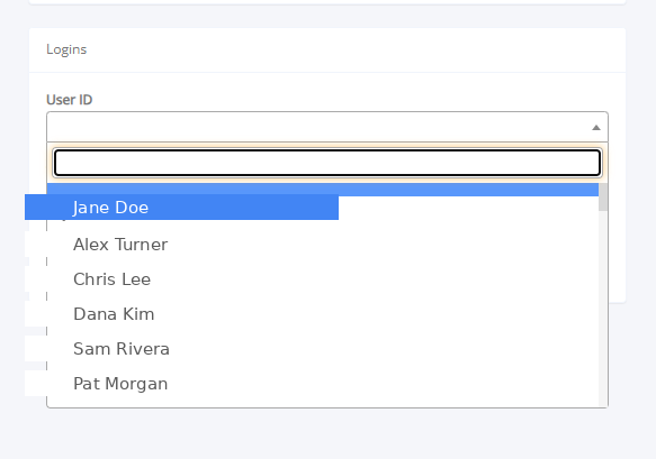 ID: linked system login for this employee, if any. Names shown are examples.
Step 3: View an Employee's Profile
Click the eye icon next to any employee to open their full profile, organized into tabs:
Tab | What you'll find there |
Overview | Contact details and status. Set to Inactive if the employee has been terminated. |
Job | Position, department, hire date, and termination date. |
Files | Applications, resumes, and other employee-related documents. |
Accounting | Payments, compensation, taxes, deductions, and adjustments. |
Loads | Loads associated with the employee (for roles like Fleet Manager). |
Statements | Employee statements, click the eye icon to view. |
Tip: If this employee is a Fleet Manager, make sure their compensation type is set correctly under Accounting so they appear properly in Reviews.
Frequently Asked Questions
Q: What's the difference between an employee record and a user login?
A: An employee (Staff) record holds HR information such as position, contact details, and pay setup. A User login is what someone uses to sign in to OpenRoad TMS. They can be linked, but not every employee needs a login.
Q: How do I mark an employee as terminated?
A: Open their profile and set their status to Inactive, then add the termination date under the Job tab.
Q: Where do I find an employee's pay information?
A: Open their profile and go to the Accounting tab.
Q: Can I customize which columns show in the employee list?
A: Yes. Use Edit columns above the table, and Save or Share your layout with others on your team.
Still need help? Contact our support team at help@openroadtms.com
Was this article helpful?
That’s Great!
Thank you for your feedback
Sorry! We couldn't be helpful
Thank you for your feedback
Feedback sent
We appreciate your effort and will try to fix the article