Add a new driver to OpenRoad in a minute: fill in the New driver form, select Add driver and finish the details in the driver's profile. This article explains each field, which ones are required and what to check so the driver can log in to the OpenRoad Driver app.
Who can do this: users who are allowed to create drivers. If you do not see New driver on the Drivers list, ask an administrator to check your access to Drivers.
Before you begin
- Decide the driver number. It must be unique in your account.
- Know the driver type (see the table below).
- Have the Pay to company ready. For a company driver this is usually your own company. For an owner operator it is the driver's own company. If it does not exist yet, you can add it from the form (step 5), or see How to Add Drivers and Vendors.
- Have the driver's mobile phone number if the driver will use the app.
Open the form
- Select Drivers in the left menu.
- Select New driver at the top right of the list.
Fill in the form
- Enter the First Name, Last name and Phone number.
- Enter the Driver's number. This field is required.
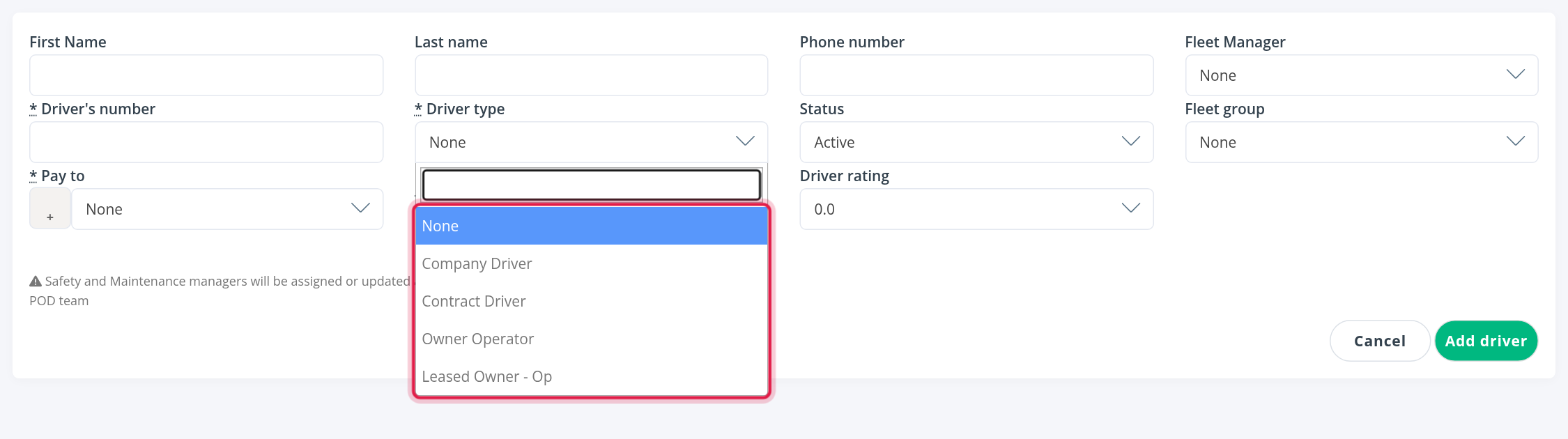
- Choose the Driver type. This field is required.
- Choose the Pay to company. This field is required.
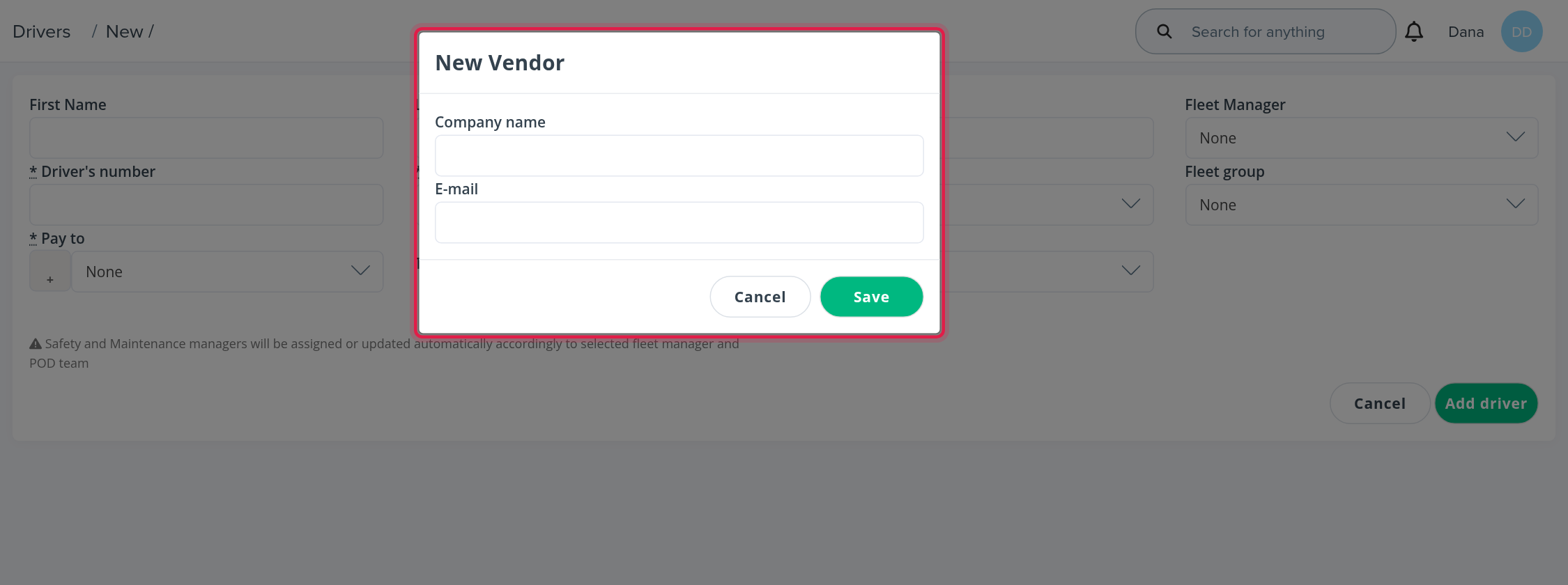
- If the company is not in the list, select the + button next to Pay to. The New Vendor window opens: enter the Company name and E-mail and select Save. The new company is then available in Pay to.
- Check the Status. It starts as Active. The choices are Pre-Hired, Active, Suspended, Terminated and Lead. Choose Pre-Hired or Lead if the person has not started yet.
- Set the other options you need (see the table below).
- Select Add driver. The driver's profile opens.
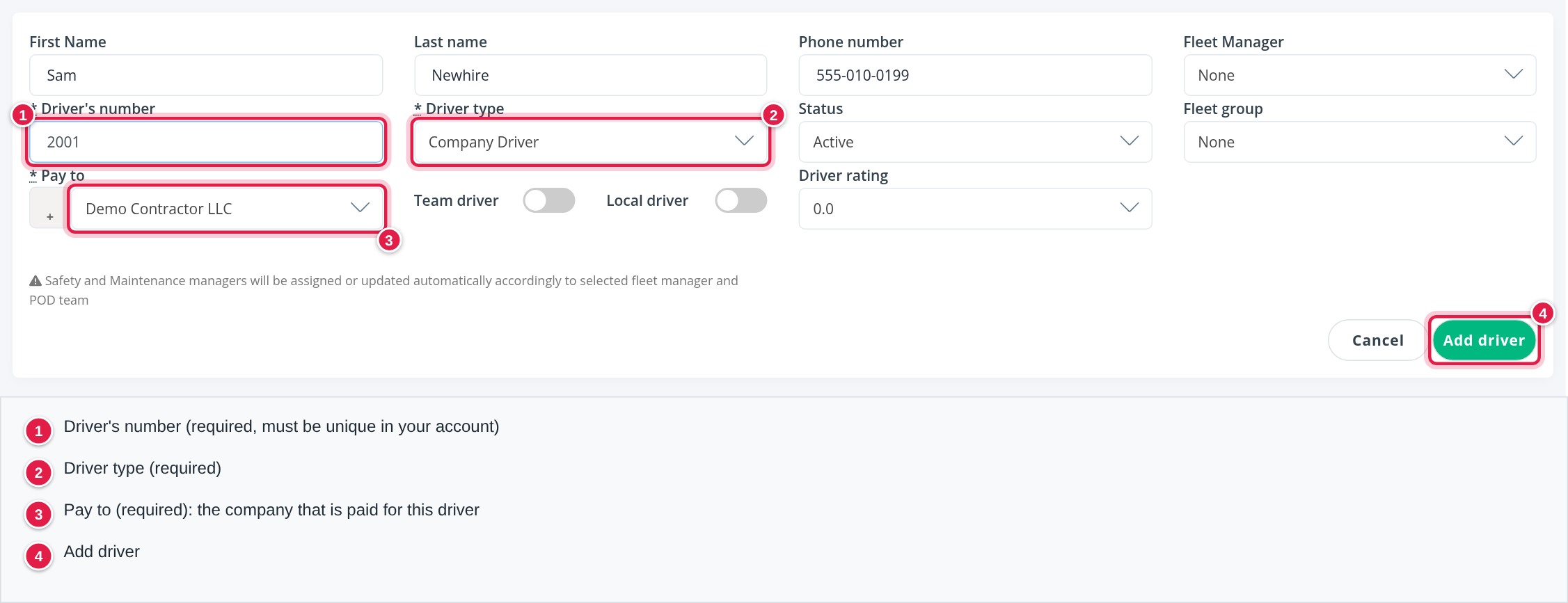
The fields marked with a star (Driver's number, Driver type and Pay to) must be filled in, otherwise the driver is not created. If the driver number is already used by another driver in your account, the driver is not created either: choose a different number.
Driver type
| Driver type | What it means |
|---|---|
| Company Driver | An employee of your company, paid through payroll. |
| Contract Driver | A driver who works under a contract arrangement instead of as an employee. |
| Owner Operator | A driver who owns the truck and works as a contractor. Pay goes to the driver's own company, chosen in Pay to. |
| Leased Owner - Op | An owner operator whose truck is leased to your fleet. |
The other fields
| Field | What it does |
|---|---|
| Fleet Manager | The manager responsible for the driver. Safety and Maintenance managers are assigned automatically from the fleet manager and the POD team, so you do not set them here. |
| Status | Active by default. See Drivers module: start here for the statuses and the list filter. |
| Fleet group | The group the driver belongs to: Local, Short-haul, Regional, OTR, Dedicated or Flatbed. The default is None. |
| Driver rating | A rating from 0.0 upwards in half points. The default is 0.0. |
| Team driver | Turn on for a driver who works in a team. Choose the team partner in the field that appears. |
| Local driver | Turn on for a local driver. It cannot be combined with Team driver. |
Depending on your account, the form can show more switches, such as Route driver, CoPilot User and Samsara. If your account uses Samsara and you leave Samsara off, OpenRoad warns you that HOS and GPS data will not sync for this driver until you turn it on. Select Continue to create the driver anyway.
The driver and the OpenRoad Driver app
When you add a driver, OpenRoad also creates the driver's login for the OpenRoad Driver app. The driver signs in with the phone number saved in the profile and a PIN sent by SMS, so check that the number is correct. See Using the Driver app and Driver not receiving PIN code.
After you add the driver
The profile opens on the Overview tab. The Date added is set to today. Complete the profile from here:
- Personal details, emergency contact and compliance dates: see Driver profile: Overview tab (Personal information to Rehire Eligibility cards).
- Pay: set Payroll schedule and Compensation on the Accounting tab. Until both are set, Regenerate on the Statements tab cannot build the driver's statements. See Driver profile: Accounting tab.
- A truck and trailer: see Driver Assignments.
Frequently asked questions
Was this article helpful?
That’s Great!
Thank you for your feedback
Sorry! We couldn't be helpful
Thank you for your feedback
Feedback sent
We appreciate your effort and will try to fix the article