Everything that decides how a driver is paid, in one tab: the payroll schedule and compensation, the tax type, who gets paid and how, the vacation balance, and the deductions and adjustments that are added to the driver's statements. Use it to set up a new driver for payroll or to add a charge or a bonus.
Who can do this: users with access to Drivers. The pencil icons need permission to update drivers, and the pencil and trash icons on adjustments need their own permissions, so you may see fewer of them. The vacation card pencil has its own permission as well.
Before you begin
Set the driver's Payroll schedule and Compensation before the driver does any loads. The driver's statements are built from them, and until both are set Regenerate on the Statements tab refuses to run.
- The payroll schedules and compensation types you choose from must already exist. They are set up in the account settings: see Payroll.
Open the Accounting tab
Open Drivers, select the driver number, then select Accounting in the tab bar. The date range at the top right applies to the two adjustment tables at the bottom (see Deductions and adjustments below).

Compensation
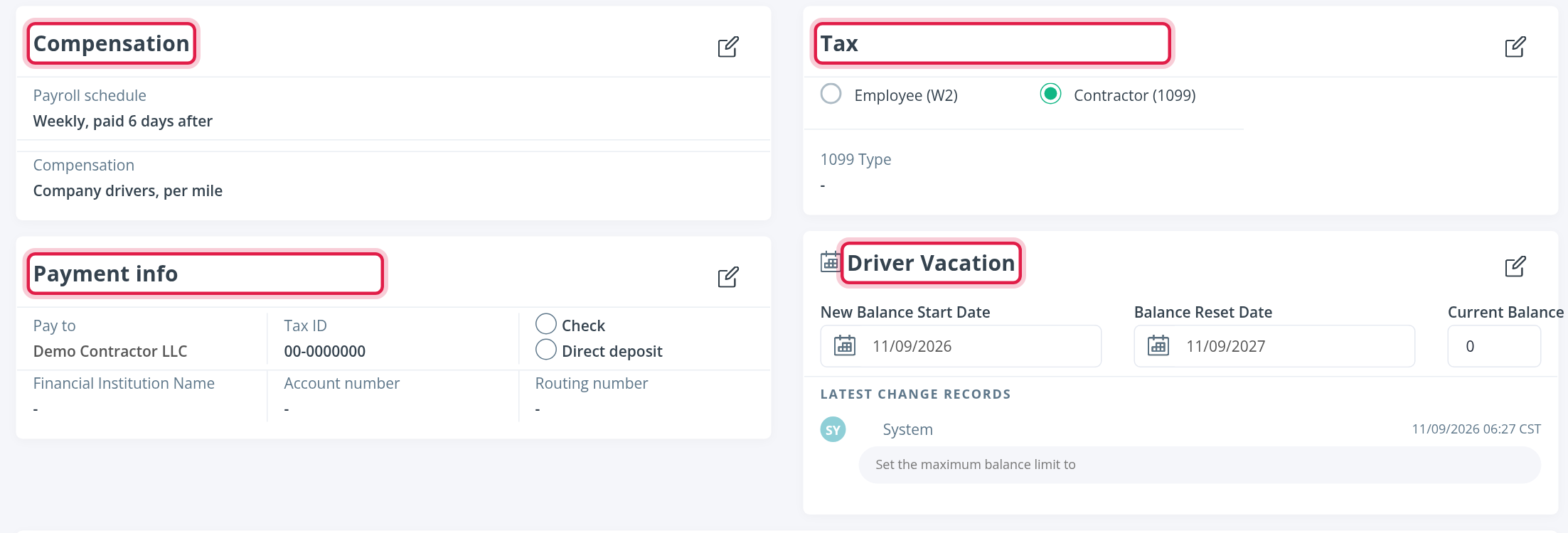
The Compensation card shows two things:
- Payroll schedule: when the driver's week starts and how many days later the driver is paid.
- Compensation: how the driver earns, for example per mile or a percentage.
To change them, select the pencil icon on the card, pick the new Payroll schedule and Compensation from the lists, and select Save.
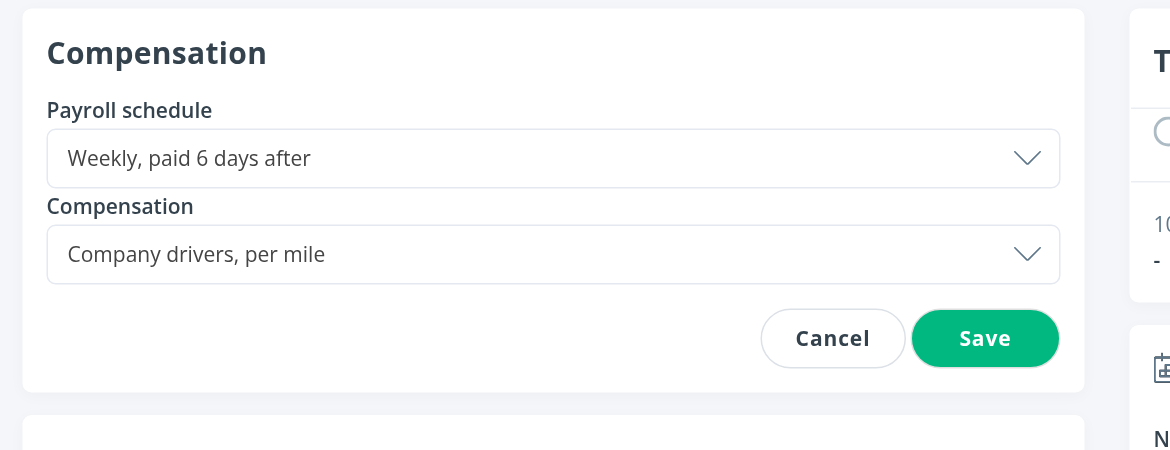
Fill in both Payroll schedule and Compensation. If either one is blank, Regenerate on the driver's Statements tab refuses to run and shows "Payroll schedule or compensation is missing."
The schedules and compensation types you can choose from are created in the account settings. See Payroll.
Some extra switches appear on this card only when the feature is turned on for your account, for example automatic split of miles, PTO and automatic on-time bonus.
Tax
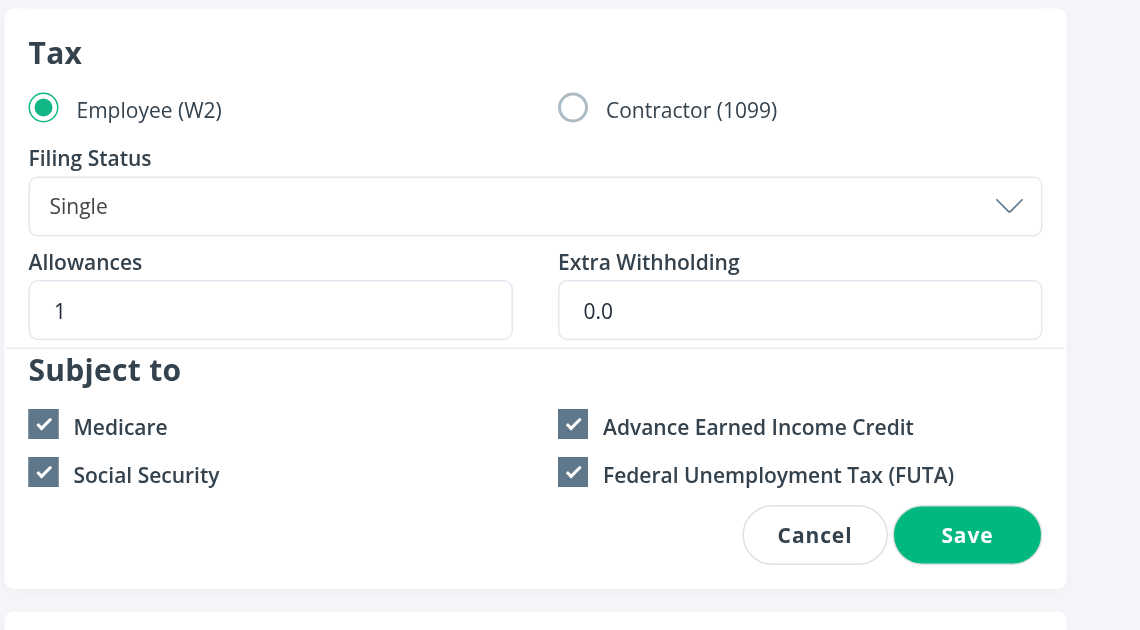
Choose how the driver is classified:
- Employee (W2): the card then asks for Filing Status, Allowances and Extra Withholding, and shows what the driver is subject to: Medicare, Social Security, Advance Earned Income Credit and Federal Unemployment Tax (FUTA).
- Contractor (1099): the card shows the 1099 Type (NO1099 or 1099MS).
Select the pencil icon, change the type and select Save.
Payment info
Who the driver is paid through and how:
- Pay to: the company the payment goes to. Select its name to open the company.
- Tax ID: the company's tax number.
- Check or Direct deposit.
- Financial Institution Name, Account number and Routing number for direct deposit.
Select the pencil icon to change them.
Driver Vacation
The Driver Vacation card shows New Balance Start Date, Balance Reset Date, the Current Balance and the Latest change records (who changed the balance, when and why). It is shown for drivers who are active, suspended or terminated.
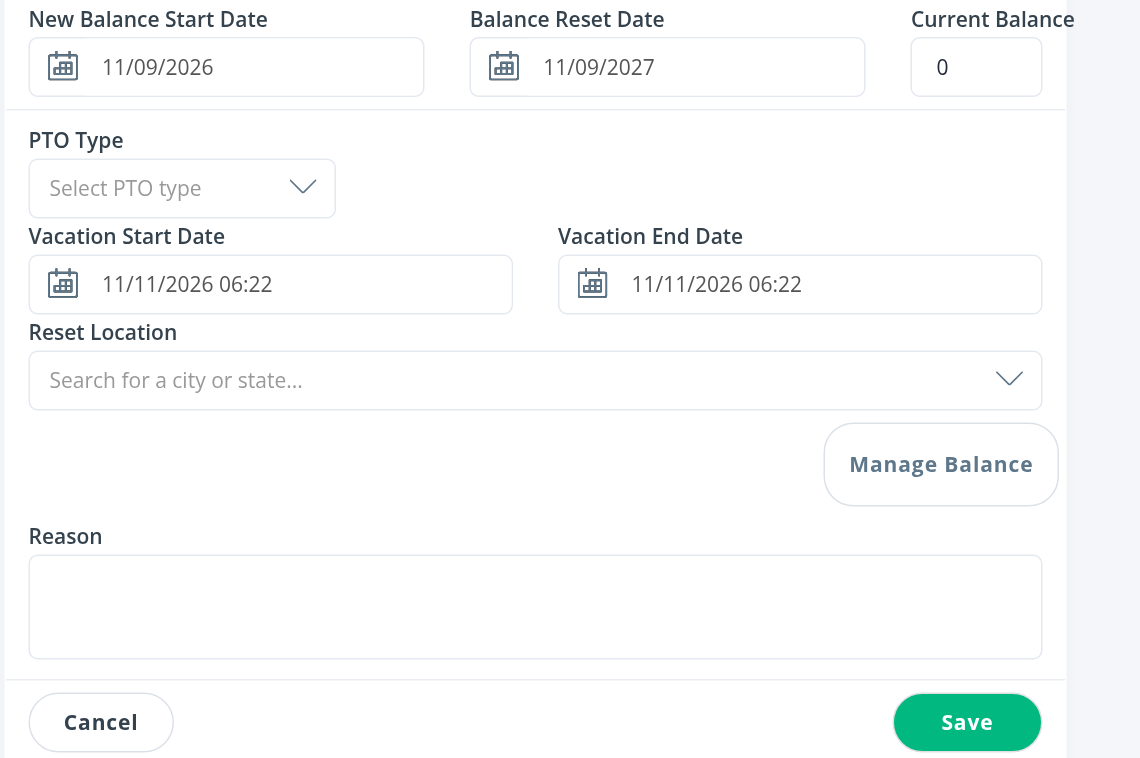
To record vacation, select the pencil icon, choose the PTO Type (PTO or PTO cash out), the Vacation Start Date and Vacation End Date, and the Reset Location if needed, add a Reason and select Save. Users who may adjust balances also see Manage Balance.
Deductions and adjustments
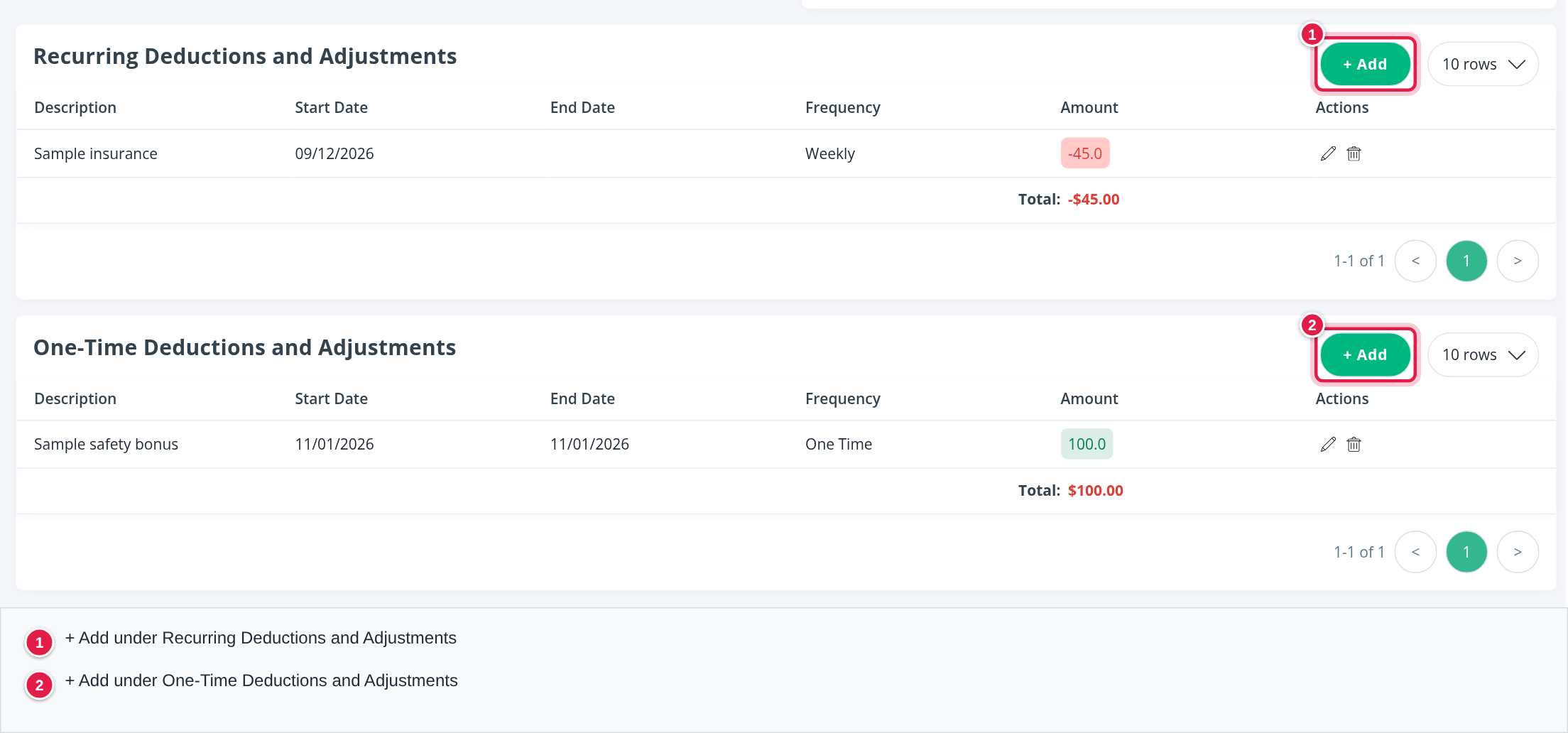
Two tables list the amounts added to the driver's statements. The amount is positive to add money (a bonus, a reimbursement) and negative to take money (insurance, a charge). Negative amounts are shown in red and positive amounts in green.
| Table | What it holds |
|---|---|
| Recurring Deductions and Adjustments | Items that repeat: Weekly, Monthly or Every 30 Days. Each row has a Start Date and an optional End Date |
| One-Time Deductions and Adjustments | Single items, charged once |
Each table shows the Description, Start Date, End Date, Frequency, Amount and Actions (edit with the pencil, delete with the trash can), and the Total of the amounts listed. If your account uses an accounting integration, extra columns for its category appear.
The date range at the top right filters both tables. Recurring shows items with no end date or that end on or after the first day of the range. One-Time shows items that were added within the range.
Add a deduction or an adjustment
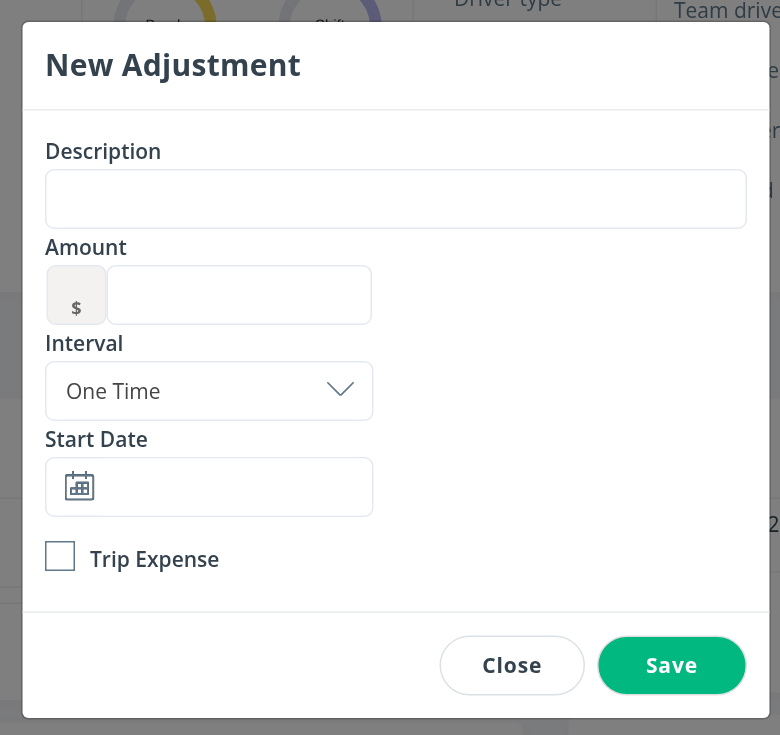
- Select + Add in either table. Both buttons open the same New Adjustment window.
- Enter the Description. As you type, the list suggests earlier items with their amount and frequency. Select one to fill the window.
- Enter the Amount. Use a minus sign for a deduction.
- Choose the Interval: One Time, Weekly, Monthly or Every 30 Days.
- Choose the Start Date. For a recurring item you can also choose an End Date.
- Tick Trip Expense if the amount is a trip expense.
- Select Save.
To stop a recurring item, edit it and enter an End Date.
Deleting an adjustment asks for your password. After a change, regenerate the driver's statements so it is included. See Driver profile: Statements tab.
Frequently asked questions
Was this article helpful?
That’s Great!
Thank you for your feedback
Sorry! We couldn't be helpful
Thank you for your feedback
Feedback sent
We appreciate your effort and will try to fix the article