A driver statement (settlement) shows everything a driver earned and owes for a payroll week: the driver's loads, miles, pay, fuel card transactions, adjustments and deductions. This article covers the Statements tab of the driver profile and the whole routine around it: find the week, rebuild it, review it, add adjustments, send a preview, then lock and send the final statement.
Who can do this: users with access to the Statements tab of Drivers. Rebuilding, locking and sending also need their own access, so you may not see or be allowed to use every button described here. The steps are for accounts that run payroll in Accounting → Payroll.
Before you begin
Set the driver's Payroll schedule and Compensation on the Accounting tab before the driver does any loads. Statements are built from them, and until both are set Regenerate refuses to run and shows "Payroll schedule or compensation is missing." See Driver profile: Accounting tab.
- The compensation decides the statement layout. Per Mile compensation shows the company-driver layout, Percentage the owner-operator layout and Flat (hourly, daily or weekly) the flat-rate layout. Compensations and payroll schedules are created in Settings → Account → Compensations and Settings → Account → Payroll Schedules. See Payroll.
- The week's loads must be entered. A statement is built from the loads the driver is assigned to. See Driver profile: Loads, Stats and Mileage tabs.
- Fuel cards must be assigned to the driver. Fuel purchases and cash advances appear on a statement only when the fuel card is assigned to that driver, in Fuel → Fuel Cards, on the day of the purchase.
- A Payroll Password must be set. Locking, unlocking and deleting an adjustment ask for it. It is set in Settings → Account → Passwords (Payroll Password).
- The Pay to company needs an email address. Statements are emailed to the email address on the Pay to company record, shown in the Payment info card on the driver's Accounting tab.
Open the Statements tab
Open Drivers, select the driver number, then select Statements in the tab bar.

Read the list of statements
The tab lists the driver's statements, one row per payroll week, newest first. To see older or later weeks, change the date range at the top right.
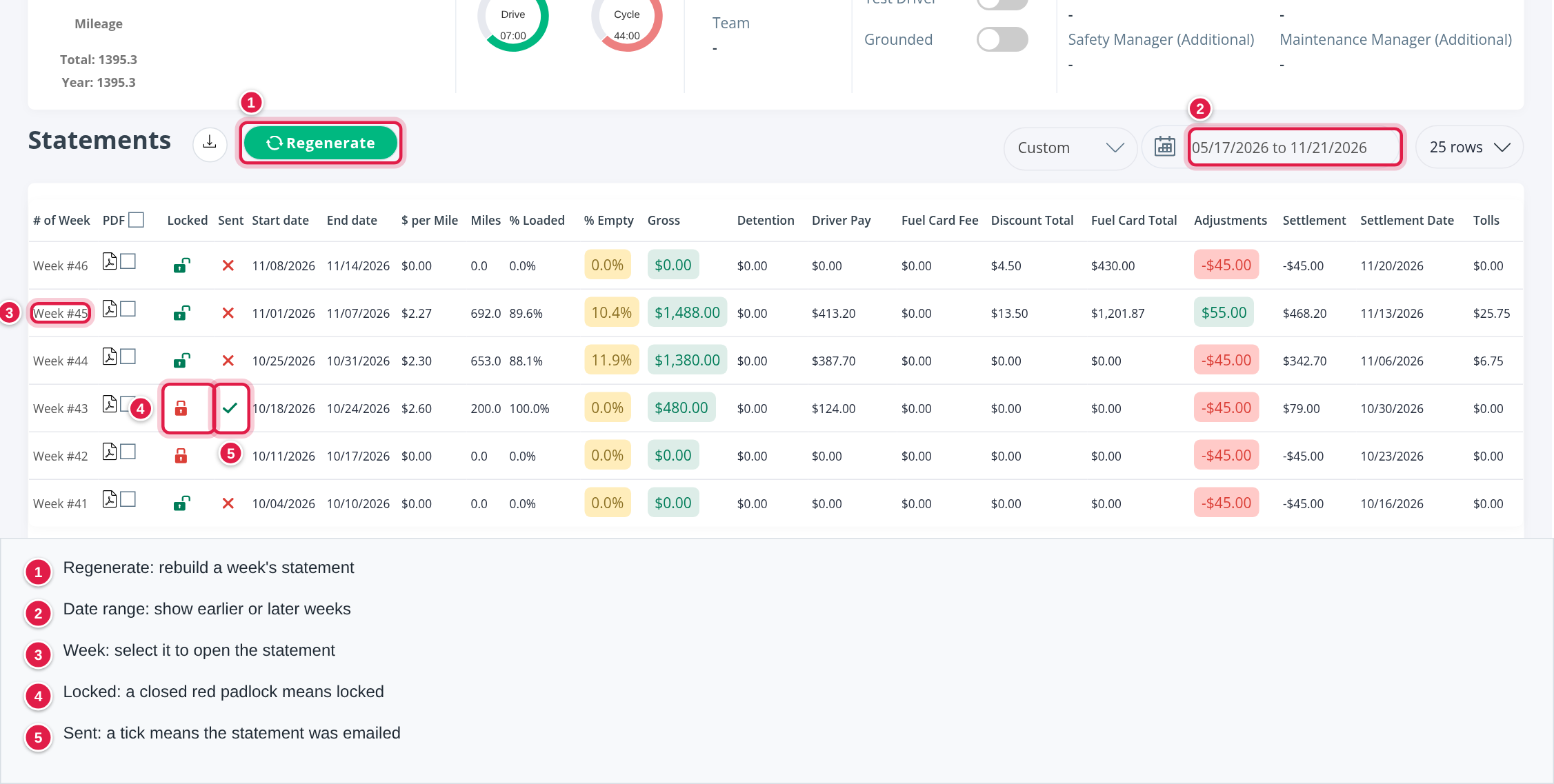
| Column | What it shows |
|---|---|
| # of Week | The week number. Select it to open the statement |
| Open the statement as a PDF. Tick the boxes of several weeks and select the download icon next to Statements to get them as one PDF | |
| Locked | A green open padlock means the statement can still change. A red closed padlock means it is locked |
| Sent | A tick means the statement was emailed to the driver. A cross means it was not |
| Start date, End date | The payroll week |
| $ per Mile, Miles, % Loaded, % Empty | The week's miles and how they split between loaded and empty |
| Gross, Detention, Driver Pay | What the loads earned and what the driver is paid for them |
| Fuel Card Fee, Discount Total, Fuel Card Total | The week's fuel card transactions |
| Adjustments | The total of the week's adjustments and deductions |
| Settlement, Settlement Date | The amount the driver is paid and the date |
| Tolls | The driver's tolls in that week. See Driver profile: Tolls and Fuel tabs |
Some cells are coloured:
- % Empty: light yellow up to 15%, darker yellow above 15% and up to 30%, red above 30%.
- Gross: green at or above your account's gross profit target for the driver's type, yellow between the breakeven and the target, red below the breakeven.
- Adjustments: green when the total is above $0, red when it is $0 or negative.
Rebuild a week with Regenerate
OpenRoad builds a statement from the driver's loads, miles, fuel transactions and adjustments. Use Regenerate to build a week that is missing or to rebuild one by hand.
- Select Regenerate at the top of the tab.
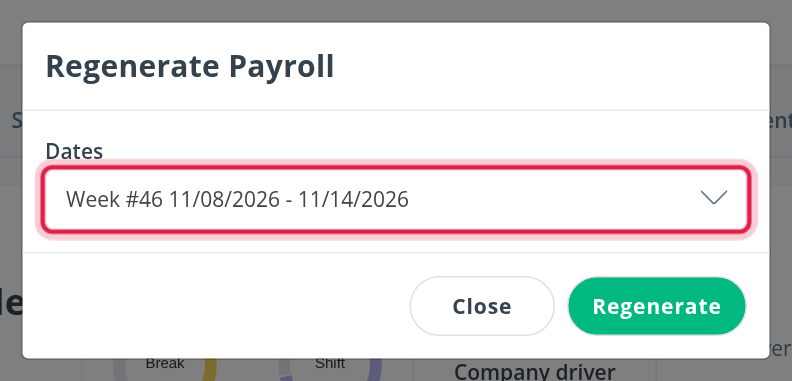
- In Dates, choose the week. The list offers the weeks of the driver's payroll schedule.
- Select Regenerate. A message tells you if the payroll was regenerated or failed.
A locked statement cannot be regenerated. Unlock it first (see Lock and send the final statements below).
Open a statement and review it
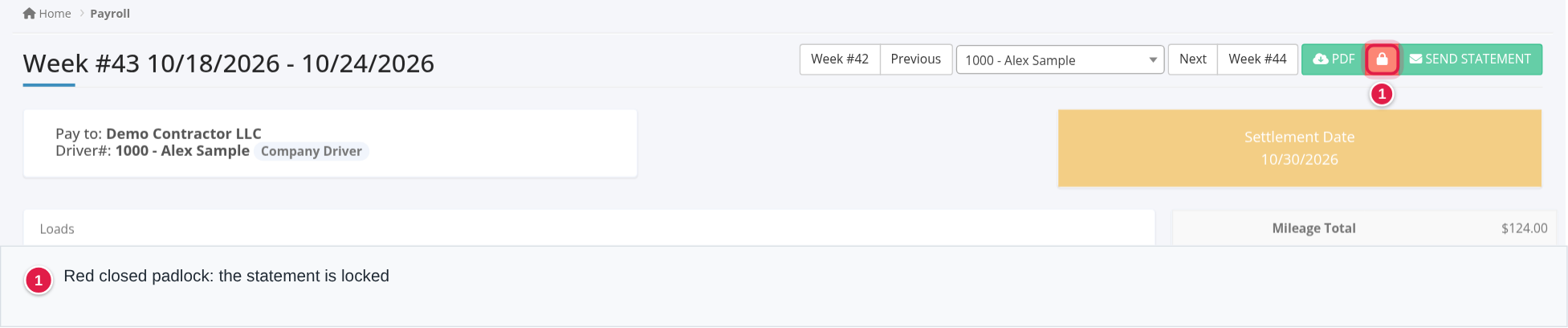
Select the week to open its statement. The top of the statement shows the week, the driver and who the statement is paid to (Pay to), and the Settlement Date.
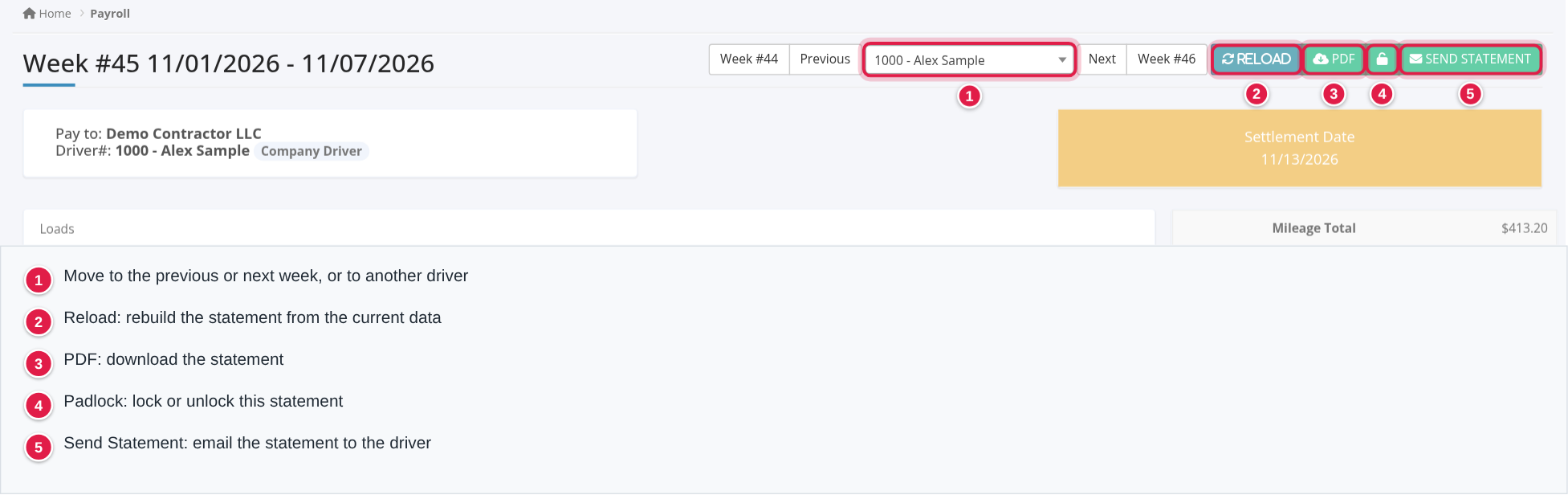
- Use the buttons at the top to move to the previous or next week, or to another driver.
- Reload rebuilds the statement from the current data. It shows only while the statement is unlocked.
- PDF downloads the statement.
- The padlock locks or unlocks the statement.
- Send Statement emails it to the driver.
Check these parts in order:
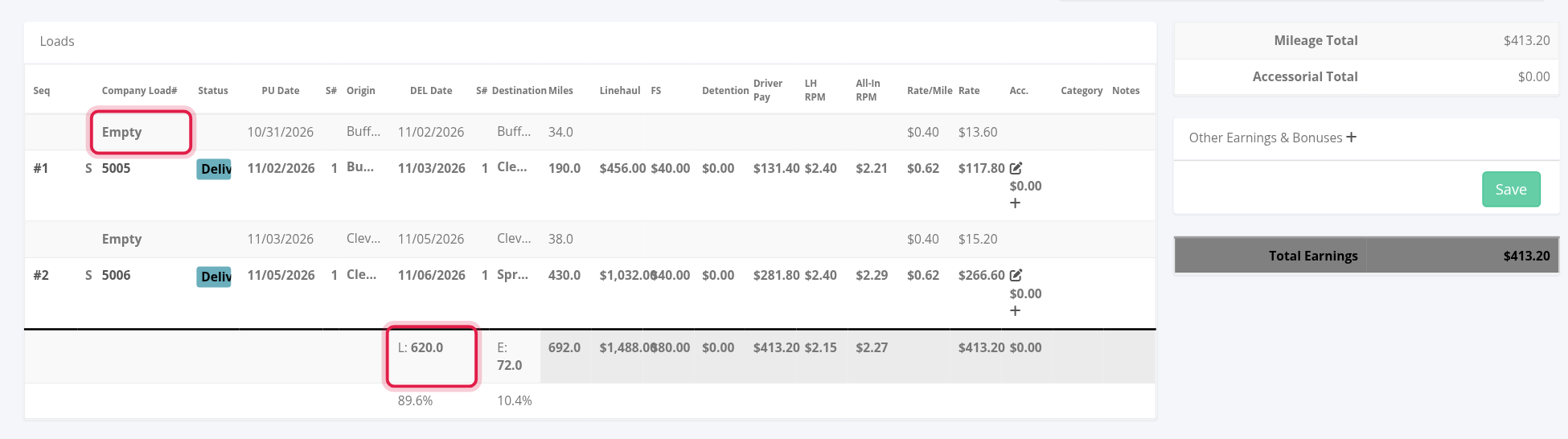
- Loads. Each load of the week, with the Empty miles between loads. The totals row shows loaded (L) and empty (E) miles and their percentages. The miles on a load are the driver's planned route miles when the load has a planned route for the driver, otherwise the miles entered on the delivery stop.
- Pay on each load. Linehaul, Driver Pay, rate per mile and the other pay columns follow the driver's compensation: per mile, percentage or flat rate.
- Fuel card transactions. Purchases and cash advances made with the driver's assigned fuel card are added automatically. You do not enter them.
- Deductions and Adjustments and the Settlement box (see the next section).
- At the bottom, the lock and unlock log shows who locked or unlocked the statement and when.
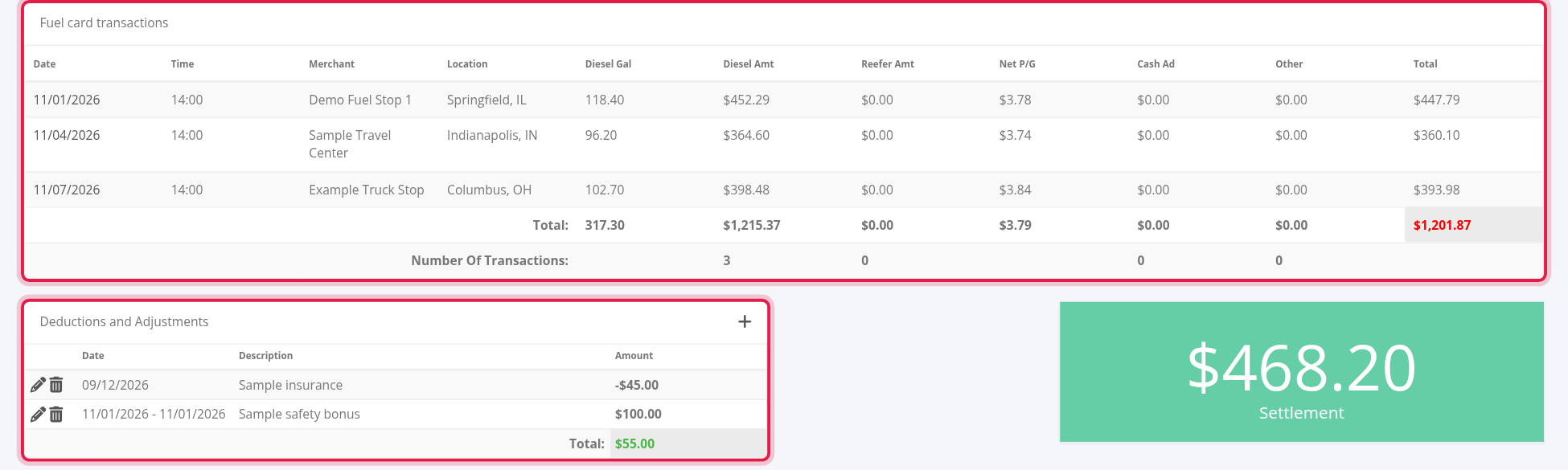
The Settlement box shows the final amount: green when it is above $0, yellow at $0 and red below $0.
If something is wrong on a load, open the load and correct it, then select Reload on the statement. Unlocking a statement does not recalculate it by itself: after you unlock it, select Reload to bring it up to date with the current data.
On Accounting → Payroll, sort the statements by Settlement to spot totals that look too high or too low before you send them.
OpenRoad does not block negative totals. If a driver's deductions are higher than the earnings, the statement total is negative. To carry the balance to the next week, add a one-time adjustment on the next statement.
Add adjustments and deductions
Use an adjustment to add money to a statement (for example a reimbursement) or to take money out (for example an escrow payment or a repayment). Adjustments are managed in two tables on the driver's Accounting tab: Recurring Deductions and Adjustments and One-Time Deductions and Adjustments. See Driver profile: Accounting tab.
You can also add one to a single week from inside its statement:
- In Deductions and Adjustments, select the +.
- Fill in the New Adjustment window:
- Description (required): what it is for. It appears on the statement. - Amount: a positive amount adds money to the driver's pay. A negative amount (for example -45) deducts money. Amounts are fixed dollar amounts: a percentage of the driver's earnings cannot be entered. - Frequency: One Time, Weekly, Monthly or Every 30 Days. For the repeating ones an end date field also appears. With no end date the adjustment applies until you remove it. - Date: the start date. A One Time adjustment applies to the statement of the week that contains this date. - Category fields for your accounting or payroll integration (for example Paycor, Paylocity or Sage). They appear only when that integration is set up on your account.
- Select OK. The statement is rebuilt.
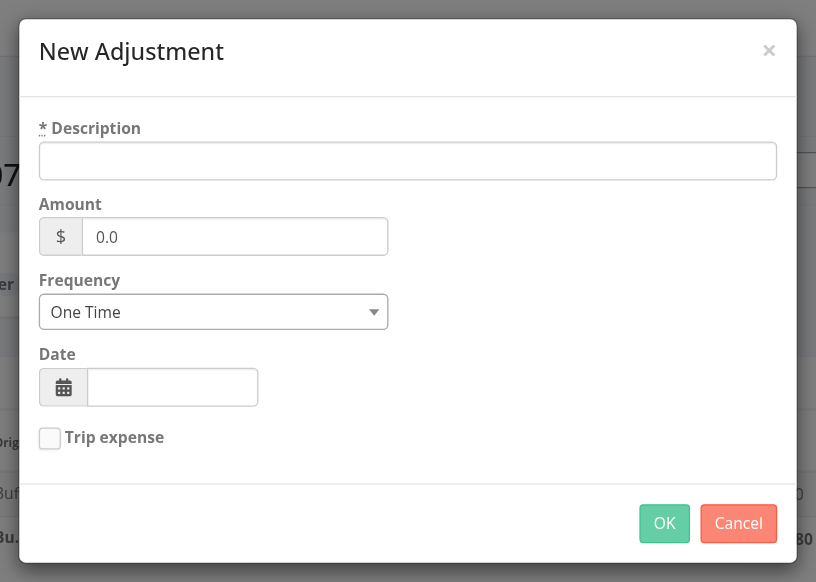
Always enter a date. An adjustment without a start date is not added to any statement.
To change or remove an adjustment, use the pencil or the trash icon next to it. Deleting asks for the Payroll Password. A locked statement cannot be changed: unlock it first.
Send a preview to the driver (optional)
A preview lets drivers check their statement before it is final. It does not lock the statement and does not mark it as Sent, so you can still make changes.
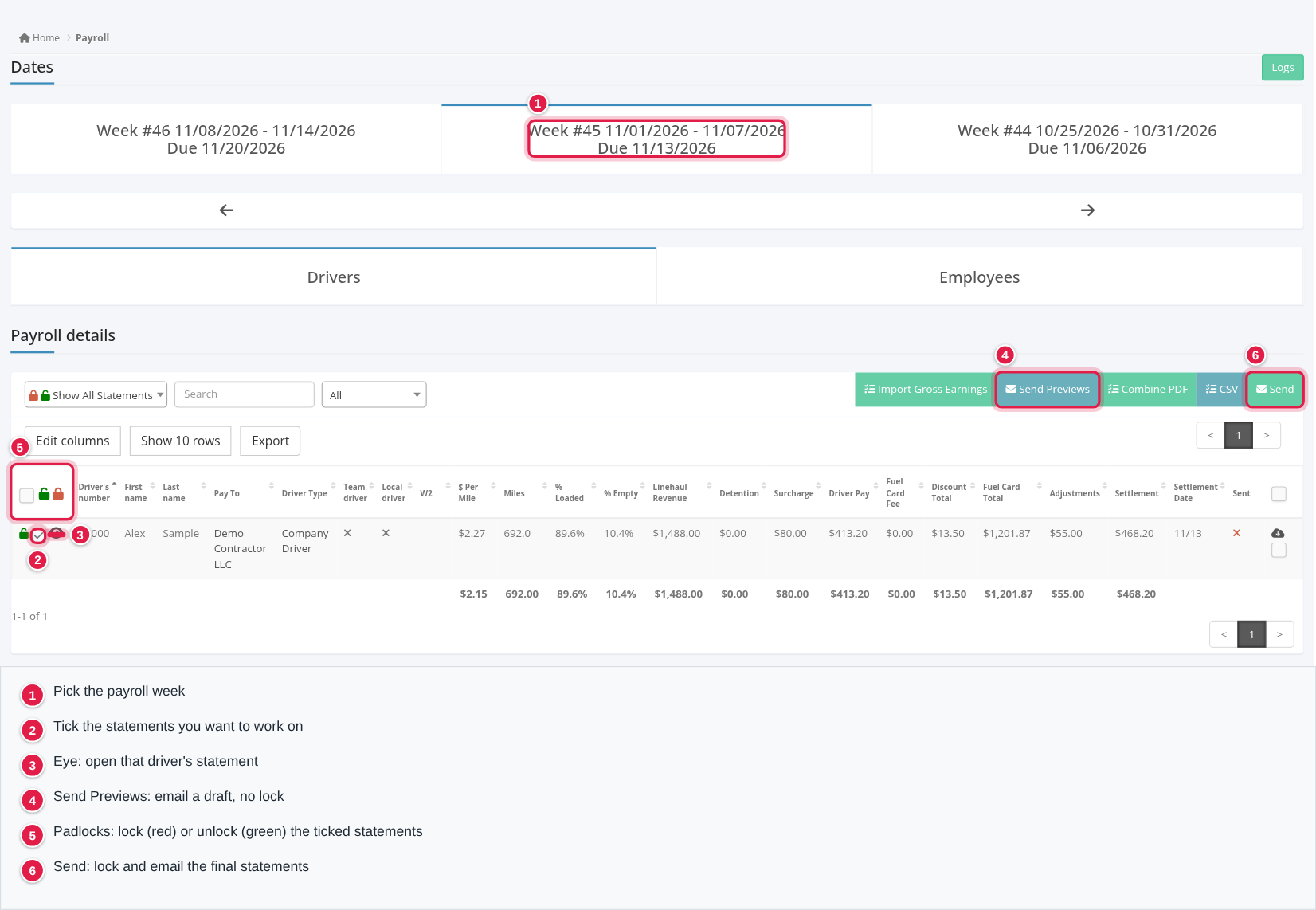
- Go to Accounting → Payroll.
- Select the week at the top and check the due date shown under it.
- Make sure the Drivers tab is selected.
- Tick the statements you want to preview.
- Select Send Previews and confirm. OpenRoad emails each driver a PDF of their statement.
To see a PDF yourself, use the PDF column on the driver's Statements tab or the PDF button on the statement.
Give drivers time to review. If you pay on Friday: send previews by Wednesday, give drivers Thursday to report missing detention, miles or loads, correct the statements, then lock and send them on Friday.
Statements are emailed to the email address on the Pay to company record, not to the email on the driver's profile. You can see who a statement is paid to in the driver's Accounting tab, under Payment info.
Lock and send the final statements
Lock a statement once it is final. A locked statement cannot be changed, and neither can its adjustments. On Accounting → Payroll:
- Select the week at the top.
- Optional: select the eye icon on a row to open that driver's statement.
- Tick the statements, then choose one option:
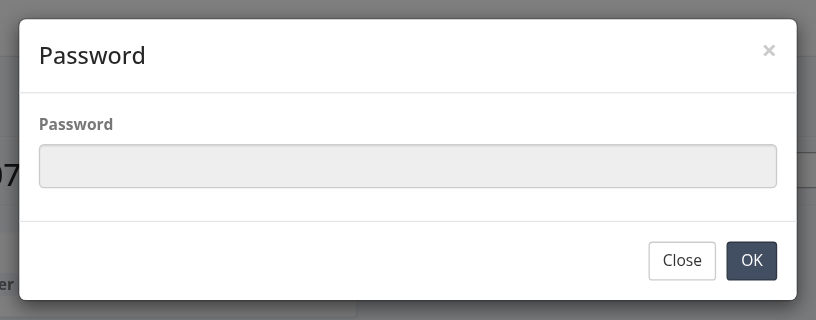
- Lock only: select the red padlock in the table header and enter the Payroll Password. The green padlock next to it unlocks. - Lock and email: select Send and confirm. OpenRoad locks the ticked statements, emails them to the drivers and marks them Sent.
To send one driver's statement, open it and select Send Statement. This emails the statement and marks it Sent. It does not lock it: use the padlock next to it for that.
Send and Send Statement email the statement to the driver right away. Review the statements before you select them.
To change a statement after locking it, unlock it with the Payroll Password, make the change and select Reload. The totals change only when the statement is rebuilt.
Other buttons on the Accounting → Payroll page:
- Combine PDF: one PDF of the statements you ticked in the checkbox column on the far right of each row.
- Show All Statements: show only the locked or only the unlocked statements. The list next to the search box filters the drivers by W2 or 1099 type.
- Export buttons such as Export, Export to Sage or Export to Paycor depend on the accounting or payroll software set up on your account.
Frequently asked questions
Was this article helpful?
That’s Great!
Thank you for your feedback
Sorry! We couldn't be helpful
Thank you for your feedback
Feedback sent
We appreciate your effort and will try to fix the article