See every toll and fuel card transaction that belongs to a driver, for any period, and add a fuel transaction by hand when it is missing. This article covers the Tolls and Fuel tabs of the driver profile.
Who can do this: users with access to Drivers. A tab only appears if your user has access to it.
Before you begin
- Tolls: a toll is matched to a driver by its transponder and its date. The transponder must be active and assigned to a truck on that date, and the driver must be assigned to that truck on that date. A toll that cannot be matched does not appear on any driver's Tolls tab. See Tolls and Driver Assignments.
- Fuel: imported fuel card transactions go to the driver the fuel card is assigned to on the date of the fill-up. A card with no assignment on that date leaves the transaction without a driver, so it does not show here. The card can be seen in the Fuel card section of the driver's Overview tab.
Open the tabs
Open Drivers in the left menu, select the driver number and then select Tolls or Fuel in the tab bar of the profile. Both tabs show the transactions for the date range chosen at the top right. They open on the current month, from the 1st until today.

If a transaction you expect is missing, widen the date range first. The range is matched against the Transaction Date, not the date the transaction was posted.
Tolls tab
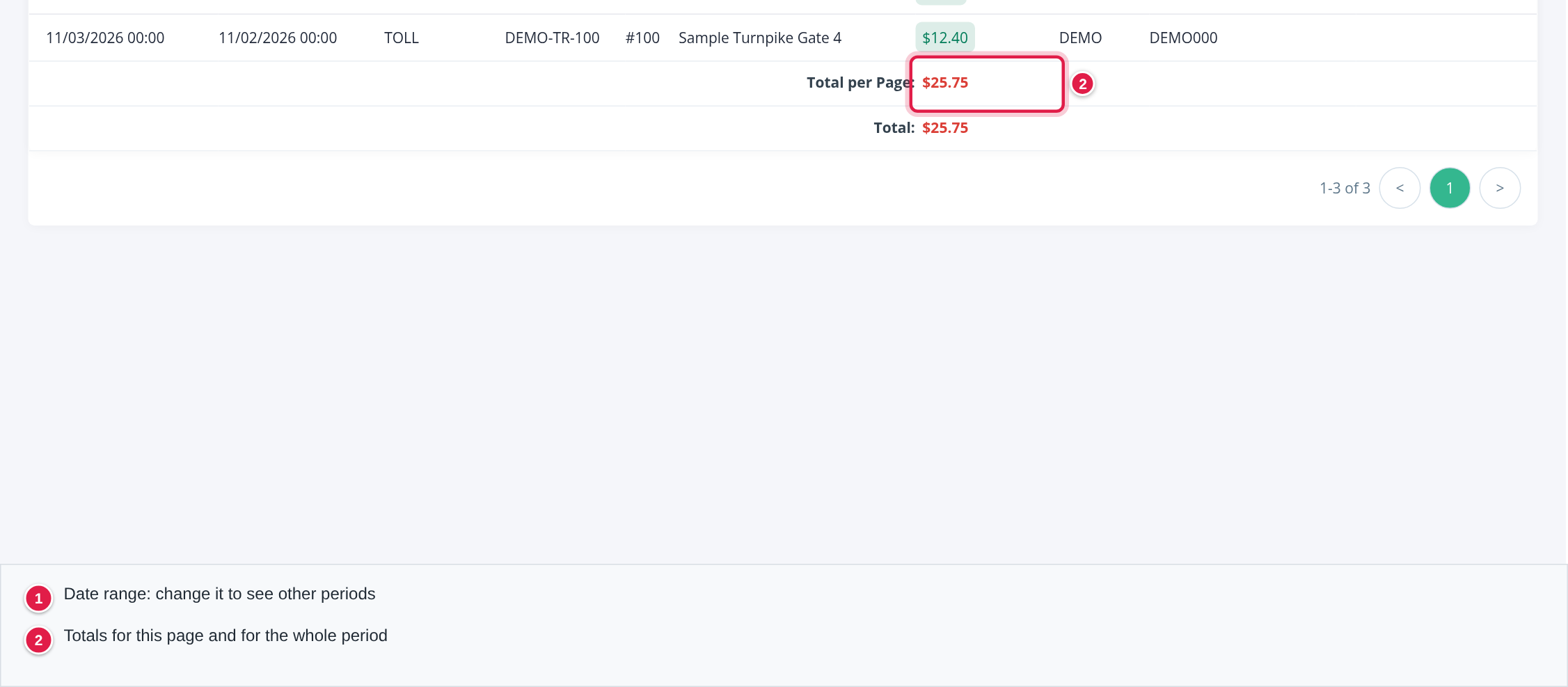
The tab lists the toll transactions of this driver, newest posted date first.
| Column | What it shows |
|---|---|
| Transaction Posted Date | When the toll agency posted the transaction |
| Transaction Date | When the toll happened |
| Transaction Type | The type reported by the toll agency, for example TOLL |
| Transponder ID | The transponder that was charged |
| Truck | The truck number |
| Location | The toll plaza or gate |
| Transaction Amount | The amount charged |
| Toll Agency | The agency that charged it |
| License Plate Number and License Plate State | The plate the agency recorded |
Below the table, Total per Page adds up the rows you can see and Total adds up every toll in the chosen date range. Use the rows selector (25 rows by default) and the page buttons to move through longer lists.
The Tolls tab is for looking up transactions. You cannot add or change a toll here. To see how tolls are set up and charged in payroll, see Tolls.
Fuel tab
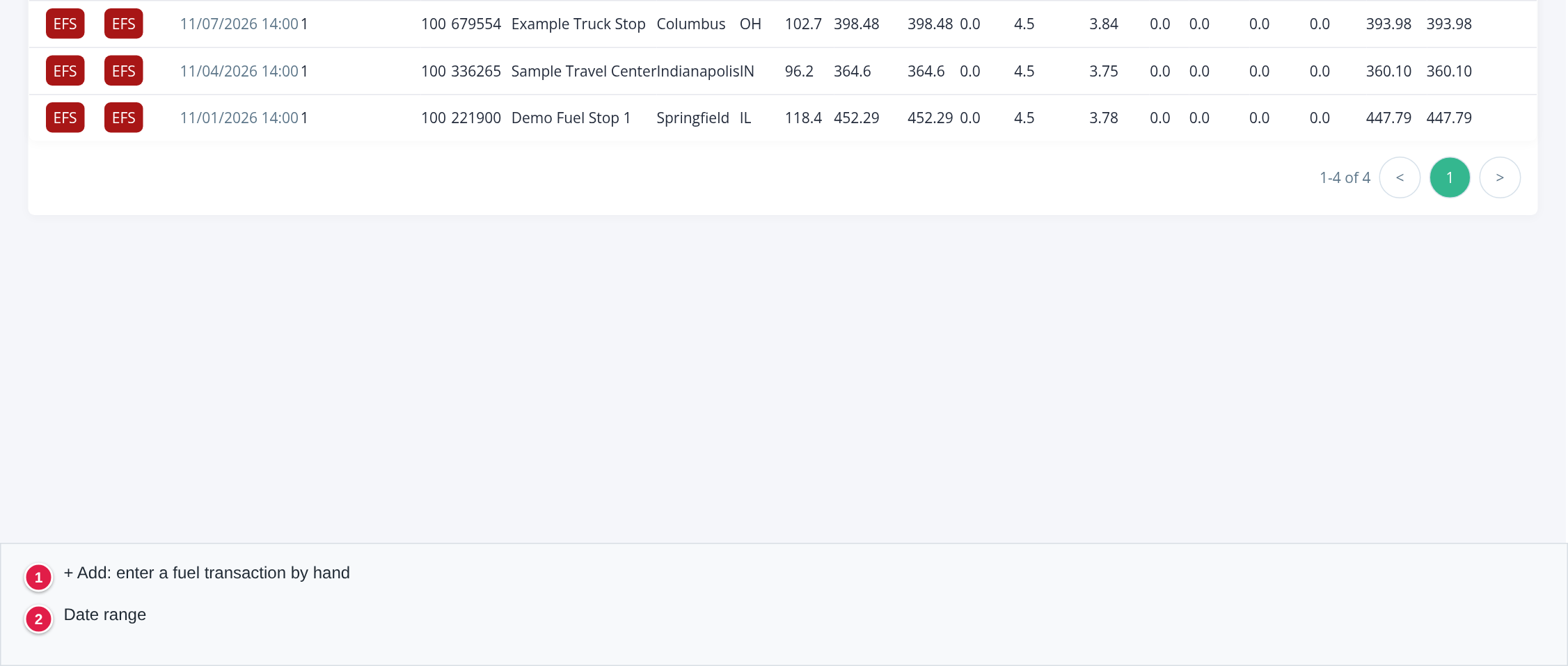
The tab lists the fuel card transactions of this driver, newest first.
| Column | What it shows |
|---|---|
| Type and Funding | The card type and the funding type, for example EFS. Types you can choose when adding by hand: EFS, FleetOne, Comdata, Manual, Relay and Other; funding also has Pilot and Loves |
| Date / Time | When the fuel was bought. Select it to open the transaction |
| FC #ID, Unit, T/S | Card ID, truck number and transaction number |
| Merchant, City, State | Where the fuel was bought |
| Diesel Gal | Gallons of diesel |
| Diesel Amt w/o Fees and Diesel Amt | The diesel amount without and with fees |
| Reefer Amt | The reefer fuel amount |
| Discount, Net P/G | The discount and the net price per gallon |
| Cash Ad, Other w/o Fees, Other, Service Fee | Cash advances, other charges and the card's service fee |
| Total w/o Fees and Total | The transaction total without and with fees |
| MPG | Miles per gallon between this fill-up and the one before it. It appears only when both fill-ups have the driver's truck odometer entered |
Look at a transaction
Select the Date / Time of a row. The transaction opens in a window with all of its fields. Existing transactions open read-only: you can look at them but not change them here.
Add a fuel transaction
Use this when a fill-up is missing, for example when it was paid another way.
- On the Fuel tab, select + Add.
- Enter the Date / Time.
- Choose the State and enter the Diesel Gal. These two, with the date, are required.
- Fill in the rest of the fields you know: Card, Unit, Merchant, City, the amounts and the Odometer (it makes the MPG column work).
- Check that Driver shows the right driver.
- Select Save.
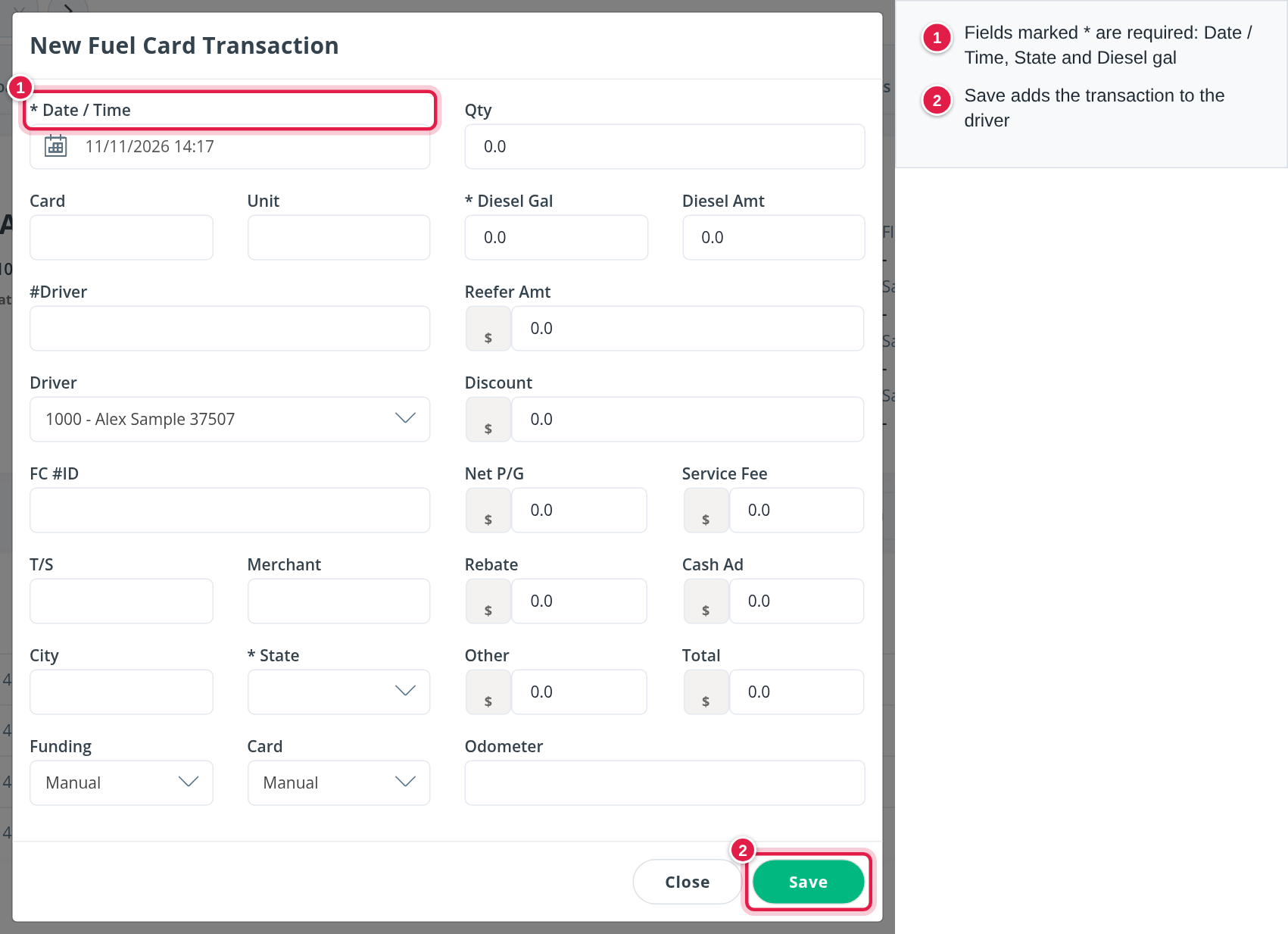
A transaction added this way is marked as entered by hand, and Funding and Card start as Manual.
Frequently asked questions
Was this article helpful?
That’s Great!
Thank you for your feedback
Sorry! We couldn't be helpful
Thank you for your feedback
Feedback sent
We appreciate your effort and will try to fix the article