Find any driver in seconds, choose the columns you need, export the list and open a driver's profile. This is the starting point for everything about drivers in OpenRoad: the Drivers list is where every driver task begins.
Who can do this: users with access to Drivers. Adding a driver needs permission to create drivers.
Before you begin
The Truck and Trailer columns show the truck and trailer the driver is assigned to today. Until you assign one, the column stays empty. See Driver Assignments.
Open the Drivers list
Select Drivers in the left menu. The list opens on the Active drivers.
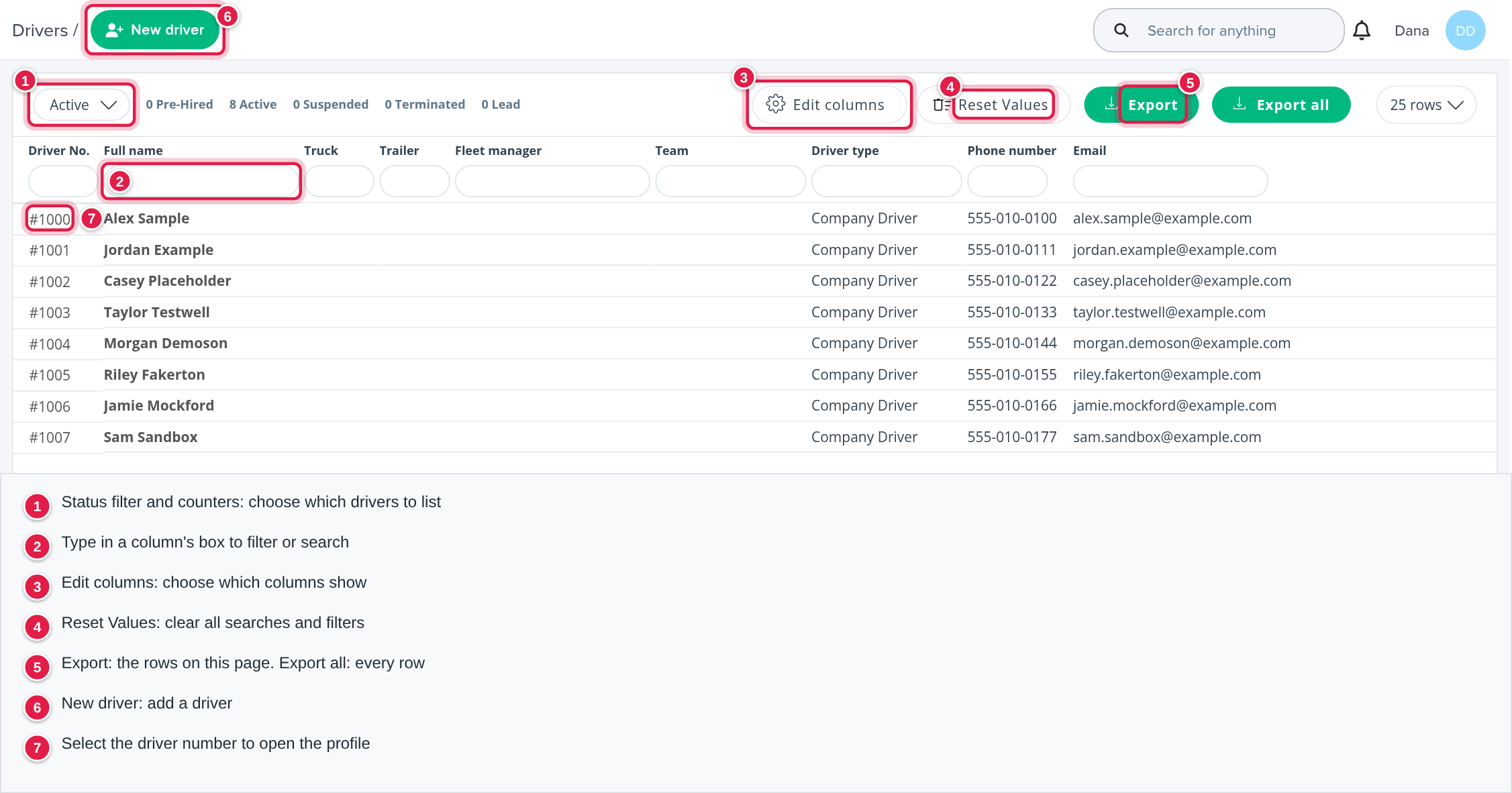
Choose which drivers to see
- Status filter. The drop-down at the top left (Active by default) chooses which drivers to list. The counters next to it show how many drivers you have in each status: Pre-Hired, Active, Suspended, Terminated and Lead.
- Column boxes. Under each column heading there is a box. Type in it to filter by that column, for example part of a name, a truck number, a driver type or a phone number. You can use several boxes at once.
- Reset Values clears every search and column filter in one click.
If the list looks shorter than expected, check the status filter first and then Reset Values.
Choose the columns
Select Edit columns and tick the columns you want to see. By default the list shows Driver No., Full name, Truck, Trailer, Fleet manager, Team, Driver type, Phone number and Email.
Export the list
- Export saves the rows you see on the current page to an Excel file.
- Export all saves every driver that matches your filters, not just the current page.
Both exports contain only the columns you have chosen with Edit columns.
Open a driver's profile
Select the driver number (the first column) to open the driver's profile. The profile has tabs for everything about the driver. See Driver profile: all tabs at a glance.
Add a driver
Select New driver at the top of the page. The steps and every field are in Adding a driver.
Where to go next
| I want to... | Go to |
|---|---|
| Add a driver | Adding a driver |
| Understand a driver's profile tab by tab | Driver profile: all tabs at a glance |
| Set up and manage Home Time | Home Time: rules, setup and balance |
| Process and send driver statements | Driver profile: Statements tab |
| Set up payroll | Payroll |
| Assign trucks and trailers to drivers | Driver Assignments |
| Review accidents | Accidents |
| Help drivers use the app | Using the Driver app |
Frequently asked questions
Was this article helpful?
That’s Great!
Thank you for your feedback
Sorry! We couldn't be helpful
Thank you for your feedback
Feedback sent
We appreciate your effort and will try to fix the article