Everything about how an employee is paid, in one place. The Accounting tab holds who is paid and how, the payroll schedule, the compensation type and its fields, the tax settings and the deductions and adjustments. The Statements tab shows the resulting pay statements, lets you rebuild one, and, for commission pay, this article explains how every figure on the statement is calculated, with a worked example.
Who can do this: both tabs are shown to users who are allowed to see employee payroll. Changing the Accounting tab needs permission to edit employees, and Regenerate on the Statements tab needs its own permission.
Before you begin
An employee only gets statements once a Payroll schedule is set. The Compensation Type decides how the statement is worked out.
- The payroll schedule you pick must already exist. Create it first under Settings → Account → Payroll Schedules (a schedule has a name, a frequency, a first day of the payroll and the days to pay). See Payroll.
- The employee must exist, with User ID (on the Overview tab) pointing to their login: commission statements use the loads of that login and of its drivers. See Staff (HR → Staff): find, add and manage employees.
- For commission pay, set each driver's Gross sales target on the driver's Overview tab. See Driver profile: Overview tab.
Accounting tab: open it
- Open HR → Staff and select the employee's eye icon.
- Select the Accounting tab. To change anything, select Edit first, then Save at the bottom when you are done.
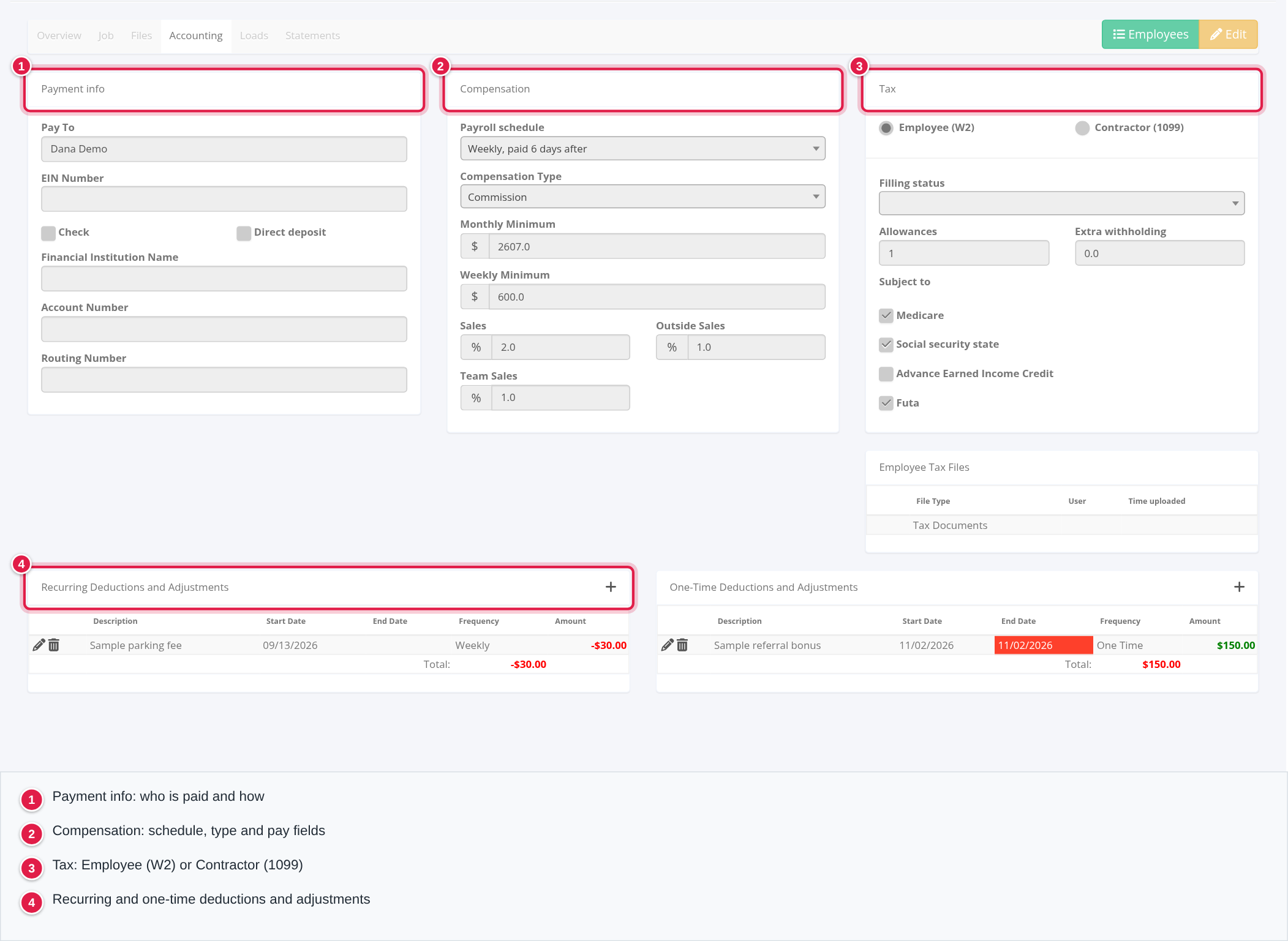
Accounting tab: Payment info
Who is paid and how:
- Pay To: the payee name that is printed on the employee's statement.
- EIN Number
- Check and Direct deposit: tick boxes.
- Financial Institution Name, Account Number and Routing Number (nine digits), for direct deposit.
Accounting tab: Compensation
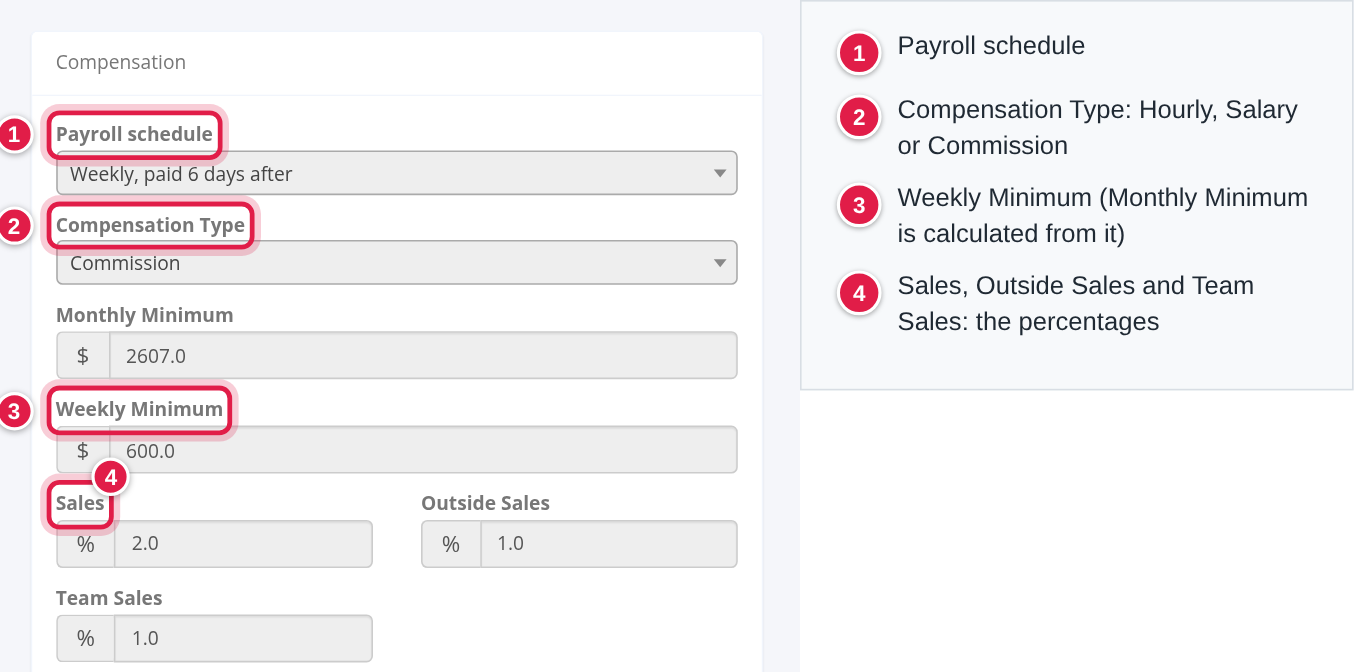
Pick the Payroll schedule and the Compensation Type. The fields below change with the type.
- Payroll schedule sets the regular dates and how often the employee is paid. It must be configured first under Settings → Account → Payroll Schedules. When you save a new schedule for an employee, OpenRoad removes the employee's unlocked upcoming statements and creates the one for the next period.
- Compensation Type is how the pay is determined:
- Hourly: the statement pays the hours entered on it times the hourly rate, so total pay varies with the hours. - Salary: the statement pays a fixed weekly amount. - Commission: pay is tied to sales. The employee earns percentages of the sales on the statement, and a weekly minimum applies.
Hourly
- Hourly Rate: the wage per hour.
Salary
- Weekly Salary: the fixed weekly amount you enter.
- Monthly Salary: calculated for you from the weekly amount (weekly × 4.345) when you save.
Commission
- Weekly Minimum: the least the employee is guaranteed to earn each week. It is used in the statement as the Minimum.
- Monthly Minimum: calculated from the Weekly Minimum when you save (weekly × 4.345). OpenRoad stores the monthly figure and uses it divided by 4.345 as the Minimum on the statement.
- Sales: a percentage. The statement multiplies the qualifying sales of the employee's drivers by it.
- Outside Sales: a percentage. The statement multiplies the employee's outside sales (booked revenue that is not fleet sales) by it.
- Team Sales: a percentage. The statement uses it to work out the team bonus from the team's amount over its target.
All of these fields feed the employee's statement. The sections on the Statements tab below show exactly how.
Accounting tab: Tax
Choose Employee (W2) or Contractor (1099). For an Employee (W2) more fields appear: Filling status (spelled this way on screen), Allowances and Extra withholding; under Subject to, the tick boxes Medicare, Social security state, Advance Earned Income Credit and Futa; and an Employee Tax Files box for tax documents.
Accounting tab: recurring and one-time deductions and adjustments
Two tables under the cards, Recurring Deductions and Adjustments and One-Time Deductions and Adjustments, list each entry's Description, Start Date, End Date, Frequency and Amount. Select the + at the top right of a table to add an entry; the pencil edits one and the trash icon removes one (OpenRoad asks for your password first). Frequency is one of One Time, Weekly, Monthly or Every 30 days. The entries that fall inside a statement's week are added up as the statement's Deductions and Adjustments: a negative amount reduces the Settlement and a positive amount increases it. After a change, regenerate the statement (see "Statements tab: regenerate a statement" below).
Statements tab: find the statements
- Open HR → Staff and select the employee's eye icon.
- Select the Statements tab.
The list shows the weeks from the last six months to the end of this month, newest first; use the Search box at the top right to pick other dates. Each row has an eye icon that opens the full statement. The columns depend on the compensation type. For Commission they are Week#, Start date, End date, Team, Miles, % Loaded, % Empty, Linehaul Rate, Detention, Lumper, Storage, Misc., Total, Avg., Minimum, Sales, Outside Sales, Team Bonus, Adjustments, Earnings, Settlement and Settlement Date. The smaller of Minimum and Sales is struck through.
In this list, Adjustments is the fees part that is added into Earnings. The employee's Deductions and Adjustments (see "Accounting tab: recurring and one-time deductions and adjustments" above) are added after Earnings, on the way to Settlement, so Settlement is more than Earnings when they are positive.
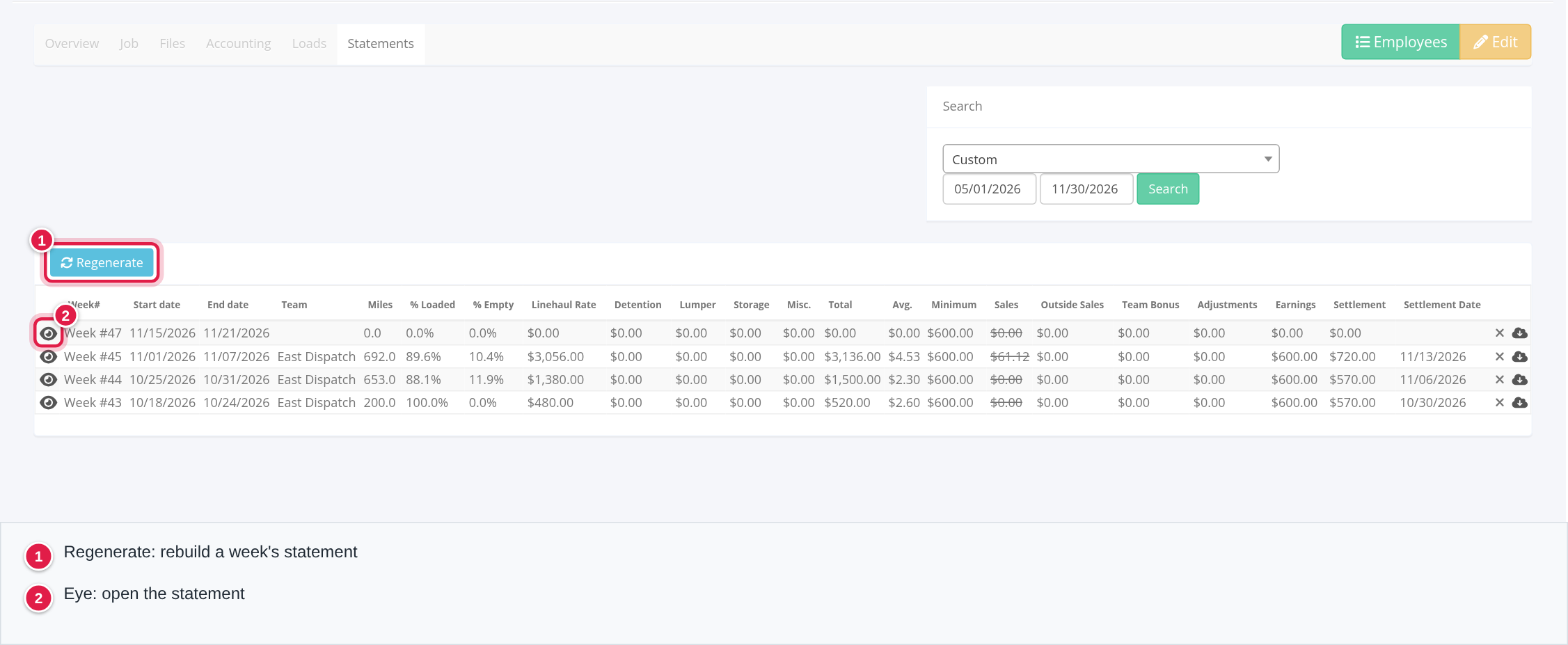
Statements tab: regenerate a statement
Use Regenerate after you change anything the statement depends on: the compensation, a driver's target, a load, or a deduction or adjustment.
- On the Statements tab, select Regenerate (top left of the table).
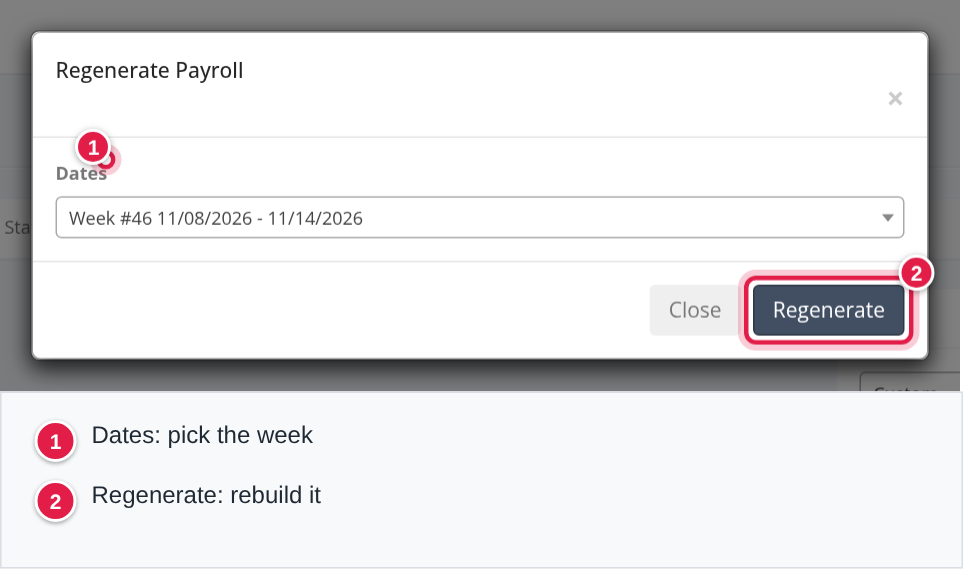
- In the Regenerate Payroll window, pick the week from the Dates list (it opens on the current week).
- Select Regenerate. OpenRoad confirms with "Payroll was regenerated succesfully!" and reloads the page.
A locked statement is not rebuilt. If you try, OpenRoad shows an error message instead.
When is the employee paid?
The Settlement Date is the end date of the payroll week plus the Days to Pay of the employee's payroll schedule.
Hourly and Salary statements
Hourly statement: it shows Hourly Rate, Hours, Bonus, Adj, Earnings and Settlement. Select the + beside Hours or Bonus to type the value and Save it; both start at 0.
- Earnings = Hours × Hourly Rate + Bonus + fees (the Adj line). With no hours, the hourly pay is 0.
Salary statement: it shows Weekly Salary, Bonus, Adj, Earnings and Settlement.
- Earnings = Weekly Salary + Bonus + fees (the Adj line).
For both, Settlement = Earnings + the employee's deductions and adjustments.
Commission statements: how each figure is calculated
Open a commission statement with the eye icon. The page is titled with the week (for example Week #45 and its dates) and has buttons to move between weeks, RELOAD (only for users with permission, and only while the statement is unlocked), PDF, a lock (it asks for your password) and SEND STATEMENT. The employee's compensation fields (Weekly Minimum, Sales, Outside Sales and Team Sales) are all used. Here is each part of the statement, in the order you meet it.
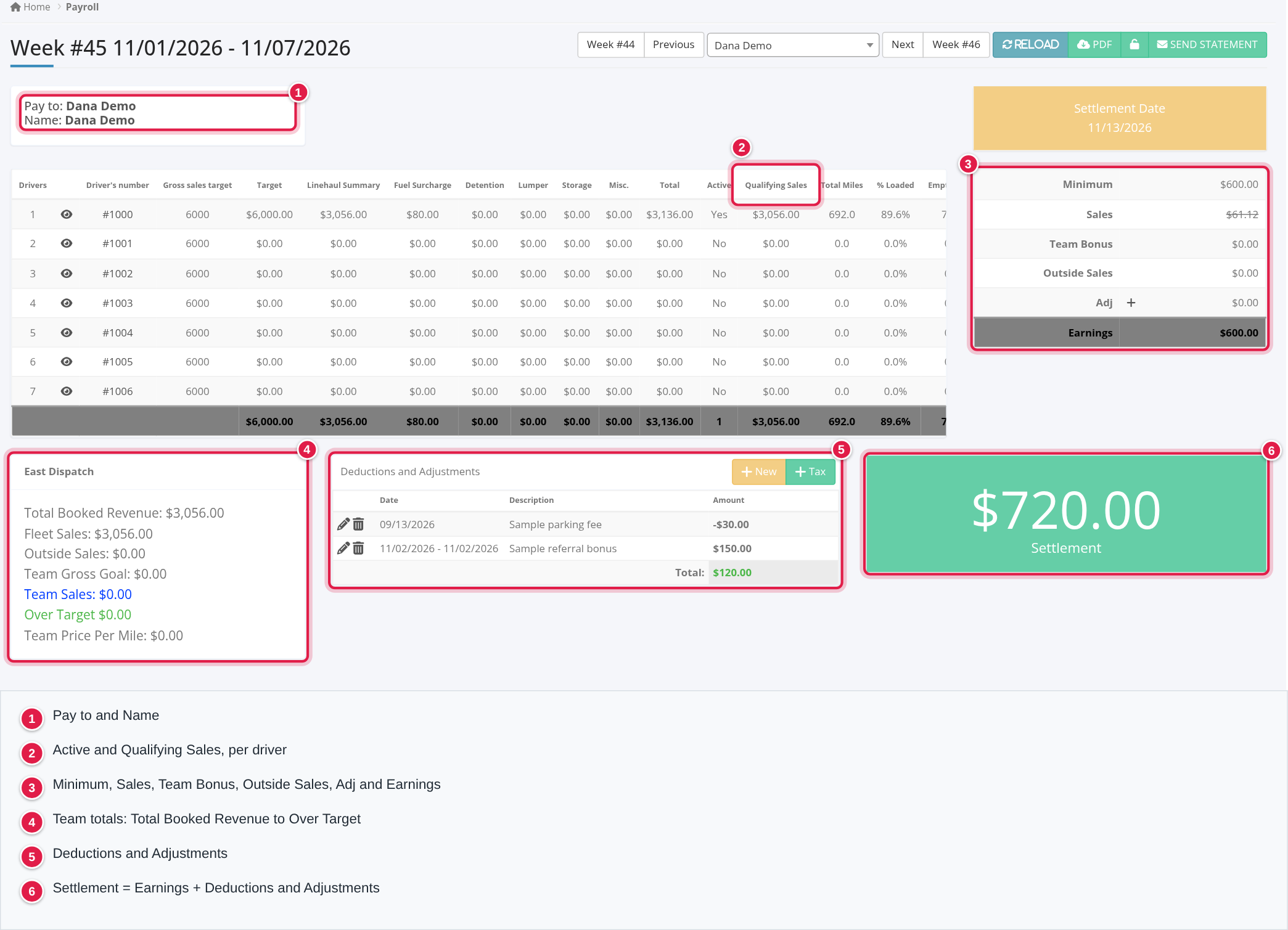
The header
- Week and dates: from the Payroll schedule chosen in the employee's Compensation card. The Settlement Date box shows the pay day.
- Pay to: the payee, from Payment info on the Accounting tab.
- Name: the employee's name.
The drivers table
- Drivers: the employee's drivers (the drivers managed by the employee's login; a driver can also be assigned for the week), with each driver's Gross sales target, Target, Linehaul Summary, Active and Qualifying Sales.
- Qualifying Sales, per driver. A driver is Active for the week when the driver's total linehaul for the week is more than $2,500. For an active driver:
- Qualifying Sales = Linehaul + Detention For a driver who is not active: - Qualifying Sales = 0 + Detention The driver's Gross sales target counts toward the team goal (below) only for an active driver.
The team totals (the card named after the team, under the table)
- Total Booked Revenue: the linehaul and the detention of the loads booked by the employee's login in the week.
- Fleet Sales: the linehaul of the loads of the employee's fleet in the week.
- Outside Sales = Total Booked Revenue − Fleet Sales.
- Team Gross Goal: the sum of the gross sales targets of the active drivers in the team.
- Team Sales: the sum of the team's qualifying sales and detention.
- Over Target = Team Sales − Team Gross Goal.
The amounts (the box at the right: Minimum, Sales, Team Bonus, Outside Sales, Adj, Earnings)
- Sales = Qualifying Sales × (Sales percentage × 0.01). The Sales percentage is the Sales field in the employee's compensation.
- Minimum = the Weekly Minimum in the employee's compensation.
- Team Bonus = Over Target × (Team Sales percentage × 0.01) ÷ team size. It is 0 when the team is under target or the Team Sales field is empty. Team size is the number of statements with that team name for the week.
- Outside Sales amount = Outside Sales × (Outside Sales percentage × 0.01), using the Outside Sales field in the employee's compensation.
- Deductions and Adjustments: the card under the drivers table lists the additions and deductions from the employee's regular earnings (see "Accounting tab: recurring and one-time deductions and adjustments" above); + New and + Tax add one. The Adj line in the amounts box is the fees part of Earnings, not this total.
- Earnings: take the larger of Minimum and Sales; the smaller one is shown struck through. Then add the Outside Sales amount, the Team Bonus and any fees:
- If the Weekly Minimum is higher than Sales: Weekly Minimum + Outside Sales + Team Bonus + Fees - If the Weekly Minimum is lower than Sales: Sales + Outside Sales + Team Bonus + Fees
- Settlement = Earnings + Deductions and Adjustments.
Worked example (invented figures)
A fleet manager has one driver in the payroll week. The driver delivers one load with a linehaul of $2,600, so the driver is active (more than $2,500). The Sales field in the Accounting tab is 2.0.
- Qualifying Sales = 2,600 (no detention).
- Sales = 2,600 × (2.0 × 0.01) = 52.
If the Weekly Minimum is 600, Minimum is higher than Sales, so Sales is struck through and Earnings start from 600.
The statement in the screenshot works the same way: Qualifying Sales 3,056 × (2.0 × 0.01) = 61.12, which is lower than the Minimum of 600, so Earnings are 600. Its Deductions and Adjustments are −30 and +150, a total of +120, so Settlement = 600 + 120 = 720.
Team Bonus: with an Over Target of 1,000, a Team Sales field of 1.0 and a team of 4 statements, the Team Bonus = 1,000 × (1.0 × 0.01) ÷ 4 = 2.50.
Frequently asked questions
Was this article helpful?
That’s Great!
Thank you for your feedback
Sorry! We couldn't be helpful
Thank you for your feedback
Feedback sent
We appreciate your effort and will try to fix the article