Everything about your office employees in one place: a list, a profile for each person, and the pay settings that drive their statements. Use it to add a new employee, update contact details, or end someone's employment.
Who can do this: you need permission for the Employees pages. New employee, the pencil (edit) icon and the trash (delete) icon only appear when your role allows them.
Staff is for office employees (dispatchers, fleet managers, accounting, safety and so on). Drivers are managed on the Drivers page: see Adding a driver. People who log in to OpenRoad are managed under Users: see Users: find, add and edit a user.
Before you begin
- To link an employee to their OpenRoad login, create the login first under Users, then pick it in the employee's User ID field (the list holds your account's web users). See Users: find, add and edit a user.
- To get statements for an employee, the employee needs a Payroll schedule, which must exist first under Settings → Account → Payroll Schedules. See Employee profile: Accounting and Statements tabs.
Open the Staff list
- In the left menu, open HR.
- Select Staff. The page is titled Employees.
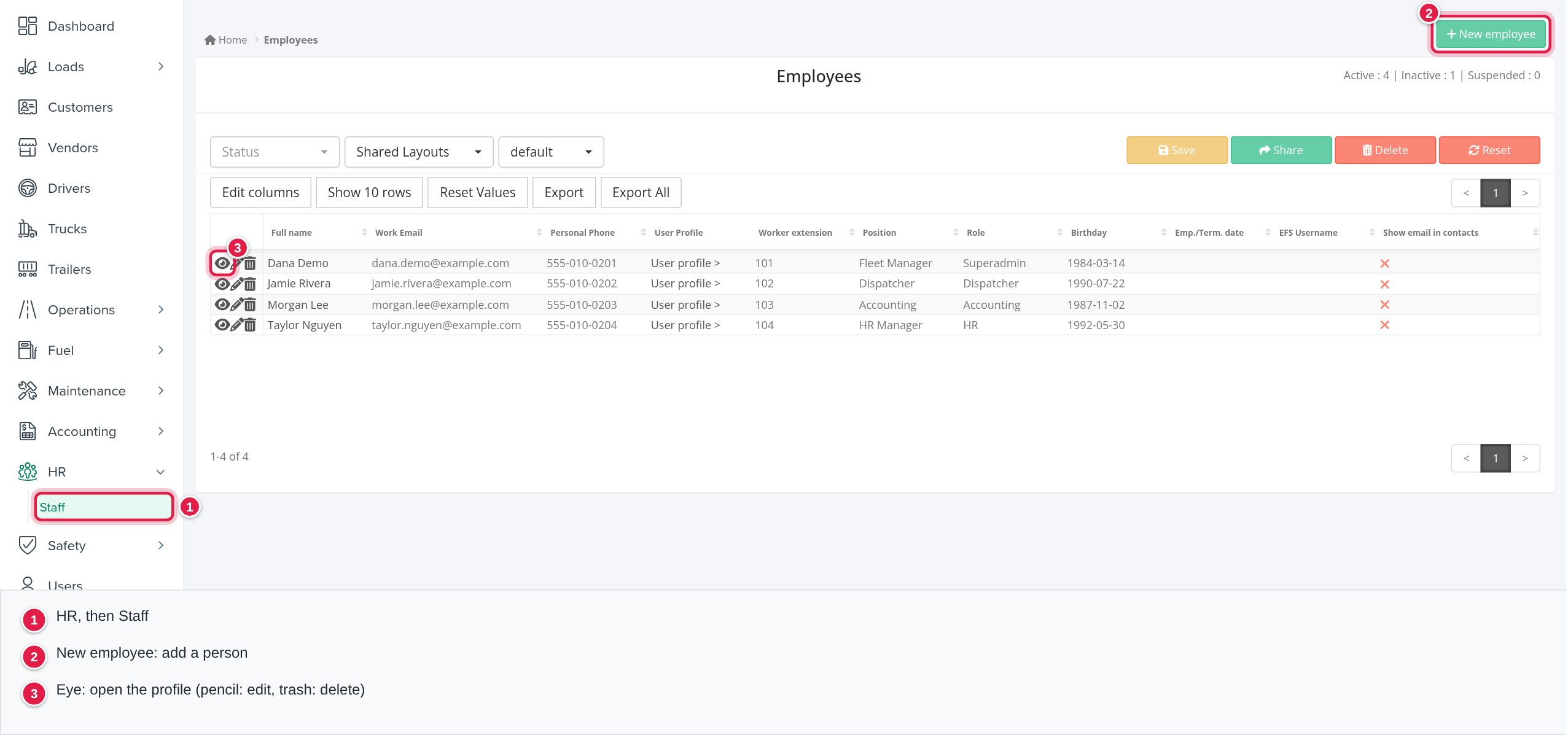
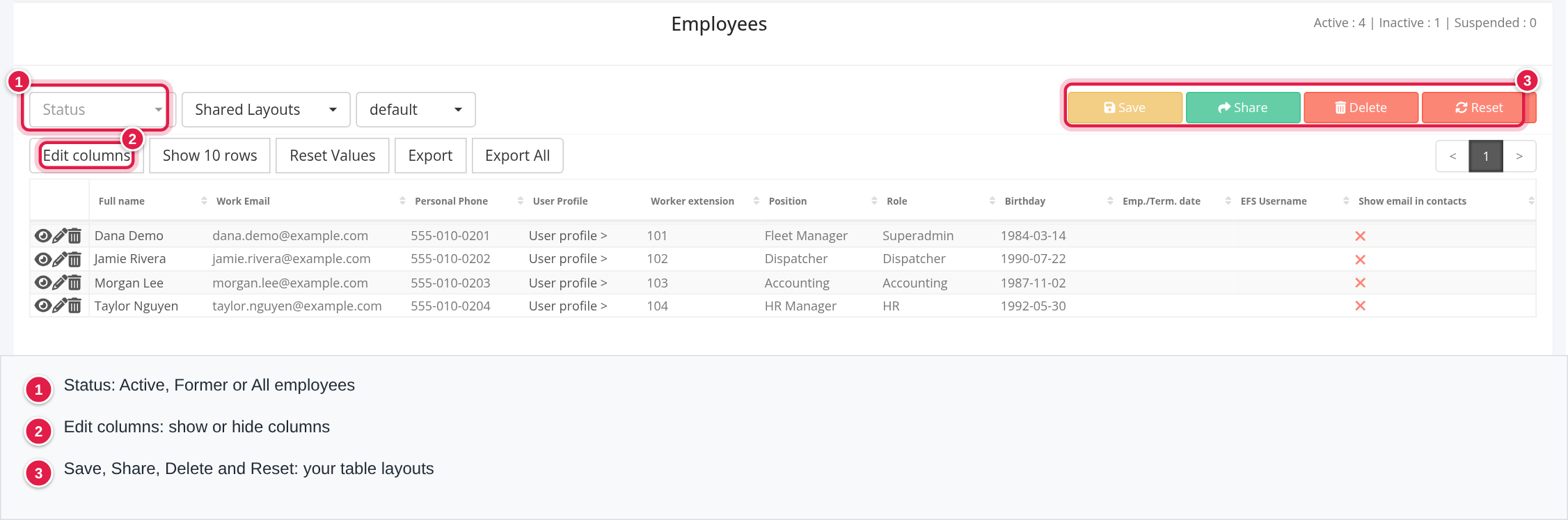
The list shows these columns by default: Full Name, Work Email, Personal Phone, User Profile, Worker extension, Position, Role, Birthday, Emp./Term. date, EFS Username and Show email in contacts. User Profile links to the person's login under Users, or says "No user assigned". More columns are available (for example Department, Office, Status, the pay fields and the emergency contact). Select Edit columns to show or hide them. Export saves the visible columns to a file, and Export All exports every row for the chosen status. Reset Values clears the search boxes in the column headers. Position and Department show the values your account has set up.
At the top right of the list, a count shows how many employees have each status.
Show active or former employees
Use the Status drop-down above the table:
- Active (the default) lists employees whose status is Active.
- Former lists everyone who has a termination date. Their rows are shown in red.
- All employees lists everyone.
Save your own table layout
The buttons above the table keep the layout you set up (visible columns and filters). The row of buttons under them also has Show 10 rows (rows per page), Reset Values, Export and Export All.
- Save asks for a table name, then stores the current layout (visible columns and filters) under that name.
- Share shares the layout you have selected; the button then changes to Unshare, which stops sharing it.
- Delete removes the selected layout after you confirm. The default layout cannot be deleted.
- Reset asks you to confirm, then returns the table to the default columns, column order and filters, with 25 rows per page.
The two lists beside Status choose a layout: Shared Layouts holds layouts other people shared (you can use them, but the Save, Share, Delete and Reset buttons are switched off while one is selected), and the second list holds your own layouts, starting with default.
Add a new employee
- On the Staff list, select + New employee (green button, top right).
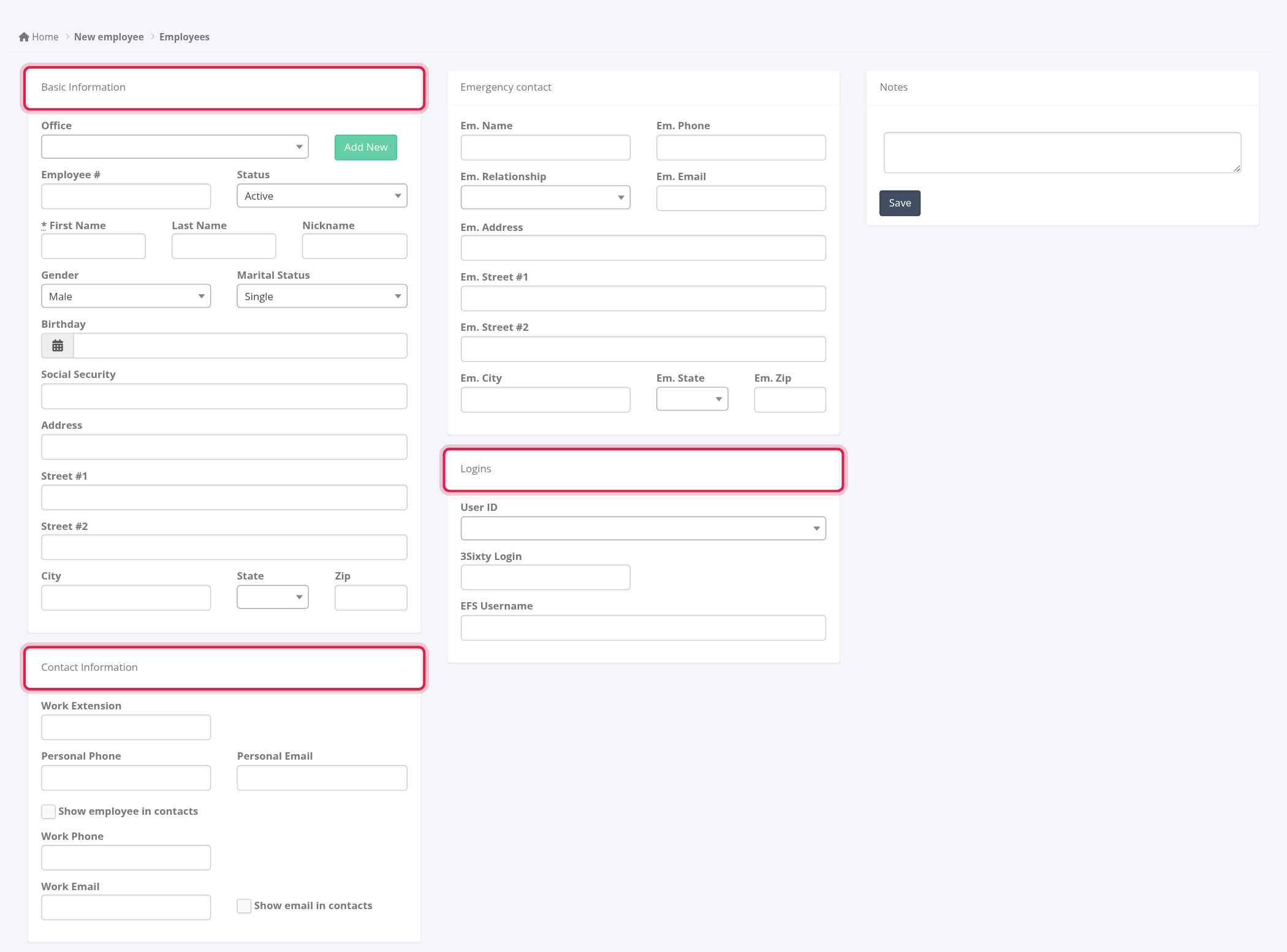
- Fill in the form. Only First Name is required. The form has the same Basic Information, Contact Information, Emergency contact and Logins cards as the Overview tab (described below), plus Notes.
- Save. OpenRoad opens the new employee's profile, where the Job, Files, Accounting, Loads and Statements tabs now appear.
Open, edit or delete an employee
In each row, the icons at the left do three things:
- Eye: open the profile.
- Pencil: open the profile for editing.
- Trash: delete the employee. OpenRoad asks you to confirm. An employee who already has statements cannot be deleted; OpenRoad shows an error instead. To end someone's employment, see "End an employee's employment" below.
The employee profile
The profile has six tabs. Select Edit (top right) to change anything, and Save at the bottom when you are done. The Employees button takes you back to the list.
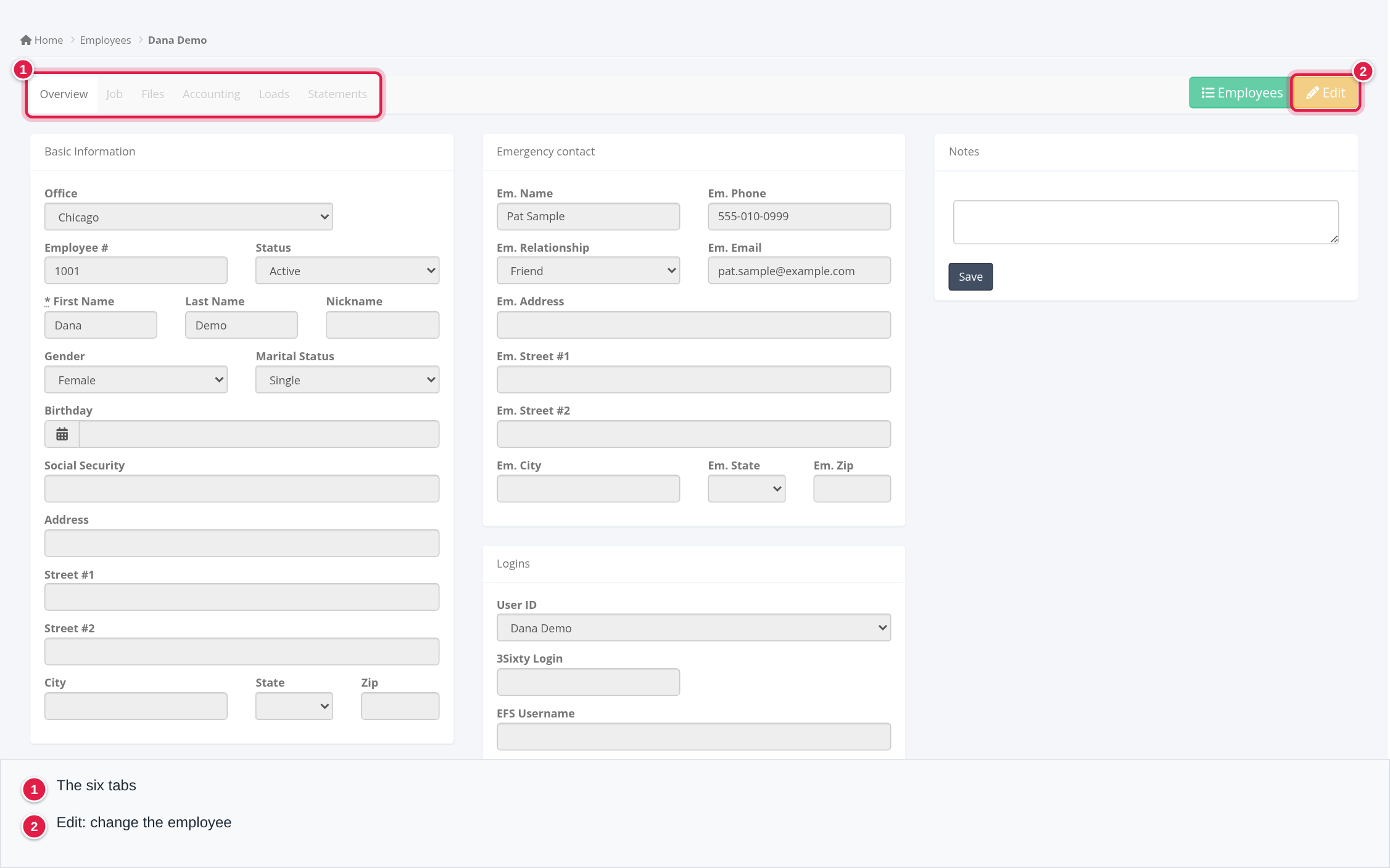
Overview
- Basic Information: Office, Employee #, Status (Active, Inactive or Suspended), First Name, Last Name, Nickname, Gender, Marital Status, Birthday, Social Security, and the address (Address, Street #1, Street #2, City, State, Zip). Start typing in Address to use address suggestions. Office, Position and Department are lists your account sets up; select Add New beside Office to add a value.
- Contact Information: Work Extension, Personal Phone, Personal Email, Work Phone, Work Email, and two options, Show employee in contacts and Show email in contacts.
- Emergency contact: name, phone, relationship (sibling, parent, friend, spouse or child), e-mail and address.
- Logins: User ID (the person's OpenRoad login), 3Sixty Login and EFS Username.
- Notes: internal notes about the employee. Type the note and select its Save button.
Job
Position, Department, Hire Date and Date of Termination. If your list does not have the position or department you need, select Add New beside the field and type it.
Files
Employee documents. The file types are: application, resume, identification, social security, direct deposit authorization, W-9, health insurance and misc docs.
Accounting
Payment information, compensation, tax and deductions and adjustments. See Employee profile: Accounting and Statements tabs.
Loads
The loads booked by this employee's login (canceled loads are left out). The list starts with the current week; use the search fields at the top right to pick another period.
Statements
The employee's pay statements, newest first, for the last six months by default. Select the eye icon on a row to open the statement. See Employee profile: Accounting and Statements tabs.
The Accounting and Statements tabs only show for users who are allowed to see employee payroll.
End an employee's employment
- Open the employee's profile and select Edit.
- On the Job tab, enter the Date of Termination.
- On the Overview tab, set Status to Inactive.
- Select Save.
Inactive needs a termination date: OpenRoad will not save an Inactive employee without one. The employee then appears under Former (in red) and no longer under Active.
Frequently asked questions
Was this article helpful?
That’s Great!
Thank you for your feedback
Sorry! We couldn't be helpful
Thank you for your feedback
Feedback sent
We appreciate your effort and will try to fix the article