Find any OpenRoad user, add a new one, change someone's role or end a leaver's access. The Users list is where every user task begins, and adding and editing use the same page.
Who can do this: users with access to Users. Adding and editing need permission to create and edit users, so you may not see New User or the pencil icons. Some fields and roles can only be changed by a Superadmin.
Before you begin
A user is a person who logs in to OpenRoad on the web. Drivers who only use the OpenRoad Driver app are managed on the Drivers page. See Adding a driver.
- Staff details such as pay and job title live on the employee record, not on the user. See Staff (HR → Staff): find, add and manage employees.
- Have the person's e-mail address, first and last name and phone number. These four are required, and each e-mail address can belong to only one user.
- A user with the role Customer must be linked to a customer that already exists. See Customer profiles.
- A user with the role Driver or Mechanic is linked to a driver record that already exists. See Adding a driver.
- The Office list comes from the office options set up for employees, and the Team list shows the teams already used by other users. You can add a new one from the form.
Open the Users list
Select Users in the left menu. The list shows every user of your company, in the order they were added. Users only appears in the menu if your user has access to it.
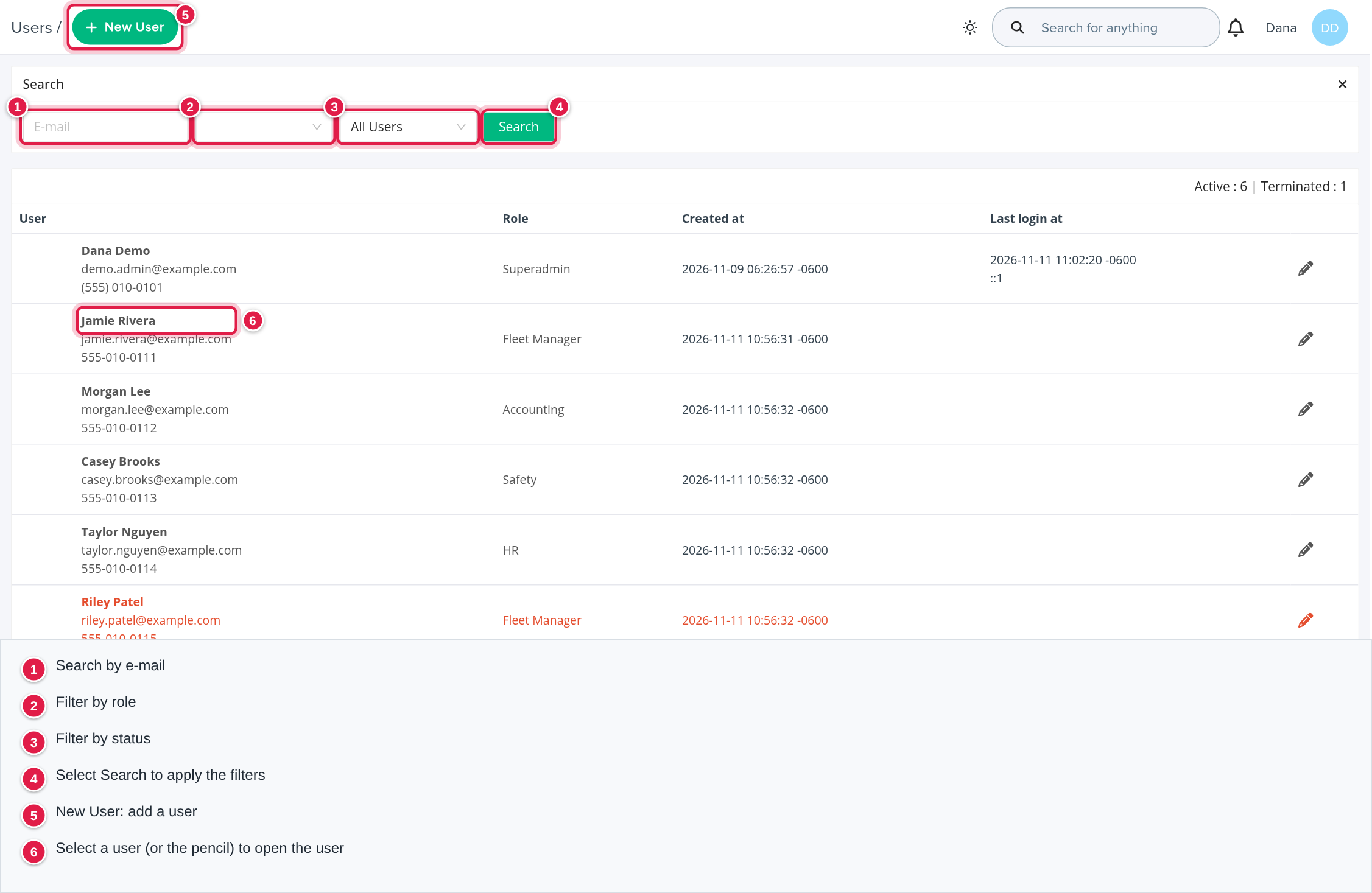
Each row shows:
- User: photo, name, e-mail and phone number.
- A link to the user's Employee profile > or Customer profile > when one is linked. A user with the role Customer and no customer shows No customer assigned: select it to open the user and choose the customer.
- Role: select it to list only users with that role.
- Created at and Last login at (with the address the user logged in from).
- A pencil icon to open the user (shown only if you may edit users).
Users with the status Terminated are shown in red.
Find a user
- Type part of the e-mail address in the E-mail box.
- Optionally choose a role in the first drop-down and a status in the second: All Users, Active or Disabled.
- Select Search.
The x at the top right of the Search card clears the e-mail box. The line above the table counts the users by status, for example Active : 6 | Terminated : 1.
The search looks only at the e-mail address. To find someone by name, scan the list or filter by role first.
Roles
A user's Role (the Type on the user's page) is one of: Superadmin, Administrator, Fleet Manager, Accounting, Safety, Driver, Customer, Mechanic, HR, Maintenance and Capacity. The role decides what the user can see and do in OpenRoad. Only a Superadmin can give the Superadmin or Administrator role: for everyone else those types are not in the Type list.
Statuses
- Active: the user can log in.
- Terminated: the user can no longer log in. The record stays in the list, in red. The list's status filter calls these users Disabled.
Add a user
- Open Users and select New User.
- Fill in Email, Name, Last name and Phone (format 999-999-9999).
- Choose the Type. If you choose Customer, a Customer list appears: pick the customer. If you choose Driver or Mechanic, a Driver list appears: pick the driver.
- Leave Status on Active.
- Select Save.
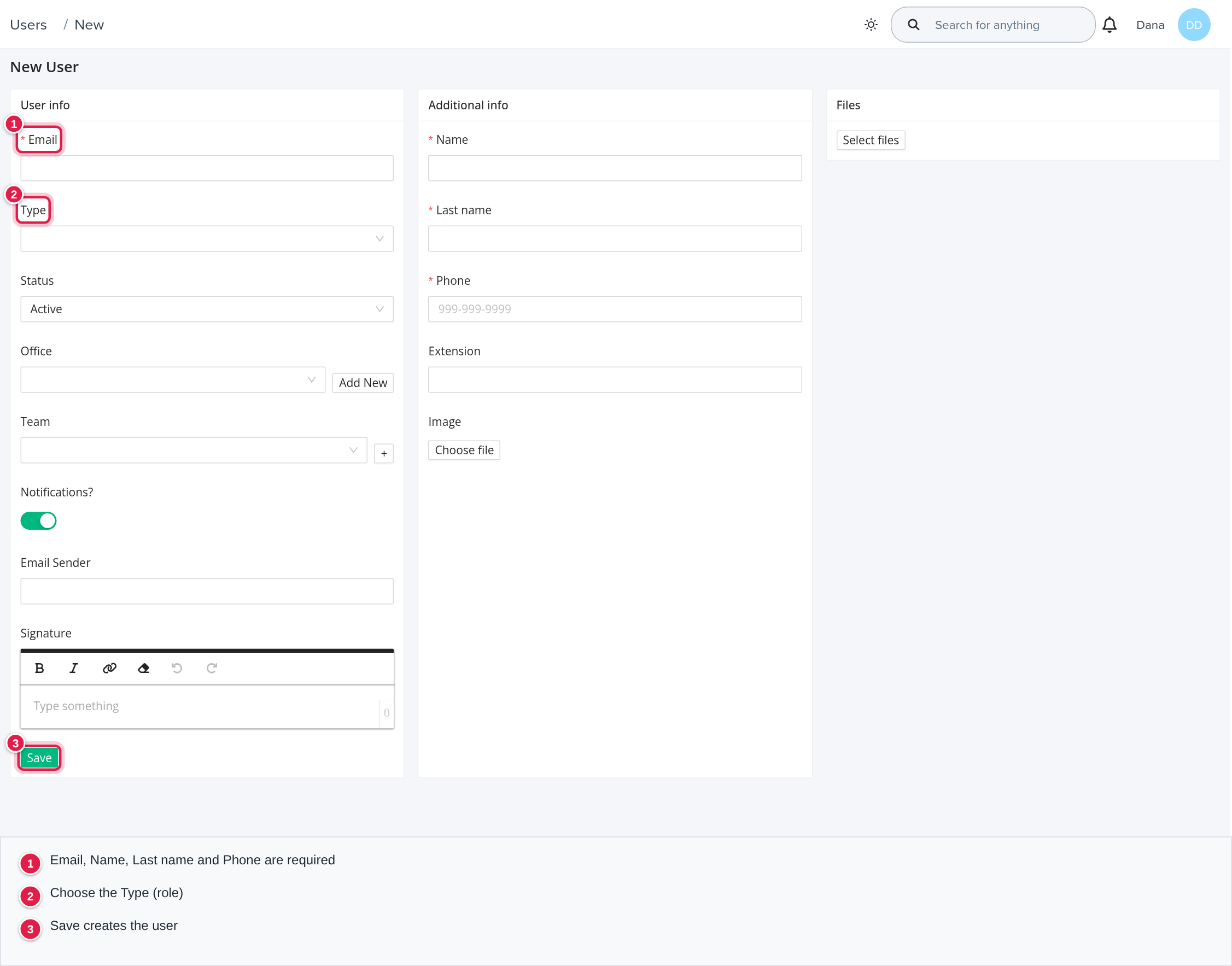
The fields
User info
- Email: the address the user logs in with.
- Type: the user's role. See Roles above.
- Status: Active or Terminated.
- Office and Team: select from the list, or select Add New (Office) or + (Team) to add one.
- Password and Password confirmation: shown only when a Superadmin edits an existing user, at least 6 characters.
- Notifications?: switch the user's notifications on or off.
- Email Sender and Signature: shown to a Superadmin. The address and signature used on e-mails this user sends from OpenRoad.
Additional info
- Name, Last name, Phone, Extension and Image (select Choose file).
- MFA Phone: shown only to users with full access to the admin panel.
Files: select Select files, then Upload, to keep documents with the user (shown when you edit an existing user).
Logs: the browser, IP address and date of the user's recent logins (the last 10; select Show all for more). Shown to Administrators and Superadmins.
Edit a user
Open Users and select the user's name or the pencil icon, change the fields and select Save.
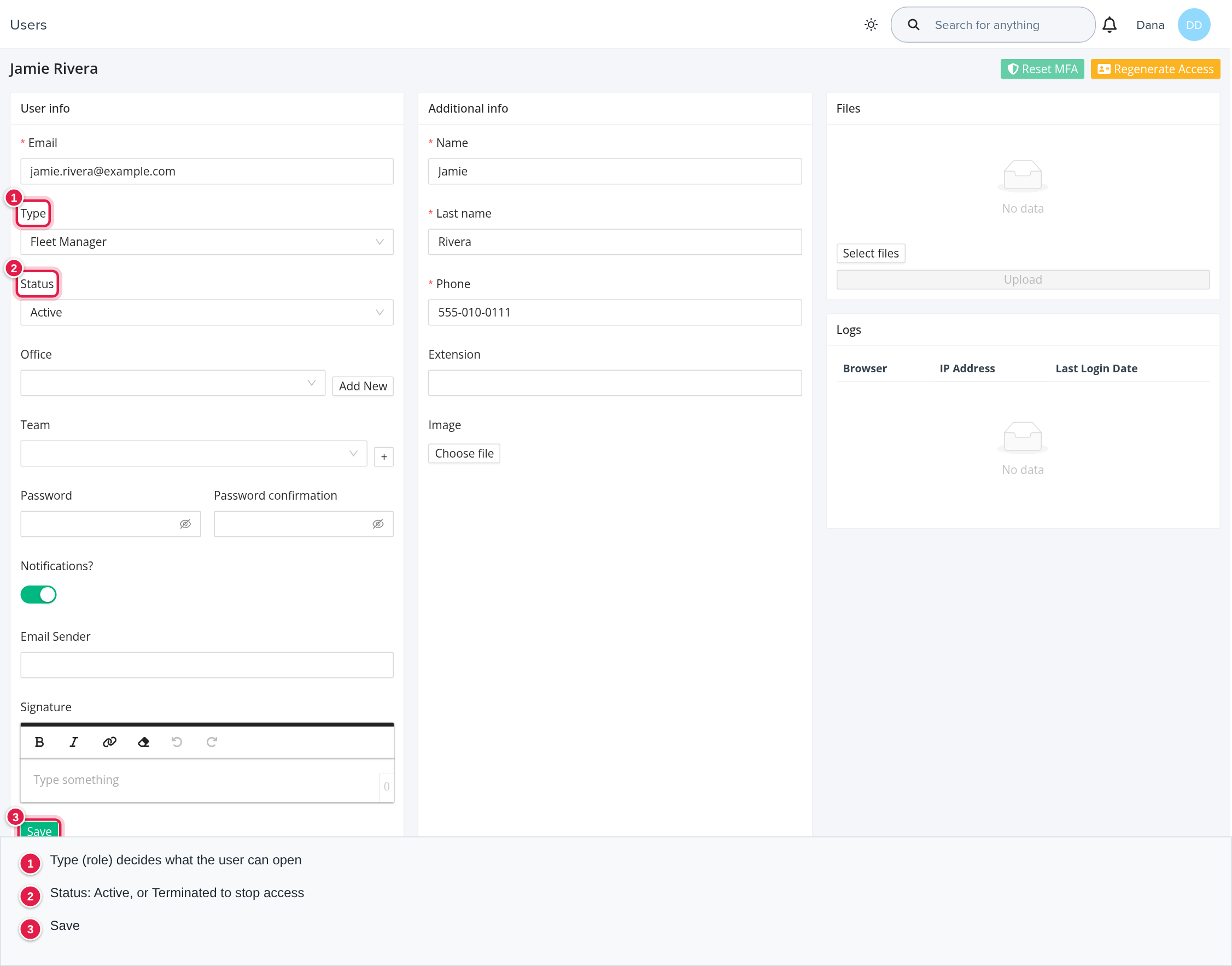
End a user's access
Open the user, set Status to Terminated and select Save. The user can no longer log in, and the record stays in the Users list, in red. To give access back, set Status to Active again.
An Administrator cannot change another administrator's role or any user's password. These need a Superadmin.
Frequently asked questions
Was this article helpful?
That’s Great!
Thank you for your feedback
Sorry! We couldn't be helpful
Thank you for your feedback
Feedback sent
We appreciate your effort and will try to fix the article