What to do when someone cannot log in because their account is locked, how multi-factor authentication (MFA) works at login, and what the three buttons on a user's page do.
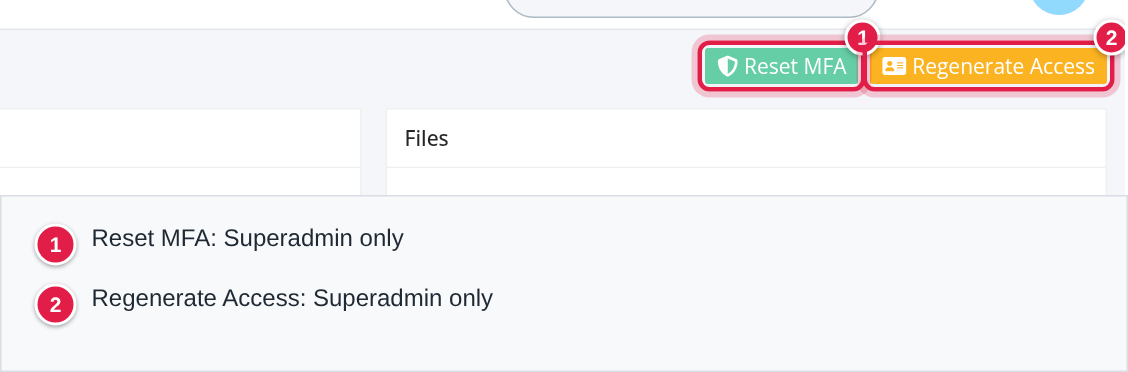
Who can do this: Unlock Account is for Administrators and Superadmins. Reset MFA and Regenerate Access are for Superadmins only.
Before you begin
- Find the user first. See Users: find, add and edit a user.
- A locked user cannot unlock themselves. Someone with the right role must do it.
Unlock a locked account
After too many wrong passwords the user sees: "Too many unsuccessful login attempts, account is now locked. Contact site administrator."
- Open Users and select the user (search by their e-mail).
- Select Unlock Account at the top right of the user's page. The button only appears while the account is locked.
- The page confirms: "User is now unlocked." The user can try again.

If you do not see Unlock Account, the account is not locked, or your role is not Administrator or Superadmin, or you lack permission for it.
How MFA works at login
When your company requires MFA, or when a user has set up an SMS phone, OpenRoad asks for a code after the password:
- By e-mail to the user's address, when no MFA phone is set.
- By text message to the user's MFA phone, once one is set up.
Each user sets up their own MFA phone in their profile. See Your profile.
Reset MFA
Reset MFA (Superadmin only) removes the user's MFA phone. The user then receives login codes by e-mail again, and can set up an SMS phone again in their profile. Use it when someone has a new phone number or lost their phone.
Regenerate Access
Regenerate Access (Superadmin only) rebuilds the user's access permissions. OpenRoad shows "Please wait while the User Permissions are regenerated". Use it when a user does not see the pages their role should give them.
Frequently asked questions
Was this article helpful?
That’s Great!
Thank you for your feedback
Sorry! We couldn't be helpful
Thank you for your feedback
Feedback sent
We appreciate your effort and will try to fix the article