Change your own name, phone, picture and password, set up text-message codes for login, and choose how often the live screens refresh.
Who can do this: every user, for their own profile.
Before you begin
- To set up SMS codes you need a phone that receives text messages.
- You can only change your own profile here. To change someone else, see Users: find, add and edit a user.
Open your profile
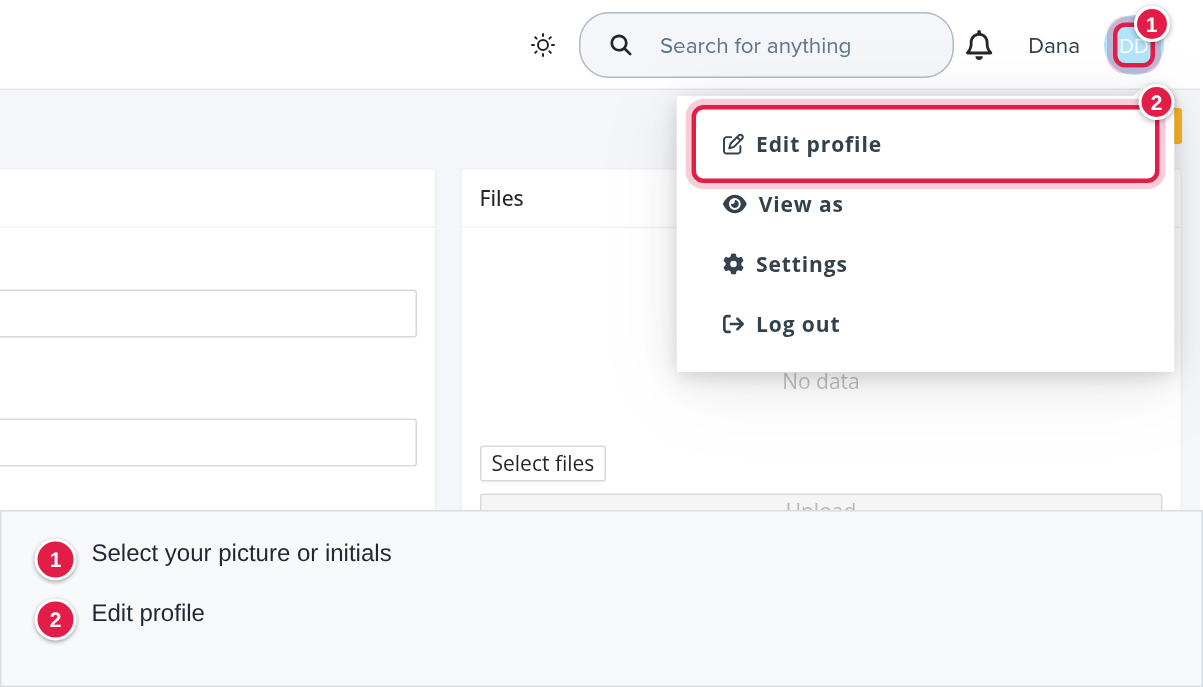
Select your picture or initials at the top right, then Edit profile.
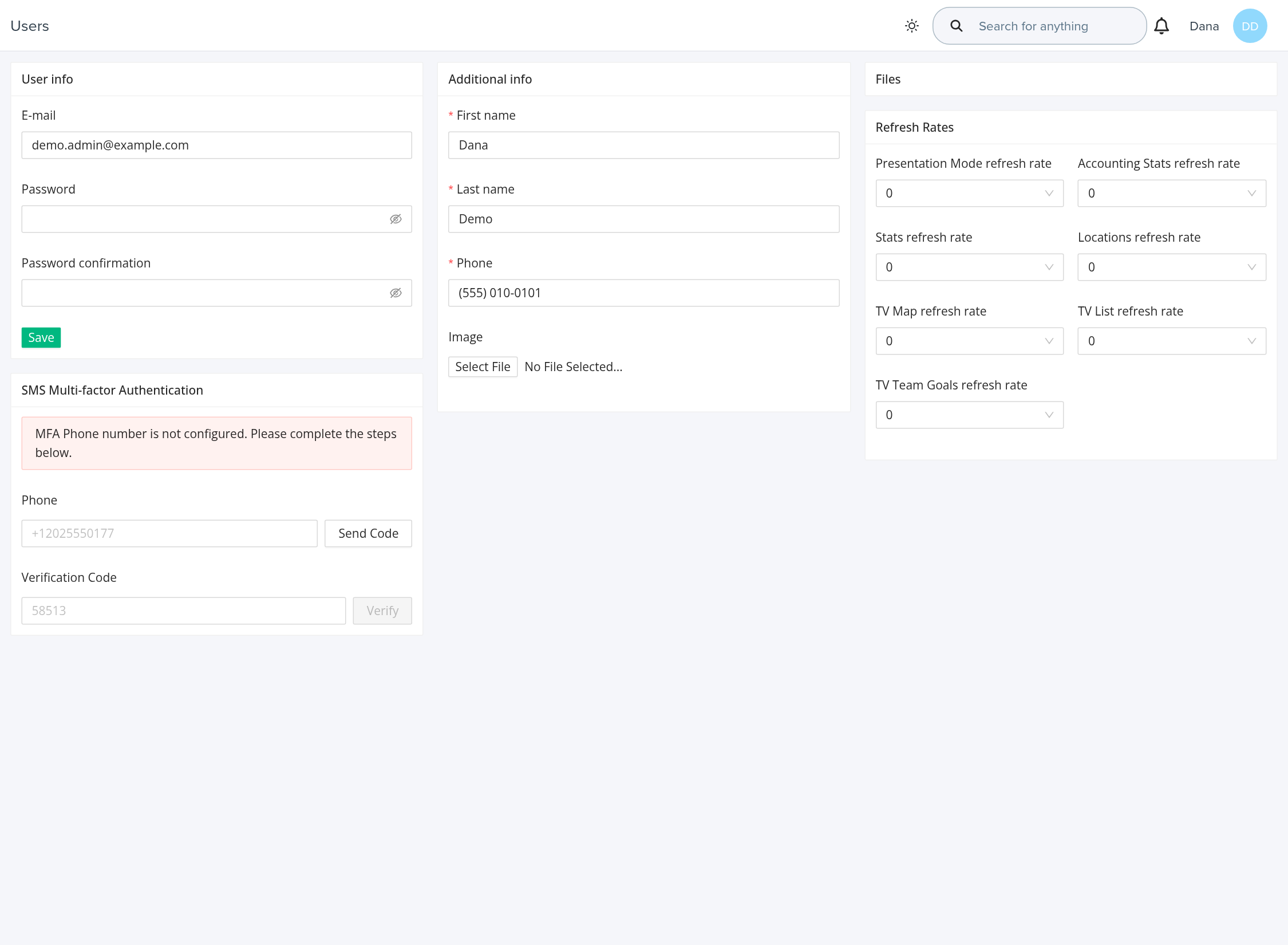
Your profile page opens with User info, Additional info, SMS Multi-factor Authentication and Refresh Rates.
Change your details
- User info: E-mail, Password and Password confirmation (at least 6 characters). Leave the password boxes empty to keep your password. Select Save.
- Additional info: First name, Last name, Phone and Image (select Select File). These three names and the phone are required.
Set up SMS multi-factor authentication
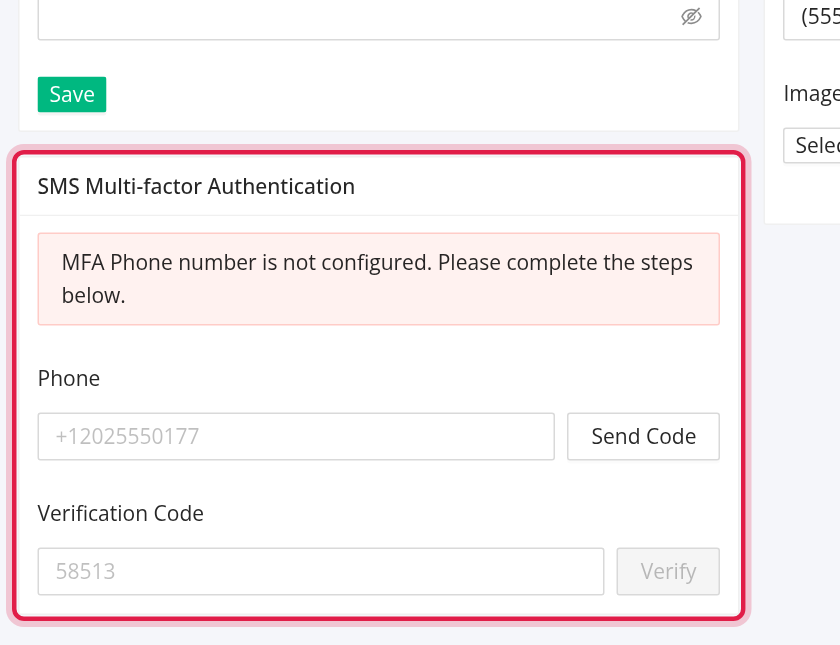
By default OpenRoad e-mails you the login code when MFA is on. To receive it by text instead:
- In the SMS Multi-factor Authentication card, enter your mobile number in Phone in international format, for example +12025550177, and select Send Code.
- Enter the code you receive in Verification Code and select Verify.
- The page reloads and the card says "MFA Phone number is configured and ready to be used."
To go back to e-mail codes, ask a Superadmin to select Reset MFA on your user. See Locked accounts and MFA.
Refresh rates
The Refresh Rates card lets you choose how often these screens refresh themselves: Presentation Mode, Accounting Stats, Stats, Locations, TV Map, TV List and TV Team Goals. Choose a value for each and select Save.
Frequently asked questions
Was this article helpful?
That’s Great!
Thank you for your feedback
Sorry! We couldn't be helpful
Thank you for your feedback
Feedback sent
We appreciate your effort and will try to fix the article