The Pilot and Love's truck stops OpenRoad knows about, with their store details and, on the map, today's fuel price. Use it to look up a stop, see where they are, and upload a fresh stop list from Pilot or Love's. The stops are also used when planning fuel stops on a load and when OpenRoad works out the Funding of a fuel purchase.
Who can do this: the page is available to users who may see fuel locations. Map View and Upload only show when your role allows them.
Before you begin
- OpenRoad has no form to add, edit or delete a single stop. The list is filled by the Upload button (a Pilot or Love's file). Accounts that have the fuel prices and stops feature can also receive stops automatically.
- The fuel prices on the map need daily price data for your account.
Open the page
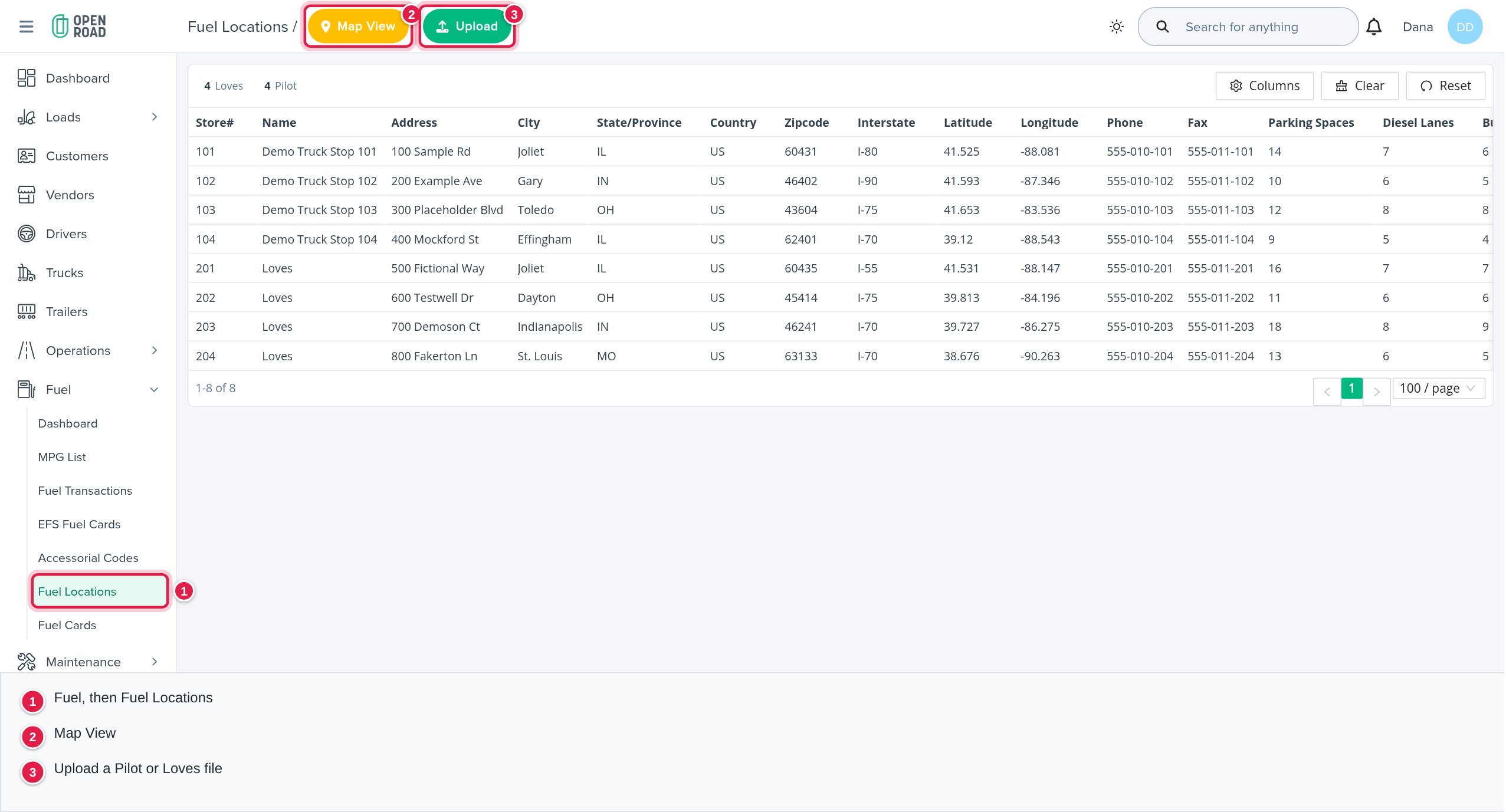
In the left menu, open Fuel, then Fuel Locations.
The list
Each row is one stop. If a stop was uploaded more than once, only the newest record for that store and network is shown. The list shows 100 rows per page, sorted by store number, and is read-only. Free-text search is not available.
Columns: Store#, Name, Address, City, State/Province, Country, Zipcode, Interstate, Latitude, Longitude, Phone, Fax, Parking Spaces, Diesel Lanes, Bulk DEF Lanes, Showers, CAT Scale, Facilities/Restaurants, WiFi and Network. CAT Scale and WiFi show a tick when the stop has it and a cross when it does not.
Above the table, the buttons Loves and Pilot show how many stops each network has. Select one to show only that network, and select it again to clear it. Columns, Clear and Reset change the columns and clear your filters.
See the stops on a map
- Select Map View at the top right of the list.
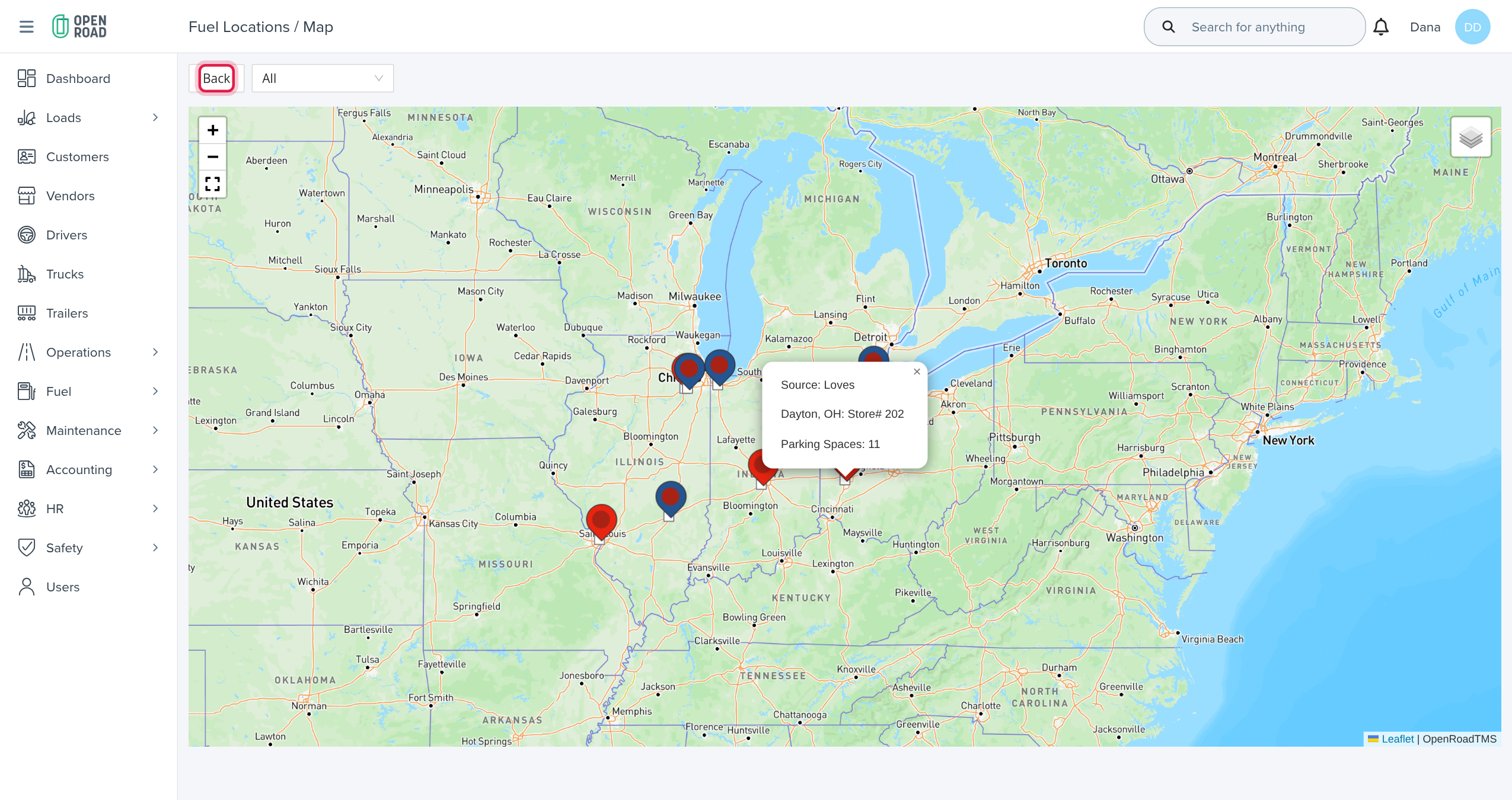
- Choose All, Loves or Pilot in the box next to Back.
- Zoom in: nearby stops are grouped into clusters until you zoom in close. Love's stops are red markers and Pilot stops are blue markers.
- Select a marker to open its popup.
The popup shows:
- Source (Pilot or Loves).
- The city, state and Store#.
- Fuel Price Today and Fuel Price Tomorrow, when your account has them.
- Parking Spaces.
Hover over a marker to see the stop's address. Select Back to return to the list.
Upload stops
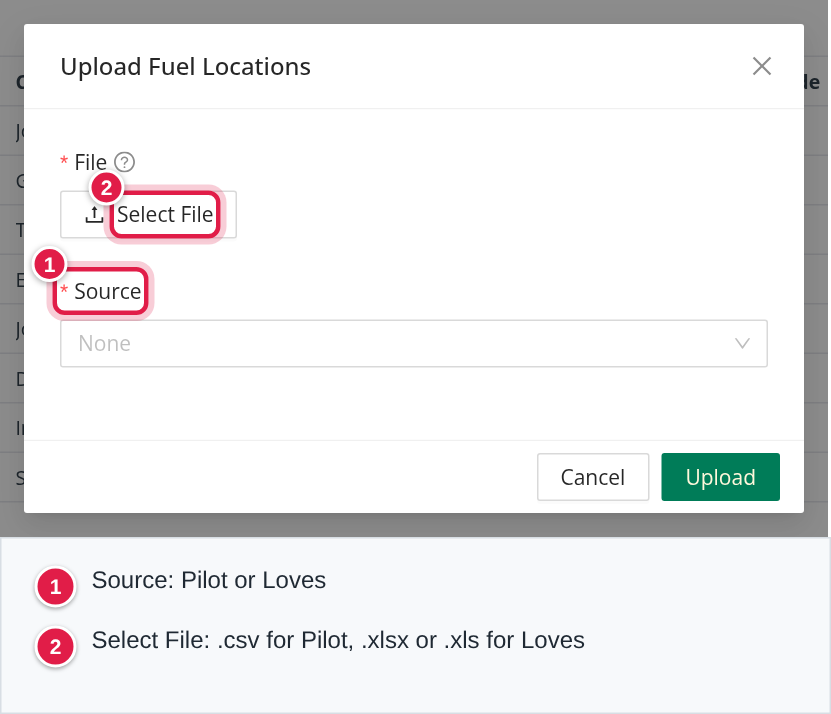
- Select Upload at the top right of the list. The window is titled Upload Fuel Locations.
- Choose the Source: Pilot or Loves.
- Select Select File and pick the file: a .csv for Pilot, or an .xlsx or .xls for Love's.
- Select Upload.
OpenRoad answers "File successfully uploaded." and reloads the list. If the source or file is missing it says "Failed to upload the file.", and if the file type does not fit the source it says "Invalid file type, must be one of the following: …".
How the files are read:
- Both files are read by column position, so use the files exactly as Pilot or Love's issue them.
- Pilot (.csv): the first row is the header. The columns are store, name, address, city, state or province, country, zipcode, interstate, latitude, longitude, phone, fax, parking spaces, diesel lanes, bulk DEF lanes, showers, CAT scale ("Yes" counts as yes), facilities and restaurants, and WiFi ("Yes" counts as yes). The whole file is saved together: if one row fails, nothing is saved.
- Loves (.xlsx or .xls): the first sheet is read and its first three rows are skipped. OpenRoad names every stop "Loves", sets the country to US, and leaves Diesel Lanes empty. CAT scale and WiFi are "Y" or "N".
- A store that already exists for that network is updated; a new store is added. Stores missing from a new file are not removed.
- OpenRoad does not look up coordinates: Latitude and Longitude come straight from the file.
Where OpenRoad uses the stops
- Fuel stops on a load: the stops near a driver's route, with today's price, can be offered when you add a fuel stop before a destination.
- Funding on fuel purchases: when a purchase at a Pilot or Love's stop arrives from EFS, Comdata or FleetOne, OpenRoad uses this list (state, store number or city) to set the purchase's Funding to Pilot or Loves. See Fuel Transactions page (Fuel → Fuel Transactions).
Frequently asked questions
Was this article helpful?
That’s Great!
Thank you for your feedback
Sorry! We couldn't be helpful
Thank you for your feedback
Feedback sent
We appreciate your effort and will try to fix the article