Every fuel purchase made with your fuel cards, in one table: who bought, where, how much, and what it cost. Use it to find a transaction, give a driver an unassigned purchase, add or correct one by hand, import a spreadsheet, or send transactions to QuickBooks.
Who can do this: you need permission for the fuel card transactions pages. The buttons Export Log, Export, Import, New Fuel Card Transaction, CSV, and the icons in each row only show when your role allows them.
Before you begin
- To see the right driver on a purchase, the fuel card must be assigned to the driver for that date. See Fuel Cards page (Fuel → Fuel Cards): cards and driver assignments.
- Transactions arrive from your card providers (Comdata, EFS, FleetOne and Relay, once their integrations are set up) or from the Import button. See EFS Fuel Cards page (Fuel → EFS Fuel Cards) for EFS.
Open the page
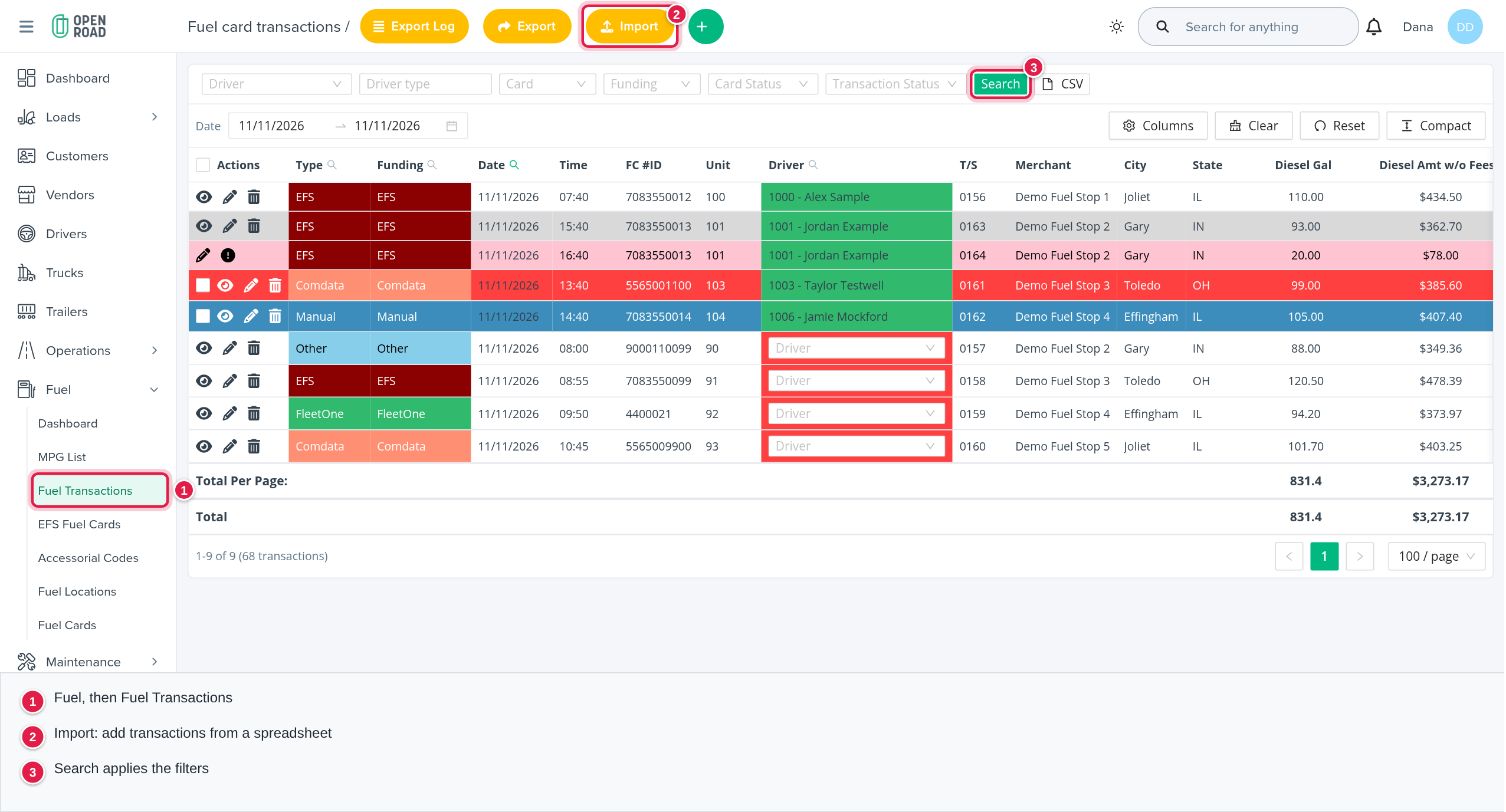
In the left menu, open Fuel, then Fuel Transactions.
Choose what the table shows
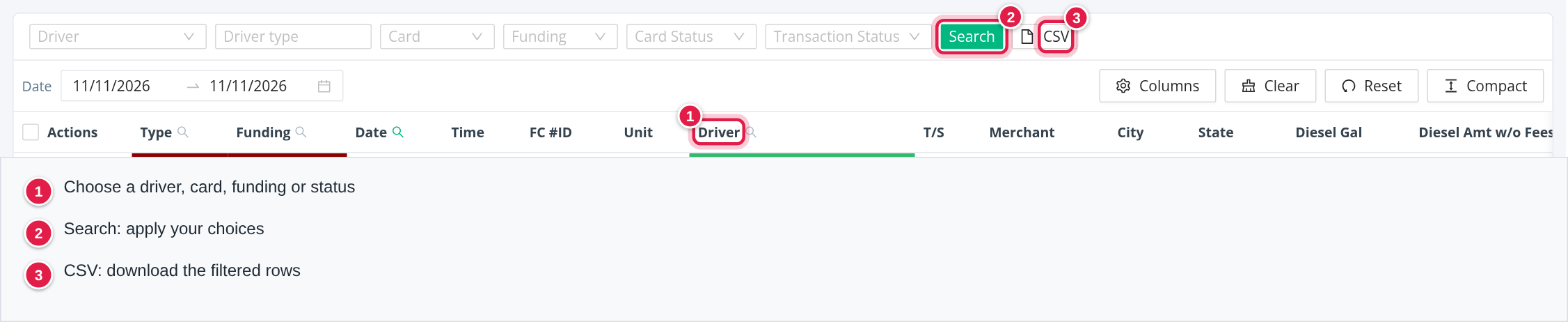
The table opens on yesterday. Change the date range in the toolbar, then use the filter bar. Your choices are applied only when you select Search.
- Driver: one driver (active drivers of your account).
- Driver type: one or more types, such as Company Driver, Contract Driver, Owner Operator, Leased Owner - Op or Fuel Customer.
- Card: EFS, FleetOne, Comdata, Manual, Relay or Other.
- Funding: EFS, FleetOne, Comdata, Manual, Relay, Other, Pilot or Loves.
- Card Status: Active or Disabled. This filters on whether the transaction itself has been deleted: Disabled shows deleted transactions.
- Transaction Status: Successful or Cancelled.
The toolbar also has Columns (show, hide or reorder columns), Clear and Reset (back to the default view).
With no Card Status chosen, deleted transactions are shown too (in pink, see below). Free-text search is not available on this page. Select a date in a row to filter to that day, or a driver name to filter to that driver.
What each column means
The table shows 100 rows per page, newest date first, with totals for the page.
| Column | What it shows |
|---|---|
| Actions | Icons for the row (see "Row icons") |
| Type | The card type |
| Funding | The card type, or Pilot or Loves for purchases at those networks (decided from the merchant name and your Fuel Locations list) |
| Date, Time | When the purchase was made |
| FC #ID | The fuel card number |
| Unit | The truck unit as sent by the card provider |
| Driver | The driver the purchase belongs to |
| T/S | The truck stop |
| Merchant, City, State | Where the purchase was made |
| Diesel Gal | Gallons of diesel |
| Diesel Amt, Diesel Amt w/o Fees | The diesel amount, and the same amount without the service fee for Comdata cards |
| Reefer Amt | The reefer fuel amount |
| Discount | The discount |
| Net P/G | Net price per gallon. The total at the bottom is (sum of Diesel Amt − sum of Discount) ÷ sum of Diesel Gal. |
| Cash Ad | Cash advance |
| Other, Other w/o Fees | Other purchases, and the same without the service fee for Comdata cards |
| Service Fee | The transaction fee |
| Total, Total w/o Fees | The transaction total, and the total minus the service fee |
Colours in the table
- Red row: the transaction is cancelled or invalid.
- Pink row: the transaction was deleted.
- Blue row: the transaction was entered by hand, or updated automatically (not for card type Other).
- Grey row: the transaction was already exported to QuickBooks.
- Red Total cell: the Total does not equal (Diesel Amt + Reefer Amt) − Discount + Cash Ad + Other.
- Driver cell: green for a company driver, orange for a contract driver, owner operator or leased owner, blue for a fuel customer, and red when there is no driver.
Give an unassigned transaction a driver
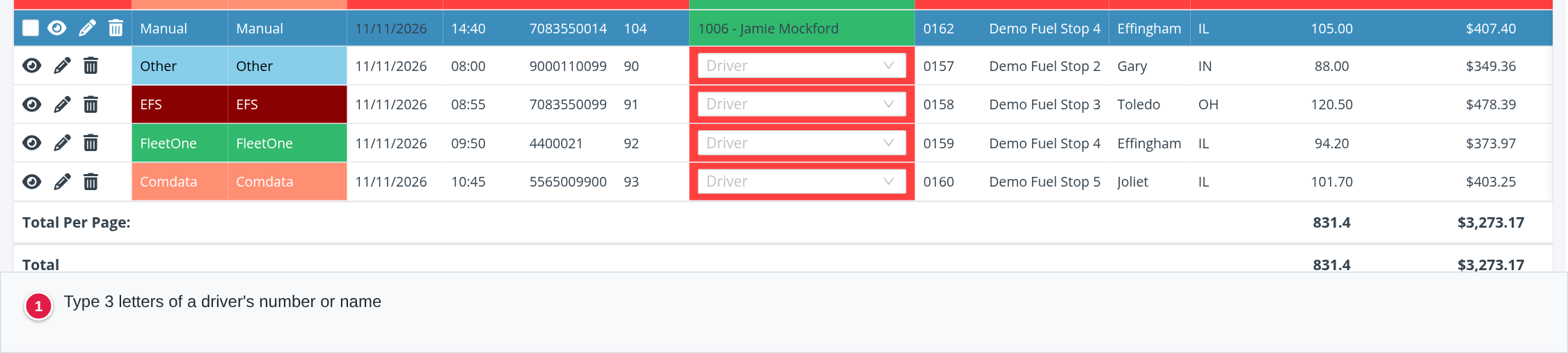
When a purchase has no driver and no customer, the Driver cell shows a search box instead of a name.
- Select the box (labelled Driver) and type at least 3 characters of the driver's number or name.
- Pick the driver.
- OpenRoad confirms with "Driver successfully assigned."
This sets the driver on this one transaction. To make all purchases on a card follow a driver automatically, assign the card to the driver instead. See Fuel Cards page (Fuel → Fuel Cards).
Row icons
- Show: open the transaction to read it (not for deleted rows).
- Edit: open it to change it.
- Delete: after "Are you sure?", marks the transaction deleted. It stays in the list as a pink row and can be restored.
- Restore: on a deleted row, after "Are you sure?". Hover over the icon to see who deleted it and when.
- Check box (only when you can export): selects the transaction for the QuickBooks export. Only transactions that are not yet exported, have a driver and are not EFS cards can be selected.
Add or change a transaction
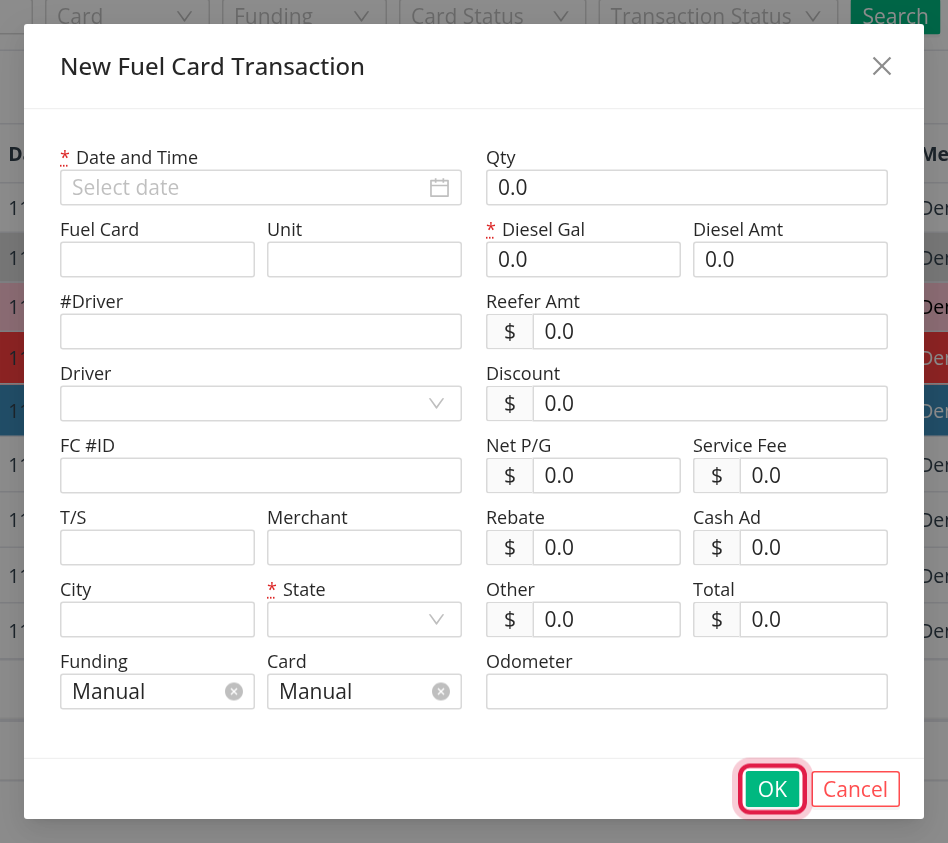
- Select the round + button (New Fuel Card Transaction) at the top right, or the Edit icon on a row.
- Fill in the fields. Date and Time, State and Diesel Gal are required. The fields are: Date and Time, Fuel Card, Unit, #Driver, Driver, FC #ID, T/S, Merchant, City, State, Funding and Card on the left; Qty, Diesel Gal, Diesel Amt, Reefer Amt, Discount, Net P/G, Service Fee, Rebate, Cash Ad, Other, Total and Odometer on the right.
- Select OK.
A new transaction defaults to Manual for both Funding and Card. A transaction you save by hand is marked as entered by hand (a blue row).
If the transaction is for an EFS card it opens locked. Select Unlock and enter the Password (the account's Fuel Card Transaction Password from the settings) to edit it. OpenRoad shows a red message if the transaction was cancelled by Comdata.
When you set a driver and the Odometer is empty, OpenRoad fills it from the driver's truck, using the latest Samsara odometer reading from the 14 days before the transaction, if there is one.
Import transactions from a spreadsheet
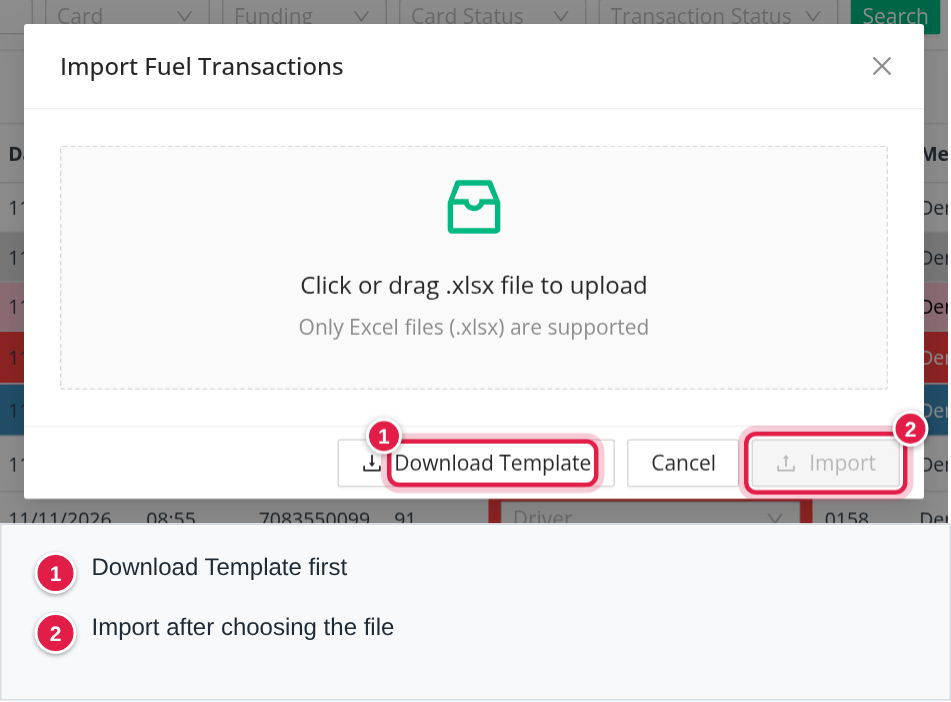
- Select Import (top right). The window is titled Import Fuel Transactions.
- Select Download Template and fill in the Excel file. Do not change the header row.
- Drop the file in the box ("Click or drag .xlsx file to upload"), then select Import.
The template has a Fuel Transactions sheet and an Instructions sheet. The columns, in this exact order, are: Date*, Time, Driver_No, Unit, Card, TS, Merchant_Name, City, State*, Diesel_Gallons*, Diesel_Amount*, Reefer_Amount, Discount, Transaction_Fee, Rebate, Cash_Advance and Other. The four columns marked * are required.
How OpenRoad reads the file:
- Only the first sheet is read, up to 5,000 data rows. A bigger file is refused: split it.
- A row is skipped, with a message that names the row, when a required field is blank, an amount is not a number, Diesel Gallons is not above 0, or State is not a valid US or Canadian abbreviation. The other rows are still imported.
- Imported transactions get card type Other and funding Other, and are marked as entered by hand. Total and Net P/G are calculated for you: Total = Diesel Amt + Reefer Amt − Discount + Cash Ad + Other, and Net P/G = Diesel Amt ÷ Diesel Gal.
- If
Driver_Nomatches a driver number in your account, the driver is set. If not, the row is imported without a driver and the window warns you. - If
Cardmatches a fuel card number in your account, the card is linked. If not, the row is imported without it and the window warns you. - A transaction with the same Date, Time, Card, Diesel Gallons and Diesel Amount as one already in OpenRoad is not skipped: the existing transaction is updated with the values from the file.
OpenRoad ends with "Successfully imported N transactions", or "Imported N transactions with some errors", followed by the list of rows with errors.
Export
- CSV (in the filter bar): downloads the transactions that match your current date range and filters.
- Export (top right): select transactions with the check boxes, then Export. OpenRoad sends a QuickBooks file (IIF) and marks the transactions as exported (grey rows), so they cannot be exported twice. If nothing is selected it says "No Fuel Card Transactions given".
- Export Log (top right): lists each QuickBooks export with its Date, the user, the number of transactions (the column is called "Number of loads in export") and a link to the file.
Frequently asked questions
Was this article helpful?
That’s Great!
Thank you for your feedback
Sorry! We couldn't be helpful
Thank you for your feedback
Feedback sent
We appreciate your effort and will try to fix the article