Every line EFS sent you, exactly as EFS wrote it. Use this page to check the detail behind a fuel purchase: the EFS transaction number, invoice, product amounts, odometer and flags. It is read-only. The purchases you work with day to day are on the Fuel Transactions page.
Who can do this: the menu item EFS Fuel Cards only shows when your role is allowed to see EFS fuel card transactions. Some columns can be hidden for some users.
Before you begin
- The page only fills with data when your account has the EFS integration switched on. See Setting Up the EFS Integration.
- For OpenRoad to show a driver on each purchase, assign the EFS card to the driver. See Fuel Cards page (Fuel → Fuel Cards).
How the data gets here
OpenRoad connects to your EFS file server with the host, user and password in the EFS integration and downloads the transaction files. Files with "EXT" in the name are fuel transaction files. Each line becomes one row on this page. A line that was already imported is updated instead of added twice (the key is the transaction number, invoice number, date and account). Lines that cannot be read are skipped.
Each new or changed line also creates or updates the matching purchase on the Fuel Transactions page, with card type EFS:
- Diesel Amt there = tractor amount + discount (plus the transaction fee when the tractor amount is above 0).
- Other there = the product amounts + oil cost (plus the transaction fee when the tractor amount is 0).
- Cash Ad there = cash advance + cash advance fee.
- The driver is taken from the card's assignment for that date. See Fuel Cards page (Fuel → Fuel Cards).
The same importer also reads Relay fuel files when Relay is set up to send files, so Relay lines can appear on this page too.
Open the page
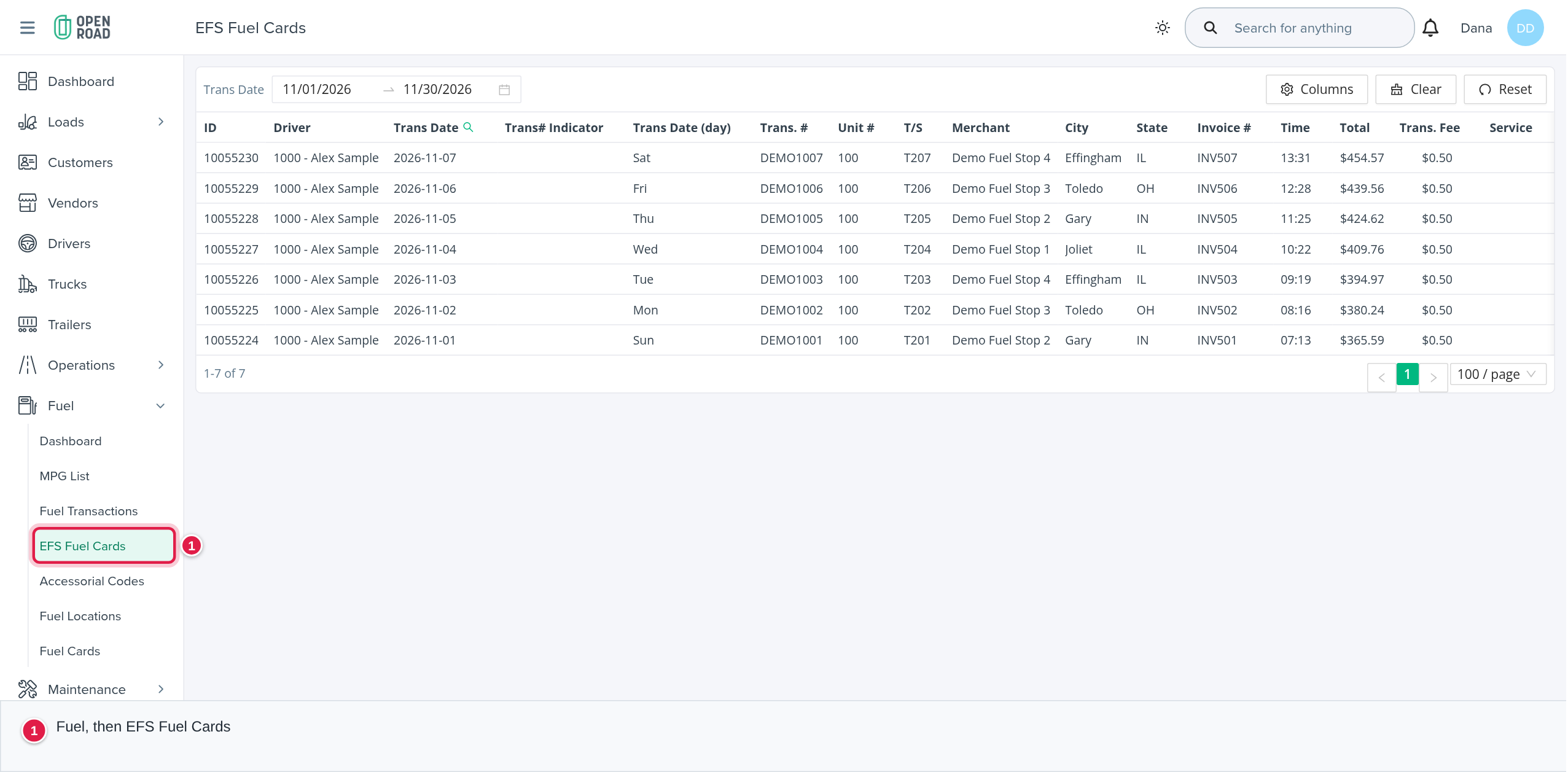
In the left menu, open Fuel, then EFS Fuel Cards.
Choose the dates
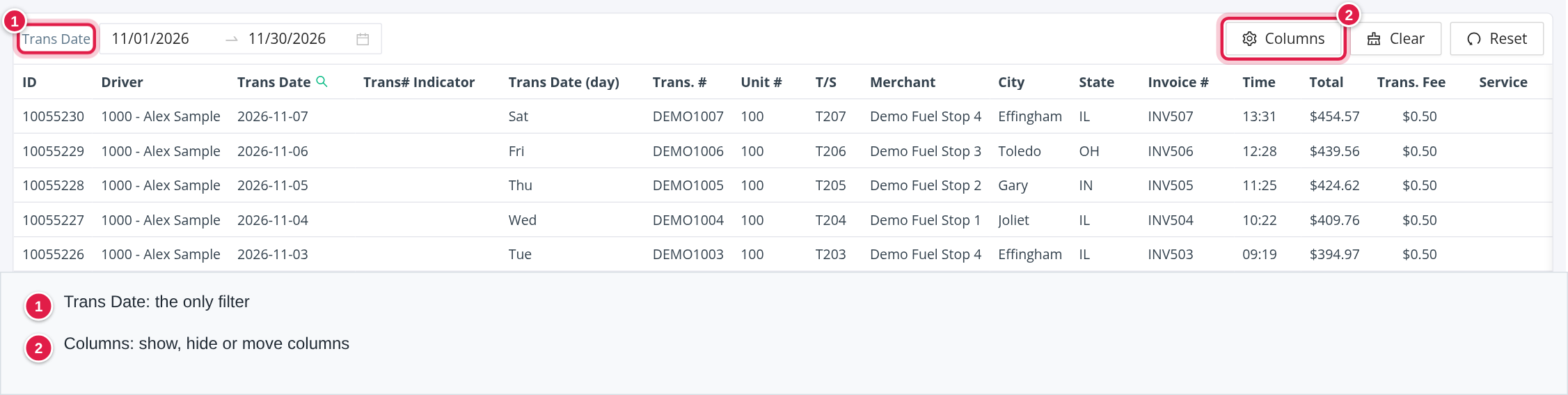
The table has one filter, Trans Date (a date range). It opens on the current month. Newest rows come first, 100 rows per page, and the columns cannot be sorted. Use Columns to hide or move columns.
The columns
All columns are shown by default. In order: ID, Driver, Trans Date, Trans# Indicator, Trans Date (day), Trans. #, Unit #, T/S, Merchant, City, State, Invoice #, Time, Total, Trans. Fee, Service, Diesel Gal, Net P/G, Diesel Amt, Reefer Gals, Reefer Price, Reefer Amt, Oil Quarts, Oil Cost, Tractor Billing Flag, Reefer Billing Flag, Oil Billing Flag, Cash Ad., Cash Adv. Fee, Driver's Name, Trip Number, Odometer, YTD MPG, MPG, Currency, Card Number, Driver Number, Product Code, Product Amount, Product #2 code, Product #2 amount, Product #3 code, Product #3 amount, Discount, Alliance Loc. Flag, Cash Billing Flag, Product #1 Billing Flag, Product #2 Billing Flag, Product #3 Billing Flag, Driv Lic. State, Driver Lic. Number, P.O. Number, Trailer Number, Previous Hub., Cancel Flag, Date of original Trans., Service center chain code, Subfleet#, Rebate Indicator, Trailer Hub Reading, Select or Focus Indicator, Bulk Fuel Flag, Company account code, Credit Trans., Fuel Card#, Non Billable Item, Not in limited network and Aliance location flag.
What the values mean:
- Driver links to the driver's page and shows the driver number and name. It is filled from the card's assignment.
- Trans Date is shown as year-month-day. Time is the transaction time.
- Net P/G (price per gallon) is shown with 3 decimals. Diesel Gal and Reefer Gals are gallons. Money columns are shown as dollar amounts.
- A Credit Trans. of "-" makes the cash amounts negative.
- The billing flags, indicators, hub, subfleet and similar columns are shown exactly as EFS sent them. OpenRoad does not process them.
How this page differs from Fuel Transactions
| EFS Fuel Cards | Fuel Transactions | |
|---|---|---|
| What a row is | One raw line of an EFS file | One fuel purchase, from any provider or entered by hand |
| Editing | None | Add, edit, delete, restore, import, export |
| Filters | Trans Date only | Date, Driver, Driver type, Card, Funding, Card Status, Transaction Status |
| Columns | About 65, as EFS sends them | 24 |
See Fuel Transactions page (Fuel → Fuel Transactions).
Frequently asked questions
Was this article helpful?
That’s Great!
Thank you for your feedback
Sorry! We couldn't be helpful
Thank you for your feedback
Feedback sent
We appreciate your effort and will try to fix the article