The EFS integration connects OpenRoad TMS to your EFS fuel card account. Once it is active, the fuel purchases and cash advances your drivers make with their EFS cards are imported into OpenRoad automatically. They appear on the Fuel Transactions page and in your drivers’ weekly statements.
How It Works
- EFS places your transaction files on its SFTP server, and OpenRoad picks them up automatically about every 2 hours.
- Each transaction is linked to a driver through the EFS card used.
- Optionally, OpenRoad can create and assign your EFS cards for you, and put cards on hold when a driver has no load (see Part 2).
What You Need to Send Us
- Your EFS SFTP host, username and password. Ask your EFS representative for SFTP delivery of your fuel transaction files for your OpenRoad TMS integration. EFS (WEX) emails the credentials to your assigned contact.
Important: When you request the SFTP delivery, ask EFS to name the daily transaction file with the letters EXT (for example, EXT_123456-110125). OpenRoad only imports transaction files with EXT in the name. A file with a different name (for example, EFS_123456_110_20251101.dat) is not imported, and no transactions appear.
Tip: If you use EFS Money Codes, ask EFS to also deliver the Money Codes file (named TCH-Moneycodes) to the same SFTP folder. OpenRoad imports it automatically.
- Optional: your EFS card web service username and password. Only needed if you want OpenRoad to put cards on hold and activate them automatically (see Part 2).
Important: Treat your EFS passwords like any other password. Send them only to OpenRoad Support, and never post them in chat messages or tickets that other people can see.
Part 1: We Activate the Integration
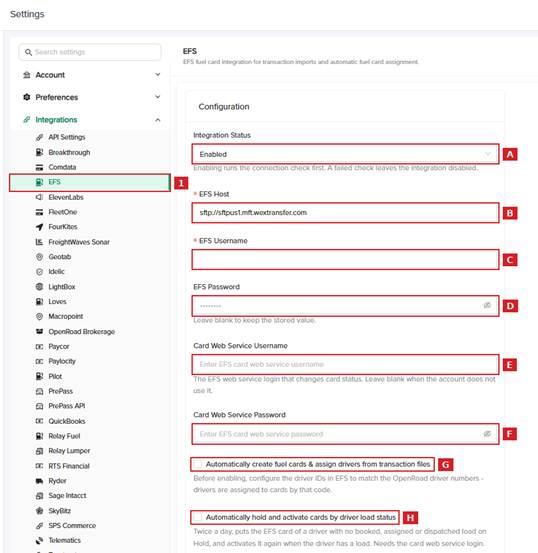
Once we receive your credentials, our team enters them in Settings v2 → Integrations → EFS, tests the connection and activates the integration. We confirm by email when it is active.
Part 2: Choose Your Card Options
Tell us if you want either of these options turned on:
- Automatically create fuel cards & assign drivers (G). OpenRoad creates any new EFS card it finds in your transaction files and assigns it to the driver whose OpenRoad driver number matches the driver ID on the EFS transaction. If a card appears under a different driver, OpenRoad moves the assignment. Before we turn this on, set the driver IDs in EFS to match your OpenRoad driver numbers.
- Automatically hold and activate cards by driver load status (H). Twice a day, OpenRoad puts the EFS card of a driver with no booked, assigned or dispatched load on Hold, and activates it again when the driver has a load. This option needs your EFS card web service login.
Part 3: Register Your Cards (If You Do Not Use the Automatic Option)
- Go to Fuel → Fuel Cards and click New Fuel Card: enter the EFS card number exactly as it appears on your EFS transactions, select EFS as card type and Active as status, and click Save.
- Click Assign Fuel Card, select the card, the driver and the start date, and click Save.
- Repeat for each driver who has an EFS card.
Part 4: Review Your Transactions
Go to Fuel → Fuel Transactions, select the date range, select EFS in the Card filter and click Search. Check that each transaction shows a driver.
Frequently Asked Questions
Do I still need to upload fuel files for EFS?
No. Once the integration is active, EFS transactions are imported automatically.
Some transactions do not show a driver. Why?
The card is not registered in OpenRoad, or it is not assigned to a driver for the date of the transaction. If you use the automatic option, the driver ID in EFS does not match an OpenRoad driver number.
What happens if a card moves to another driver?
If you register cards yourself, end the current assignment and create a new one. With the automatic option, OpenRoad does this when the new driver’s transactions arrive.
Can a driver’s card be held when they have no load?
Yes, with the automatic hold and activate option. Send us your EFS card web service login and ask us to turn it on.
Was this article helpful?
That’s Great!
Thank you for your feedback
Sorry! We couldn't be helpful
Thank you for your feedback
Feedback sent
We appreciate your effort and will try to fix the article