Your fuel cards and who holds each one. A card assigned to a driver makes every purchase on that card, in that period, show that driver on the Fuel Transactions page. Use this page to add a card, change its status, and assign a card to a driver for a period.
Who can do this: you need permission for the Fuel Cards pages. New Fuel Card, Assign Fuel Card, and the Edit, Delete and Activate now in EFS icons only show when your role allows them.
Before you begin
- Create the driver first: see Adding a driver.
- To see purchases on the Fuel Transactions page, the transactions must arrive from your card provider or the Import: see Fuel Transactions page (Fuel → Fuel Transactions).
Open the page
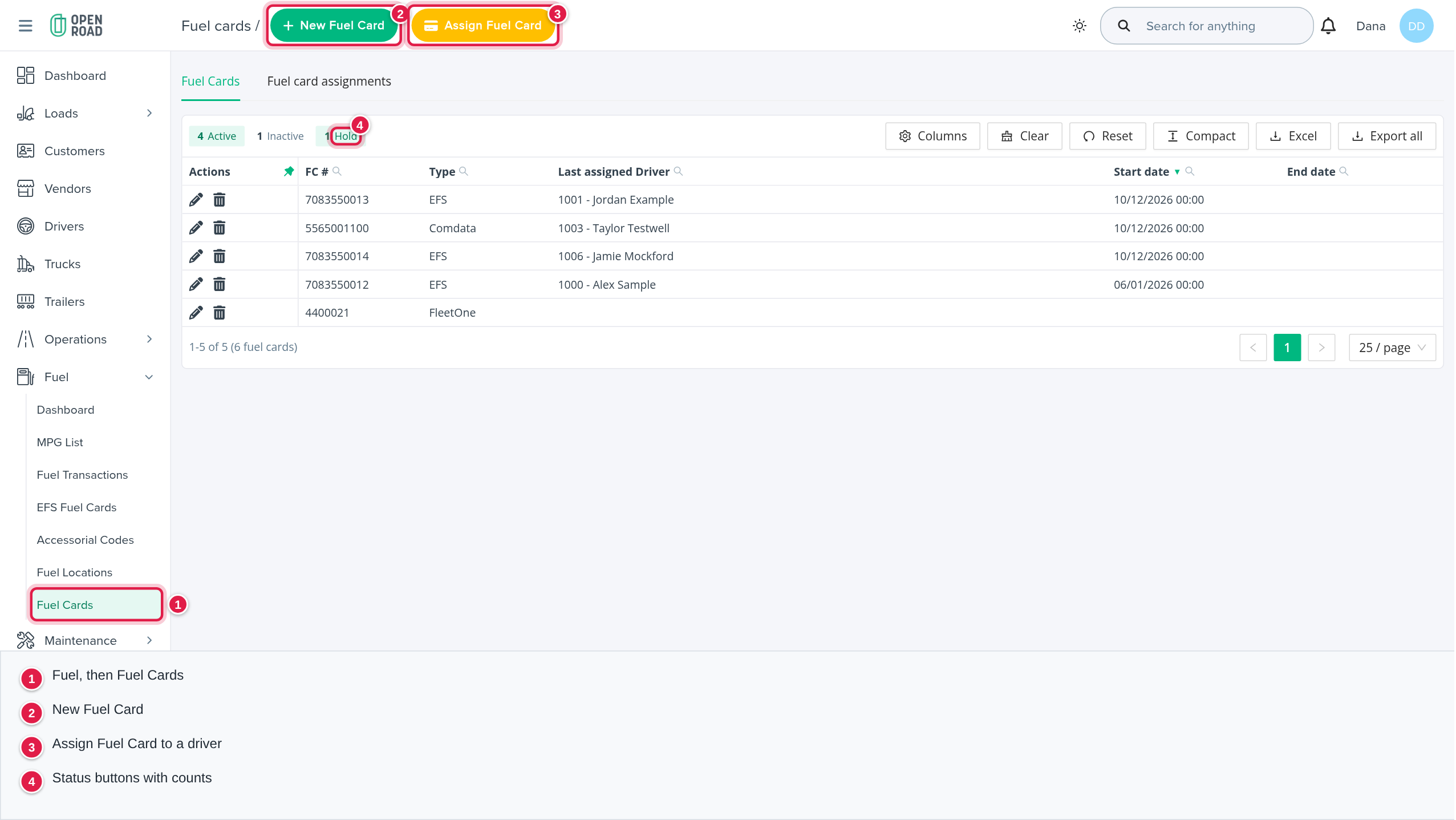
In the left menu, open Fuel, then Fuel Cards. The page has two tabs: Fuel Cards and Fuel card assignments.
The Fuel Cards tab
Columns, each with its own filter:
- Actions: the icons for the row.
- FC #: the card number. Search by the number or its last 10 digits.
- Type: EFS, FleetOne, Comdata, Relay or Other.
- Last assigned Driver: the driver of the card's latest assignment, shown as the driver number, then the name. For a customer it shows the customer name followed by "(Customer)". The latest assignment is the one with the latest end date, an open-ended assignment counting first.
- Start date, End date: the start and end of that latest assignment.
- Status: Active, Inactive or Hold. Inactive cards are shown in a muted style.
Above the table, the three buttons Active, Inactive and Hold show how many cards have each status. Select a button to show only those cards, and select it again to clear it. The list opens with Active and Hold selected. Columns, Clear and Reset change the columns and clear your filters.
The list is sorted by Start date, newest first. Excel and Export all above the table export the list.
Add a card
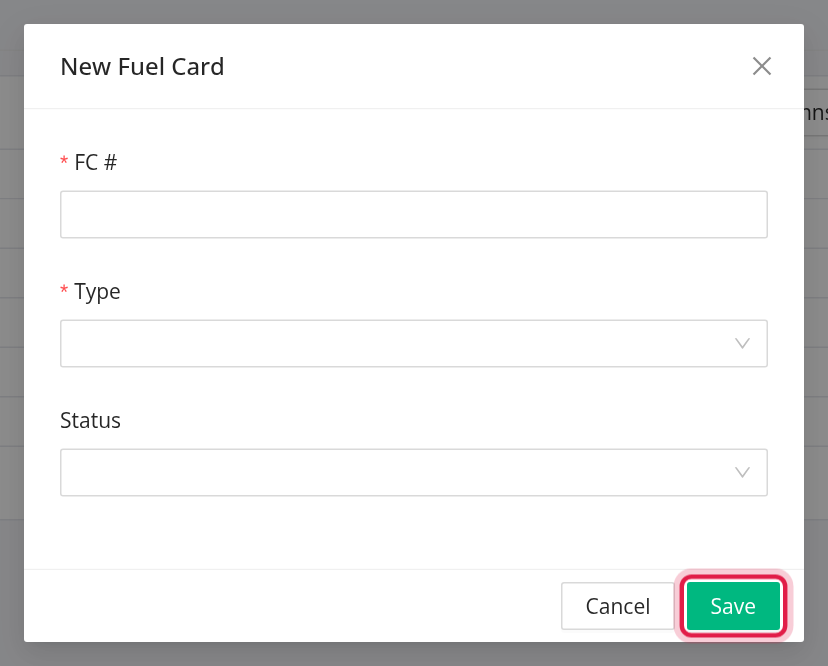
- Select New Fuel Card (the plus button at the top right).
- Enter the FC # (digits only) and choose the Type and the Status.
- Select Save. OpenRoad confirms with "Record saved successfully."
The card number must be unique in your account: the same number cannot be used twice, even for a different type. When you add a card, OpenRoad links any EFS transactions of your account that had no card and whose card number ends the same way.
After you save, only the Status can be changed: FC # and Type are locked. Use the Edit icon to change the status.
A new card has no driver yet. Assign it on the next tab or with Assign Fuel Card.
Card status
- Active and Hold: purchases on the card are matched to the driver assigned for that date.
- Inactive: purchases are matched only through an assignment that has an end date.
Where cards come from
- Manually, on this page.
- From EFS transaction files, when your account has the setting "Automatically create fuel cards & assign drivers from transaction files". OpenRoad then creates the card as Active and assigns the driver whose number is in the EFS file. Before turning it on, make the driver IDs in EFS match the OpenRoad driver numbers.
- From Relay, for drivers with a Relay fuel policy: the card is created as type Relay and set Active (or Inactive when the driver has no policy).
Activate a card in EFS
For an EFS card on Hold, the Activate now in EFS icon sends it to EFS. It only appears when the account setting "Automatically hold and activate EFS cards by driver load status" is on, and it asks you to confirm. OpenRoad answers: "The card is sent to EFS for activation. Reload the page in a minute to see its status." That setting puts the EFS card of a driver with no booked, assigned or dispatched load on Hold twice a day, and activates it again when the driver has a load. It needs the card web service login.
Delete a card
Select the Delete icon and confirm "Are you sure?". A card that still has assignments cannot be deleted: delete its assignments first.
The Fuel card assignments tab
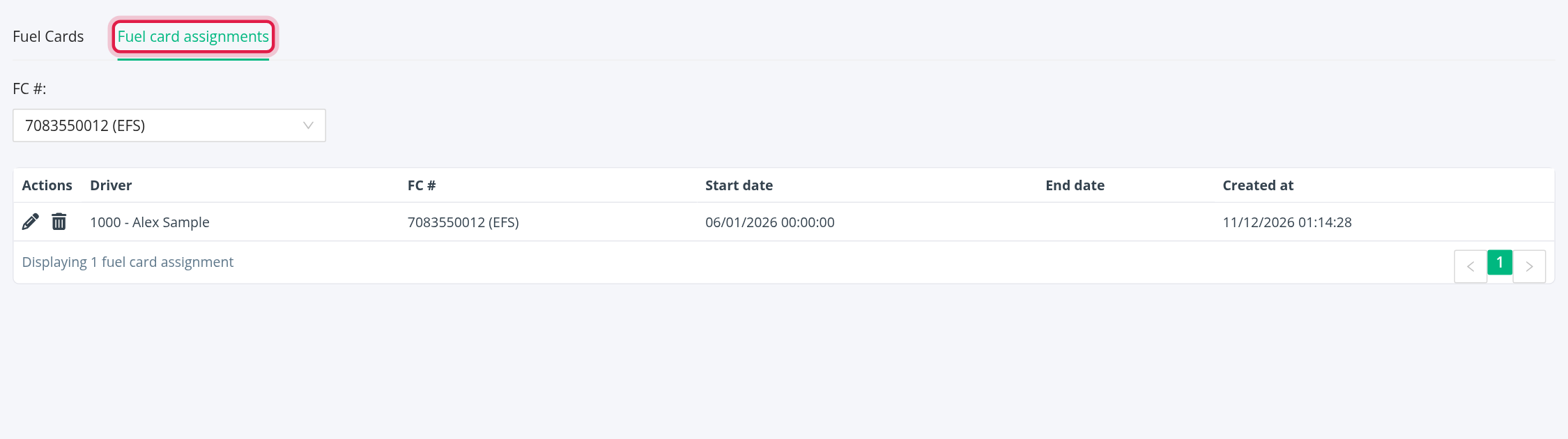
Select the Fuel card assignments tab, then choose a card in the FC #: box. The table shows that card's assignments, 100 per page:
- Actions: Edit and Delete (after "Are you sure?").
- Driver: the driver or customer. It links to the record in a new tab.
- FC #: the card number and type.
- Start date, End date, Created at.
OpenRoad remembers the card you chose last.
Assign a card to a driver
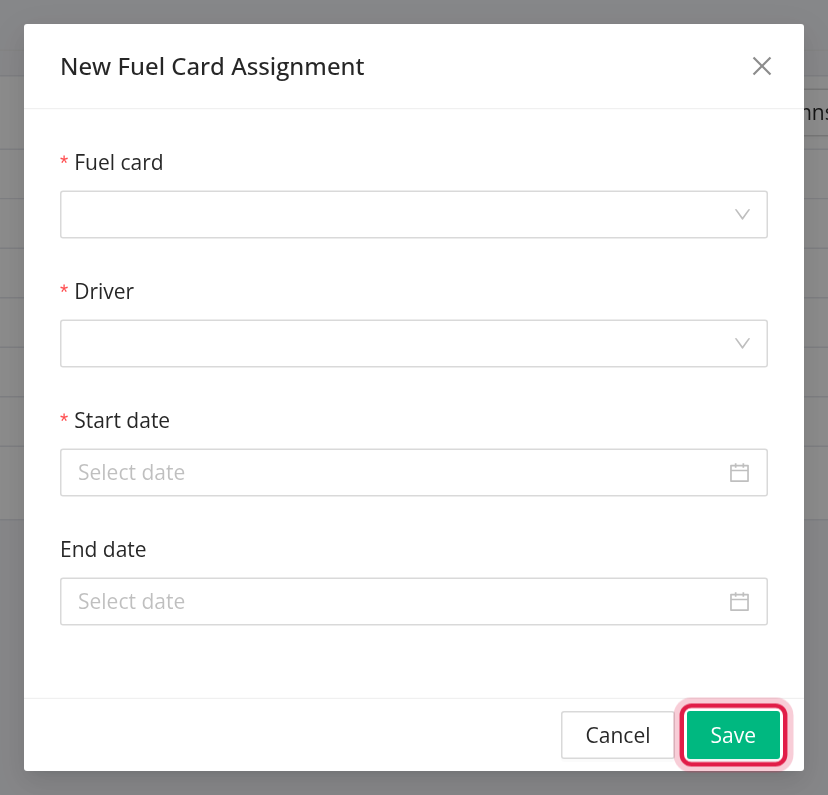
- Select Assign Fuel Card (credit-card button, top right), or edit an assignment.
- Fill in the New Fuel Card Assignment window:
- Fuel card: start typing the number (2 characters or more) and pick the card. - Driver: start typing (2 characters or more). Only active and pre-hired drivers are offered. - Start date: date and time. Required. - End date: date and time. Leave it empty if the assignment has no end.
- Select Save.
Rules OpenRoad enforces:
- The End date cannot be before the Start date.
- A card can have only one assignment at a time. If another assignment of the same card overlaps the period, OpenRoad refuses with "Fuel cards with such card numbers are assigned for the given time already: …". An assignment with no end date counts as running on.
- OpenRoad does not stop one driver from holding several cards at once.
What happens to the Fuel Transactions page: when you save an assignment, OpenRoad finds the account's transactions on that card (an EFS card matches on its last 10 digits) whose time falls inside the assignment, and sets their driver. Editing an assignment clears the driver on the old period, then sets it for the new one. Deleting an assignment clears the driver on its period.
Frequently asked questions
Was this article helpful?
That’s Great!
Thank you for your feedback
Sorry! We couldn't be helpful
Thank you for your feedback
Feedback sent
We appreciate your effort and will try to fix the article