Every vendor of your account in one table: carriers, owner operators' companies, maintenance shops and other companies you work with or pay. Use it to find a vendor, see who is linked to it, check its tax, MC and DOT numbers, and open its profile.
Who can do this: you need permission to view the Vendors list. New vendor only shows when your role allows adding vendors.
Before you begin
- Add each vendor with New vendor. See Adding a vendor (Vendors → New vendor: what is required and what to fill in).
- Every driver is linked to a vendor (the driver's Pay to field), and the driver's statements are e-mailed to that vendor's E-mail, not to the driver's own e-mail. Keep the E-mail column filled in.
- The Trucks, Drivers and Trailers columns fill in when you link equipment and drivers to a vendor. See Vendor profile: all tabs (Overview, Files and Driver + Equipment).
Open the page
In the left menu, select Vendors.
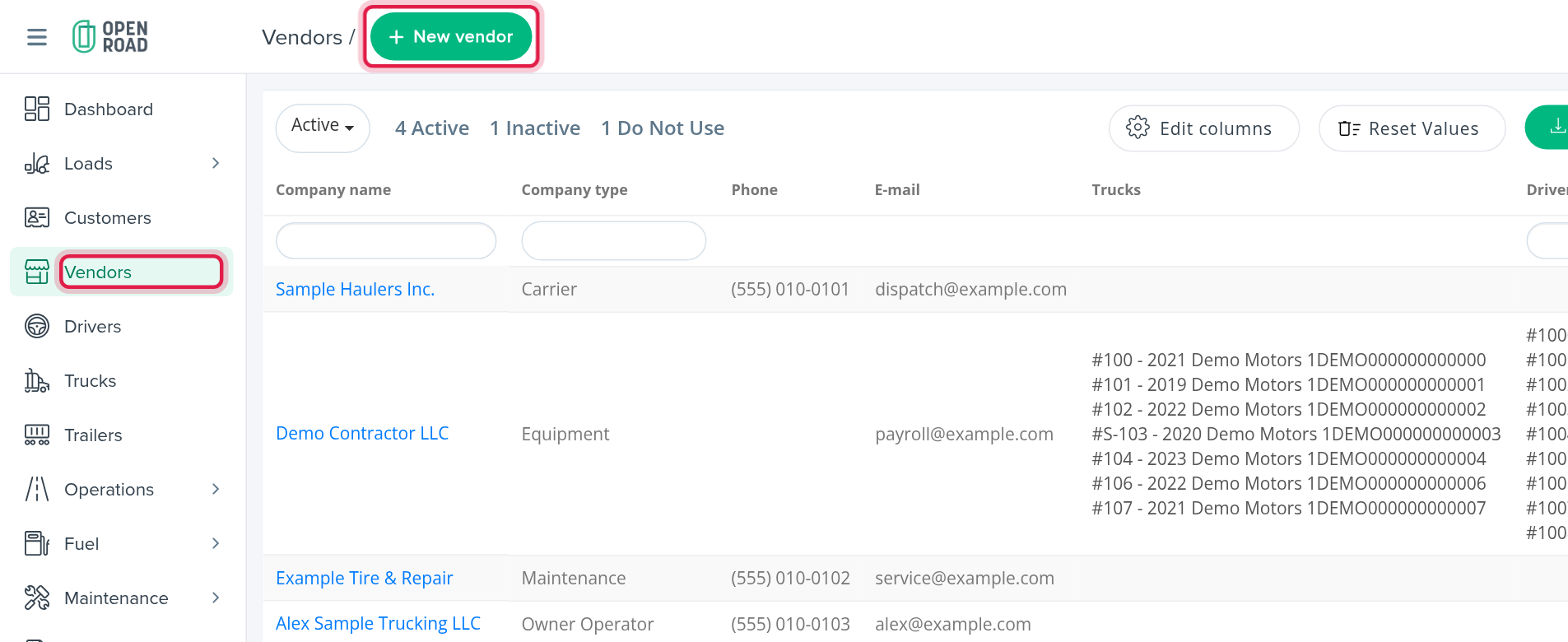
The page has a New vendor button (top right) and one table. Select a vendor's name to open its profile.
Filter by status
Above the table there is a status drop-down (it opens showing Active) where you can pick one or several statuses: Active, Inactive and Do Not Use. Next to it, the page counts your vendors by status, for example "4 Active", "1 Inactive", "1 Do Not Use". Pick more statuses to see those vendors too.

Filter by column
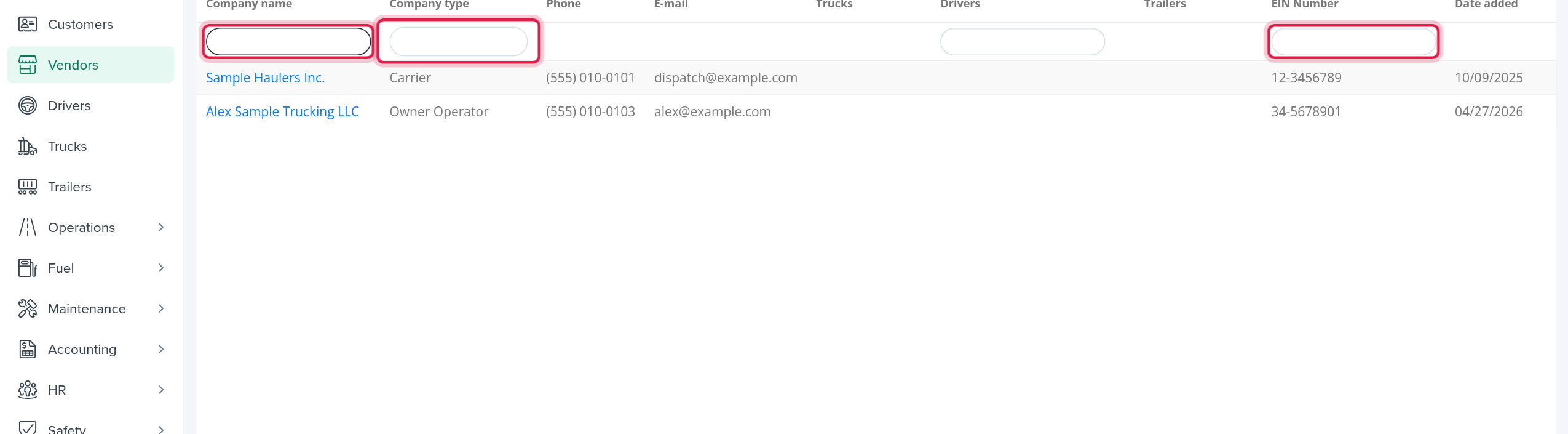
Under the column headers there is a filter row. Every filter you fill in narrows the list, so a vendor must match all of them.
| Filter | What it does |
|---|---|
| Company name | Text box. Matches any part of the name, ignoring upper and lower case. |
| Company type | Choose one or several types: Owner Operator, Carrier, Equipment, Company Driver, Maintenance. |
| Drivers | Text box. Type a driver's first name, last name or number to find the vendor the driver is linked to. A number starting with # is matched against the driver number, and two words are matched as first name and last name. Only active drivers are searched. |
| EIN Number, MC Number, DOT, Pay To ID | Text boxes. Match any part of the value. |
| Factoring Applied | Choose Yes and/or No. |
When your account uses My Carrier Packet, one more filter appears in the last column to show vendors that have, or do not have, a recent update from it.
The columns
The table opens with these columns:
- Company name: a link to the profile. A vendor whose status is Do Not Use shows (Deactivated) in red after its name.
- Company type
- Phone and E-mail
- Trucks, Drivers, Trailers: the vendor's active trucks, drivers and trailers, one per line, each a link to its own page. Inactive ones are not listed here.
- EIN Number
- Date added
These columns are available but hidden at first: MC Number, DOT, Factoring Applied, Factoring Company Name, Payment Address and Pay To ID. Select Edit columns above the table to show or hide columns.
Rows of Inactive and Do Not Use vendors are shown greyed out.
Sort and page
- The list is ordered by Date added, oldest first, until you sort by another column.
- Select Show 25 rows (the number may differ) to show 10, 25, 50, 100 or 500 vendors per page.
- Reset Values clears the table's global search.
- Export exports the table to Excel. Export all exports every page.
Frequently asked questions
Was this article helpful?
That’s Great!
Thank you for your feedback
Sorry! We couldn't be helpful
Thank you for your feedback
Feedback sent
We appreciate your effort and will try to fix the article