Add a company you haul freight for. This article shows how to add a customer, what is required, and what OpenRoad sets up for you when you save.
Who can do this: New customer only shows to roles that were given permission to add customers (by default Admin and Superadmin; other roles need a per-user grant). Individual fields can be hidden or locked for some users.
Before you begin
- Decide the customer's Billing preference and collect its accounts-payable e-mail address. When a load is billed to a customer that is not billed through factoring and whose Billing preference is not EDI, the load needs at least one valid AP E-mail on the customer, otherwise billing reports an error.
- If you want OpenRoad to send detention e-mails for this customer, your account must use automatic detentions. See Customer profile: all tabs (Overview, Files, Loads, Active Loads, Automatic Load Entry, Additional Charges, Billing Settings, Lane Rates and Load Templates), card Detentions Info.
Add a customer
- In the left menu, select Customers, then New customer.
- Enter the Name. It is the only field the system requires (Customer Type is also required when your account is set up to require it). The name can have up to 60 characters and must be unique in your account. A warning appears if the name has spaces at the start, at the end or doubled: remove them before saving.
- Fill in the rest of the cards (see below).
- Select Save at the bottom. The new customer's profile opens with the message "Record saved successfully."
If the customer cannot be saved, the form opens again with a list of the problems, for example a name that already exists or an e-mail address that is not valid.
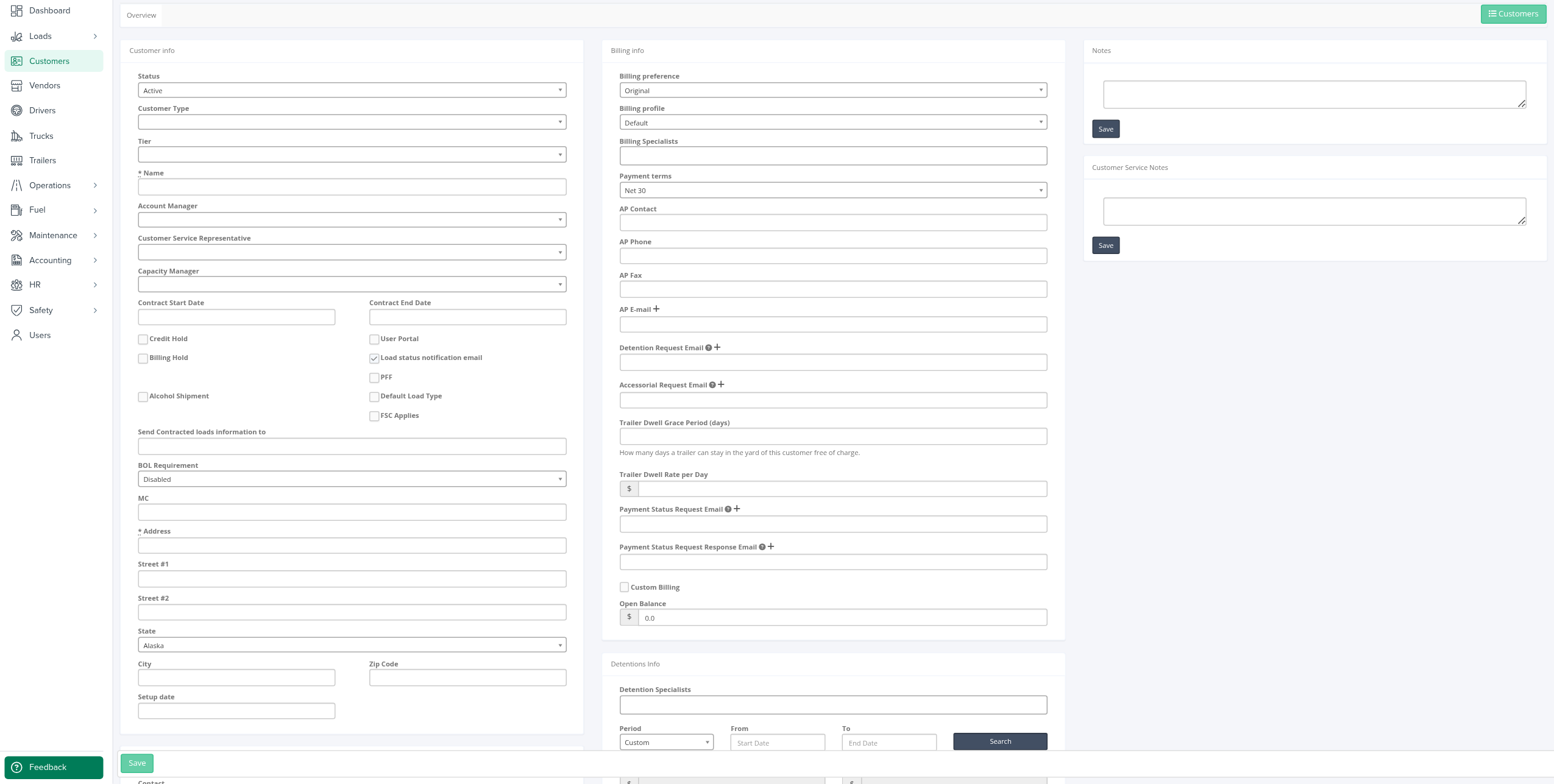
Address and Phone carry a star on the form, but OpenRoad does not stop you from saving without them. Fill them in anyway: they are used on the customer's profile and in the list.
On the new form, State starts on the first state of the list (Alaska), Billing preference on Original and Payment terms on Net 30. Change them if the customer is different.
What to fill in
The form has the same cards as the profile's Overview tab: Customer info, Contact info, Associated users, Customer Portal, Billing info, Detentions Info, Procedures and the notes. Every field is explained in Customer profile: all tabs (Overview, Files, Loads, Active Loads, Automatic Load Entry, Additional Charges, Billing Settings, Lane Rates and Load Templates). The ones that matter most when you add a customer:
- Status: Active, Inactive, Do Not Use or Potential.
- Contract Start Date and Contract End Date: an end date needs a start date, and must be after it. When you pick a start date and the end date is empty, OpenRoad fills in the end date two years later.
- Billing preference, Payment terms, AP Contact, AP Phone and AP E-mail.
- Billing profile: preselected with your account's default profile.
- Credit Limit and Open Balance, if your account tracks them.
What happens when you save
- If you left Credit Limit empty, it takes your account's default limit (when one is set). If you chose no Billing profile, the account default profile is used.
- When your account uses automatic detentions, four detention notifications are created for the customer (upcoming, started, courtesy and summary). A Broker customer starts with Started and Summary on; every other customer type starts with all four on.
- An e-mail "A New Customer has Been Added" is sent to the recipients your account has configured for new-customer notifications, asking them to review the billing information. If no recipients are configured, no e-mail is sent.
Frequently asked questions
Was this article helpful?
That’s Great!
Thank you for your feedback
Sorry! We couldn't be helpful
Thank you for your feedback
Feedback sent
We appreciate your effort and will try to fix the article