Every customer of your account in one table: who they are, how much they shipped this year, their contacts, billing terms and credit status. Use it to find a customer, see which are on credit hold, check contracts and balances, and export the list.
Who can do this: you need permission to view the Customers list (by default Admin, Superadmin, Dispatcher, Capacity, Accounting and Safety roles). New customer and the exports only show or work for roles that were given them.
Before you begin
- Add each customer with New customer. See Adding a customer (Customers → New customer: what is required and what to fill in).
- Billing columns such as AP E-mail, Payment terms and Credit Limit come from the customer's profile. See Customer profile: all tabs (Overview, Files, Loads, Active Loads, Automatic Load Entry, Additional Charges, Billing Settings, Lane Rates and Load Templates).
Open the page
In the left menu, select Customers.
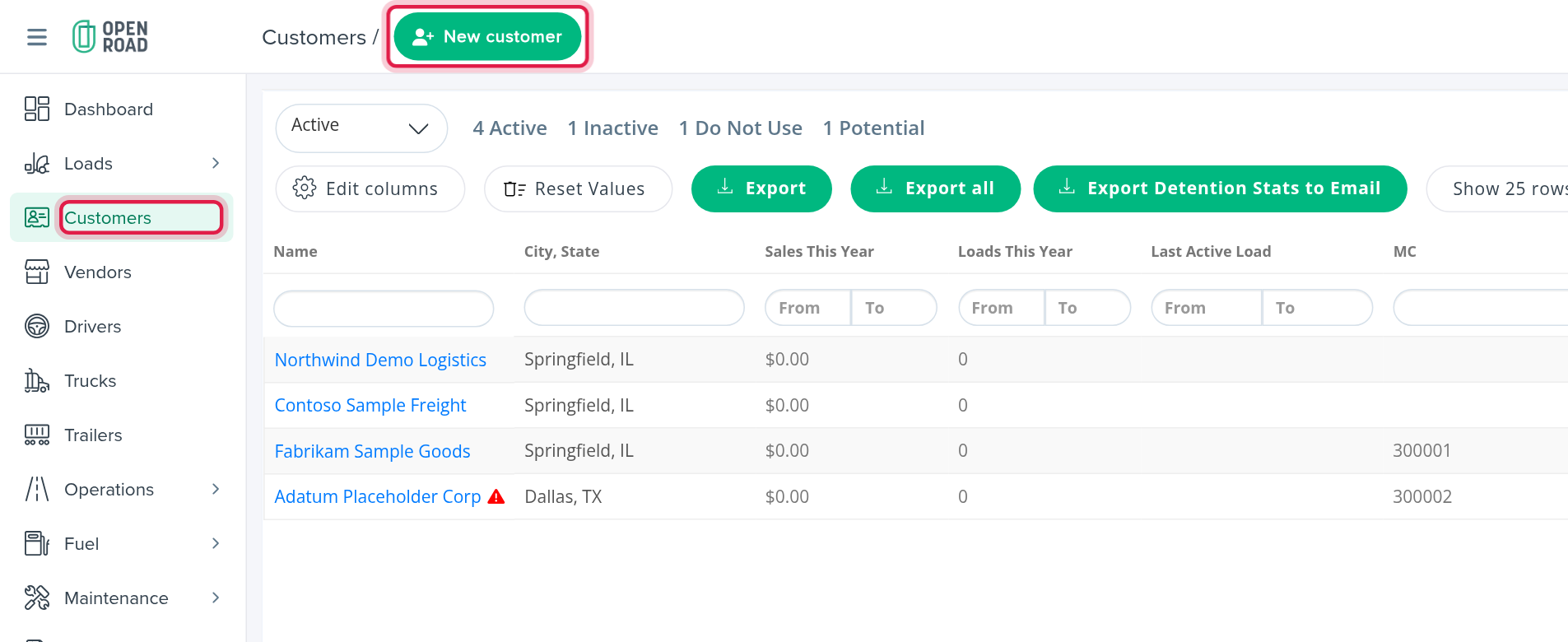
The page has a New customer button (top) and one table. Select a customer's Name to open its profile.
Filter by status
Above the table there is a status drop-down (it opens showing Active). Pick one or several statuses: Active, Inactive, Do Not Use and Potential. Next to it, the page counts your customers by status, for example "4 Active", "1 Inactive". OpenRoad remembers your choice in this browser.

Rows are coloured by status: Do Not Use red, Inactive orange, Potential light grey. Active rows have no colour. A red triangle after a name means the customer is on Credit Hold; its tooltip says to contact the accounting team to remove the hold.
Filter by column
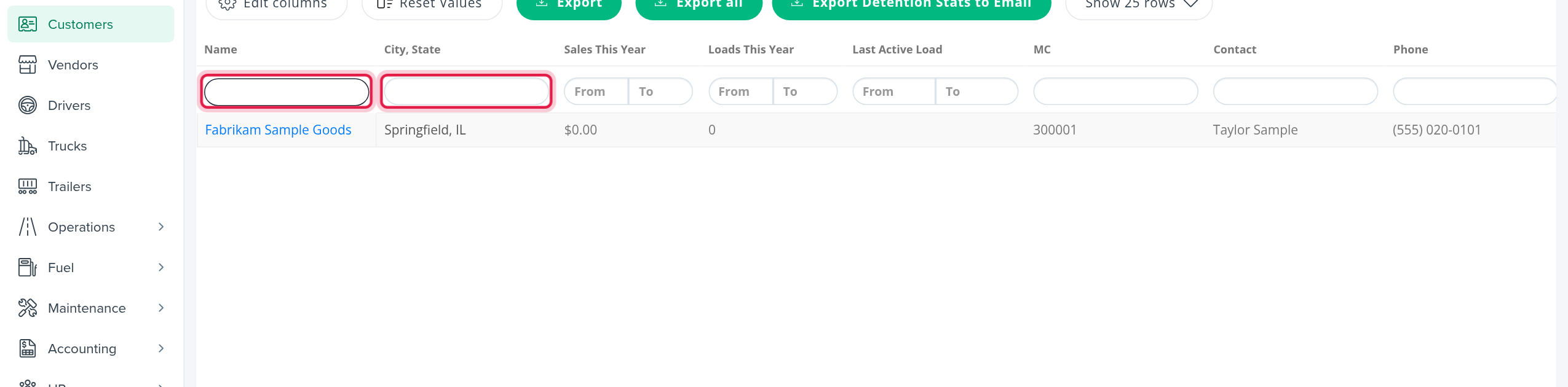
Under the column headers there is a filter row. Every filter you use narrows the list, so a customer must match all of them.
- Text boxes (for example Name, City, State, MC, Contact, Phone, E-mail, AP Contact, Billing profile, Account Manager): type part of the value. Names are matched by word beginnings.
- From / To boxes for numbers (Sales This Year, Loads This Year, Open Balance, Available Balance, Credit Limit) and for dates (Last Active Load, Contract Start Date, Contract End Date).
- Yes / No drop-downs (for example Credit Hold, Custom Billing, User Portal, PFF, FSC Applies).
- Tier and Customer Type drop-downs (Customer Type can combine 3PL, Broker, Direct and None).
- Detention Request Email: a text box and a Filled / Empty choice.
Reset Values clears every column filter and search.
The columns
The table opens with these columns: Name, City, State, Sales This Year, Loads This Year, Last Active Load, MC, Contact, Phone, E-mail and Open Balance.
Many more are available but hidden at first. Select Edit columns above the table to show or hide them: Credit Hold, Street #1, Street #2, State, City, Zip Code, Setup date, Additional Contact, Additional Phone, Fax, Billing preference, Billing profile, Payment terms, AP Contact, AP Phone, AP Fax, AP E-mail, Detention Request Email, Custom Billing, Custom Subject, User Portal, Account Manager, Capacity Manager, Contract Start Date, Contract End Date, Contract valid (today), Available Balance, Credit Limit, Hard Block Limit, Tier, Customer Type, Billing Specialists, Detention Specialists, PFF, FSC Applies and Account Group Email. Some columns only appear when your account uses the matching feature: FourKites Integration, Macropoint Integration and Customer Service Representative.
You can drag columns to reorder them. OpenRoad keeps your layout for the browser session.
Sort and page
- The list is sorted by Loads This Year, highest first, until you sort by another column. Account Manager, Capacity Manager, Customer Service Representative, Billing Specialists and Detention Specialists cannot be sorted.
- Select Show 25 rows (the number may differ) to choose 10, 25, 50, 100 or 500 customers per page. The default is 25.
- There is no free-text search box: use the column filters.
Export
- Export exports the visible columns of the current page to Excel.
- Export all exports the visible columns of every page, with an extra Actions column.
- Export Detention Stats to Email opens Export Customer Detention Stats. Choose All Time, This Month, This Quarter or This Year and select Export. A CSV with the customers' contact, billing, balance, contract and detention figures is emailed to you ("Customers CSV will be sent via email after processing"). It respects your status and column filters. Only roles that were given this export can run it.
Frequently asked questions
Was this article helpful?
That’s Great!
Thank you for your feedback
Sorry! We couldn't be helpful
Thank you for your feedback
Feedback sent
We appreciate your effort and will try to fix the article