The money codes and lumper codes your drivers use, in one list, with their amounts, fees, notes and attached receipts. Use it to see what a code paid, label what a code was used for, attach a receipt, export the list, or import a spreadsheet of driver payments.
Who can do this: the menu item shows to users who may see accessorial codes. Refresh Codes, Import Codes, Export and Export All only show when your role allows them.
Before you begin
- EFS codes appear when EFS "Moneycodes" files are received through the EFS integration. See Setting Up the EFS Integration.
- Relay codes are lumper payment codes from Relay.
- Import Codes needs the drivers (and loads) in the file to exist in your account.
Open the page
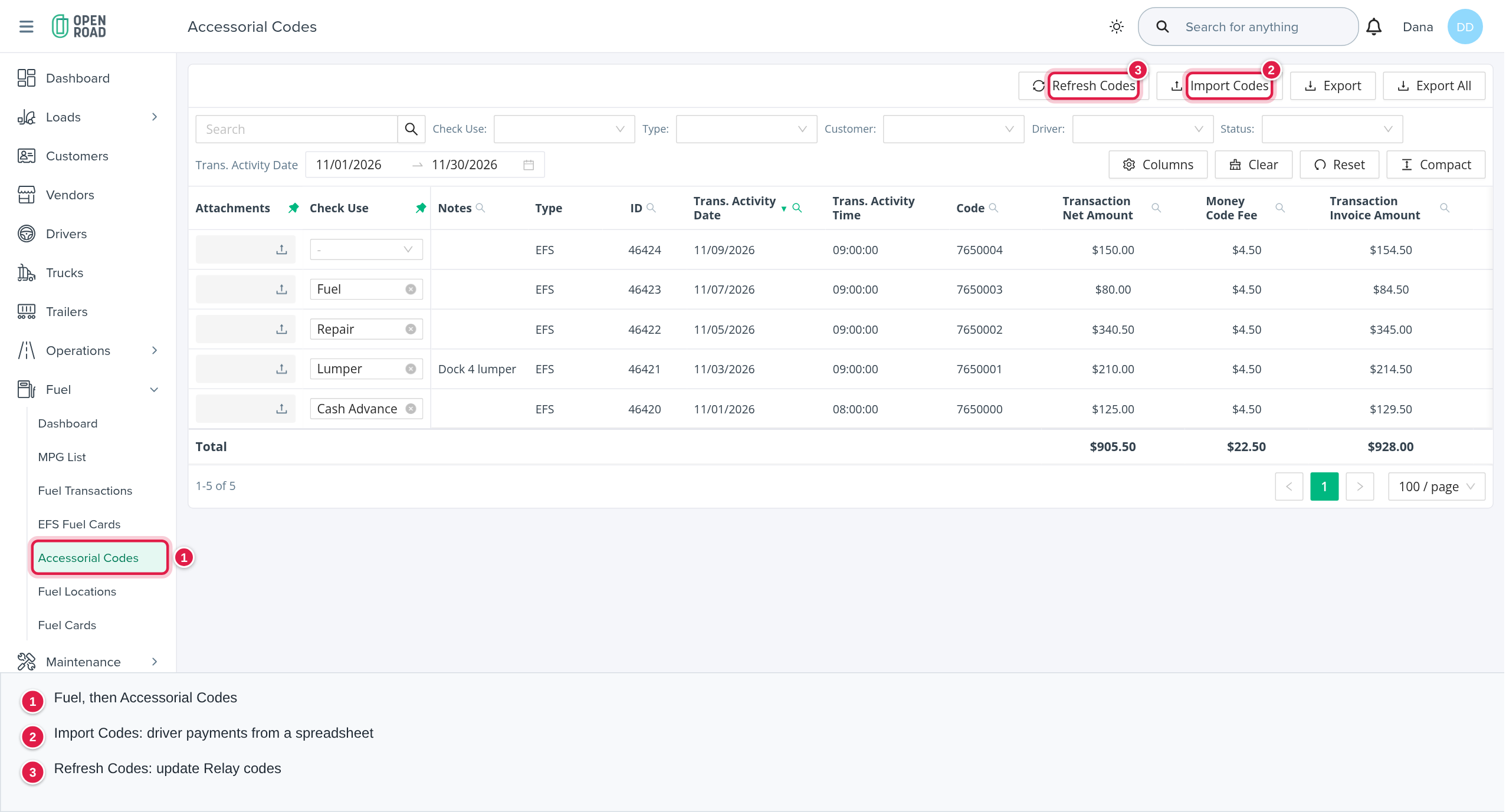
In the left menu, open Fuel, then Accessorial Codes.
What the list shows
Each row is one code. The Type column says where it came from:
- EFS: a money code from an EFS "Moneycodes" file.
- Relay: a Relay lumper code.
Only Relay rows have a Driver and a Status (Active, Inactive or Used). Customer is filled for Relay rows, and for EFS codes whose owner is a customer. Only Relay rows link to a load: the Notes cell then shows "Load" and the load number, when there is no note.
The list opens on the current month, newest first, 100 rows per page.
Choose what you see
- Trans. Activity Date: a date range (required). It opens on the current month.
- Check Use, Type, Customer, Driver and Status: drop-down filters above the table.
- Search box: finds a code by its code, ID, control number, name, service center name, load number or notes.
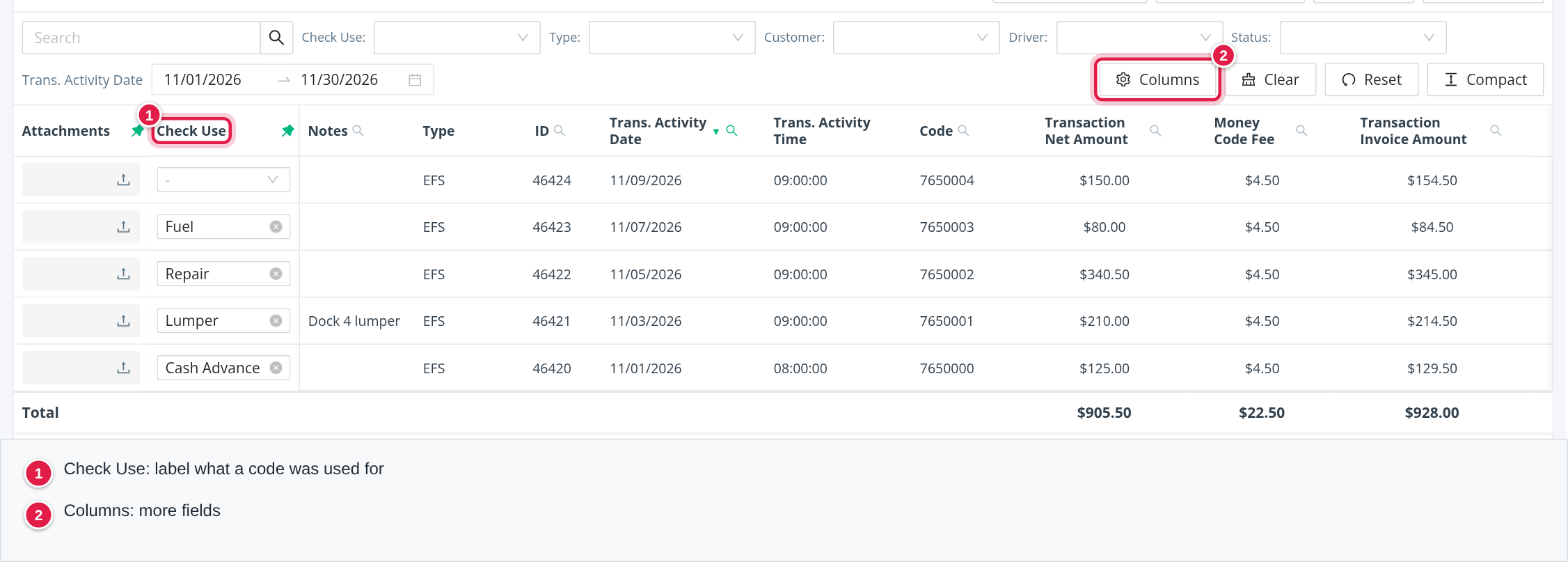
- Columns: show, hide and reorder columns. Clear and Reset clear the filters and return the table to its defaults. Compact makes the rows smaller.
The columns
Shown by default: Attachments, Check Use, Notes, Type, ID, Trans. Activity Date, Trans. Activity Time, Code, Transaction Net Amount, Money Code Fee, Transaction Invoice Amount and Check Fee. The money columns are totalled at the bottom of each page.
Available under Columns: Customer, Driver, Status, Control #, Service Center Location Code, Service Center Name, Invoice Item Number, Service Center City, Service Center State, Issued by, Company/Employee, Trailer #, Unit # and Name.
For Relay rows, the date is the code's Relay creation date, the location columns come from the lumper location, and the Transaction Net Amount is the discounted amount minus the fee, only once the code has been Used with a charge.
Label what a code was used for (Check Use)
On an EFS row, the Check Use cell is a drop-down: Cash Advance, Fuel, Lumper, Repair or Other. The choice is saved the moment you pick it ("Check Use successfully updated."). If it fails, OpenRoad says "Failed to update Check Use. Try again in a bit." Relay rows always show Lumper.
Check Use is a label stored on the code. OpenRoad does not use it anywhere else.
Attach a receipt
On an EFS row, drag files into the Attachments cell (or browse). Each file shows as a link; the Delete attachment icon removes one after "Are you sure?".
Refresh Relay codes
Refresh Codes updates the Relay rows on the current page from Relay (at most 100 rows). OpenRoad answers "Codes were refreshed.", or "Refreshed the first 100 codes. Reduce the page size to refresh the rest." EFS rows are not changed.
Export
- Export: a CSV of the rows on the current page.
- Export All: a CSV of every row that matches the current filters.
Import Codes: add driver payments from a spreadsheet
Import Codes does not add rows to this list. It creates driver pay items from an Excel file: an accessorial of category "Money Code" on a load, or a payroll adjustment when no load is given.
- Select Import Codes. The window is titled Import Money Codes.
- Select Download Template and fill it in, or choose your own .xlsx with Select File.
- Select Import.
The columns are read by position: A Driver #, B Load #, C Start date (the payroll start date), D Description and E Amount. The first row of each sheet is skipped as the header.
Rules:
- The driver must exist in your account, be active, and match the driver number. Otherwise: "Row N, Driver #: driver X not found or not active".
- If a load number is given, the load must exist and be assigned to that driver. Otherwise: "load X not found or not assigned to driver Y".
- It is all or nothing: if any row has an error, nothing is imported and every error is listed as "Row N, column: reason".
- Success reads "Imported N money code(s)". Other messages: "Invalid file format", "No file given", "No valid records found in the given file".
Frequently asked questions
Was this article helpful?
That’s Great!
Thank you for your feedback
Sorry! We couldn't be helpful
Thank you for your feedback
Feedback sent
We appreciate your effort and will try to fix the article