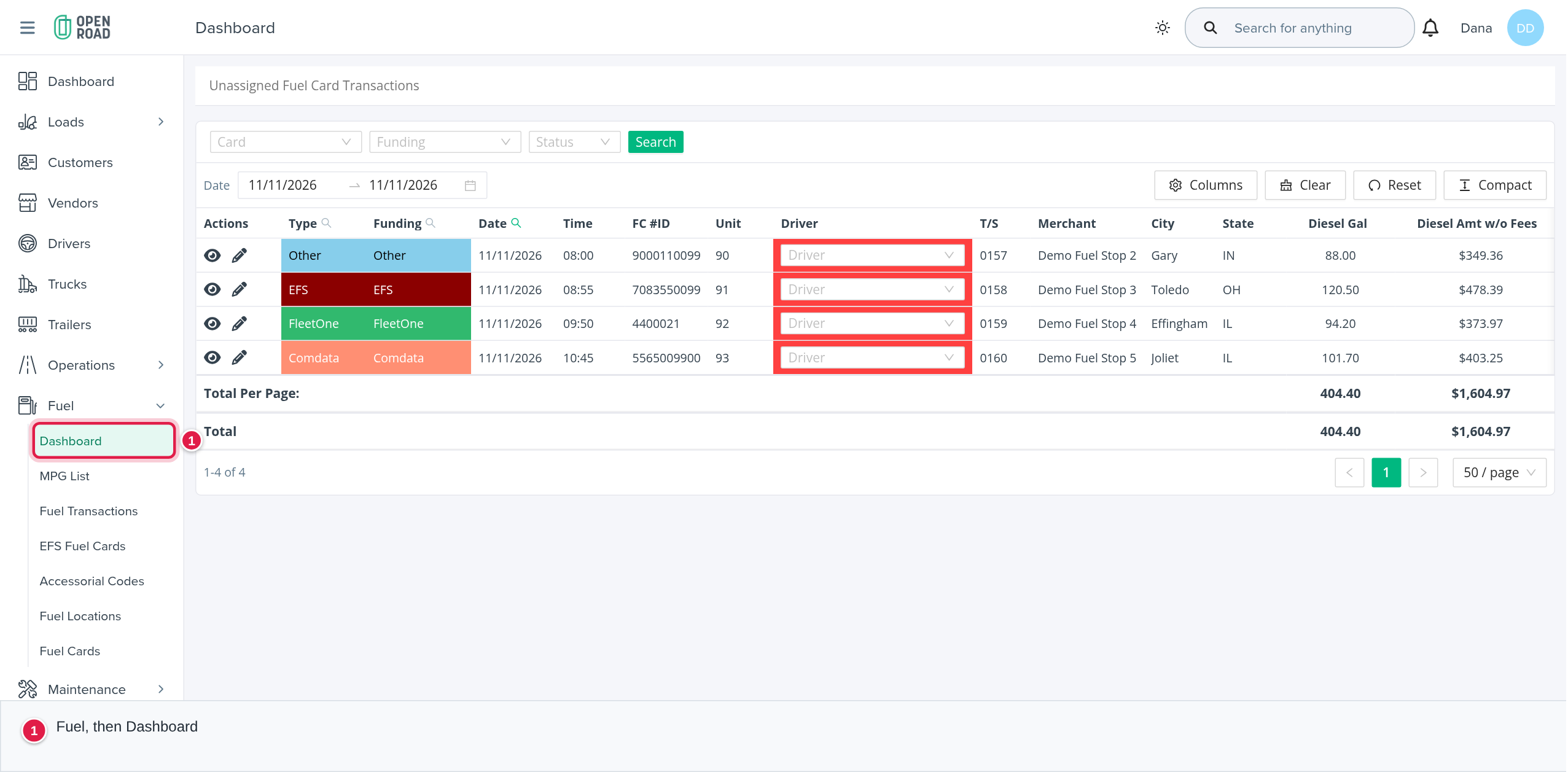
The Fuel Dashboard is one table: the fuel purchases that have no driver and no customer yet. Use it as a to-do list: work through the rows, give each one its driver, and the row leaves the list.
Who can do this: the menu item shows to users who may see fuel card transactions, and the table needs permission to view the dashboard. The Show and Edit icons only show when your role allows them.
Before you begin
- A purchase lands here when its card was not assigned to a driver for that date. To stop it happening, assign the card: see Fuel Cards page (Fuel → Fuel Cards).
- The Dashboard is not a chart or KPI page. For all purchases, use Fuel Transactions page (Fuel → Fuel Transactions).
Open the page
In the left menu, open Fuel, then Dashboard. The heading is Unassigned Fuel Card Transactions.
Which purchases are listed
A purchase is listed when it belongs to your account and has no driver and no fuel customer. Cancelled purchases are not left out. Deleted ("disabled") purchases are included until you filter on Status.
Choose what you see
The table opens on yesterday. Change the date range with the Date filter in the toolbar. The three drop-downs are applied only when you select Search:
- Card: EFS, FleetOne, Comdata, Manual, Relay or Other.
- Funding: EFS, FleetOne, Comdata, Manual, Relay, Other, Pilot or Loves.
- Status: Active (purchases that are not deleted) or Disabled (deleted purchases).
Columns shows or hides columns, Clear returns to the default view, and Reset restores the column order, visibility and page size. The table shows 50 rows per page, newest first, with totals for the page. There is no free-text search and no export on this page.
The columns
Actions, Type, Funding, Date, Time, FC #ID, Unit, Driver, T/S, Merchant, City, State, Diesel Gal, Diesel Amt w/o Fees, Diesel Amt, Reefer Amt, Discount, Net P/G, Cash Ad, Other w/o Fees, Other, Service Fee, Total w/o Fees and Total. They mean the same as on the Fuel Transactions page: see its column table. A red Total cell means the total does not match the amounts on the row.
Give a purchase its driver
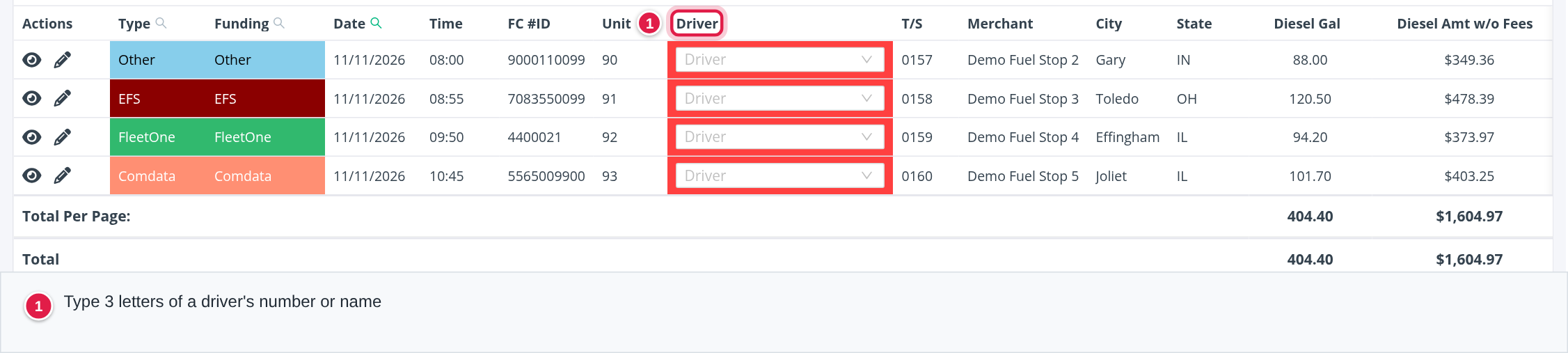
- In the Driver cell, select the box and type at least 3 characters of the driver's number or name.
- Pick the driver. OpenRoad confirms with "Driver successfully assigned."
The purchase leaves the list the next time the table loads. The Show icon opens the purchase to read it, and the Edit icon opens it to change it.
Assigning a driver here sets the driver on this one purchase. To make future purchases on the card follow the driver, assign the card instead.
Frequently asked questions
Was this article helpful?
That’s Great!
Thank you for your feedback
Sorry! We couldn't be helpful
Thank you for your feedback
Feedback sent
We appreciate your effort and will try to fix the article