Every trailer of your account in one table: who has it, its dates, its status and its costs. Use it to find a trailer, see which ones are out of service or need repair, check which inspections are due, and export the list to Excel.
Who can do this: you need permission to view trailers. New trailer only shows when your role allows creating trailers.
Before you begin
- Add each trailer with New trailer. See Trailer profile: Overview tab and New trailer (header, status, cards, Notes and annual inspection).
- The Driver number and Current Assignment columns come from your driver assignments. See Driver Assignments.
Open the page
In the left menu, select Trailers.
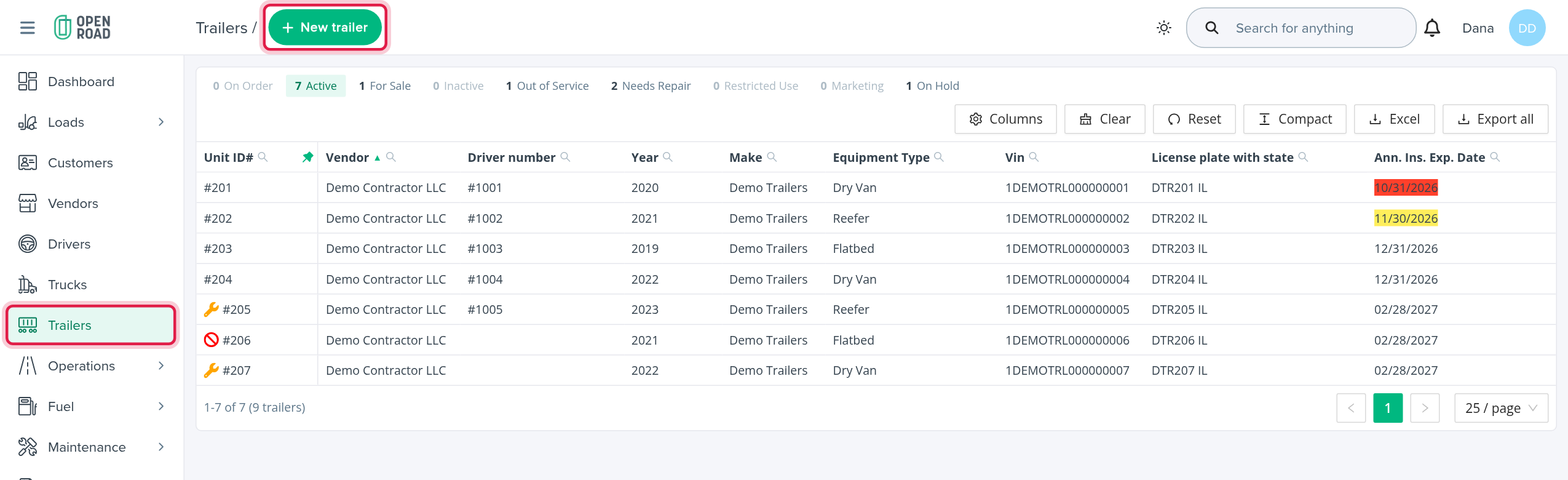
The page has a New trailer button (top right) and one table. The table has no search box and no row buttons: select a trailer's Unit ID# to open its profile.
Filter by status
Above the table, a row of buttons shows how many trailers have each status. Select a button to show only those trailers, select it again to clear it, and select several to combine them. The page opens with Active selected.
The buttons are On Order, Active, For Sale, Inactive, Out of Service, Needs Repair, Restricted Use, Marketing and On Hold.
How they combine:
- On Order, Active, For Sale, Inactive, Marketing and On Hold are statuses. If you select several, you see trailers with any of them.
- Out of Service, Needs Repair and Restricted Use are flags on a trailer, not statuses. Each one you select narrows the list further. For example, Active with Out of Service shows trailers that are Active and flagged out of service.
The number on each button is how many trailers match your other filters.
OpenRoad remembers your filters, sort and columns in your browser, so the page opens the way you left it.
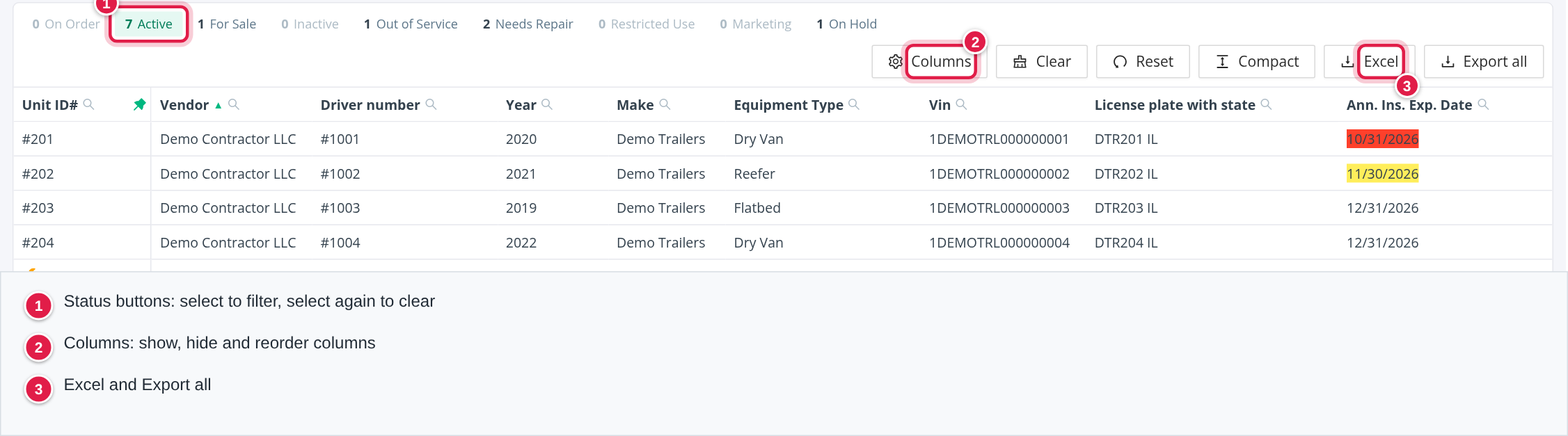
Filter by column
Each column header can have its own filter: a text box (matches part of the text), From and To boxes for numbers and dates, or a drop-down. Select Clear to go back to the default view.
Sort, page and totals
- The table is sorted by Vendor at first. Select a column header to sort by it.
- It shows 25 trailers per page. You can choose 10, 25, 50, 100, 250 or 500.
- Under the table, the pager says, for example, "1-25 of 40" and, when filters hide some trailers, the total in brackets.
- The bottom of the table shows a Total row and an Average row for columns with money amounts, such as Cost, Current Value and Monthly Payment.
The columns
The table opens with these columns:
- Unit ID#: the trailer number, as a link to the profile. Small icons before it show the flags that are set: OOS (red), Needs Repair (orange) and Restricted Use (purple).
- Vendor: the trailer's company.
- Driver number: the driver of the trailer's current assignment, as a link to the driver.
- Year, Make, Equipment Type, Vin.
- License plate with state: the plate and state.
- Ann. Ins. Exp. Date: the annual inspection expiry date. It is coloured when the date is today or past (expired), within 10 days, or within 30 days.
Select Columns to show, hide, reorder and pin columns. You can pin up to 4. Reset brings back the default columns and order.
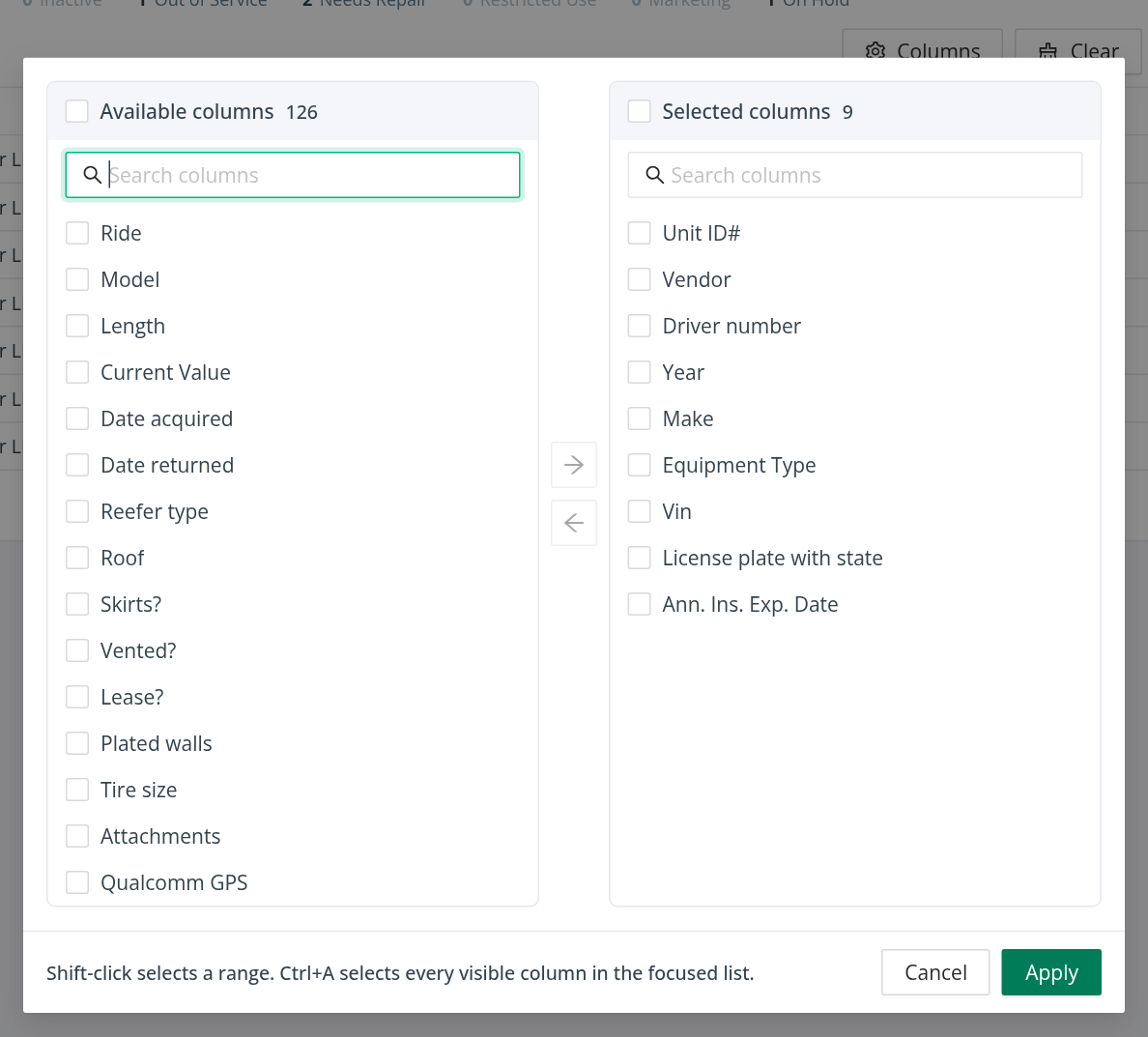
Other columns you can add:
- Vehicle details: Ride, Model, Length, Reefer type, Roof, Skirts?, Vented?, Lease?, Plated walls, Tire size, Brake Type, Tire Inflation System, Vinyl, the slider box columns, and Damage Waiver.
- Dates: Date acquired, Date returned, Ann. Ins. Date, Quarterly Maintenance, Insurance Exp., Order Date, Expected Delivery Date, the lease and payment dates and the payoff dates.
- Ownership and money: Ownership Type, Cost, Useful Life (months), End of Useful Life, Useful Life Left, Monthly Payment, Interest, Lender, Contract Number, Current Value, the insurance columns, Monthly Rent, and the computed Ownership Cost and Maintenance Cost columns per day, week, month and year.
- Status and repair: Status, OOS, Needs Repair, their notes, Reserved, Brokered, Paid Dwell, Last Status.
- GPS: GPS device ID, Device #, Address, Latitude, Longitude, Time updated, SkyBitz Tracking.
- Maintenance (latest service log): MAINT Status, MAINT TI, MAINT TO, MAINT ETI, MAINT ECT, MAINT TIS, MAINT Loc., MAINT TOS, MAINT Memo, MAINT TTIS.
- Fleetrock: Fleetrock enabled, PM Status, PM Days, PM Due Date.
- Assignments: Previous driver number, Previous Assignment Start Date, Previous Assignment End Date, Current Assignment, Days at Current Assignment.
- Selling and disposal: the price, dates, buyer and listing links for a trailer being sold.
- Accident Count: the number of the trailer's accidents.
- Attachments: two buttons per row, Trailer Registration and Annual Inspection. Each opens the trailer's uploaded document of that type in a new tab, when there is one.
The yes/no columns show a green tick for Yes and a red cross for No, and a dash when nothing is set.
Export to Excel
- Excel exports the trailers on the current page, with the columns, filters and sort you have set.
- Export all exports every trailer that matches your filters. It adds a last column, Actions, with a link to each trailer.
The file is named "Trailers - OpenRoadTMS.xlsx". Dates are written as MM/DD/YYYY and amounts as dollars. Yes/no columns are written as Yes and No.
Frequently asked questions
Was this article helpful?
That’s Great!
Thank you for your feedback
Sorry! We couldn't be helpful
Thank you for your feedback
Feedback sent
We appreciate your effort and will try to fix the article