Trailer Organizer shows where every trailer in your fleet is, whether it is empty or loaded, and how long it has been at its current location. Trailers with GPS are placed in your yards automatically, and your team can assign trailers to yards and loads from the same screen.
Trailer Organizer replaces the Trailer Board. This article explains how to find your trailers, read a yard, update a trailer’s status, assign trailers, and set up your yards.
Before You Begin
Make sure you have the following ready:
- Trailer Organizer enabled on your account. When it is enabled, it appears under Operations in the left menu. If you do not see it, contact OpenRoad Support at help@openroadtms.com.
- Your trailers set up in OpenRoad. New trailers must be added under Trailers before they appear in Trailer Organizer.
- GPS devices on your trailers. Trailers with GPS from your connected telematics integration (such as Samsara, Motive or SkyBitz) update automatically. Trailers without GPS can still be managed by hand.
- Your yards created. Trailer Organizer organizes trailers by yard. See Part 7 if you need to add one.
If You Used the Trailer Board
Everything you did on the Trailer Board has a place in Trailer Organizer:
Topic | Trailer Board | Trailer Organizer |
Main view | Trailers listed by driver, with the trailer each driver had on each day | Trailers listed by yard and location, with the empty and loaded trailers at each one |
Dropped trailers | Show Dropped Trailers: a list by location with loaded and empty days per date | Yards tab for your yards and Customer Locations tab for customer places |
Locations | Saved Locations | Yards, created with Add Yard, each with a radius, a trailer pool and a note |
Map | A separate page opened with the Map button | On the same page, with balance pins, Filter by Map View and Multi-Select |
Trailer state | All, Active, Out of service, Needs Repair, Inactive | Needs Repair, OOS, Restricted Use, GPS Outdated, Ready, Paid Dwell, Flatbed, Attention |
Loaded or empty | Status filter: Fully loaded, Empty | Trailer Type filter: All, Empty, Loaded |
Dispatcher and customer | Dispatcher and Customer filters | Manager and Search customers (Show Advanced Filters) |
Days at a location | Under 7, 7–21 and 21+ days for dropped trailers | The same counters for every trailer, plus the Days in Yard filter and Dwell sorting |
Assigning a trailer | Create New Assignment: a trailer to a driver | Assign: a trailer to a yard (Empty) or to a load (Loaded). Driver assignments stay in Operations → Driver Assignments |
Part 1: Open Trailer Organizer
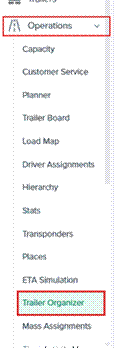
From the left menu, go to Operations → Trailer Organizer.
The page has the filters at the top, your yards and trailers on the left, and the map on the right. The list and the map work together: select a yard in one and it is highlighted in the other.
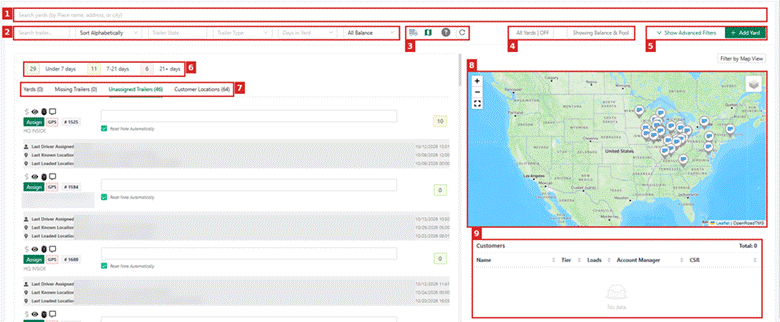
# | Area | What it does |
1 | Search yards | Find a yard by name, address or city. |
2 | Filters | Search a trailer and filter by state, type, days in yard or balance (Part 2). |
3 | Quick buttons | Show only trailers assigned to drivers, show or hide the map, open the legend (?), refresh. |
4 | All Yards / Showing Balance & Pool | Show or hide empty yards, and choose what the map pins show. |
5 | Show Advanced Filters / Add Yard | More filters, and create a new yard. |
6 | Days counters | Trailers at their location under 7 days (green), 7–21 days (yellow) and 21+ days (red). |
7 | Tabs | Yards, Missing Trailers, Unassigned Trailers and Customer Locations. |
8 | Map | Your yards and trailers. Pins show each yard’s balance and pool. |
9 | Customers | Customers linked to the selected yard. |
Tip: Click the ? icon at any time to open the legend, which explains every icon on the page. |
Part 2: Find Trailers and Yards
- Type a unit number in Search trailer, or a yard name, address or city in Search yards.
- Use the dropdowns to narrow the list:
Filter | Options |
Sort | Alphabetically, Main Customer, Balance, Pool or Dwell (low to high or high to low) |
Trailer State | Needs Repair, OOS, Restricted Use, GPS Outdated, Ready, Paid Dwell, Flatbed, Attention |
Trailer Type | All, Empty, Loaded |
Days in Yard | All, or a minimum number of days (for example 7+) |
Balance | All Balance, Positive Only, Negative Only |
For more options, click Show Advanced Filters. You can filter by customer, manager, Brokered (Include, Only or Exclude) and dates. Then click Search.

Tip: To find trailers that have been sitting too long, select Days in Yard → 21+ or sort by Dwell (High to Low). |
Part 3: Read a Yard
Each row in the Yards tab is a yard. The boxes on the right summarize it:
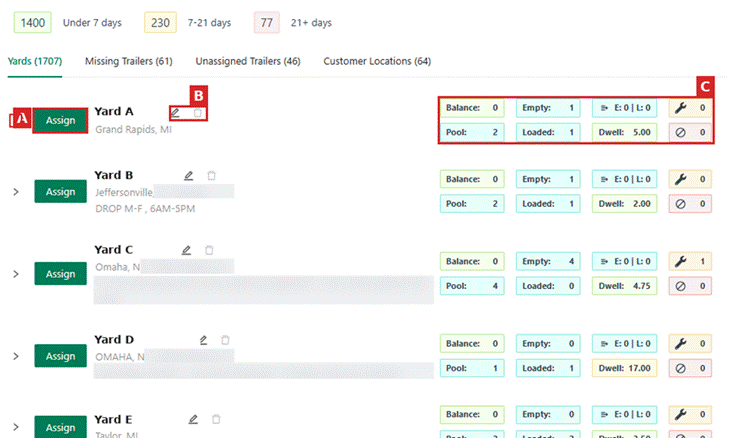
Box | Meaning |
Balance | Trailers at the yard minus the pool. Negative means the yard needs trailers; positive means it has extra. |
Pool | The number of trailers you want at this yard. |
Empty / Loaded | Empty and loaded trailers at the yard now. |
Dwell | How long trailers have been sitting at the yard, in green, yellow or red. |
Wrench / ⊘ | Trailers that need repair / are out of service. |
Click the arrow on the left of a yard to open it. Its trailers are listed under Empty Trailers – Current and Loaded Trailers – Current.
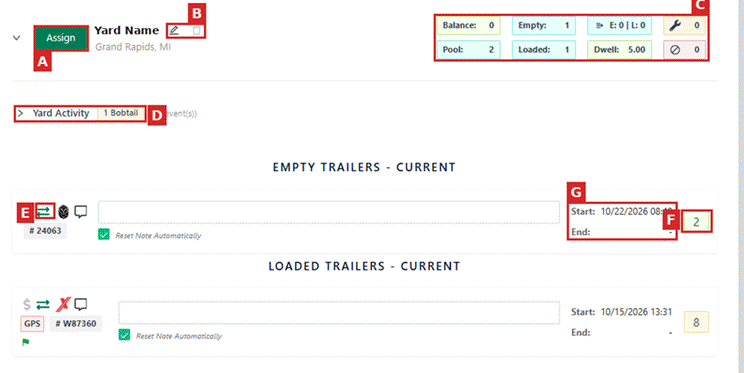
Label | What it is |
A | Assign a trailer to this yard or to a load (Part 5). |
B | Edit or delete the yard (Part 7). |
C | Yard summary boxes. |
D | Yard Activity: bobtail pickups and trailer swaps at the yard. |
E | Switch the trailer between Empty and Loaded (Part 4). |
F | Days the trailer has been here: green under 7, yellow 7–21, red 21+. |
G | When the trailer arrived (Start) and left (End). |
Part 4: Update a Trailer’s Status During a Yard Check
If a trailer is in the right yard but shows the wrong status, switch it without moving it.
- Open the yard and find the trailer.
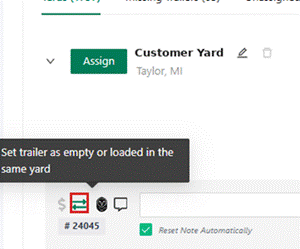
- Click the green ⇄ icon next to the trailer number ("Set trailer as empty or loaded in the same yard").
- The trailer moves to the Empty or Loaded list. The yard stays open, so you can continue with the next trailer.
Part 5: Assign a Trailer
To a yard (empty)
Use this for a trailer without GPS, or to record an arrival right away.
- Click Assign next to the yard or the trailer.
- Set Status to Empty and select the yard.
- Enter the Start Date. If the trailer is still open at another location, check Close Previous Location and enter the date it left.
- Click Save.
To a load (loaded)
- Click Assign next to the trailer.
- Set Status to Loaded and enter the Load ID.
- Click Save. The trailer is linked to every stop on the load.
Tip: You can also choose the trailer on the load page (the Trailer field on each stop, or during Dispatch), or in the Customer Service Module for preloaded loads. The trailer list shows the trailers closest to the pickup first. |
Note: After the final delivery has a departure time, the trailer changes to Empty automatically, unless the stop is drop-and-hook (Preloaded). |
Part 6: Check Missing and Unassigned Trailers
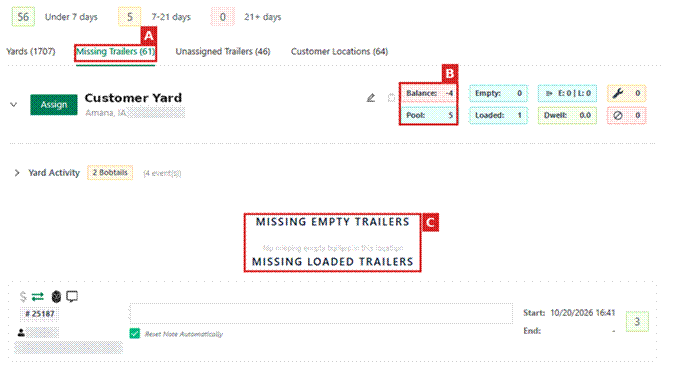
- Missing Trailers: trailers assigned to a yard whose GPS shows they are somewhere else. They are listed by yard, as missing empty or missing loaded.
- Unassigned Trailers: trailers the system could not place in a yard or with a driver. Each one shows its last driver, last known location and last loaded location.
- Customer Locations: customer places where trailers are currently located that are not set up as your yards.
- Open the tab and find the trailer.
- Click the eye icon to see it on the map, or open the trailer’s GPS Logs.
- Assign it to the right yard (Part 5), or arrange for it to be returned.
Tip: A trailer usually appears as unassigned when its GPS is not reporting, it is far from any of your yards, or the trailer or driver is inactive. Adding a yard near where trailers usually sit lets the system place them automatically. |
Part 7: Create, Edit or Delete a Yard
- Click + Add Yard at the top right.
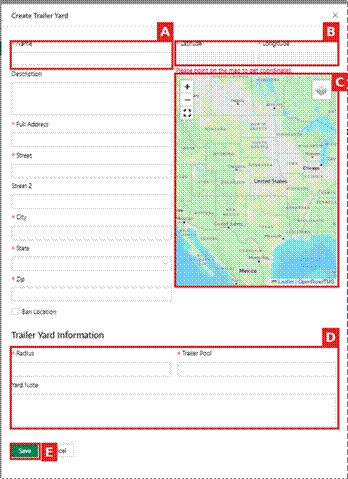
- Enter the Name and, optionally, a Description (A).
- Click the location on the map (C) to fill in Latitude and Longitude (B), and enter the full address.
- Under Trailer Yard Information (D), enter the Radius in meters, the Trailer Pool and an optional Yard Note.
- Click Save (E).
To change a yard, click the pencil icon next to its name. To delete it, click the trash icon.
Note: A yard can only be deleted when its pool is 0 and it has no trailers. Otherwise the trash icon is grey. |
Part 8: Review the Settings (Administrators)
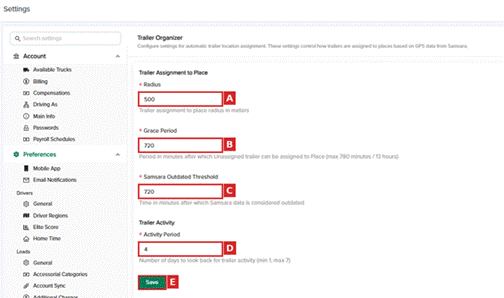
Go to Settings → Preferences → Trailer Organizer to review how trailers are assigned automatically.
Setting | What it does |
A. Radius | How close (in meters) a trailer must be to a place to be assigned to it. |
B. Grace Period | How long (in minutes, up to 780) a trailer must stay at a place before it is assigned there. |
C. Samsara Outdated Threshold | After how many minutes GPS data is considered outdated. |
D. Activity Period | How many days back (1 to 7) trailer activity is reviewed. |
Important: These settings affect every trailer on your account. Contact Support before changing them if you are not sure. |
Frequently Asked Questions
Where did the Trailer Board go?
Trailer Organizer replaces it. Everything you did on the Trailer Board can be done in Trailer Organizer.
A trailer is at our yard but does not show there. Why?
Check that its GPS is reporting (it is not GPS Outdated), that the yard radius covers where it is parked, and that it is not assigned to a driver. If everything looks correct, assign it by hand (Part 5).
How quickly is a trailer placed after it arrives?
At your own yards, usually within ten minutes. At customer locations, after the grace period set for your account.
A trailer shows Loaded but it is empty. How do I fix it?
Use the ⇄ switch (Part 4). Also make sure the last delivery stop of its load has a departure time.
What does a negative balance mean?
The yard has fewer trailers than its pool. A positive balance means it has more.
Can I see the full history of a trailer?
Yes. Open the trailer and go to the Assignments tab. It lists every driver, load and location assignment, and you can export it with Export CSV.
Can I use Trailer Organizer without GPS on my trailers?
Yes, with manual assignments. Locations do not update automatically, so your team keeps them current by hand.
Need help? Contact OpenRoad Support at help@openroadtms.com.
Was this article helpful?
That’s Great!
Thank you for your feedback
Sorry! We couldn't be helpful
Thank you for your feedback
Feedback sent
We appreciate your effort and will try to fix the article