OpenRoad TMS — Getting Started Series
Once your trucks, trailers, and drivers are set up, the next step is linking them together. This article covers how to assign a truck and trailer to a driver, and how to review assignment history.
Before You Begin
- The driver, truck, and trailer you want to link must already exist in the system (see the earlier articles on Drivers and Trucks and Trailers).
- Go to Operations → Driver Assignments from the main dashboard menu.
Step 1: Open Driver Assignments
1. Go to Operations → Driver Assignments.
2. On the left, select a driver from the list to view their current and past truck and trailer assignments.
3. On the right, you'll see two tables: one for Truck assignments and one for Trailer assignments, each showing Start/End date and time, who created or updated the record, and when.
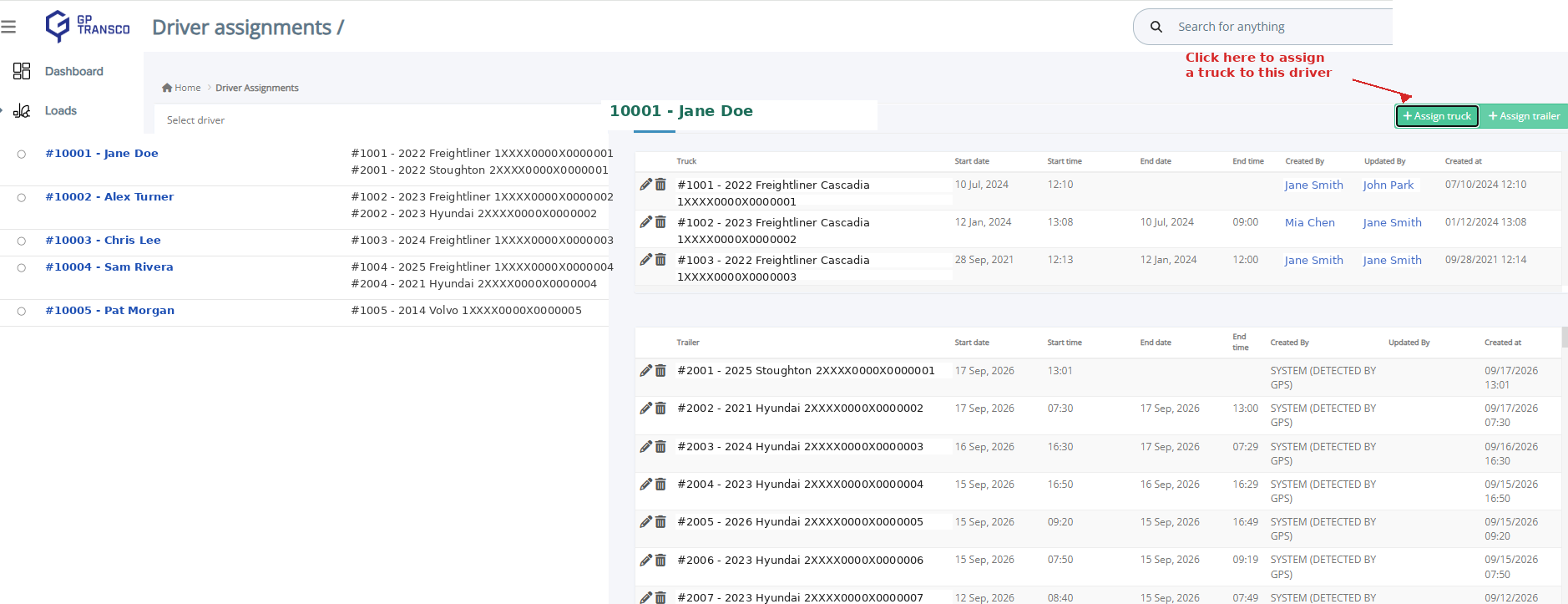
Figure 1 — Driver Assignments page. Names and VINs shown are examples.
Step 2: Assign a Truck to a Driver
1. Click + Assign Truck at the top right of the Driver Assignments page.
2. Choose the Driver and the Truck you want to link.
3. Set the Start Date (required) and, if the assignment has a known end, the End Date.
4. Use Sort Drivers / Sort Trucks to filter each dropdown to Show All, Show Assigned Only, or Show Unassigned Only — this makes it easier to find who or what is available.
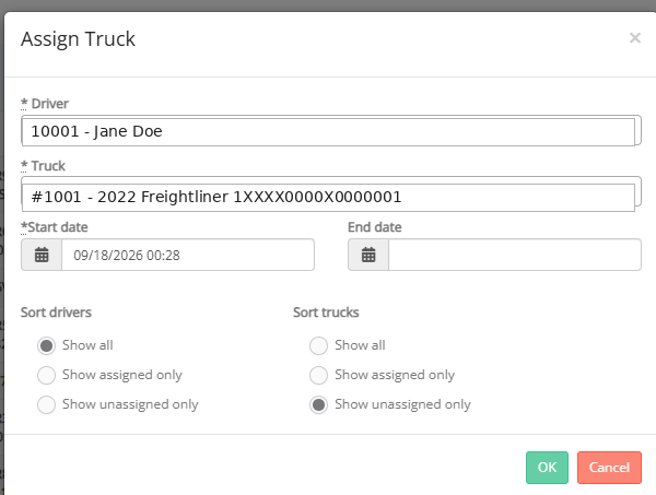
Figure 2 — Assign Truck dialog. Driver and truck shown are examples.
5. Click OK to save the assignment.
Tip: The same Driver Assignments page has a matching + Assign Trailer button for linking a trailer to a driver, using the same steps.
Frequently Asked Questions
Q: Can a driver have more than one truck assignment at a time?
A: Under normal conditions, a truck supports one active driver assignment at a time — two overlapping assignments are only allowed if Slip Seating is enabled on that truck (see the Trucks and Trailers article).
Q: What does it mean when a trailer assignment says "SYSTEM (DETECTED BY GPS)"?
A: It means the assignment was created automatically from GPS/tracking data rather than entered manually.
Q: How do I end a truck assignment?
A: Open the assignment from the Driver Assignments page and set an End Date, or edit it using the pencil icon next to the record.
Q: Can I filter the driver or truck list when assigning?
A: Yes. Use the Sort Drivers and Sort Trucks options in the Assign Truck dialog to show all, only assigned, or only unassigned drivers/trucks.
Still need help? Contact our support team at help@openroadtms.com
Was this article helpful?
That’s Great!
Thank you for your feedback
Sorry! We couldn't be helpful
Thank you for your feedback
Feedback sent
We appreciate your effort and will try to fix the article