Everything about one trailer on a single page: its status, where it is, when its inspection is due, what it costs, and the notes about it. Use it to add a trailer, keep its details and dates up to date, change its status, add notes, and keep track of when its annual inspection expires.
Who can do this: opening a trailer needs permission to view trailers. New trailer needs permission to create trailers. Changing a card needs permission to edit trailers. Some fields, cards and tabs can be hidden from some users, so you may see less than this article describes.
Before you begin
- A trailer's Equipment Type comes from your trailer types. See Trailers settings: DOT warnings, Trailer Types and Trailer App times.
- A trailer's Vendor is one of your account's companies.
- To see the annual inspection warning flag, a Superadmin switches on DOT warnings. See the section "Annual inspection" below and Trailers settings: DOT warnings, Trailer Types and Trailer App times.
- The trailer list is described in Trailers page (Trailers): list, status filters, columns and Export.
Open a trailer
- In the left menu, select Trailers.
- Select the trailer's Unit ID#.
The page shows a header, a row of figures, tabs, and the content of the active tab. The tabs are Overview, Files, Maintenance, Logs, GPS Logs, Accidents and Assignments. See Trailer profile: Files, Maintenance, Logs, GPS Logs, Accidents and Assignments tabs.
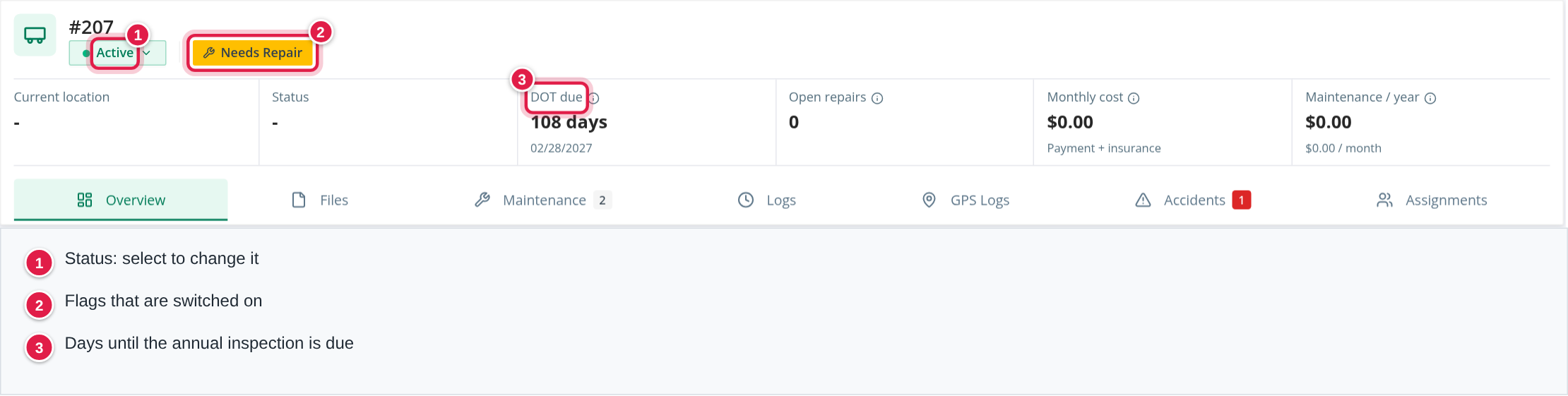
The header
- The trailer number, for example #1234.
- A Samsara link, when the trailer has a GPS device ID: it opens the device in Samsara in a new tab.
- A status button (next to the number).
- Tags for any of these flags that are set: Needs Repair, OOS and Restricted Use. Hover over a tag to read "Change on the Maintenance tab". Select it to open that tab.
- Assigned driver, at the right: the driver number and name of the trailer's current driver, as a link to the driver.
The figures
A row of tiles under the header shows:
- Current location: where the trailer is now, and for how long. It links to the place when the location is a saved place.
- Status: the load status of the trailer's current location, such as Loaded, and the customer or the date it started.
- DOT due: days until the annual DOT inspection is due, such as "12 days" or "3 days overdue", with the due date. When your account has trailer DOT warnings switched on, the figure turns red at 30 days or less (or overdue), amber at 60 days or less, and green at 90 days or less.
- Open repairs: how many service logs are Reported, Scheduled or In Service. It is red when there is at least one.
- Monthly cost: the monthly payment plus the monthly insurance cost.
- Maintenance / year: the maintenance cost per year, with the cost per month under it.
A tile only shows when you may see the information behind it.
Change the status
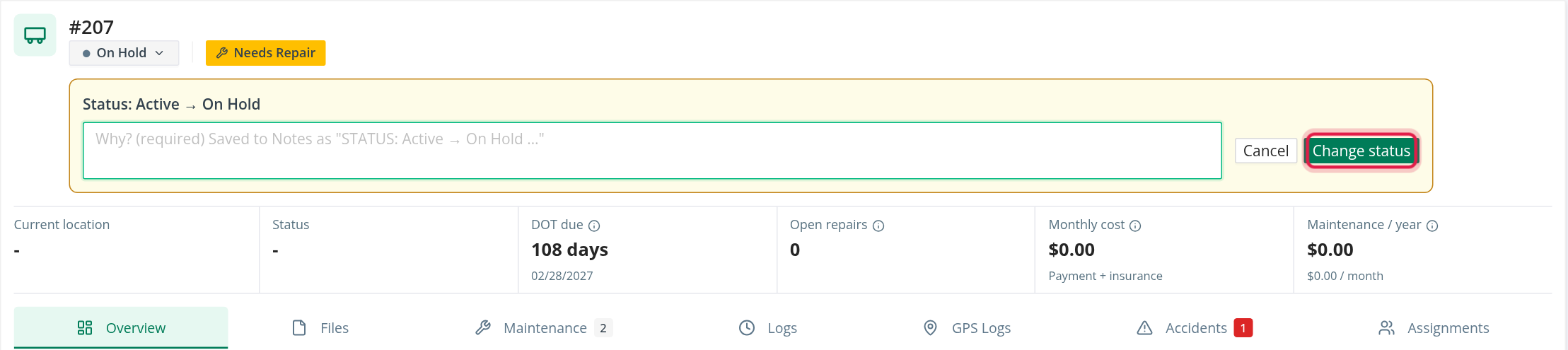
- Select the status button in the header and choose the new status: On Order, Active, For Sale, Inactive, Marketing or On Hold.
- A panel titled Status: <old> → <new> opens. Write the reason in the box. A reason is required.
- Select Change status.
OpenRoad saves the reason as a Notes entry that reads "STATUS: <old> → <new>. <your reason>". If the trailer was Active and still has driver assignments, OpenRoad changes the status and warns you: "Record saved successfully, but still has active assignments."
Flags: Out of Service, Needs Repair and Restricted Use
These are not statuses. They are switches kept with the trailer's maintenance, and they are set on the Maintenance tab. In the header they show as tags. When one is switched on, a note is required; OpenRoad writes it into Notes, for example "OOS NOTE: <note>". When one is switched off, OpenRoad writes "OOS: Unchecked" (and likewise for the others), with the note if you typed one.
The Overview tab
The Overview tab is a set of cards. Each card shows its fields as label and value, with a dash for an empty value.
To change a card: select the pencil icon on the card, change the fields, then select Save. The Save button shows how many fields you changed and stays off until you change one. Cancel closes the card; if you changed something, OpenRoad asks "Discard n unsaved change(s)?" and offers Discard or Keep editing. Only the card you edit is saved.
Trailer info
Vendor, Driving As (only for accounts that use it), Unit ID#, Equipment Type, Ride (Air Ride or Spring Ride), Year, Make, Model, Length (in feet), Vin, License Plate, State, Qualcomm GPS, GPS device ID, Motive Asset ID (only for accounts with Motive), and Reefer type. A Damage Waiver Cost shows while Damage Waiver is ticked, Monthly Rent and Rent Notes while Rented Out is ticked, and Reserved Note while Reserved is ticked.
The Unit ID# is required and must be unique in your account. The Vin is at most 17 characters and must be unique in your account. OpenRoad warns you when a typed VIN is not exactly 17 characters ("VIN needs 17 characters") and when a year does not have 4 digits ("Year needs 4 digits").
Options
Tick boxes: Plated walls, Vented?, Brokered, SkyBitz Tracking (accounts with SkyBitz), Skirts?, Paid Dwell, Damage Waiver, Rented Out, Leased Out, Reserved, Lease Agreement with Option to Purchase, and Fleetrock enabled (accounts with Fleetrock).
Specs
Tire size, Roof, Brake Type (Drum Brakes or Disc Brakes), Tire Inflation System (None, Meritor or Hendrickson), Vinyl (None, Old Company Logo, Partial Wrap or Full Wrap), Slider Box Manufacture (Hendrickson or SAF/Holland), Slider Box Serial Number, Slider Box Model Number, Slider Box Description and Useful Life (months).
Order section
Shown only while the trailer's status is On Order: Order Date and Expected Delivery Date.
Expiration dates
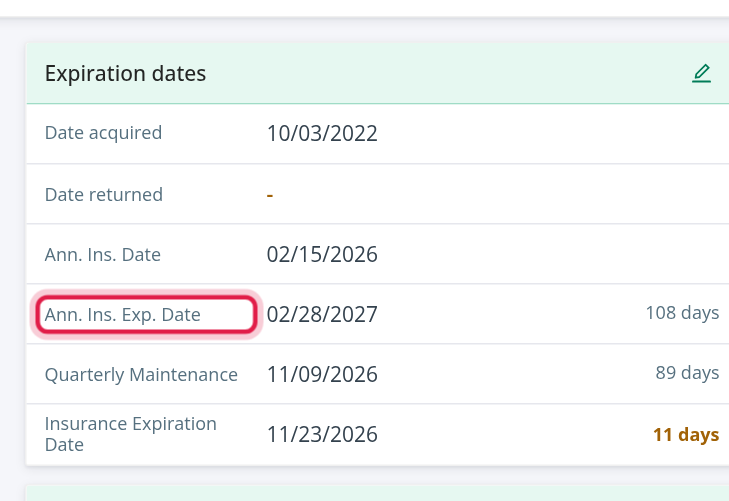
Date acquired, Date returned, Ann. Ins. Date, Ann. Ins. Exp. Date, Quarterly Maintenance and Insurance Expiration Date.
- Ann. Ins. Exp. Date cannot be typed. OpenRoad works it out when you save Ann. Ins. Date: the last day of the month, one year after it.
- Next to the annual inspection, insurance and quarterly maintenance dates, OpenRoad shows Expired, Today or the number of days left. It is bold in the warning colour at 30 days or fewer, and in the error colour when expired. The quarterly maintenance is due 3 months after the date entered.
- A dash in this card is shown in bold warning colour, to remind you that the date is missing.
Value and insurance
Current Value, and the calculated Monthly Insurance Cost and Total Insurance Cost. OpenRoad recalculates the two insurance costs when you change Current Value or Damage Waiver Cost.
Financial
Ownership Type (Financed, FMV Lease, Fully Own, Operating Lease, TRAC Lease, Trip Lease, Owner Operator Owned, Active-Leased or Terminated-Leased), Insurance Policy (Owner Operator Owned, Low Deductible OO Policy or Standard Company Low Deductible Policy), Lease? with Lease Start Date and Lease End Date (shown while Lease? is ticked), Date Acquired, Cost, Payment Start Date, Payment End Date, Monthly Payment, Interest, Lender and Contract Number.
Payoff
Payoff Principal, Payoff Interest, Payoff PPP, the calculated Payoff Total and Ownership Cost, and Payoff Requested Date, Payoff Expiration Date and Payoff Date.
Cost per period
Calculated, not editable: Ownership Cost Per Month, Ownership Cost Per Year, Maintenance Cost per month and Maintenance Cost per year.
Selling and Disposal
For a trailer you are selling: retirement, ready-for-sale, pending-sale, deposit and sale dates, prices, buyer details, selling notes, listing links (Truckpaper, Facebook, Craigslist, Pictures) and Total loss. A trailer with nothing filled in shows "Not for sale. Retirement, sale and buyer show here when set." and an Add button.
Notes
Type in the box Add a note and select Add note. Your notes can be edited and deleted (a deleted note asks "Delete this note?"). Notes written by others can be edited or deleted only if your role allows it. Load more shows older notes, and Show all opens them all in a side panel. The status and flag changes above are saved here too.
Annual inspection: expiry date, DOT warning flag and reminder emails
OpenRoad keeps track of when each trailer's annual inspection expires. It colours a warning flag as the date gets close, and it emails a reminder 30 days before, 10 days before, and on the day it expires.
How the expiry date is worked out
Enter the trailer's Ann. Ins. Date in the Expiration dates card. When you save it, OpenRoad sets Ann. Ins. Exp. Date to the last day of the month, one year later. You cannot type the expiry date yourself. For example, an inspection on March 12 expires on March 31 of the next year.
The DOT warning flag
With DOT warnings switched on, a trailer that has an annual inspection date shows a flag when the expiry is within 90 days:
- Red: 30 days or less, or already overdue.
- Orange: 31 to 60 days.
- Green: 61 to 90 days.
- No flag when more than 90 days are left.
Hover over the flag to read, for example, "Annual DOT inspection due 03/31/2027 (12 days left)" or "(3 days overdue)". On the trailer's profile the same information is the DOT due figure under the header. The flag also shows on the Planner and on the lists where you assign trailers.
The reminder emails
Every day, OpenRoad checks the Ann. Ins. Exp. Date of each trailer whose status is Active, in accounts that are active. It sends an email when the expiry date is:
- 30 days away: "Trailer# <number> Annual Inspection is expiring soon!"
- 10 days away: "URGENT: Trailer# <number> Annual Inspection is expiring in 10 Days!"
- today: "URGENT: Trailer# <number> Annual Inspection has expired!"
Each subject ends with " | <your company name>". The emails come from OpenRoadTMS and go to the email address of the trailer's company. They say:
- 30 days: "Your Annual Inspection for trailer #<number> will expire on <date>. Please send us the Annual Inspection as soon as possible."
- 10 days: the same, plus "This trailer will be placed out of service if your Annual Inspection will not be received before the expiration date!"
- Expired: "Your Annual Inspection for trailer #<number> has expired on <date>. This trailer is currently out of service! Please send us the Annual Inspection immediately."
The emails are signed with your company name.
The emails are a message only. They do not change the trailer's status or switch on OOS. To mark a trailer out of service, use the Maintenance tab: see Trailer profile: Files, Maintenance, Logs, GPS Logs, Accidents and Assignments tabs.
Switch the reminders on or off
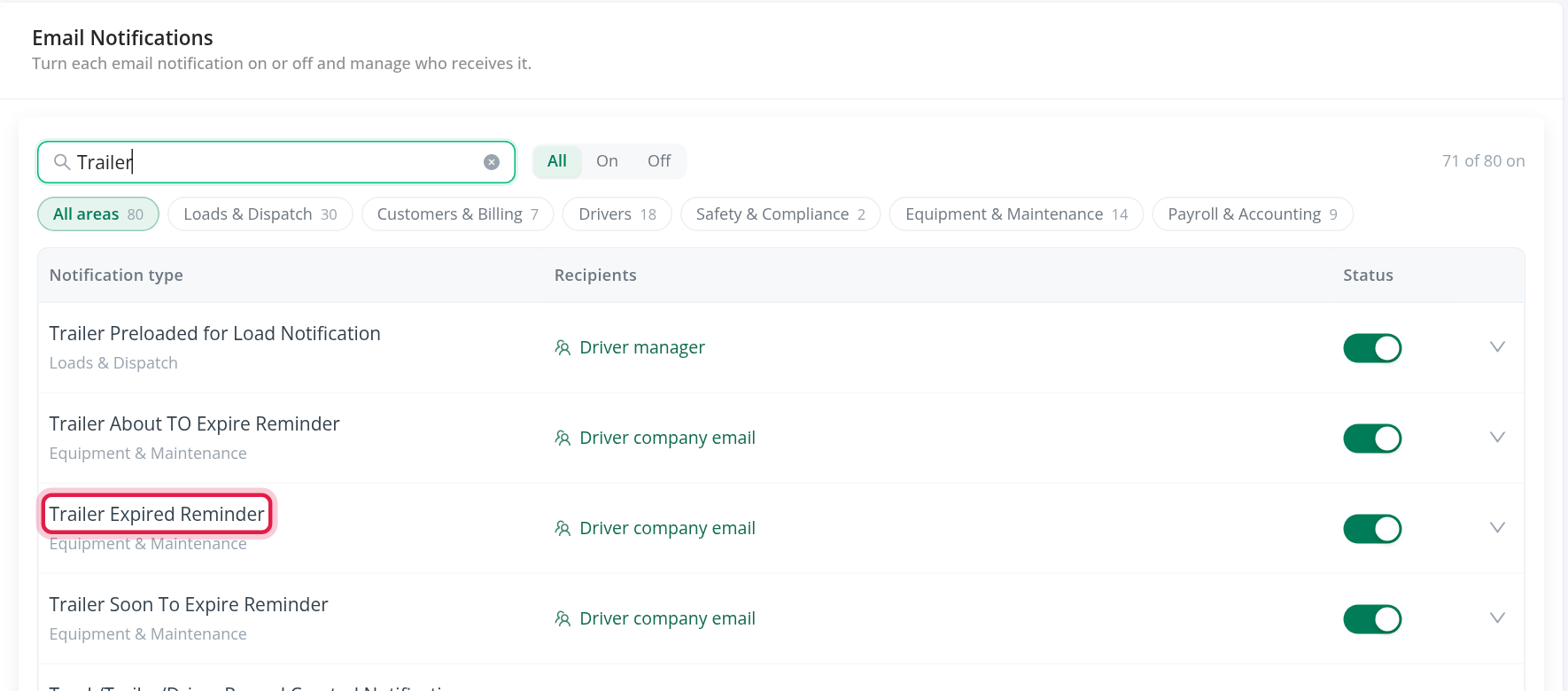
- Open Settings, then Preferences, then Email Notifications.
- Find the rows Trailer Soon To Expire Reminder, Trailer About TO Expire Reminder and Trailer Expired Reminder, under Equipment & Maintenance.
- Use the Status switch of each row.
The Safety dashboard lists active trailers whose annual inspection, insurance or quarterly maintenance date falls before the date you choose. See Safety: Dashboard.
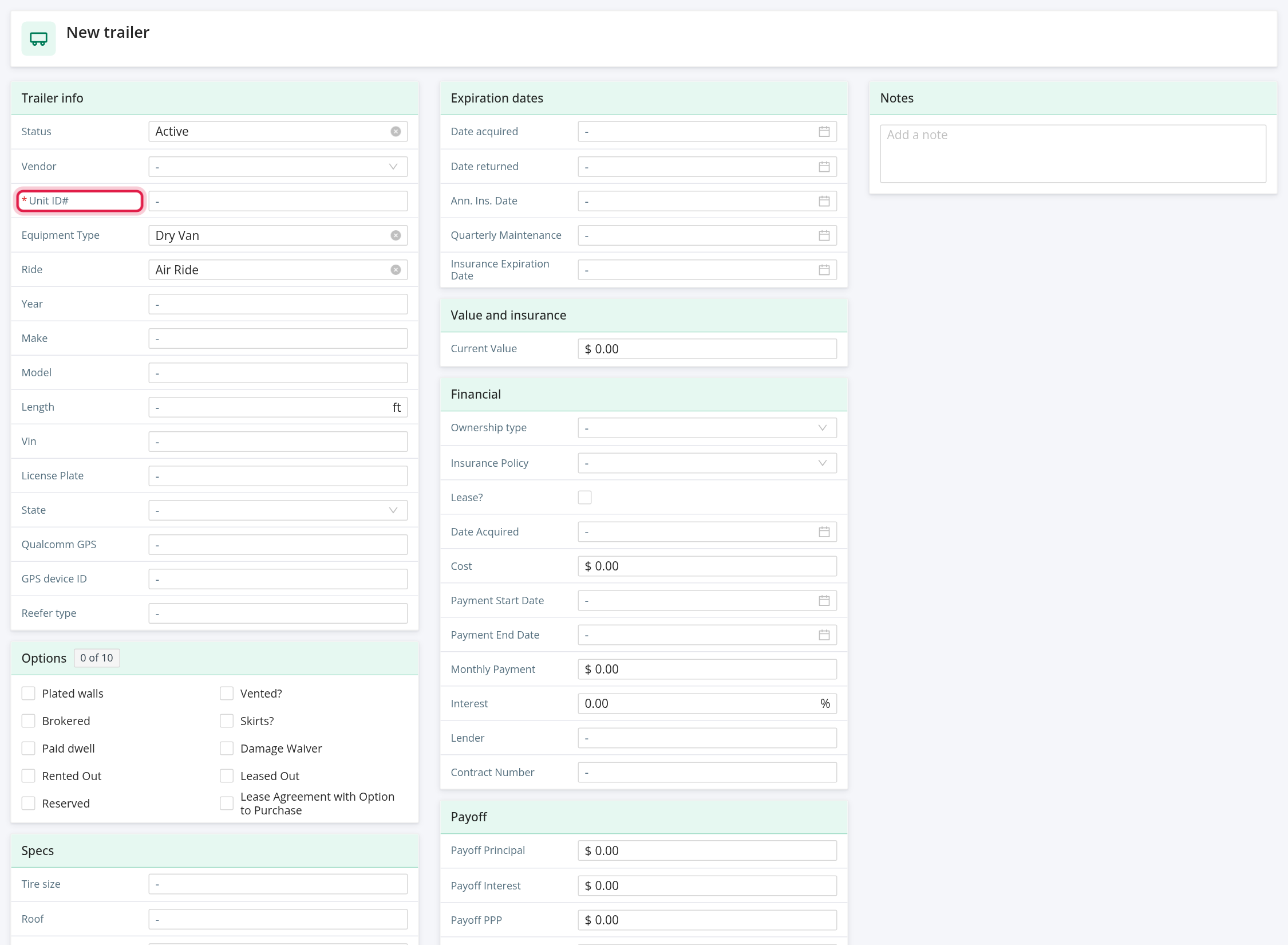
Add a new trailer
- On the Trailers page, select New trailer.
- Fill in the cards. The form has Trailer info, Options, Specs, Order section (only when Status is On Order), Expiration dates, Value and insurance, Financial, Payoff and Notes.
- Save.
On the new form, Status is in Trailer info. Equipment Type starts as a type named Van, or Dry Van, if your account has one. The flags (OOS, Needs Repair, Restricted Use), the calculated fields and the Selling and Disposal card are not on the form.
Frequently asked questions
Was this article helpful?
That’s Great!
Thank you for your feedback
Sorry! We couldn't be helpful
Thank you for your feedback
Feedback sent
We appreciate your effort and will try to fix the article