The settings that shape how trailers work in your account: whether the DOT inspection warning shows, which trailer types you can choose from, and how OpenRoad prefills a trailer's appointment time on a load.
Who can do this: Trailer Types can be changed by Superadmin users only. The other settings are available to users who have access to these Settings pages.
Open the settings
- Open Settings, then Preferences.
- Under Operations, select Trailers. The page says "DOT inspection warnings and the trailer types of the account."
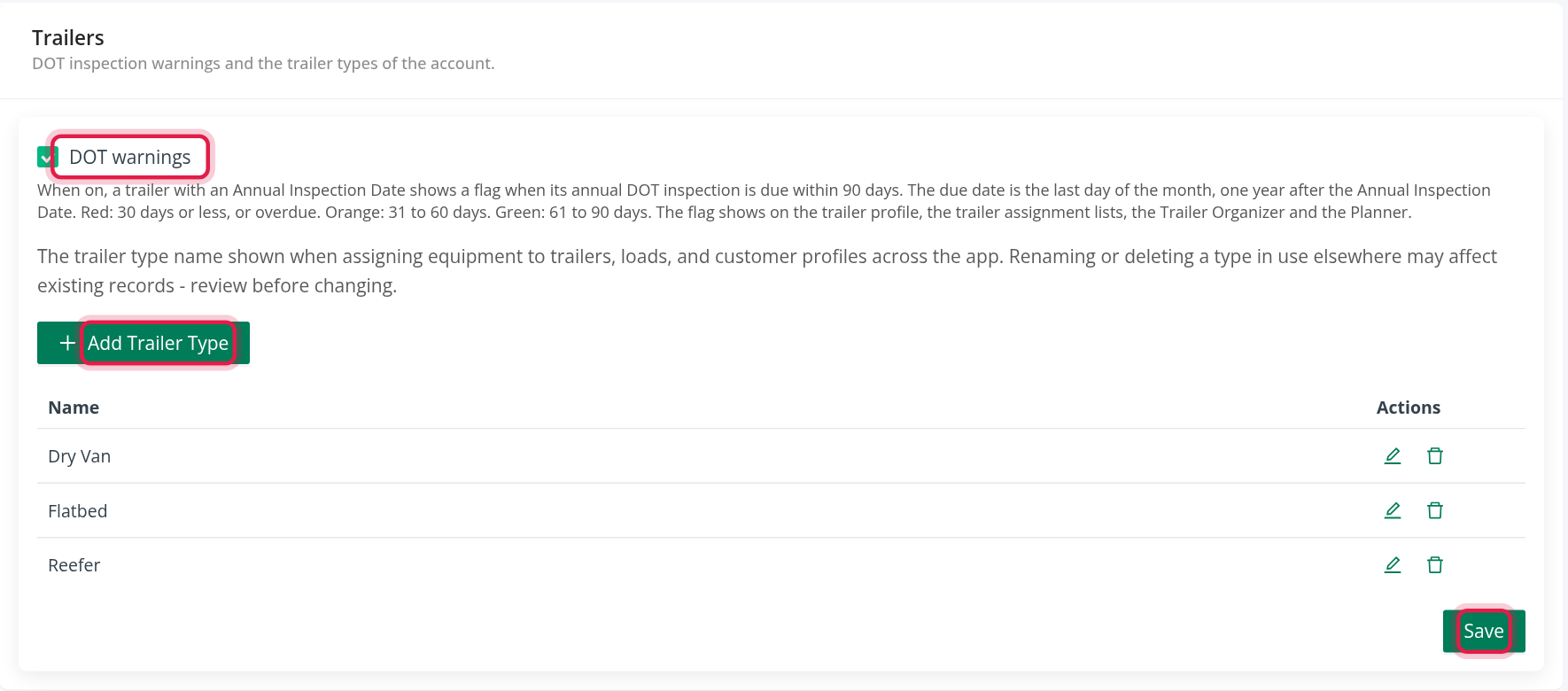
DOT warnings
Tick DOT warnings and select Save. When it is on, a trailer with an Ann. Ins. Date shows a flag when its annual DOT inspection is due within 90 days: red for 30 days or less (or overdue), orange for 31 to 60 days, green for 61 to 90 days. The flag shows on the trailer profile, the trailer assignment lists and the Planner. The due date is the last day of the month, one year after the Ann. Ins. Date. See Trailer profile: Overview tab and New trailer (header, status, cards, Notes and annual inspection).
Trailer Types
The trailer type is the name you pick as Equipment Type when you add a trailer, assign equipment, and set up loads and customers. The page warns: "Renaming or deleting a type in use elsewhere may affect existing records - review before changing."
The table has the columns Name and Actions.
Add a type
- Select Add Trailer Type.
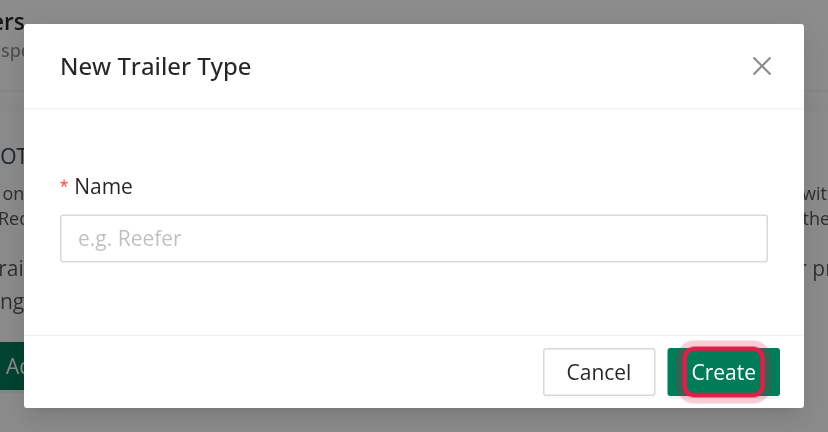
- In New Trailer Type, type the Name (for example "Reefer"). It is required ("Name is required").
- Select Create.
Rename a type: select the edit icon of the row, change the Name in Edit Trailer Type and select Update.
Delete a type: select the delete icon and confirm. Trailers that used the type are left with no equipment type, and loads and customers that used it are affected, so check before you delete.
OpenRoad records every change to the types in the audit log.
Trailer App times (Settings → Loads → General)
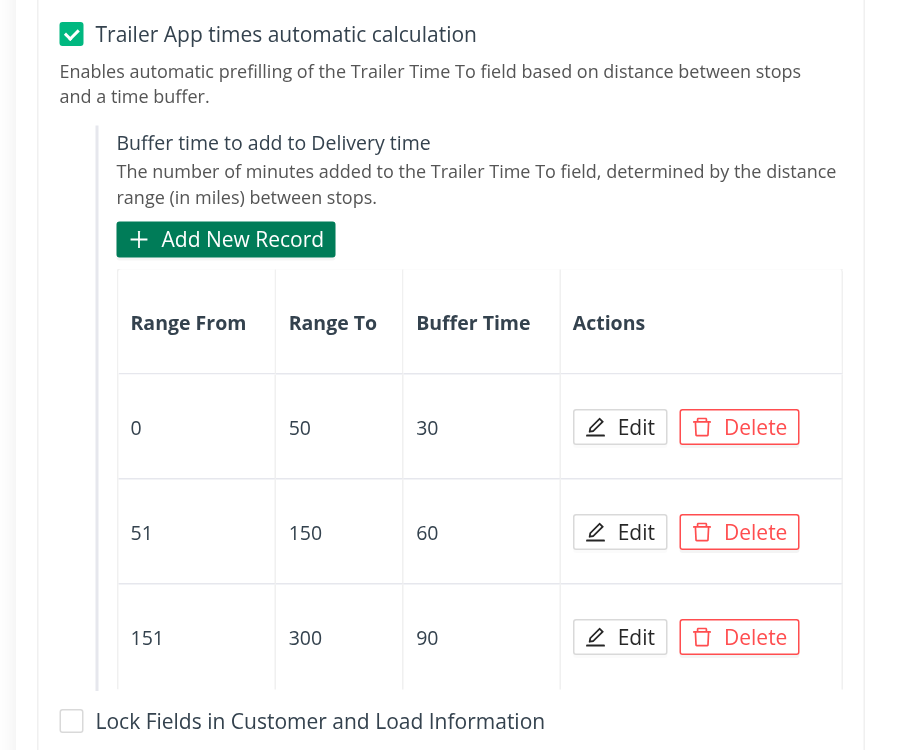
This setting is on a different page: open Settings, then Preferences, then Loads, then General. Tick Trailer App times automatic calculation to let OpenRoad prefill the Trailer Time To field on a load. The help text says: "Enables automatic prefilling of the Trailer Time To field based on distance between stops and a time buffer."
When a trailer is assigned for a load, OpenRoad works out the time the trailer must be at its pickup: the time the next delivery starts, minus the driving time between the two stops, minus a buffer. The driving time is the straight-line distance at 55 miles per hour, rounded up to whole minutes. The field is filled only when the pickup has no Time From, or when it is not later than the calculated time.
When the box is ticked, a table Buffer time to add to Delivery time appears. The help text says: "The number of minutes added to the Trailer Time To field, determined by the distance range (in miles) between stops."
- Select Add New Record.
- Fill in Range From and Range To (miles) and Buffer Time (minutes). All three must be 0 or more.
- Select Save. Edit, Delete and Cancel work on each row.
Rules for the ranges:
- The ranges cannot overlap: "There is already a record with overlapping range".
- There can be no gap between one range and the next: "Gap detected between <end> and <start>".
OpenRoad uses the buffer of the range that contains the distance (rounded up). If the distance is longer than every range, it uses the range with the highest Range To. If there are no ranges, or a stop has no coordinates, it uses a buffer of 90 minutes.
Frequently asked questions
Was this article helpful?
That’s Great!
Thank you for your feedback
Sorry! We couldn't be helpful
Thank you for your feedback
Feedback sent
We appreciate your effort and will try to fix the article