The tabs of a trailer's profile that show its repairs, its change history, where it has been, its accidents, and its locations and drivers. Use them to mark a trailer out of service, see what was done to it, trace its movements, and fix an assignment.
Who can do this: each tab is shown only to users who may see it, so you may see fewer tabs than this article lists. Changing things needs permission to edit trailers.
Before you begin
- Open a trailer first: in the left menu select Trailers, then the trailer's Unit ID#. See Trailer profile: Overview tab and New trailer (header, status, cards, Notes and annual inspection).
- The GPS Logs and the Last known location need a GPS provider connected: Samsara, Motive, SkyBitz or Geotab. See Samsara Integration: Setup and How It Works.
What the tabs have in common
- Files, Maintenance, Accidents and Assignments show a number on the tab. The number on Maintenance and Accidents is red when something is still open.
- Logs and GPS Logs have a search box. Maintenance and Accidents do not.
- You can show 10, 25, 50, 100, 250 or 500 rows per page.
- Select a row (not a link or button) to open a panel at the right that lists every column of that row. An empty value shows a dash, and an Open button appears when the row has a page of its own.
Files tab
The trailer's documents, sorted by type. The tab shows how many files the trailer has in total.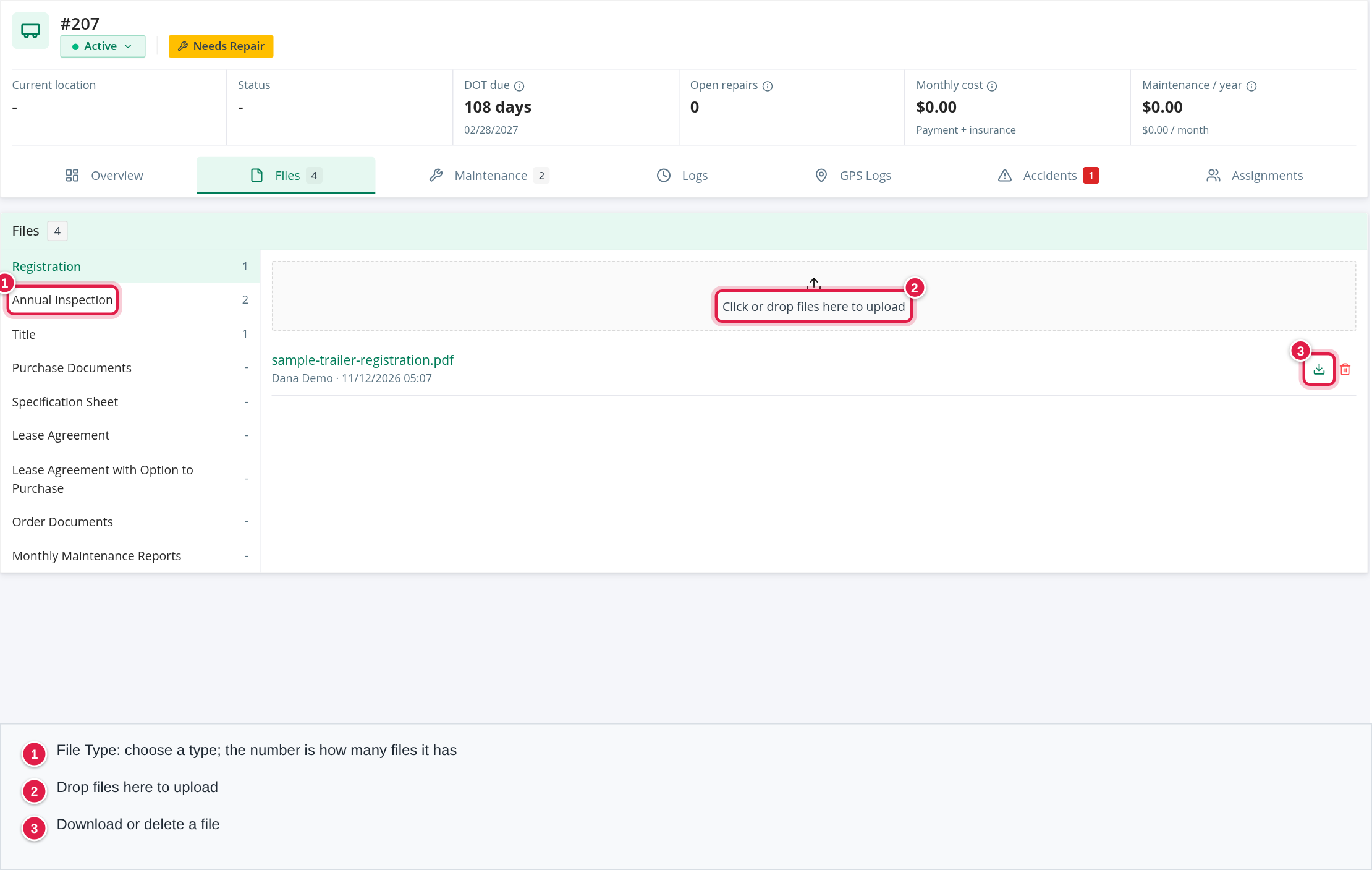
On the left, the File Type list shows each type with the number of files in it, or a dash when it has none: Registration, Annual Inspection, Title, Purchase Documents, Specification Sheet, Lease Agreement, Lease Agreement with Option to Purchase, Order Documents and Monthly Maintenance Reports. The tab opens on the first type that has files.
Select a type to see its files on the right:
- Each file shows its name (select it to open it in a new tab), who uploaded it and when.
- Download (the arrow icon) opens the file in a new tab.
- Delete (the trash icon) asks "Are you sure?" and removes the file ("File deleted.").
- With no files, the list says "No files".
To add files, drag them into Click or drop files here to upload, or select it and choose them. You can add several files at once, and they go into the type you have selected. OpenRoad says "File successfully uploaded." The upload box only shows when your role may edit the trailer and add files.
If your role may not see the files, the tab says "You do not have access to these files."
The Trailer Registration and Annual Inspection buttons in the Attachments column of the Trailers page open the trailer's files of those two types.
Maintenance tab
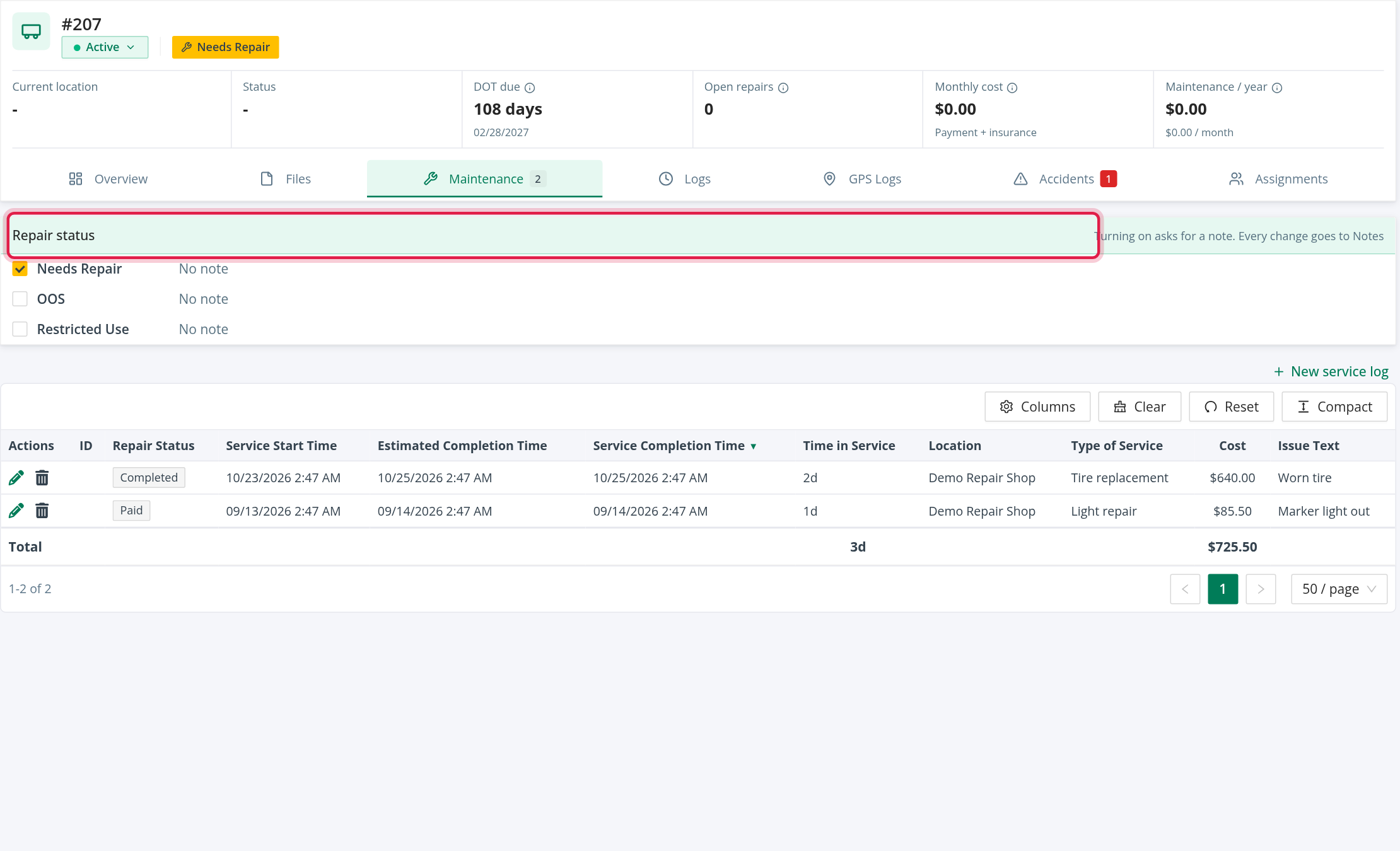
The tab opens with a Repair status card above the table, then the list of the trailer's service logs.
Repair status card
The card says "Turning on asks for a note. Every change goes to Notes". It has one row for each of Needs Repair, OOS and Restricted Use, each with a check box, the latest note ("No note" when there is none) and who wrote it and when. A flag that is off but was last switched off with a note shows "Off · <note>".
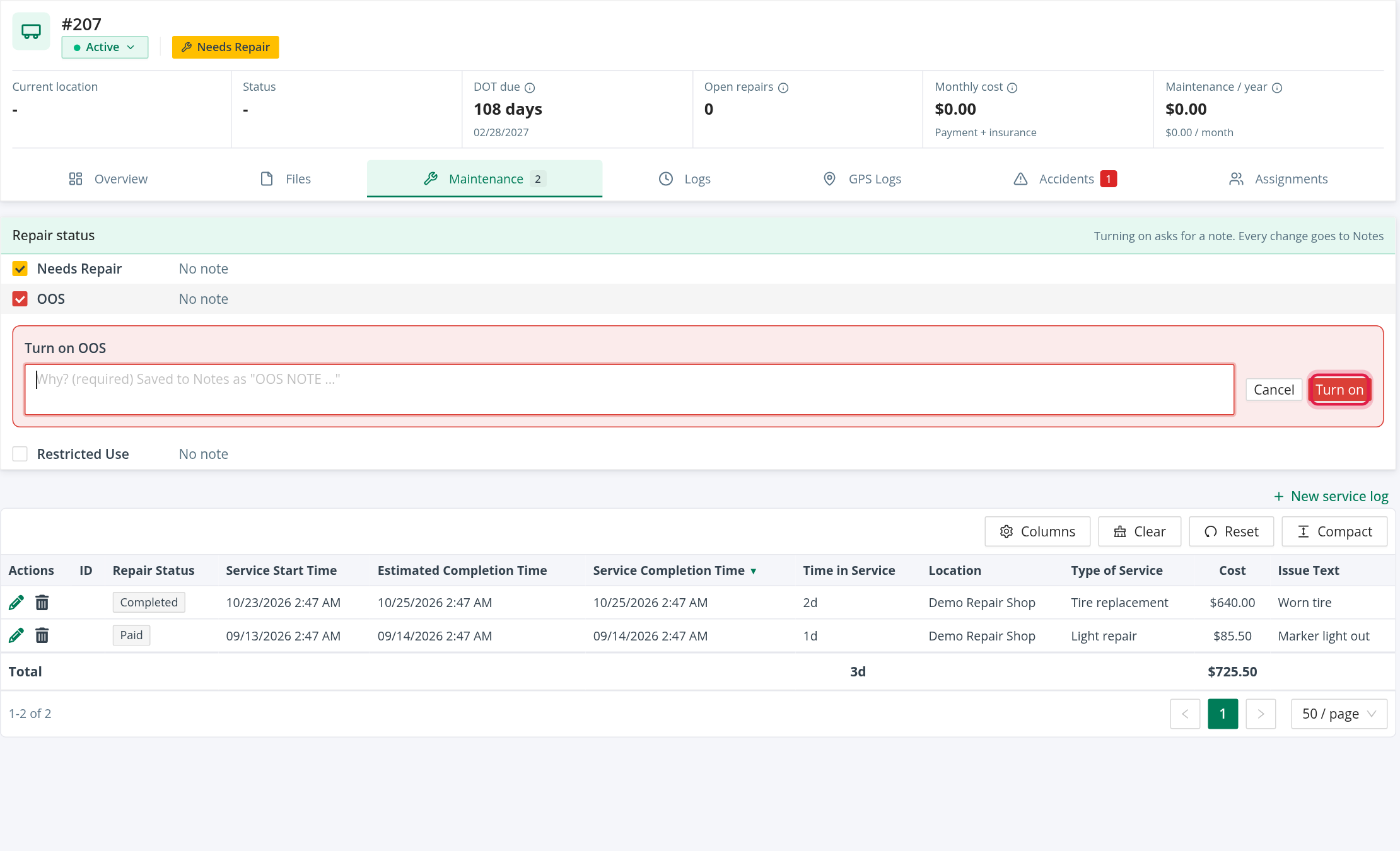
To switch a flag on or off:
- Select the row of the flag.
- In the panel Turn on <flag> (or Turn off <flag>), write the note. When you turn a flag on the note is required ("Why? (required)"). When you turn it off the note is optional.
- Select Turn on or Turn off.
OpenRoad saves the note in Notes on the Overview tab: "<FLAG> NOTE: <note>" when you turn it on, and "<FLAG>: Unchecked" with your note when you turn it off. The flag then shows as a tag in the trailer's header and in the Unit ID# column of the Trailers page.
If the trailer has a GPS device ID and your account uses Samsara, the card also shows a Samsara gateway row (No Samsara data available, or the gateway's health and "seen … ago"), the gateway Name, and its Last known location. The location is the trailer's last GPS address, with its coordinates when it has them, or else the trailer's current location.
Service logs table
Columns: Actions, ID, Repair Status, Service Start Time, Estimated Completion Time, Service Completion Time, Time in Service, Location, Type of Service, Cost and Issue Text.
- Repair Status values: Reported, Scheduled, Out of Service, Completed, Invoiced, Exported and Paid. Open logs (Reported, Scheduled, Out of Service) are shown in the warning colour.
- Time in Service is the time from the start to the completion (or to now while the log is open). The column is totalled.
- Cost is the sum of the log's line items, or the log's own cost when it has none. The column is totalled.
- The table is sorted by Service Completion Time, with logs that are not complete first. It shows 50 per page.
- Select the ID to open the service log.
New service log (top right) opens the form for a new service log with this trailer already chosen, in a new browser tab. In each row, Edit opens the service log for editing, and Delete asks "Delete this record?" and removes it. These buttons only show when you may edit the trailer.
Logs tab
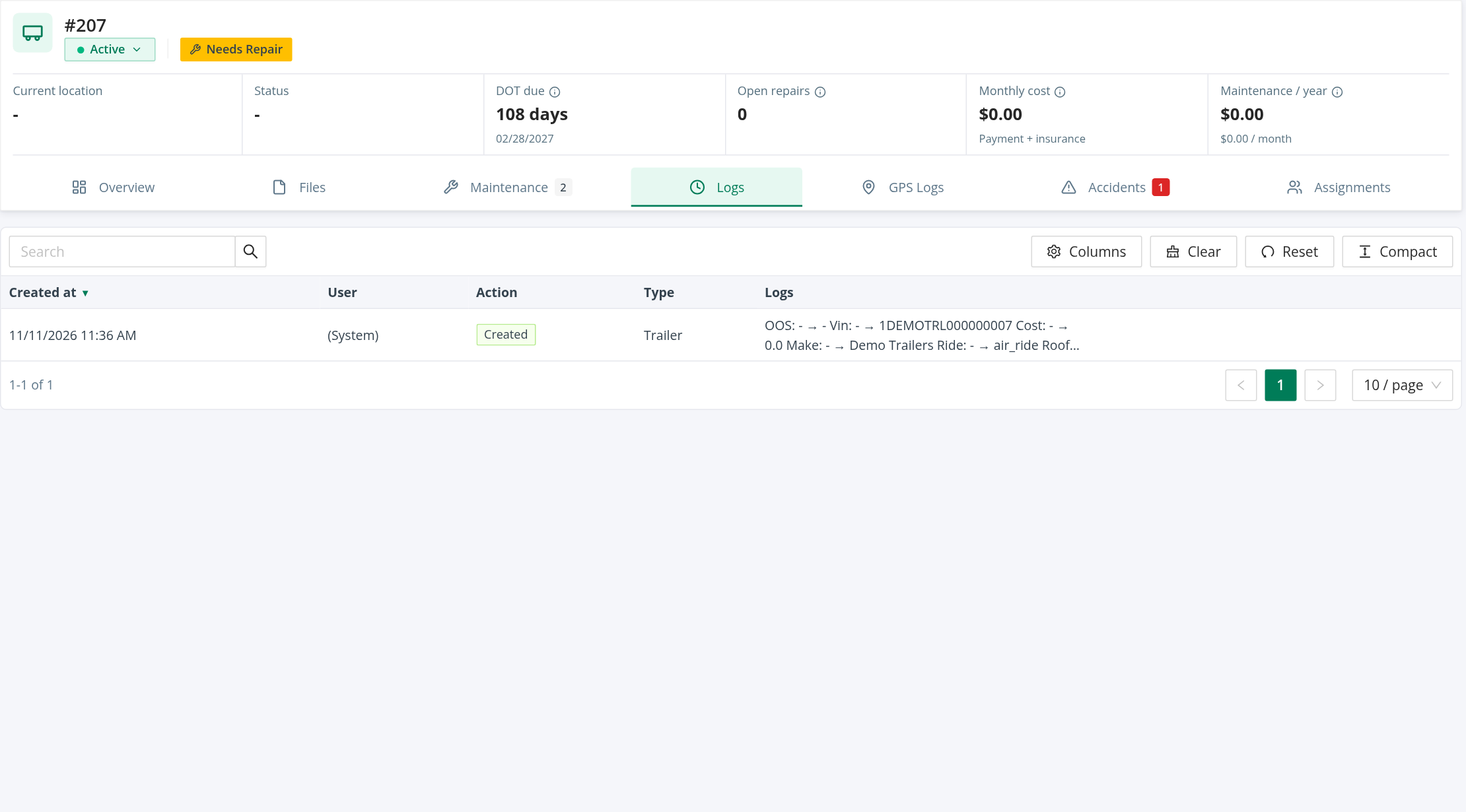
Every change made to the trailer's data, newest first. Columns: Created At, User, Action, Type and Logs.
- Action is Created, Updated or Deleted.
- User is the person who made the change, or (System) when OpenRoad did.
- Logs lists each changed field as "<Field>: <before> → <after>" with a dash for an empty value.
- The search box finds a user, a type or a changed value.
- It shows 10 rows per page, newest first.
Changes to the GPS fields (the last address, coordinates and time from the GPS device) are not recorded here.
GPS Logs tab
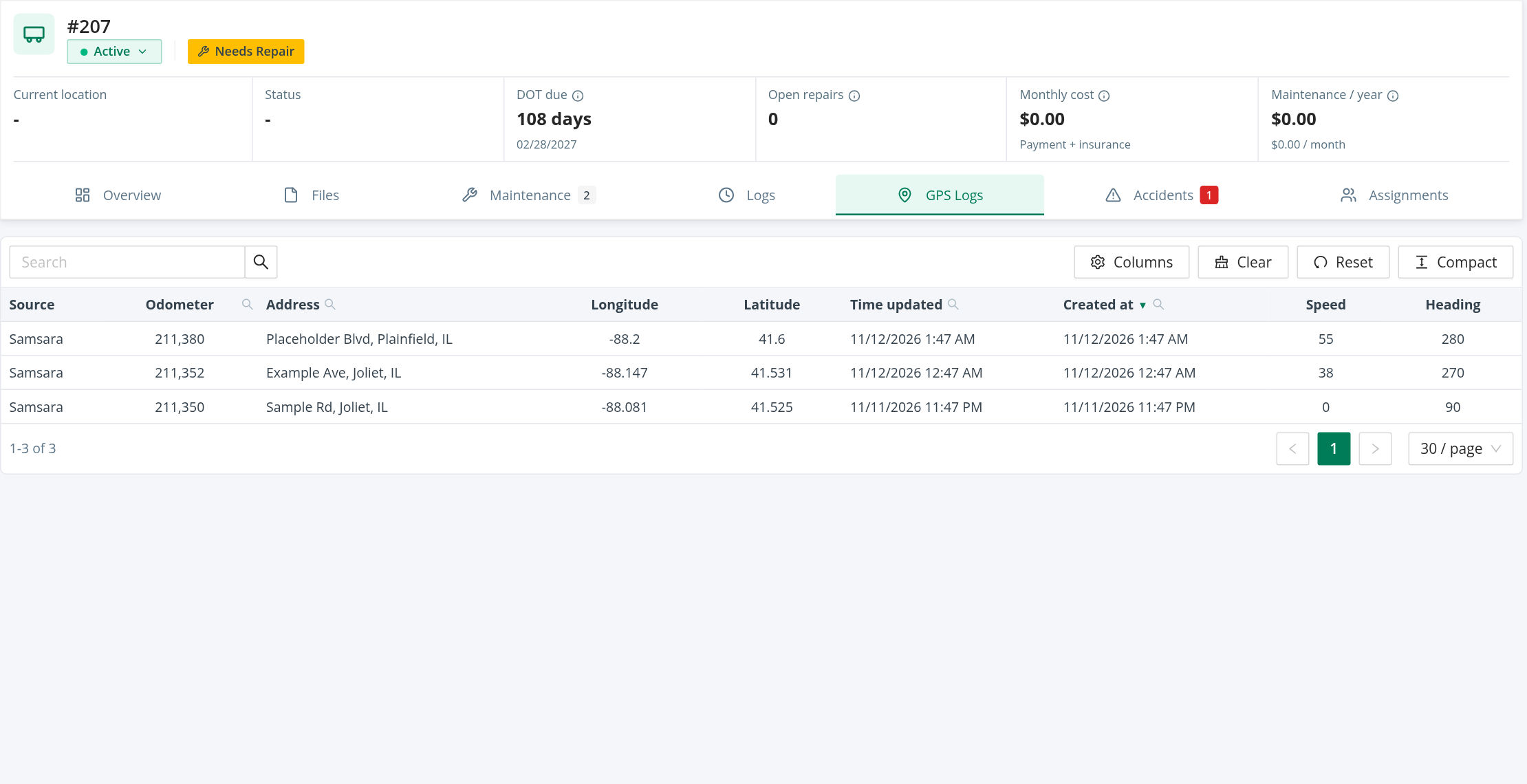
The positions reported for the trailer by your GPS provider. Only the last 2 months are available.
Columns: Source (Samsara, Motive, SkyBitz and so on), Odometer, Address, Longitude, Latitude, Time updated, Created at, Speed and Heading. The table is sorted by Created at, newest first, 30 rows per page. The search box finds an address. You can filter Odometer, Address, Time updated and Created at in the column headers.
Each position OpenRoad receives is saved here. The newest position also updates the trailer's last known address, coordinates and time, unless it is older than the last one OpenRoad already has.
Accidents tab
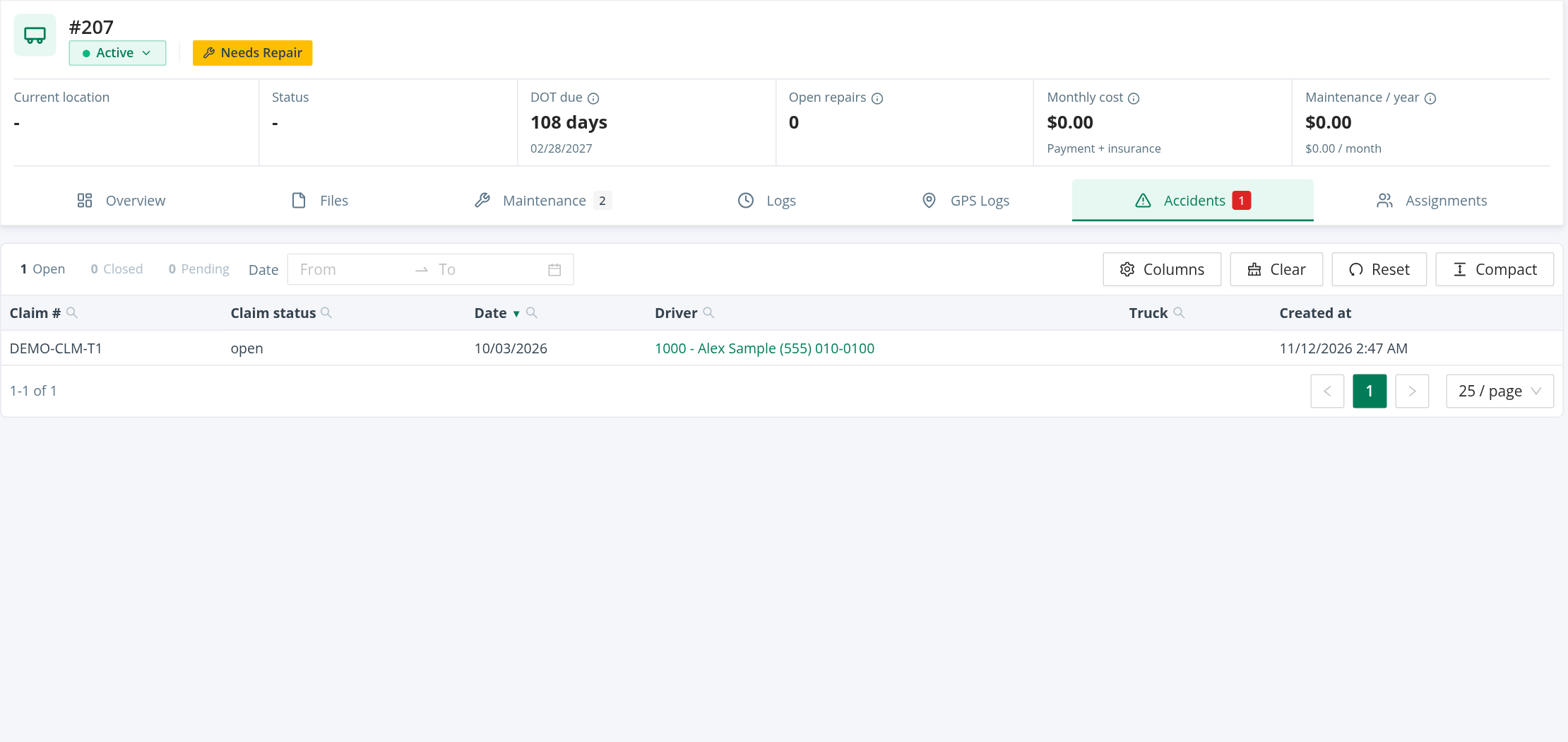
The accidents the trailer was involved in. Columns: Claim #, Claim status (Open, Closed or Pending), Date, Driver, Truck and Created at. Other columns, such as Trailer, the damage, injury and cost columns, can be added from the column picker.
All of the trailer's accidents are shown (the filters of the main Accidents page are not applied). In each row, Show opens the accident, Edit edits it, and Delete asks "Delete claim <claim>?" and removes it from the Accidents list, when your role allows it.
Assignments tab
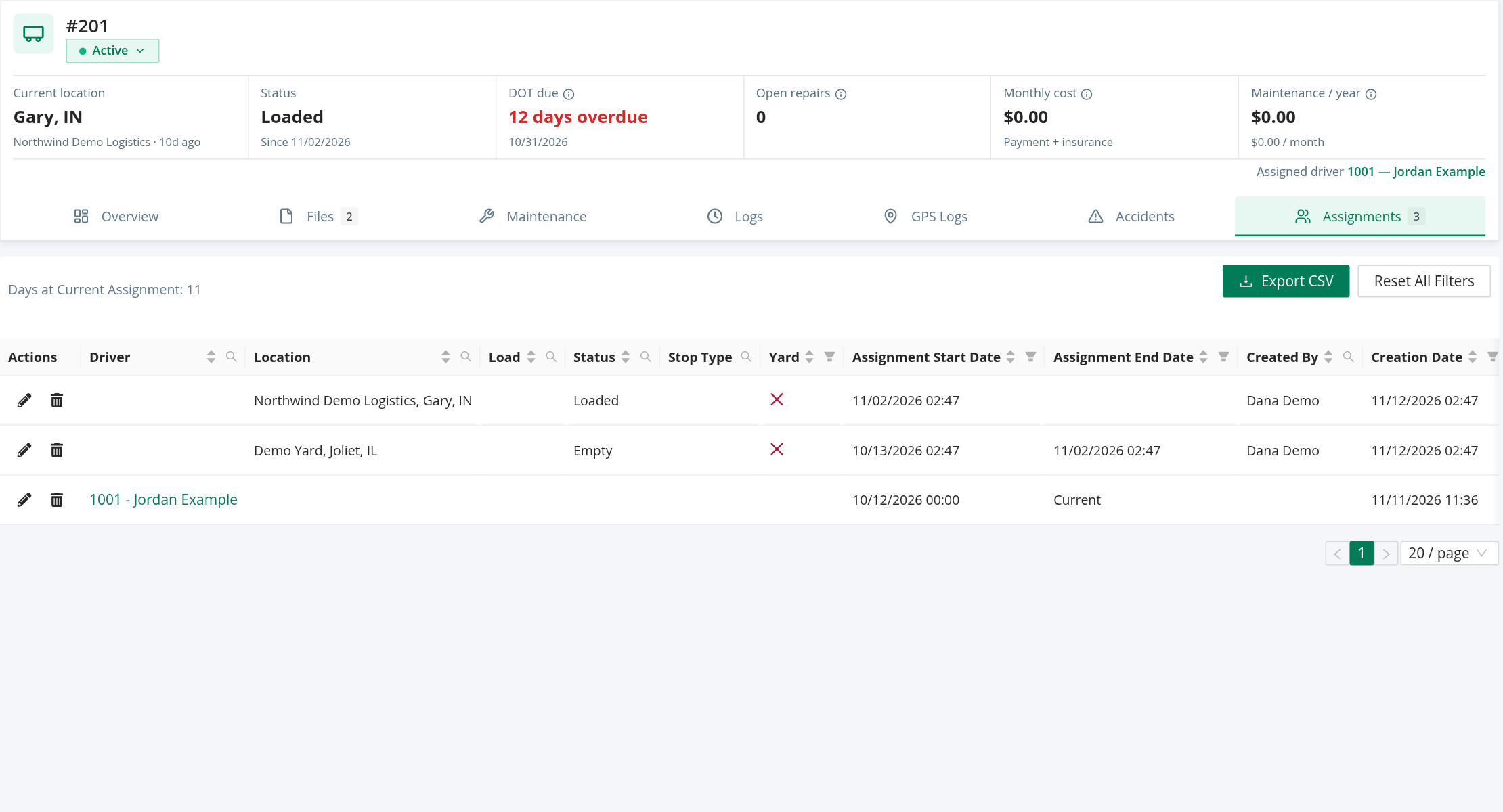
The trailer's history of locations and drivers, newest first. Above the table, Days at Current Assignment shows how long the current one has lasted, and Reset All Filters clears the column filters. Export CSV saves the table to a file. The table shows 20 rows per page.
Columns: Actions, Driver, Location, Load, Status, Stop Type, Yard, Assignment Start Date, Assignment End Date, Created By, Creation Date, Updated By and Update Date. A row for a driver shows the driver (as a link) and no location. An assignment that has not ended shows Current as its Assignment End Date. A row for a location shows "<name>, <city, state>", with a link to the place when it has one, and its Status: Empty or Loaded.
Change a location's dates
- In a location row, select the pencil.
- Change Start of empty date and End of empty date. The end date must be later than the start date ("Must be later than start date").
- Select Submit.
OpenRoad answers "Record saved successfully." The trash icon deletes a location after "Are you sure to delete this trailer location?", for users with permission to delete assignments.
Assign a trailer to a driver
Trailer and driver assignments are made on the Driver Assignments page with Assign Trailer. Fill in Driver, Trailer and Start date (required) and, if you know it, End date. OpenRoad stops an overlapping assignment and tells you: "Trailer has active assignment already", "Trailer is already assigned to driver: #<number>" or "Trailer is already assigned to location: #<location>". See Driver Assignments.
Frequently asked questions
Was this article helpful?
That’s Great!
Thank you for your feedback
Sorry! We couldn't be helpful
Thank you for your feedback
Feedback sent
We appreciate your effort and will try to fix the article