The Samsara integration connects your Samsara account to OpenRoad TMS. Once it is connected, OpenRoad shows where your trucks and trailers are, keeps your drivers’ Hours of Service (HOS) up to date, and uses the truck positions to follow your loads. This article explains what you need from Samsara, how to set up your trucks, trailers and drivers so they match, and how to check that everything is working.
The Integration at a Glance
What OpenRoad gets from Samsara | How often | Where you see it in OpenRoad |
Truck GPS location | About every 10 minutes | Loads tracking (status, Time In / Time Out, ETA), Planner |
Trailer GPS location | Every 10 to 30 minutes | Trailer Organizer, trailer profile |
Driver Hours of Service (duty status, clocks and violations) | About every 3 minutes | Driver HOS information |
Driver link (Samsara driver ID) | Once every night | Connects each OpenRoad driver to their Samsara driver record |
What you provide and what we do You: create an API token in Samsara, send it to us together with your Group ID, and keep truck, trailer and driver names matching in both systems. Our team: connects the token to your OpenRoad account and confirms when your fleet starts syncing. |
Before You Begin
- You need a Samsara user with administrator access, so you can create an API token.
- Your trucks, trailers and drivers should already exist in OpenRoad.
- Each truck in Samsara needs its Samsara device (gateway) installed. Samsara creates the vehicle automatically when the gateway is installed.
Part 1: Create an API Token in Samsara
- Log in to your Samsara dashboard and click the Settings gear icon at the bottom left.
- Scroll down the Settings menu to the Developer section and click API Tokens.
- Click + Add an API Token at the top right of the page.
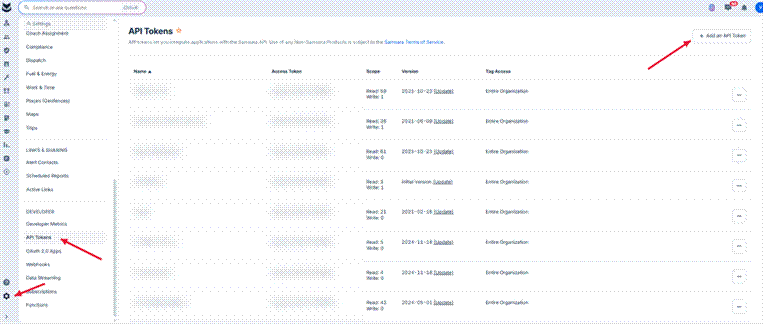
Samsara > Settings > Developer > API Tokens, and the Add an API Token button.
- In Name, enter a clear name, for example OpenRoad TMS. Samsara recommends one token per integration, so create a new token just for OpenRoad.
- Leave Tag Access as Entire Organization, so OpenRoad can see all of your trucks, trailers and drivers.
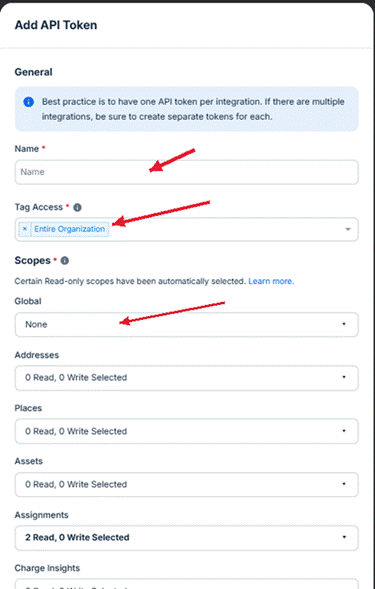
Add API Token: Name, Tag Access and Global scope.
- In Scopes, open Global and give the token full Read and Write access (Global Write). This gives OpenRoad all the access the integration needs.
- Scroll to the bottom and click Save, then copy the token. You will send it to us in Part 2.
- Find your Samsara Group ID and copy it as well. If you cannot find it, mention it in your support ticket and our team will help you locate it.
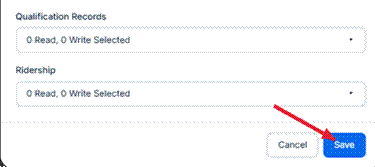
Click Save at the bottom of the Add API Token window.
Keep your token safe An API token works like a password to your Samsara data. Send it to us only through your support ticket, and do not share it in group emails or chats. |
Part 2: Send the Token and Group ID to Us
- Reply to your support ticket, or open a new one in the Help Portal, with your API token and your Group ID.
- If your OpenRoad account runs more than one company, and each company has its own Samsara account, send one token and Group ID for each company and tell us which company each one belongs to.
- Our team connects the token to your account and lets you know when your fleet starts syncing.
Part 3: Make Sure Names Match
OpenRoad finds each truck, trailer and driver in Samsara by its name or number. If a name is different in the two systems, that record will not sync.
Trucks
The vehicle Name in Samsara must be exactly the same as the truck’s Unit ID# in OpenRoad.
Use only the number. The Trucks list in OpenRoad shows a "#" in front of each unit (for example #232004), but the "#" is not part of the Unit ID#.

OpenRoad > Trucks > truck profile: the Unit ID# field.
To change a vehicle’s name in Samsara, open the vehicle, click the ⋯ button next to its name and edit the Name field.
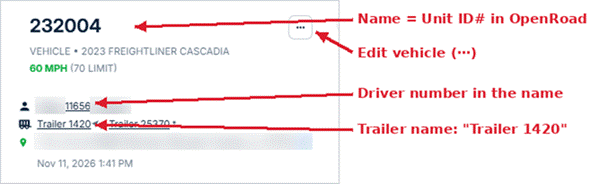
Samsara vehicle page: the vehicle name matches the Unit ID#, the driver name includes the driver number, and trailers are named "Trailer [number]".
Trailers
Name the trailer in Samsara as Trailer 123 or trailer 123, where 123 is exactly the trailer number in OpenRoad.
Drivers
OpenRoad links each driver once every night. It first looks for the OpenRoad driver number in the driver’s Samsara name. If there is no number, it uses the driver’s first and last name, but only when no other driver in that Samsara account has the same name.
Use one of these name formats in Samsara:
- 1234 John Smith
- 1234 - John Smith
- John 1234 Smith
- John Smith (works only when the name is unique in your Samsara account)
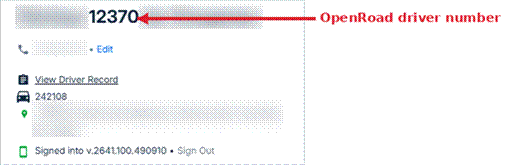
Samsara driver page: the OpenRoad driver number is part of the driver name.
The driver number must include at least one digit (for example 0D01 or D001).
Tip If a driver is not linking, add the OpenRoad driver number to the driver’s name in Samsara. The driver will be linked after the next nightly sync. |
Exact match Names and numbers must match exactly in both systems: same spelling, same upper and lower case, no extra spaces and no symbols such as "#". |
Part 4: Check That It Is Working
- About 10 minutes after we connect your token, open Loads tracking and check that your trucks show a current location.
- Open a driver who is on duty and check that the HOS information is updating.
- The day after the connection, check that drivers whose names match are linked to Samsara.
If a truck, trailer or driver is not syncing, check the name first (Part 3), then see Troubleshooting below.
Troubleshooting
A truck shows no location
- Check that the vehicle Name in Samsara matches the truck’s Unit ID# in OpenRoad exactly.
- Check in Samsara that the truck has a working Samsara device (gateway).
A driver’s HOS is not showing
- Check that the driver’s first and last name are the same in Samsara and OpenRoad, with no extra spaces or symbols such as "#".
- Check that the driver number in Samsara matches OpenRoad. Changes take effect after the next nightly sync.
- If the driver still does not sync after that, contact Samsara support so they can check the driver’s record on their side.
A driver’s HOS logs look frozen
If a driver is active and on duty but the HOS logs in OpenRoad do not change, there may be a duplicate driver in Samsara: two drivers with the same OpenRoad driver number but different names. To fix it:
- In Samsara, go to Settings > Drivers.
- Open the list of deactivated drivers and search for the OpenRoad driver number.
- Reactivate the duplicate driver.
- Edit the duplicate driver’s name and remove the number. For example, change 1234 John Johnson to John Johnson.
- Save, then deactivate the duplicate driver again.
Frequently Asked Questions
Q: Who creates the API token?
A: A user with administrator access in your Samsara account. We cannot create it for you.
Q: Do you need my Samsara password?
A: No. We only need the API token and your Group ID.
Q: How long until I see my trucks in OpenRoad?
A: Truck locations usually appear within about 10 minutes after we connect your token. Drivers are linked after the next nightly sync.
Q: Can I connect more than one Samsara account?
A: Yes. If your account runs more than one company, each company can connect its own Samsara account. Send us one token and Group ID per company.
Q: I renamed a truck in Samsara and it stopped updating. Why?
A: OpenRoad matches trucks by name. Make sure the new Samsara name matches the truck’s Unit ID# in OpenRoad.
Q: A driver is not linking to Samsara. What should I do?
A: Add the OpenRoad driver number to the driver’s name in Samsara, for example "1234 John Smith". The driver will be linked after the next nightly sync.
If you have any questions, please contact our support team through the Help Portal.
Was this article helpful?
That’s Great!
Thank you for your feedback
Sorry! We couldn't be helpful
Thank you for your feedback
Feedback sent
We appreciate your effort and will try to fix the article