Automatic Detentions watches the time a truck spends at a pick-up or delivery stop. When the truck stays longer than the free waiting time, OpenRoad starts a detention, emails the people you choose before, at the start and at the end of it, and keeps a record on the load. It saves your team from tracking the clock by hand.
Automatic Detentions is an extra feature. It is switched on per account and its settings page is for Superadmin users. If you do not see Automatic Detentions under Settings → Preferences → Loads, contact help@openroadtms.com to have it enabled. Extra charges may apply.
Who can do this: only a Superadmin sees the Automatic Detentions settings. Changing a customer's detention emails needs permission to update notification subscriptions, and the customer must be in edit mode.
Before you begin
- Your account needs a GPS telematics integration. The page says: "Samsara Fleet Telematics integration is required for automatic detention functionality to work." Arrival and departure are taken from the truck's tracking, or from the Time In and Time Out a person enters on the stop. See Samsara Integration: Setup and How It Works.
- A stop is tracked only when it is a pick-up or a delivery, it has a time zone, and it has an appointment time. By default only a set appointment (the same time in both appointment fields) is tracked. A stop with a time window is tracked only when the window is no longer than the Excluded stop tolerance setting (0 by default, so by default only set appointments are tracked).
- The stop must have a driver, or no email is sent.
How a detention works
- Arrival. The truck arrives (from tracking, or from Time In typed on the load). OpenRoad creates the detention for that stop.
- Reference time. For a set appointment, the clock runs from the appointment time, even if the truck arrived early. For a time window, it runs from the later of the truck's arrival and the start of the window.
- Upcoming. The detention becomes Upcoming a set number of minutes before it starts. By default that is 30 minutes before the start, which is 90 minutes after the reference time.
- Started. The detention starts after the Detention start delay. By default that is 120 minutes after the reference time.
- Ended. The detention ends when the truck leaves. Its total time is counted from the start of the detention to the departure.
Other rules:
- Late trucks. A truck that arrives after the appointment (plus the Tolerance duration setting) is not tracked: OpenRoad cancels the detention and writes "Automatically stopping detention process because truck arrived late" in the load's log.
- Leaving early. If the truck leaves before the detention has started, no detention happens. If it comes back, OpenRoad starts again from the new arrival.
- Times typed by hand. If a person enters Time In or Time Out on the stop, OpenRoad still moves the detention along, using the times typed. It then sends no Upcoming or Started email when the arrival was typed, and no Detention completed or Detention information email when the departure was typed.
- Drop trailers. With Enable Drop/Preloaded Trailer Exclusion on, no emails are sent for a stop marked as a drop and hook.
- TONU. No emails are sent for a load that is, or was, TONU.
Open the settings
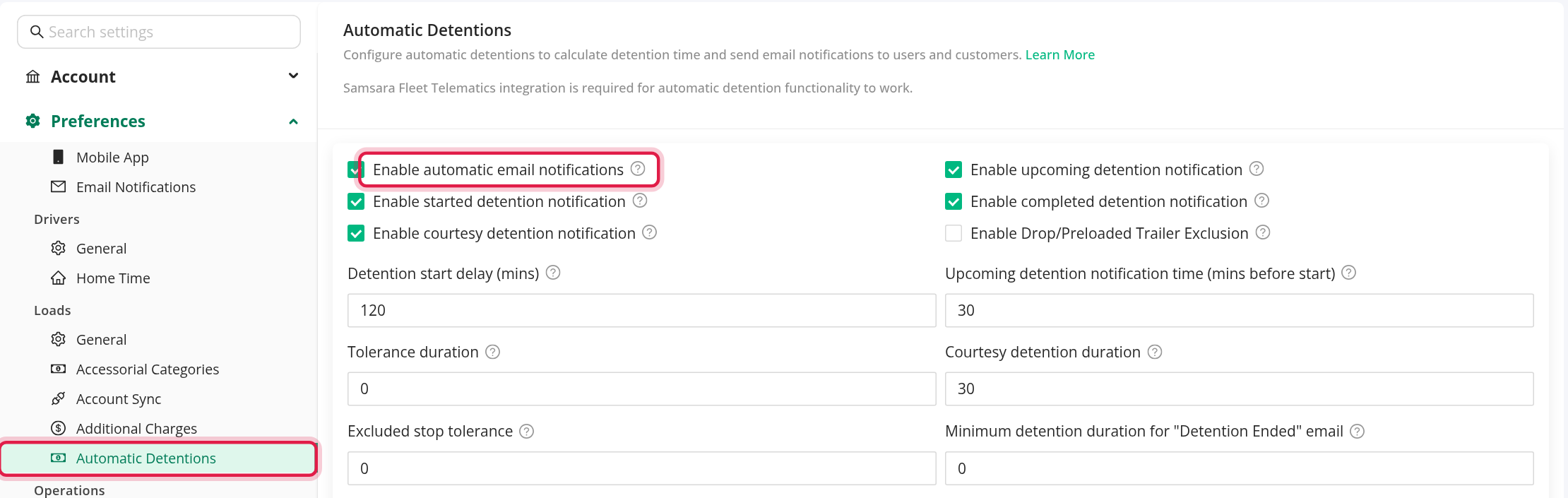
- Open Settings, then Preferences. Under Loads, select Automatic Detentions.
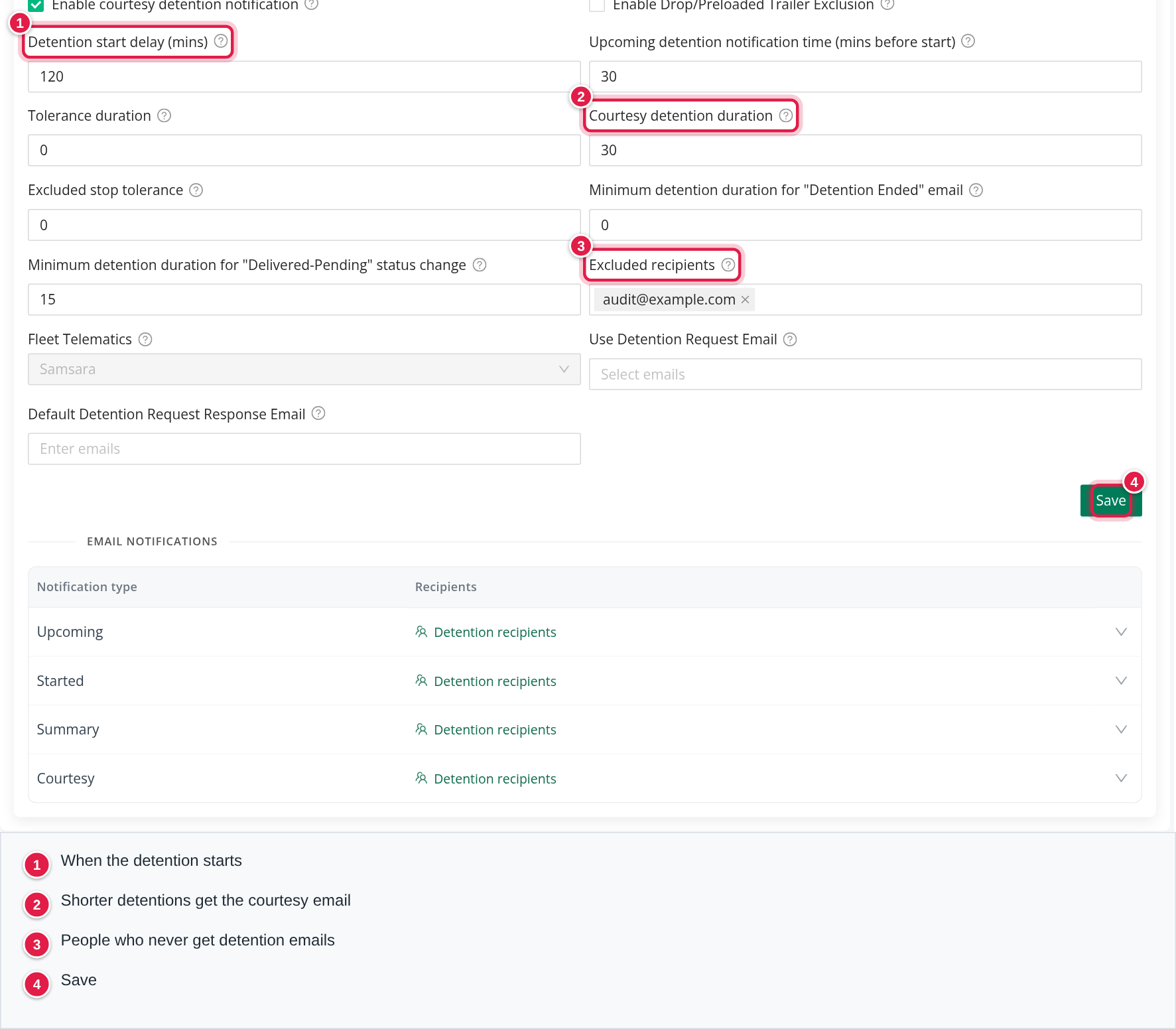
- Change the settings and select Save.
The settings are for the whole account.
Checkboxes
All of them are switched off at first, and all except the first are greyed out until the first one is ticked.
- Enable automatic email notifications: the master switch. It also switches the whole detention tracking on or off, not only the emails.
- Enable upcoming detention notification: the email sent before the detention starts.
- Enable started detention notification: the email sent when the detention starts.
- Enable completed detention notification: the summary email sent when a detention ends.
- Enable courtesy detention notification: the email sent when a detention ends and was shorter than the Courtesy detention duration.
- Enable Drop/Preloaded Trailer Exclusion: no emails for drop-and-hook stops.
Numbers
- Detention start delay (mins): how long after the reference time the detention starts. The default is 120. This box only shows while Enable upcoming detention notification is ticked, although it also decides when the detention starts.
- Upcoming detention notification time (mins before start): how long before the start the Upcoming email goes. The default is 30.
- Tolerance duration: how late a truck can arrive and still be tracked. The default is 0.
- Courtesy detention duration: a detention shorter than this is reported with the courtesy email instead of the completed one. The default is 0, so no courtesy email is sent until you set a value.
- Excluded stop tolerance: the longest appointment window that is still tracked. The default is 0, which tracks only set appointments.
- Minimum detention duration for "Detention Ended" email: a detention shorter than this sends no ending email at all. The default is 0.
- Minimum detention duration for "Delivered-Pending" status change: see "Load status" below. The default is 15.
People
- Excluded recipients: email addresses that never receive detention emails (to or cc).
- Fleet Telematics: shown for information. It always says Samsara.
- Use Detention Request Email: choose which emails (Upcoming, Started, Courtesy, Completed (Detention Ended) / Summary) go to the customer's Detention Request Email instead of the customer's notification recipients. Their reply-to is the Default Detention Request Response Email. A customer with no Detention Request Email keeps its normal recipients.
- Default Detention Request Response Email: the reply-to address for those emails. Leave it empty to send them without a reply-to. Each address must be valid.
Under the form, the Email notifications panel lists Upcoming, Started, Summary and Courtesy so you can add account-level recipients for each email.
The emails
Every email comes from "OpenRoadTMS", has your company name at the end of the subject (" | <company>"), and starts "Dear <customer name>,". Each one says: "We would like to inform you that our driver #<driver number> (<driver name>) with Truck #<unit> <phrase> on your shipment #<customer load number>".
| Subject | Sent when | The phrase | |
|---|---|---|---|
| Upcoming | Upcoming detention start: Load #<customer load number> | the detention is about to start | is approaching detention time |
| Started | Detention started: Load #<customer load number> | the detention starts | has currently entered into detention time |
| Completed | Detention completed: Load #<customer load number> | the truck leaves a detention that lasted at least the Courtesy detention duration | completed detention time |
| Courtesy | Detention information: Load #<customer load number> | the truck leaves a detention shorter than the Courtesy detention duration | completed detention time |
The emails then show:
- Type of stop-off (Pick up or Delivery), with the company and place.
- Appointment Time, or Appointment Time From and Appointment Time To for a window.
- Driver Arrival Time, and Detention start time.
- Upcoming adds "Time remaining until start of a detention: N minutes." (N is the upcoming notification time).
- Completed and Courtesy add "Total time of the detention: …" in days, hours and minutes.
- Your shipment details: the shipment number, a link to the load, and each stop.
- A closing line with the driver manager's name and the account's phone number.
For loads of type Contract, OpenRoad also sends the Upcoming and Started emails in an internal form, whose subject names the customer, its tier, the stop, the load number and the people in charge. It goes only to the recipients you set under Email notifications for those two (Automatic Detention Notification (upcoming) (RC) and (started) (RC)).
Who receives the emails
For each customer, the recipients depend on the customer's own detention notification settings (next section). The note on the load, Notification E-mail, is copied (cc), except for people already in the list or excluded. Anyone in Excluded recipients is removed.
Set a customer's detention emails
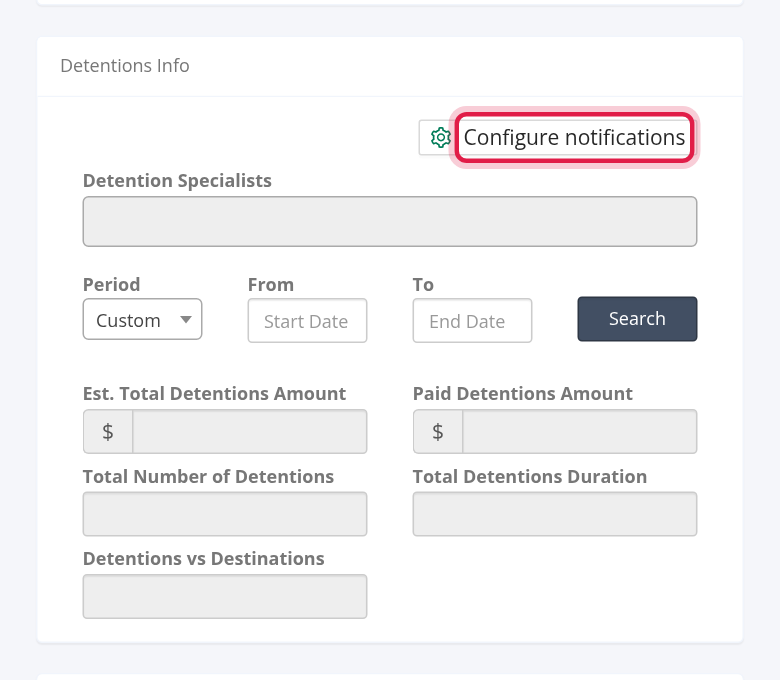
- Open the customer and find the Detentions Info panel.
- Select Configure notifications (the customer must be saved, and you must be editing it).
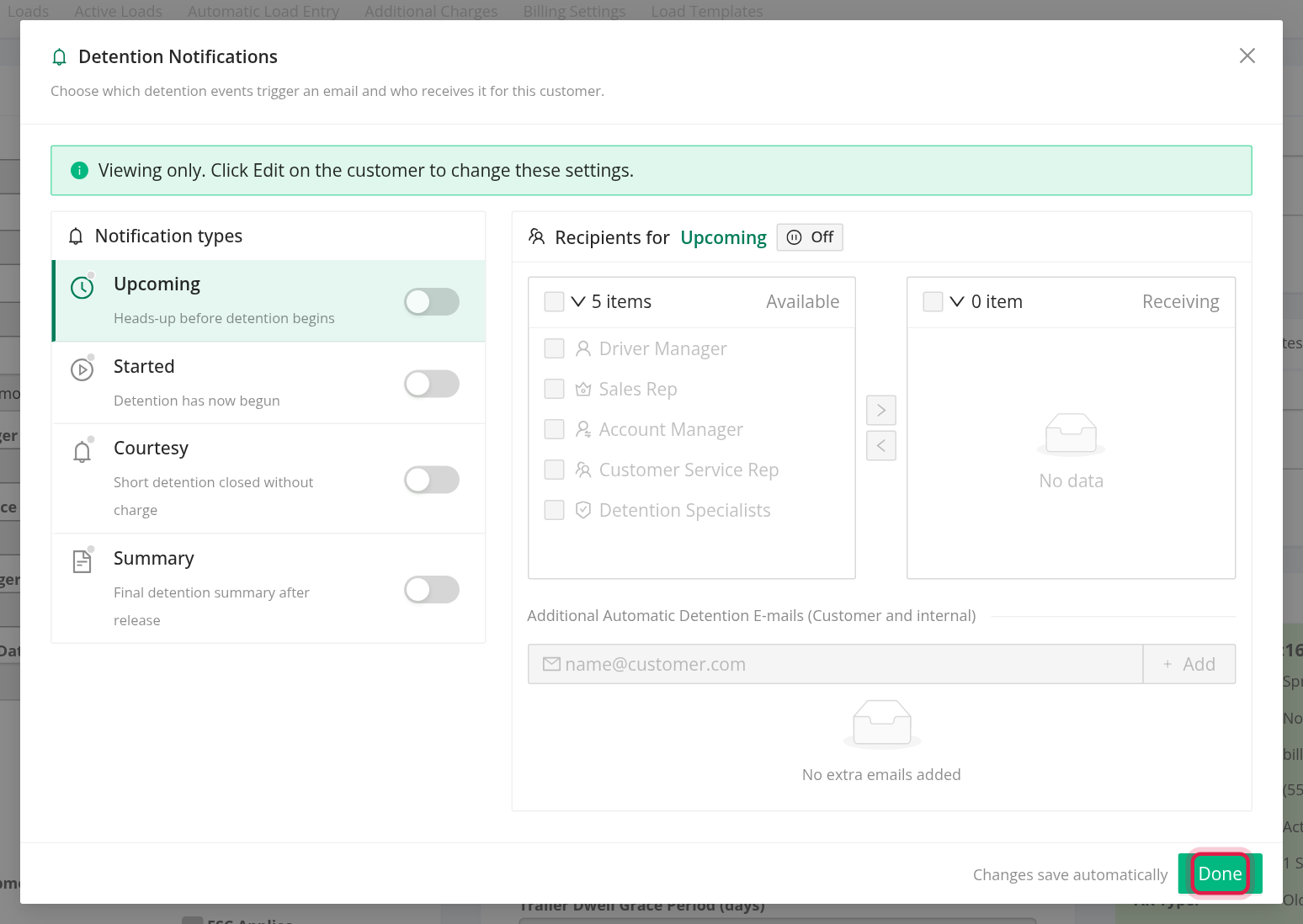
- In the Detention Notifications window, choose a notification type (Upcoming, Started, Courtesy or Summary) and switch it on or off.
- For the type chosen, move the groups you want from Available to Receiving: Driver Manager, Sales Rep, Account Manager, Customer Service Rep and Detention Specialists.
- Add other email addresses under Additional Automatic Detention E-mails (Customer and internal) with Add.
- Select Done. Changes save automatically.
The window shows "Viewing only. Click Edit on the customer to change these settings." when you are not editing.
A new customer starts with these settings:
- Broker customers: Started to the Driver Manager and Sales Rep, and Summary to the Driver Manager, Sales Rep and Detention Specialists. Upcoming and Courtesy are off.
- Direct, 3PL and other customers: Upcoming and Courtesy to the Account Manager and Customer Service Rep, Started to the Driver Manager, Account Manager and Customer Service Rep, and Summary to the Driver Manager, Account Manager, Customer Service Rep and Detention Specialists.
Load status: Delivered-Pending
OpenRoad changes a load from Delivered to Delivered - Pending automatically when the status turns to Delivered and either the driver requested detention in the driver app, or the load's ended detentions add up to at least the Minimum detention duration for "Delivered-Pending" status change. A line "automatically changing load status to Delivered-Pending" is added to the log.
When a load moves to a later status (Delivered, Delivered - Pending, Missing Paperwork, Closed, Billed and so on), a detention that is still upcoming is cancelled, and a detention that has started is ended.
Where you see detentions
- Load log: an entry for each Upcoming, Started and Ended email, with the people it went to.
- All Loads: the columns Detention (Upcoming, Started or Ended), Detention duration (hours and minutes, ended detentions) and Paid detention amount. They are hidden at first: show them with Columns.
- Customer page: the Detentions Info panel shows, for a period you choose, Est. Total Detentions Amount, Total Number of Detentions, Detentions vs Destinations, Paid Detentions Amount and Total Detentions Duration.
- Planner: on a stop with a possible detention, the stop's tooltip shows Possible detention pending with the tick boxes Detention and No Detention. Choosing one writes a note on the load, for example "STOP 2 (Delivery, <company>) - ADDED …".
OpenRoad does not work out the detention amount for you. Paid detention amount shows the detention charge entered on the load by hand (Edit charges).
Frequently asked questions
Was this article helpful?
That’s Great!
Thank you for your feedback
Sorry! We couldn't be helpful
Thank you for your feedback
Feedback sent
We appreciate your effort and will try to fix the article