Beside Overview, the truck profile has eight tabs. They hold the truck's documents, tolls, fuel purchases, repairs, change history, GPS positions, charts and accidents. This article explains what each one shows and what you can do there. The header, status and cards are in Truck profile: Overview tab and New truck (status, flags, cards, notes, PrePass and expiration reminders).
Who can do this: you need permission to view trucks. Your administrator can hide each tab, and individual columns, from some users, so you may see fewer tabs than listed here. Adding, editing and deleting needs permission to update trucks, plus the permission for the thing itself (files, fuel transactions, accidents).
Before you begin
- Open a truck from the Trucks page. See Trucks page (Trucks): list, status filters, columns and Export.
- The tabs, in order, are Overview, Files, Tolls, Fuel, Maintenance, Logs, GPS Logs, Stats and Accidents. There is no Assignments tab: assignments are a card on Overview.
- Some tabs show a number on their label: Files (files), Tolls, Maintenance (service logs) and Accidents. The number turns red on Maintenance when a service log is Reported, Scheduled or In Service, and on Accidents when a claim is not closed.

How the table tabs work
Tolls, Fuel, Maintenance, Logs, GPS Logs and Accidents are tables that share the same buttons:
- Columns: choose and reorder the columns.
- Clear: clears filters, search and sorting and returns to the default view.
- Reset: resets column order, visibility, pins and page size.
- Compact: tighter rows.
- Page sizes of 10, 25, 50, 100, 250 or 500 rows. The footer reads, for example, "1-25 of 80".
- Select a row (not a link or button) to open a side panel with all the visible columns of that row.
There is no Export on these tabs. A Search box exists only on Logs and GPS Logs.
Files tab
Keep a truck's documents in one place.
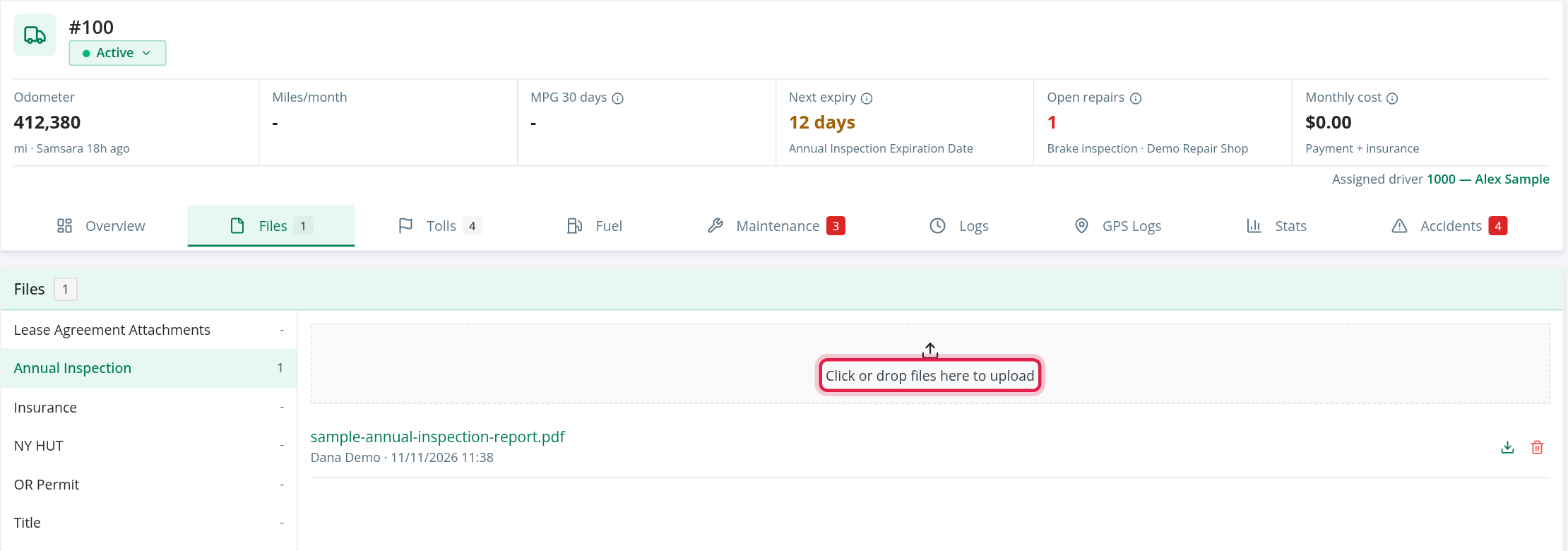
- Open the Files tab. On the left is a list of file types with the number of files in each (- when empty). On the right are the files of the selected type.
- To add files, select a type, then select or drop files on Click or drop files here to upload. You can add several at once. You see File successfully uploaded.
- To open a file, select its name. It opens in a new tab. The small grey text under the name is who uploaded it and when.
- To remove a file, select the bin, then Delete in Are you sure?. You see File deleted.
The file types are Lease Agreement Attachments, Annual Inspection, Insurance, NY HUT, OR Permit, Title, ON and QC Policy, Misc., Purchase Documents, Lease Agreement with Option to Purchase, Specification Sheet, Heavy Highway Taxes, Quarterly Maintenance Report, NM Permit, Order Documents, IFTA, IRP, Monthly Maintenance Reports and Owner Operator Agreement.
Good to know:
- A file can be up to 120 MB. Allowed types: pdf, jpg, jpeg, png, doc, docx, xls, xlsx, csv, txt, jpe, jfif, heic, tif, tiff, mp4 and mov.
- Seeing, downloading, uploading and deleting are separate permissions. Without access to a type you see "You do not have access to these files."
Tolls tab
All tolls charged to this truck, newest first. Columns: Transaction Posted Date, Transaction Date, Transaction Type, Transponder ID, Driver, Location, Transaction Amount, Toll Agency, License Plate Number and License Plate State. The tab is for reading only. Tolls are matched to a truck through its transponder assignments (see the Assignments card on Overview).
Fuel tab
Fuel card purchases made by drivers who were assigned to this truck at the time of the purchase.
- Newest first, 25 per page.
- It opens filtered to purchases With diesel. Use the Diesel gal filter to choose No diesel (0 gal) instead, and the date filter (From, To) to narrow the period.
- Columns include Type, Date, Time, Unit, Driver, Merchant, City, State, Diesel Gal, Diesel Amt, Reefer Amt, Discount, Net P/G, plus MPG and miles worked out from neighbouring purchases. Use Columns to see more.
- Row buttons: view a transaction, edit it and delete it (Are you sure?). Each needs its own fuel permission, and edit and delete also need permission to update trucks.
Maintenance tab
Repairs and the truck's repair flags.
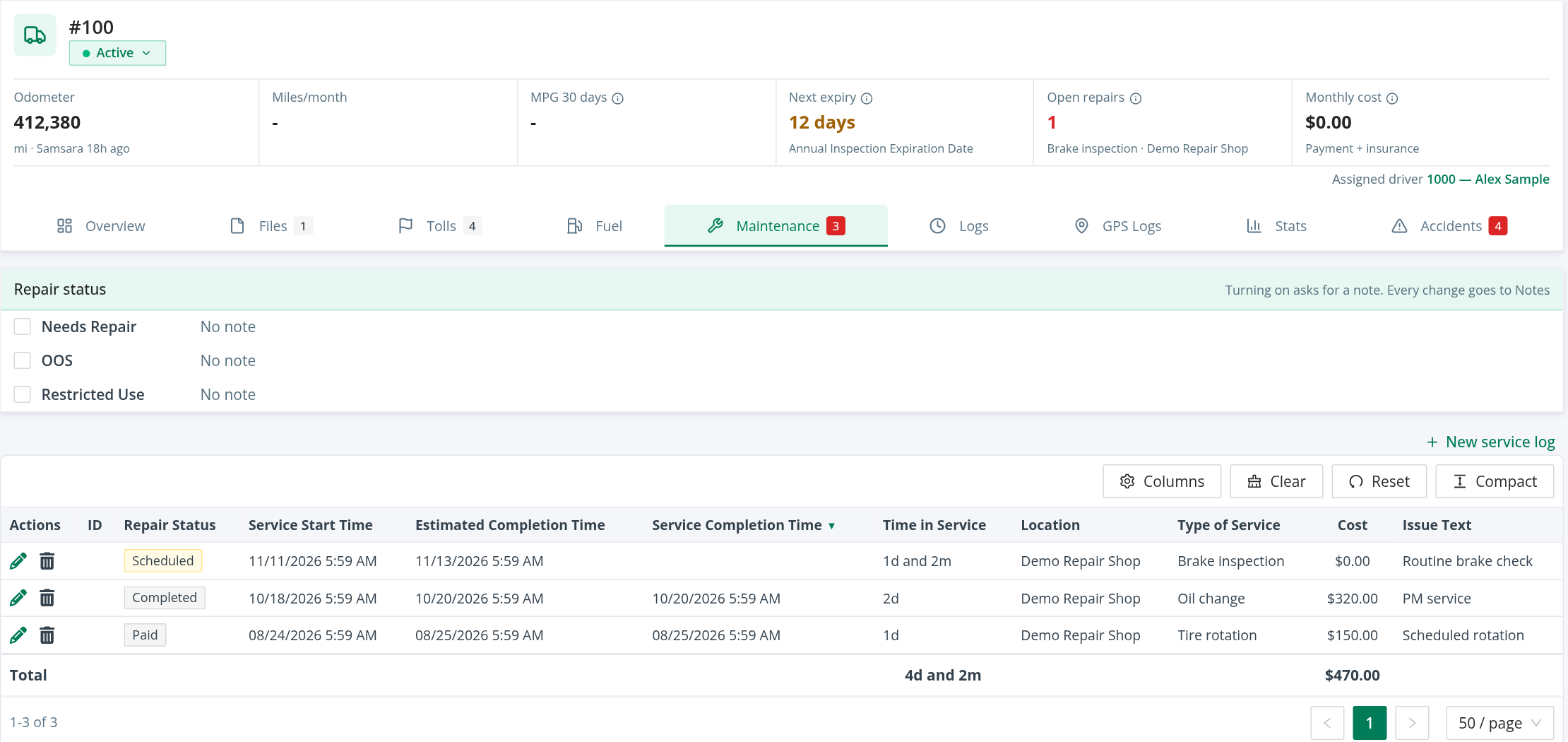
Repair status card (top): switch Needs Repair, OOS and Restricted Use on or off with a note. The steps are in Truck profile: Overview tab and New truck (status, flags, cards, notes, PrePass and expiration reminders).
If the truck has a Samsara or Motive connection, the card also shows the device: its status and when it was last seen, its serial number and the last known location.
Service logs (below): one row per service log, with a default order of newest completion first and logs not yet completed at the top. Columns: Actions, ID, Repair Status, Service Start Time, Estimated Completion Time, Service Completion Time, Time in Service, Location, Type of Service, the cost and Issue Text. Open statuses are shown in amber. Time in Service and the cost have totals.
- Select an ID to open the service log in a new tab.
- New service log (top right) opens a new service log for this truck in a new tab.
- The pencil edits a log and the bin deletes it (Delete this record?). These need permission to update trucks.
Logs tab
The history of changes to the truck, newest first, 10 per page. It lists who changed what and when: Created, Updated or Deleted, with the list of changes. Select a row to see all changes. Use Search to find a user, a kind of record or a changed value. Changes to the GPS position that the integration writes on the truck are not logged here.
GPS Logs tab
The positions OpenRoad has received for this truck in the last two months, newest first. Columns: Source (Samsara, Geotab, Mobile or Motive), Odometer, Address, Longitude, Latitude, Time updated, Created at, Speed and Heading. Search looks in the address, and you can filter by odometer, address and the two dates.
Positions come from:
- Samsara, for active trucks that have a GPS device ID.
- Motive, for trucks that have a Motive Vehicle ID.
- Geotab.
- The driver's mobile app, for the truck the driver is currently assigned to.
When a newer position arrives with an odometer, the truck's Current Odometer is updated from it.
Stats tab
A summary of how the truck is doing:
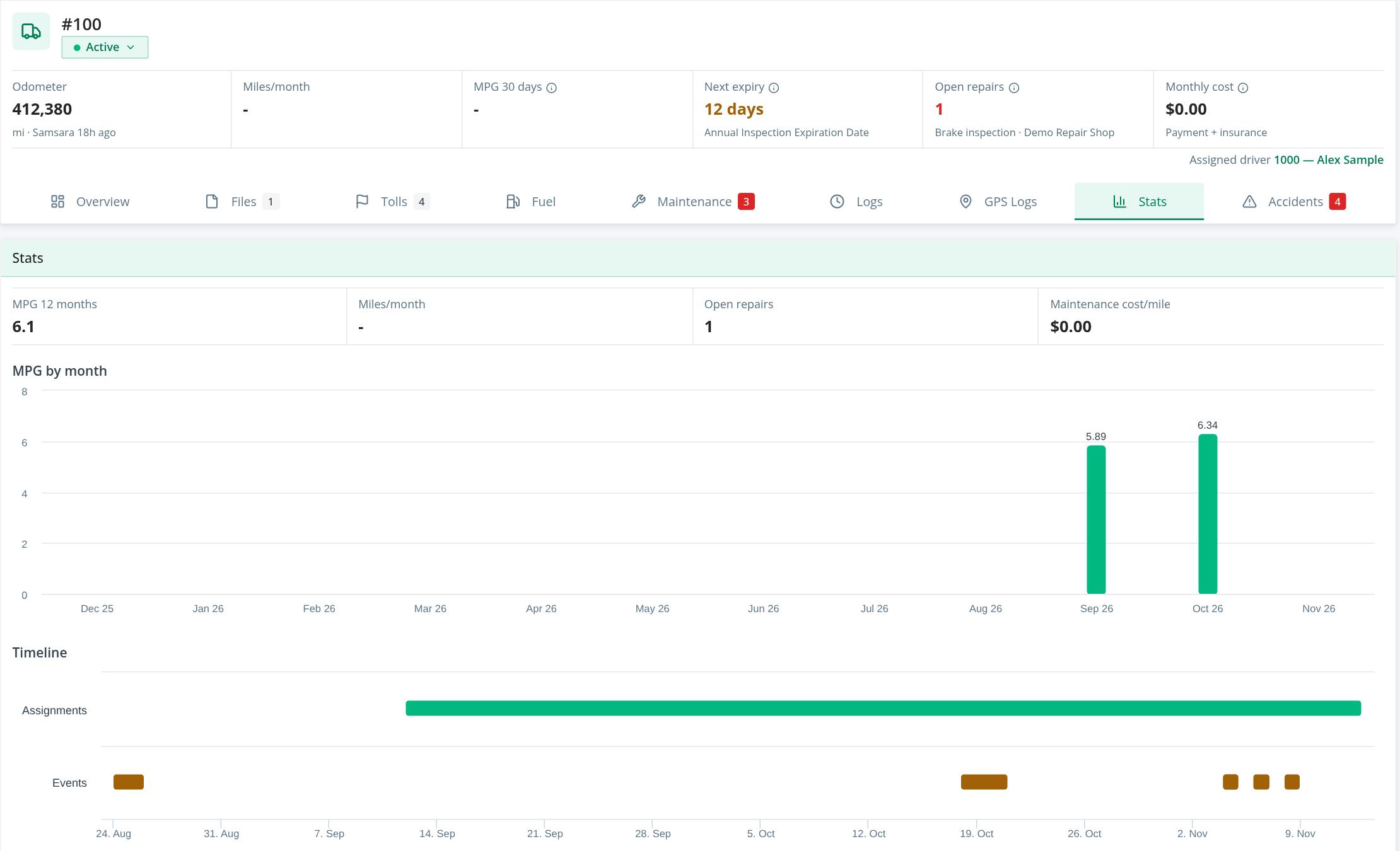
- Tiles: MPG 12 months, Miles/month, Open repairs and Maintenance cost/mile (- when there is no data).
- MPG by month: a column chart of the last 12 months. It says "No fuel data in the last 12 months" when there is none.
- Timeline: two lanes, Assignments (who drove the truck, by driver name) and Events (accidents). Each lane shows only if you may see Overview or Accidents respectively. "No assignments or events" shows when both are empty.
Accidents tab
All accidents of this truck, newest first. Filter by date, or with the Open, Closed and Pending buttons that show how many claims each has. Columns include Claim #, Claim status, Date, Driver and Trailer. Unlike the main Accidents page, this tab does not start filtered to open claims.
Row buttons: view, edit and delete (Delete this claim?), each needing its own accidents permission, and edit and delete also need permission to update trucks.
FAQ
Was this article helpful?
That’s Great!
Thank you for your feedback
Sorry! We couldn't be helpful
Thank you for your feedback
Feedback sent
We appreciate your effort and will try to fix the article