The truck profile is where you see and edit everything about one truck: its status, whether it is out of service, how its mileage and costs look, which dates are about to expire, who drives it and what has been written about it. This article covers the header, the Overview tab and the New truck form. The other tabs are in Truck profile: Files, Tolls, Fuel, Maintenance, Logs, GPS Logs, Stats and Accidents tabs.
Who can do this: you need permission to view trucks. Editing needs permission to update trucks, and creating needs permission to create trucks. Your administrator can hide individual fields, or whole tabs, from some users, so you may not see everything described here.
Before you begin
- Open a truck from the Trucks page by selecting its Unit ID#. See Trucks page (Trucks): list, status filters, columns and Export.
- Vendors you pick in the form must already exist in your account.
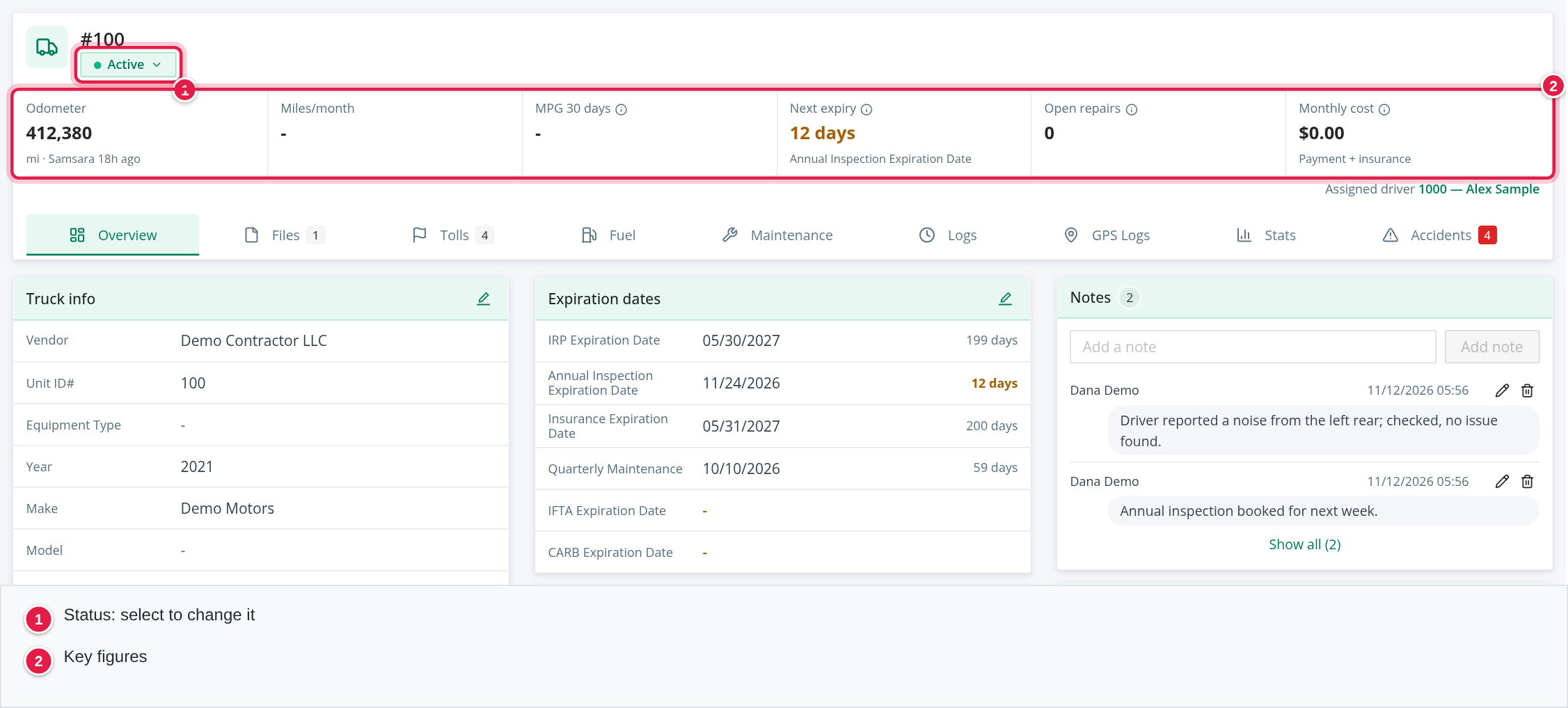
The header
The top of the page shows the truck's Unit ID# with a # in front. If the truck uses slip seating, the number starts with S-.
- Samsara: a link that opens the truck in Samsara in a new tab. It only shows when the truck has a GPS device ID.
- Status: a button with the current status. Select it to change the status (see below).
- Needs Repair, OOS and Restricted Use: tags that appear when the flag is on. They only display the flag. You switch them in the Maintenance tab (see below).
- Assigned driver: small text on the right with the driver's number and name. It links to the driver and shows only when the truck has a driver today.
The key figures
Under the header, a row of tiles gives the numbers dispatchers look at first. A tile that you may not view is not shown.
| Tile | What it shows |
|---|---|
| Odometer | The current odometer. Below it: edited by and a name if a person typed it in, otherwise the time of the last Samsara update. |
| Miles/month | Average miles per month since the Date Acquired, and the percentage of the target pace. It turns amber above 10,000 miles a month and red above 11,666. Shows - when the truck has no target-miles figures. |
| MPG 30 days | Miles between the fuel card odometer readings divided by the gallons bought in the last 30 days, compared with the 30 days before. |
| Next expiry | Days until the nearest expiration date, with the name of that date. It says overdue when the date has passed. |
| Open repairs | Number of service logs that are Reported, Scheduled or In Service, and the latest one. Red when there is at least one. Only shows if you can view the Maintenance tab. |
| Monthly cost | Monthly payment plus monthly insurance cost. |
Hover the i icon on a tile for how it is calculated.
Change the status
- Select the Status button and pick the new status: On Order, Active, For Sale, Inactive, Marketing or On Hold.
- A yellow panel opens: Status: Active → Inactive. Type the reason in the box. It is required.
- Select Change status (or press Ctrl+Enter). Cancel (or Esc) throws the change away.
What happens next:
- The reason is saved in the truck's Notes as
STATUS: <old> → <new>. <your reason>. - Changing to Active clears the truck's Date Removed. Changing to Inactive sets it to now.
- If you change a truck to Inactive, every transponder still assigned to it gets an end date of now, with a note, and you see a warning about it.
- If your account has the FleetRock integration and the new status is not Active, the truck's Fleetrock enabled option is switched off.
- A status-change email goes to the recipients set up under Settings > Email Notifications. If no one is set up, nothing is sent.
You need the permission to change the status field. Without it the button cannot be opened.
Turn Out of Service, Needs Repair or Restricted Use on or off
These three flags are switched in the Repair status card at the top of the Maintenance tab, not on the Overview.
- Open the Maintenance tab.
- In Repair status, select the row for the flag. Each row shows a checkbox, the flag name and the latest note written for it.
- A panel opens: Turn on OOS (or Turn off OOS, and the same for the others).
- Turning on: the note is required. - Turning off: the note is optional.
- Select Turn on or Turn off.
The note is saved in Notes in a fixed form: for example OOS NOTE: <note> when you turn it on and OOS: Unchecked. <note> when you turn it off. The same pattern is used for Needs Repair and Restricted Use.
An out-of-service truck cannot be given to a driver: the assignment is refused with "Equipment is out of service and cannot be assigned." unless your account allows assigning out-of-service equipment.
The Overview cards
The cards are in three columns on a wide screen. A card with nothing you are allowed to see is left out.
Edit a card
- Select the pencil at the top right of the card.
- Change the fields. Changed fields get a coloured bar on the left.
- Select Save (the button shows Save (3) when three fields changed) or press Ctrl+Enter. Cancel or Esc discards the changes.
If something is wrong, the message appears under the field, or in a red box at the bottom of the card. If you leave the tab with unsaved changes you are asked Discard unsaved changes?.
Some fields are checked before saving:
- Vin must have exactly 17 characters. Select the copy icon next to it to copy it.
- Year must be four digits starting 19 or 20.
- Unit ID# is required and must be unique in your account.
- Arrive to HQ Date is required when Transit To HQ is ticked, and Comdata RFID Number when Comdata RFID is ticked.
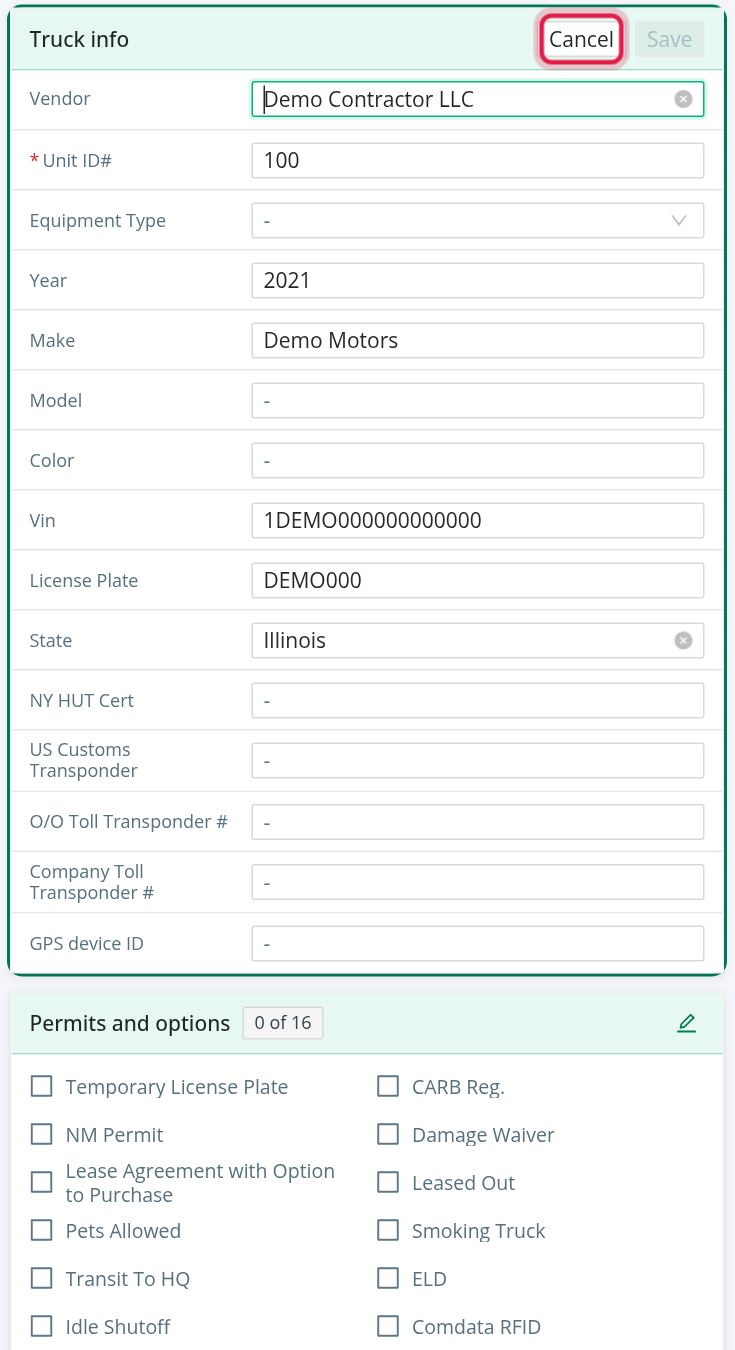
Column 1: Truck info, Permits and options, Specs
Truck info: Vendor, Driving As (only if your account has more than one Driving As company), Unit ID#, Equipment Type (Sleeper, Day Cab, Spotter, Auto, Truck, Van, Other), Year, Make, Model, Color, Vin, License Plate, State, NY HUT Cert, US Customs Transponder, O/O Toll Transponder #, Company Toll Transponder #, GPS device ID, Motive Vehicle ID (only if your account uses Motive), Damage Waiver Cost (only when Damage Waiver is ticked) and Arrive to HQ Date (only when Transit To HQ is ticked).
Permits and options: tick boxes, with a counter such as "4 of 17" at the top. They are Temporary License Plate, CARB Reg., NM Permit, Slip Seating (only if your account uses slip seating), Damage Waiver, Lease Agreement with Option to Purchase, Leased Out, Pets Allowed, Smoking Truck, Transit To HQ, ELD, Idle Shutoff, Comdata RFID, Solar Panel, E-SMART, Dash Cam: Front Facing, Dash Cam: Two Way Facing and Fleetrock enabled (only if your account uses FleetRock).
- A truck marked Leased Out is not offered in lists where you pick a truck.
- Unticking Transit To HQ clears Arrive to HQ Date. When the arrival date passes, the box is unticked and the date cleared for you.
Specs: Key Code, Odometer at Purchase, Current Odometer, Brake Type (Front) and Brake Type (Rear) (Drum Brakes or Disc Brakes), Governor (pedal), Governor (cruise), Fuel Tank Capacity, APU Unit and more. When you edit Current Odometer, the page remembers who changed it and shows it as edited by in the Odometer tile.
Column 2: dates, insurance and money
Order section shows only while the status is On Order: Order Date and Expected Delivery Date.
Expiration dates lists IRP Expiration Date, Annual Inspection Expiration Date, Insurance Expiration Date, Quarterly Maintenance, IFTA Expiration Date and CARB Expiration Date. Next to each date you see how far away it is: Expired in red, Today and anything within 30 days in amber, and the number of days in grey beyond that. An empty date shows an amber -. The same dates feed the Next expiry tile. For Quarterly Maintenance the count is to three months after the date you saved.
Company IFTA and insurance: Company IRP, Company IFTA, IFTA Decal#, Company Bobtail Insurance, Company Physical Damage Insurance and the insured value. Each yes/no item has an add date and a remove date that you can fill in while editing; the card then reads, for example, "Yes · added 03/01/2026".
- Insured Value must be a number. When Insured Value or Damage Waiver Cost changes, the monthly and total insurance cost are calculated again for you.
Financial: Ownership type (Financed, Fully Own, Operating Lease, Trip Lease, TRAC Lease, FMV Lease, Owner Operator Owned), Insurance Policy, Lease?, cost, monthly payment and the other money fields. Money fields must be numbers below 10,000,000. The ownership cost, ownership cost per mile and maintenance cost per mile are calculated for you.
Payoff: Payoff Principal, Payoff Interest, Payoff PPP, the total of the three, and the Payoff Requested Date, Payoff Expiration Date and Payoff Date.
Selling and Disposal: retirement, ready-for-sale, pending-sale and lease-return dates, prices, deposit, buyer name, phone and email, and selling notes. For a truck that is not for sale the card says "Not for sale." with an Add button.
Column 3: Notes, Target Miles, Assignments and PrePass
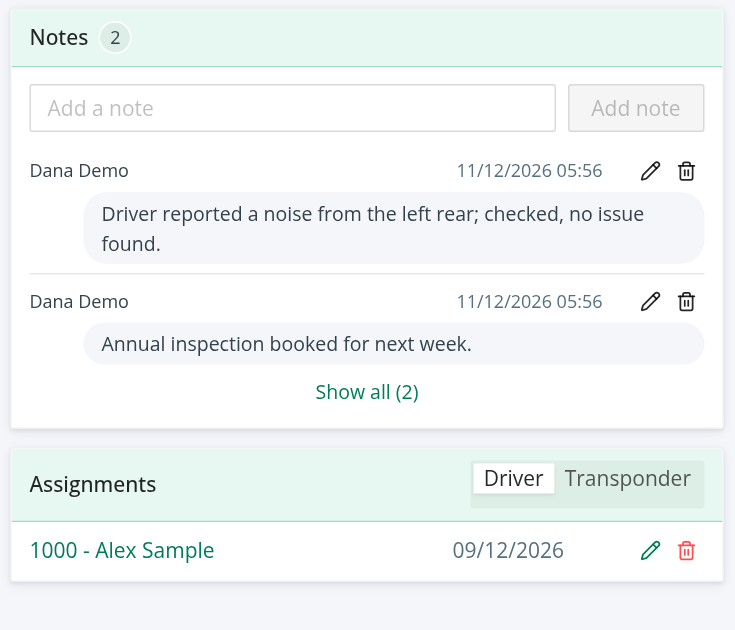
Notes
- Type in Add a note and select Add note.
- The five newest notes show. Select Load more for older ones, or Show all to open the full list.
- Each note shows who wrote it and when. You can edit or delete your own notes (Delete this note?). Editing or deleting other people's notes needs a separate permission.
Status changes, flag changes and transponder end dates are written here automatically; notes with no author name are written by the system. You need permission to create notes to see this card.
Target Miles shows only for a truck that has target-miles figures.
- Estimated at end of useful life and Target. With a target you also see a progress bar and text like "88 % of target · 12,000 miles short at the current pace". Without one: "No target set for this truck."
- Avg / month, Avg / day, Days owned and End of life.
- All N values opens every figure behind the card.
Assignments
- Choose Driver or Transponder at the top of the card.
- Rows are newest first. Five show, then Show all (N).
- Driver rows show the driver number, name and start date. Transponder rows show the transponder, its type and the start and end dates.
- If you may update the truck, each row has a pencil and a bin. The bin asks Delete this assignment?. Transponders also have a + button to add a new assignment.
PrePass shows only if your account has the PrePass integration.
- On PrePass (green) or Not on PrePass (grey), and the last request with its time, action and result (SUCCESS, FAILED or PENDING).
- History (N) opens the PrePass history window. There, Sync to PrePass sends this truck to PrePass now (an inactive truck is removed from PrePass) and Sync from PrePass compares the truck with PrePass and records the result, without changing any truck field. Each button shows only if that direction is switched on for your account. View next to a result lists the differences field by field.
- To send a truck, it needs Vin, Unit ID#, State, License Plate and IFTA Decal#. If one is missing you see which.
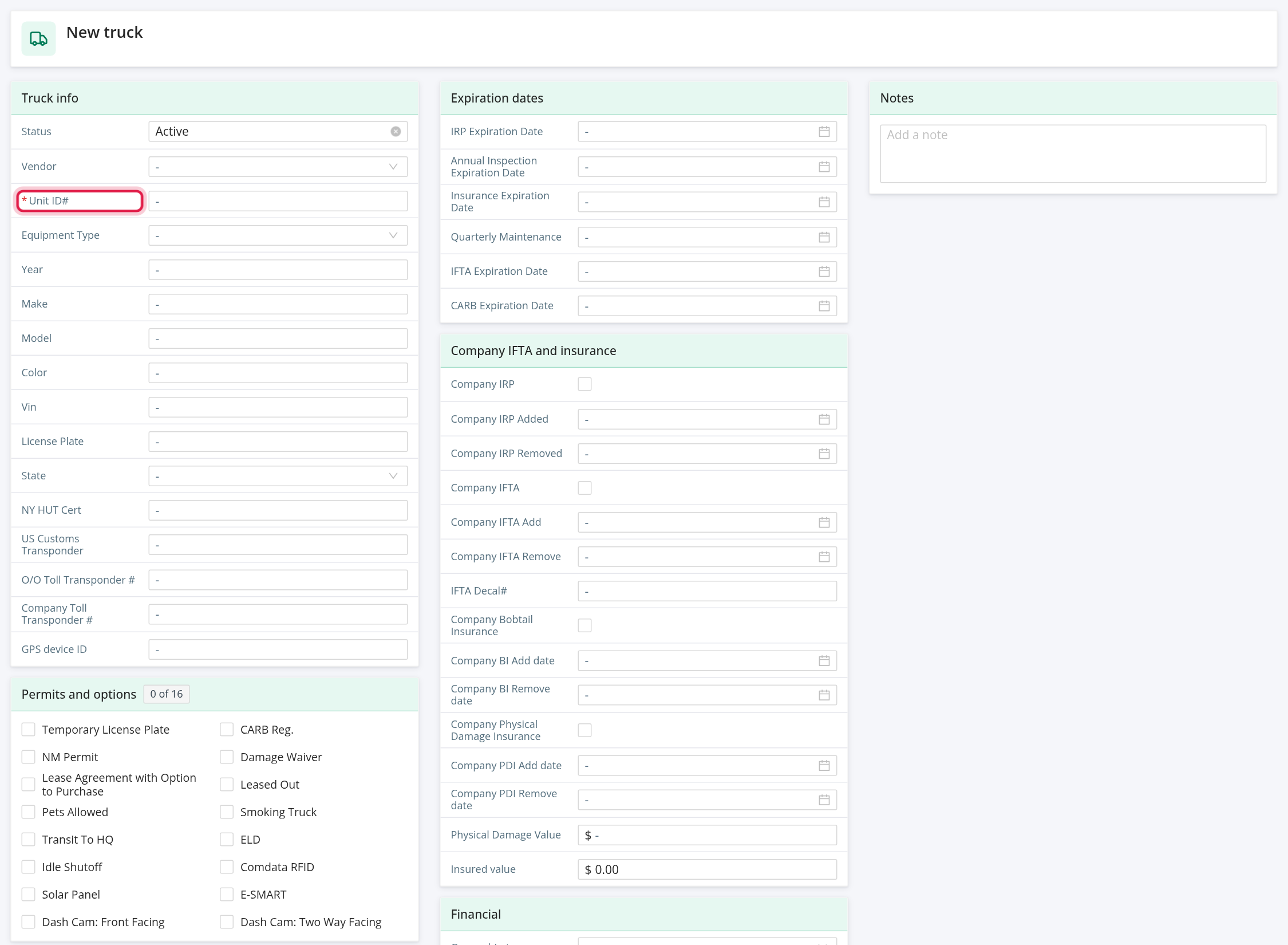
Add a new truck
- On the Trucks page, select New truck.
- Fill in the form. It has the same cards as the profile. Status is the first field and starts as Active. Fields that depend on a tick box appear as soon as you tick it.
- Select Create Truck. Cancel takes you back to the list.
Only Unit ID# is required, and it must not be used by another truck in your account. Everything else can be added later.
When the truck is created, a "Truck #<unit> has been created." email is sent to the recipients set up under Settings > Email Notifications.
Expiration reminder emails
Each day OpenRoad checks the Annual Inspection, Insurance and IRP dates of every Active truck and emails the truck's vendor:
- 30 days before: "Truck# <unit> <date> is expiring soon!"
- 10 days before: "URGENT: Truck# <unit> <date> is expiring in 10 Days!"
- On the day: "URGENT: Truck# <unit> <date> has expired!"
The email asks the vendor to send the document. The reminders go to the email address on the truck's Vendor, so make sure the vendor has one. Other dates (IFTA, CARB, quarterly maintenance) do not send reminders.
To turn them off, go to Settings > Preferences > Email Notifications, and switch off Truck Soon To Expire Reminder, Truck About To Expire Reminder or Truck Expired Reminder.
FAQ
Was this article helpful?
That’s Great!
Thank you for your feedback
Sorry! We couldn't be helpful
Thank you for your feedback
Feedback sent
We appreciate your effort and will try to fix the article